Creating a Component
メニューを表示するにはスワイプしてください
What Components Are Needed?
You already know what a component is. Now it's time to create your own component that can be used in the app.
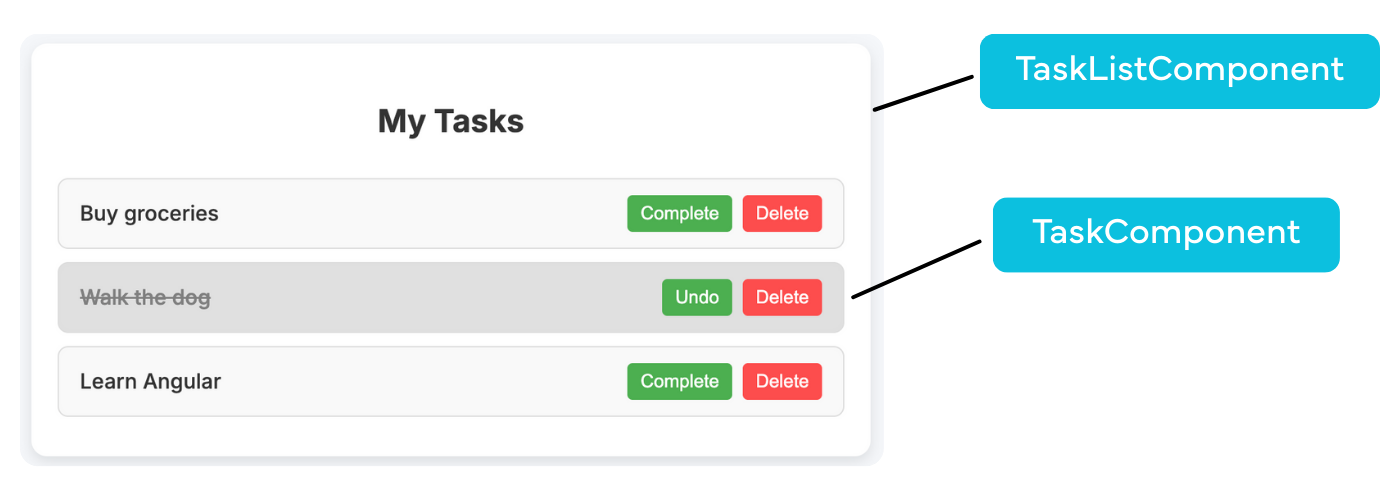
The application will consist of two components. The first one is the TaskComponent, which is responsible for displaying a single task. Inside this component, you will show the task's id, title, and status. You will also add buttons that let the user complete or delete the task.
The second component is the TaskListComponent, which acts as a wrapper for all tasks. It holds an array of tasks and displays each one using the TaskComponent. This component will also handle the logic for adding, updating, and deleting tasks.
In short, the TaskComponent handles the appearance and behavior of a single task, while the TaskListComponent manages the full list of tasks and the interaction between them.
Rules for Creating a Component
In Angular, you use the Angular CLI to create components. It's a handy tool that automatically generates all the necessary files and integrates the component into the right part of your project.
You need to create two components: TaskComponent and TaskListComponent. One will be responsible for displaying individual tasks, and the other will manage the list of tasks.
Project Structure
To keep things organized, we'll create a separate folder for each component inside the src/app directory. This will make the codebase easier to navigate and maintain, especially as the application grows.
Creating the TaskComponent
To generate a component, you'll use the Angular CLI. Open the terminal in VS Code and make sure you're in the root of your project. Then run the following command:
ng generate component task
Or, a shorter version:
ng g c task
Here's a breakdown of the command:

- Angular CLI command used to generate various files;
- Can be used to create components, services, modules, etc.;
- Helps speed up development by automating file creation.
- Specifies that you want to generate a component;
- CLI creates four files:
.ts,.html,.css, and.spec.ts; - Component logic, template, styles, and testing file are included.
- The name of the component you want to create;
- Used to define the folder and file names;
- Example:
ng generate component taskcreates a component namedTaskComponent.
After running the command, a new task folder will be created inside src/app, containing four files:
- Contains the component class;
- Handles the logic and data for the component.
- Contains the HTML template;
- Defines the structure and layout of the component’s view.
- Contains styles specific to this component;
- Helps keep styling modular and scoped.
- Used for unit testing the component;
- Ensures the component works as expected.
It's the standard setup for any component. The only difference is the prefix in the filenames (task in this case), which comes from the name you provided in the generate command.

You won't be writing tests just yet, so feel free to delete the task.component.spec.ts file.
Creating the TaskListComponent
Let's now create the component for the task list, just like we did before. Run the following command:
ng g c task-list
This will generate a new task-list folder containing the following files:
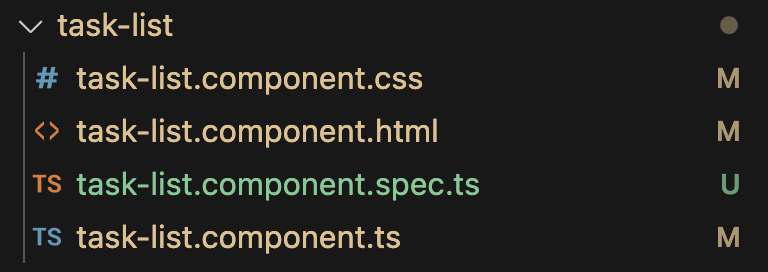
These files serve the same purposes as in the TaskComponent, but now they're for the second component.
At this point, you have two separate components with a clear structure: TaskComponent, which handles the logic and template for a single task, and TaskListComponent, which manages the entire list of tasks.
1. What does the command ng g c task do?
2. Which file can you safely delete if you're not planning to write tests?
フィードバックありがとうございます!
AIに質問する

AIに質問する

何でも質問するか、提案された質問の1つを試してチャットを始めてください
