Charts Connected to Excel Tables
メニューを表示するにはスワイプしてください
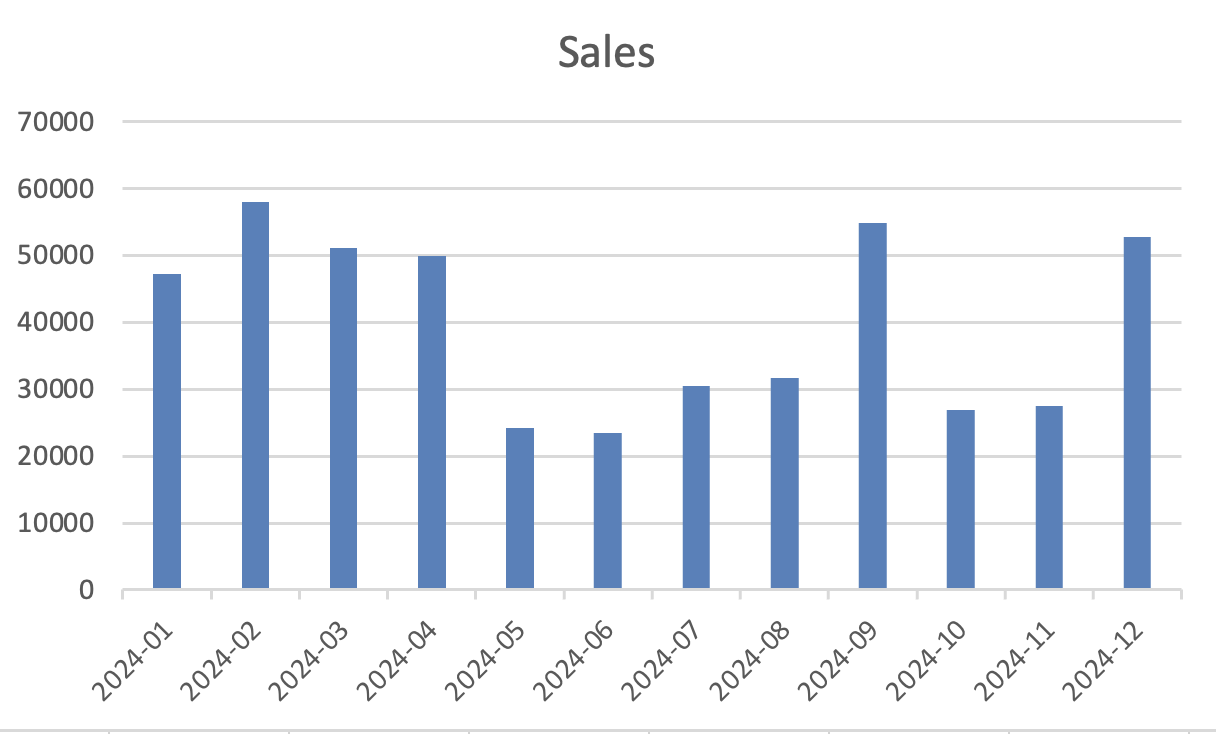
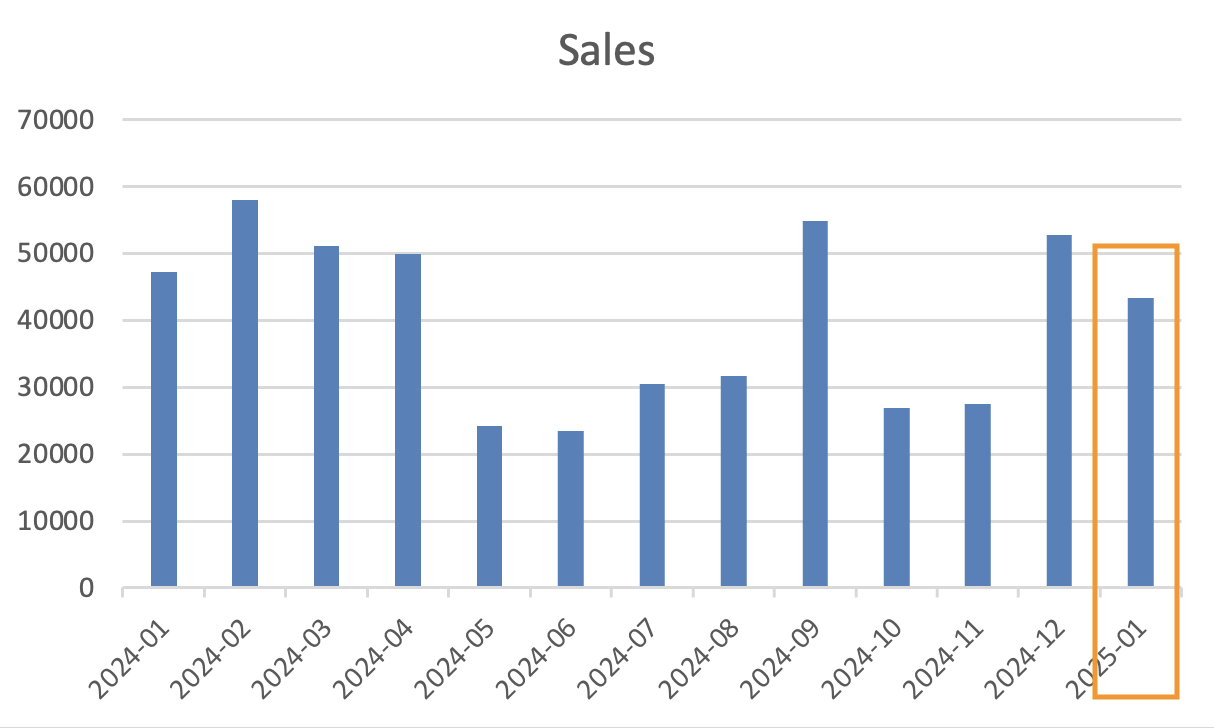
Charts often break when the data range changes. Excel Tables solve this problem. When a chart is connected to an Excel Table, it expands automatically as new rows are added. This keeps the chart dynamic without manually adjusting the data range.
Converting Data to an Excel Table
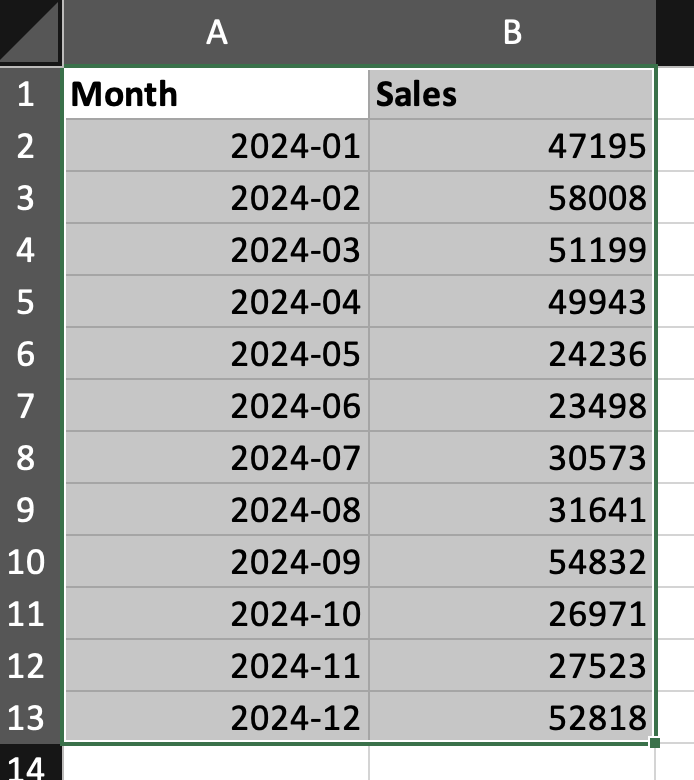
- Select the dataset;
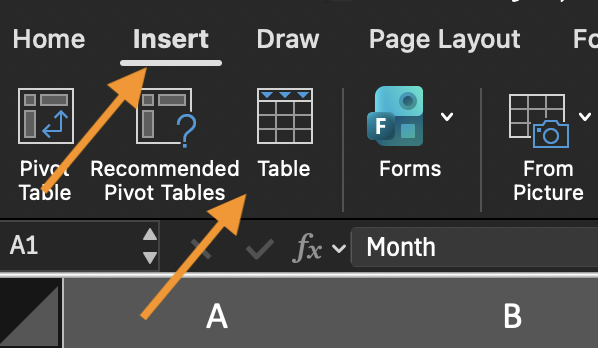
- Go to Insert;
- Click Table;
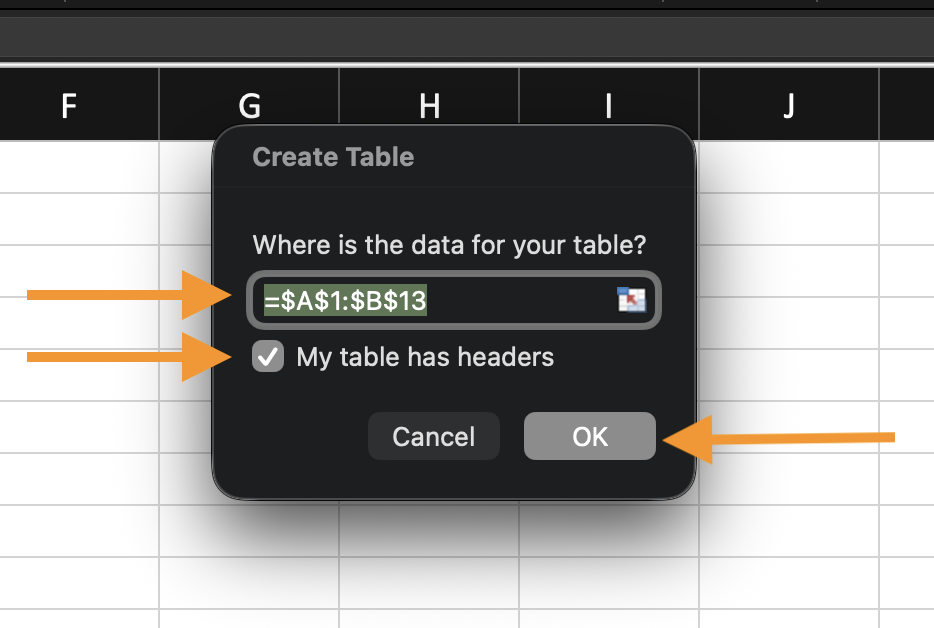
- Confirm that the table has headers.
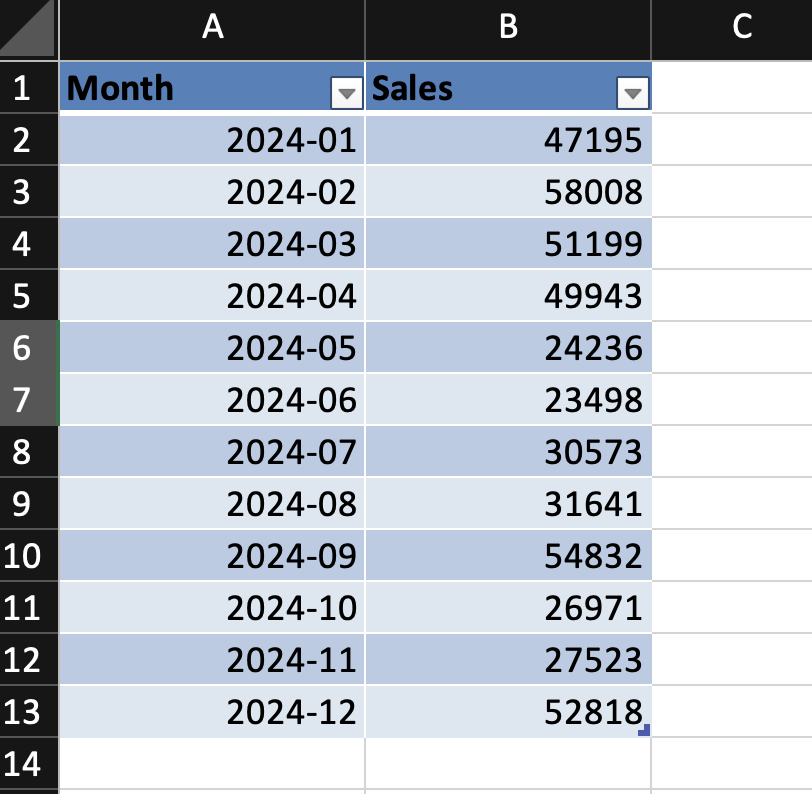
The data now becomes a structured table.
Creating a Chart from a Table
- Select any cell inside the table;
- Insert a chart (for example, Column or Line);
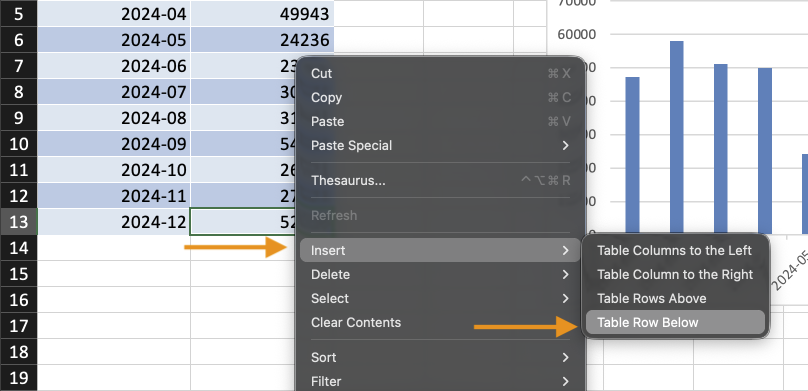
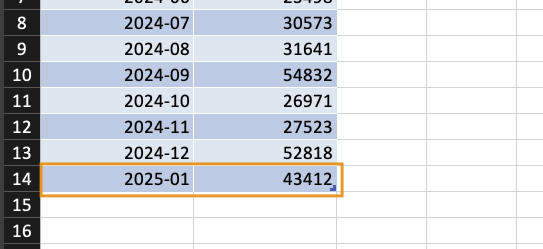
- Add new rows to the table.
The chart updates automatically when new data is added. No manual range adjustment is required.
Why Tables Matter
Tables expand automatically, use structured references, and reduce range errors. They are the foundation of dynamic reporting.
Using the provided dataset:
- Convert the dataset into an Excel Table.
- Insert a Column or Line Chart from the table.
- Add a new row of data.
- Confirm the chart updates automatically.
Goal: create a chart that expands with new data.
フィードバックありがとうございます!
AIに質問する

AIに質問する

何でも質問するか、提案された質問の1つを試してチャットを始めてください
Charts Connected to Excel Tables
Charts often break when the data range changes. Excel Tables solve this problem. When a chart is connected to an Excel Table, it expands automatically as new rows are added. This keeps the chart dynamic without manually adjusting the data range.
Converting Data to an Excel Table
- Select the dataset;
- Go to Insert;
- Click Table;
- Confirm that the table has headers.
The data now becomes a structured table.
Creating a Chart from a Table
- Select any cell inside the table;
- Insert a chart (for example, Column or Line);
- Add new rows to the table.
The chart updates automatically when new data is added. No manual range adjustment is required.
Why Tables Matter
Tables expand automatically, use structured references, and reduce range errors. They are the foundation of dynamic reporting.
Using the provided dataset:
- Convert the dataset into an Excel Table.
- Insert a Column or Line Chart from the table.
- Add a new row of data.
- Confirm the chart updates automatically.
Goal: create a chart that expands with new data.
フィードバックありがとうございます!
