Column and Bar Charts
メニューを表示するにはスワイプしてください
Column and bar charts compare values across categories. They are used when you need to show differences between products, regions, departments, or other grouped data.
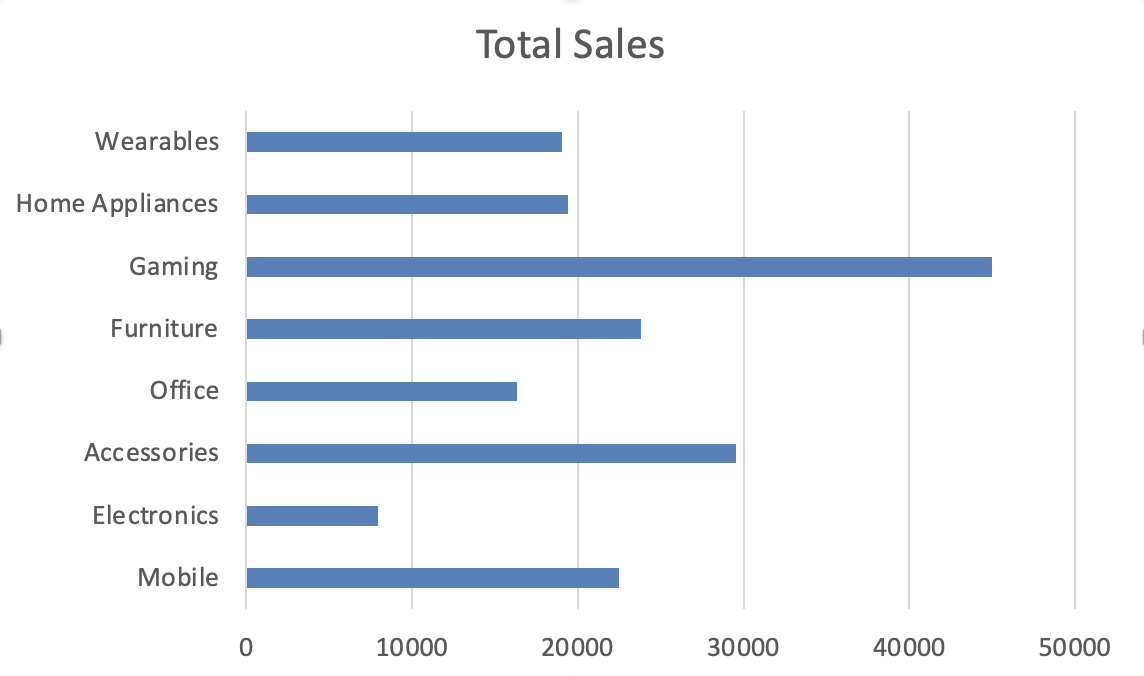
The only difference between them is orientation. A column chart displays vertical bars. A bar chart displays horizontal bars. The choice depends on readability.
Creating a Column Chart
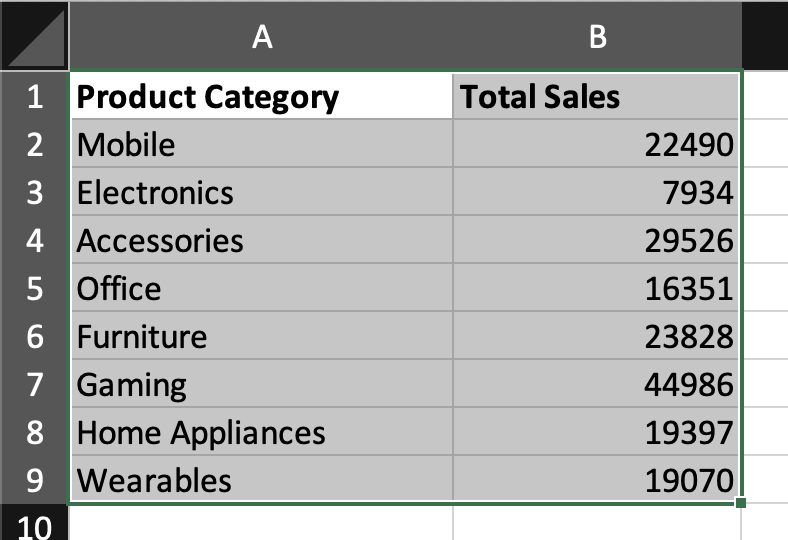
- Select structured tabular data;
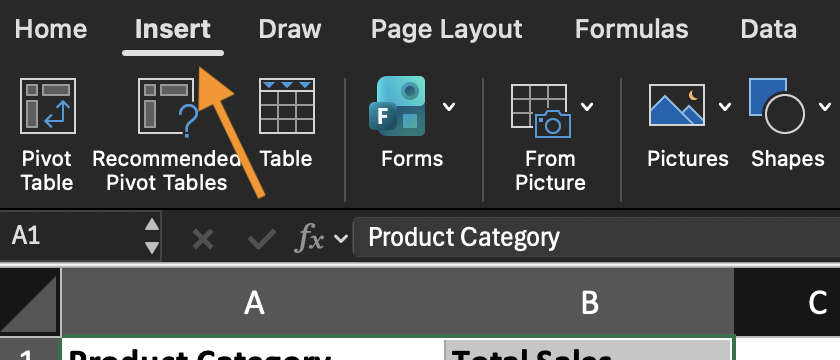
- Go to Insert;
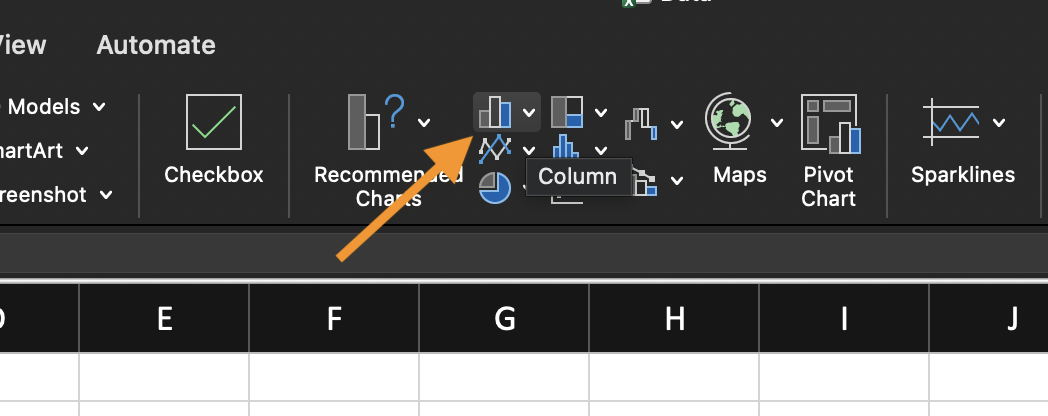
- Choose Column Chart;
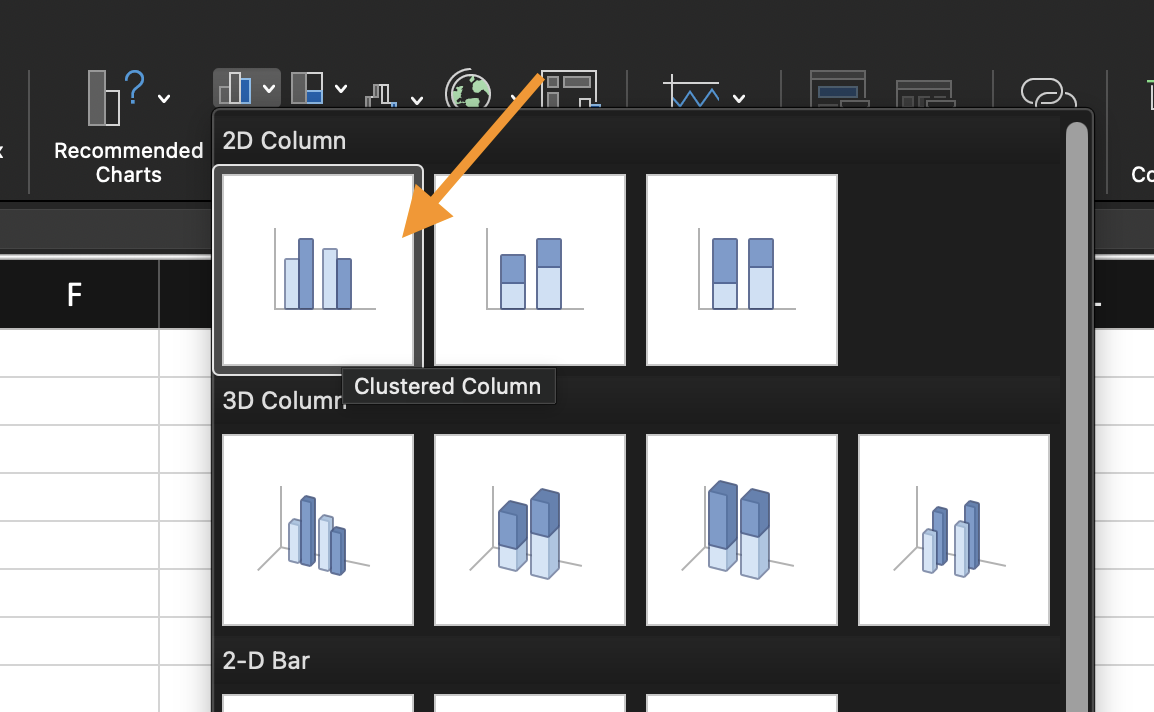
- Select Clustered Column.
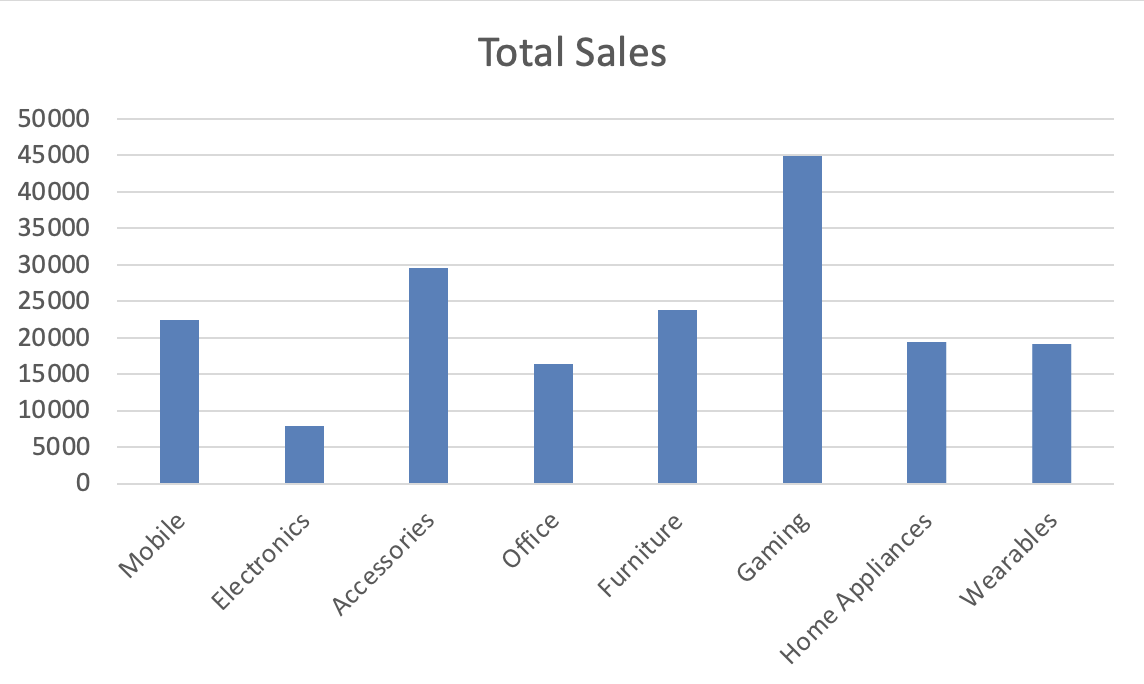
Excel automatically assigns categories to the horizontal axis and values to the vertical axis. Always verify the selected range and chart title. To switch orientation:
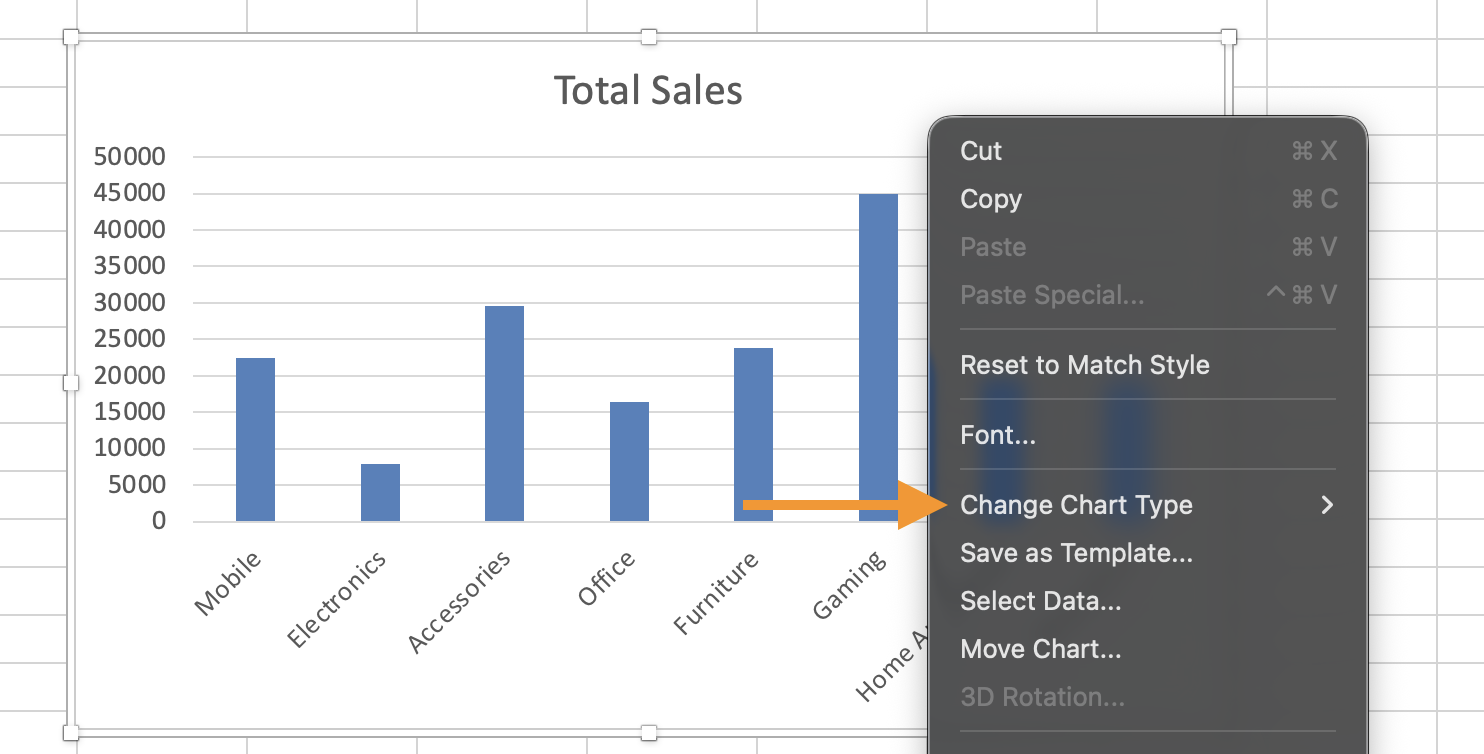
- Select the chart;
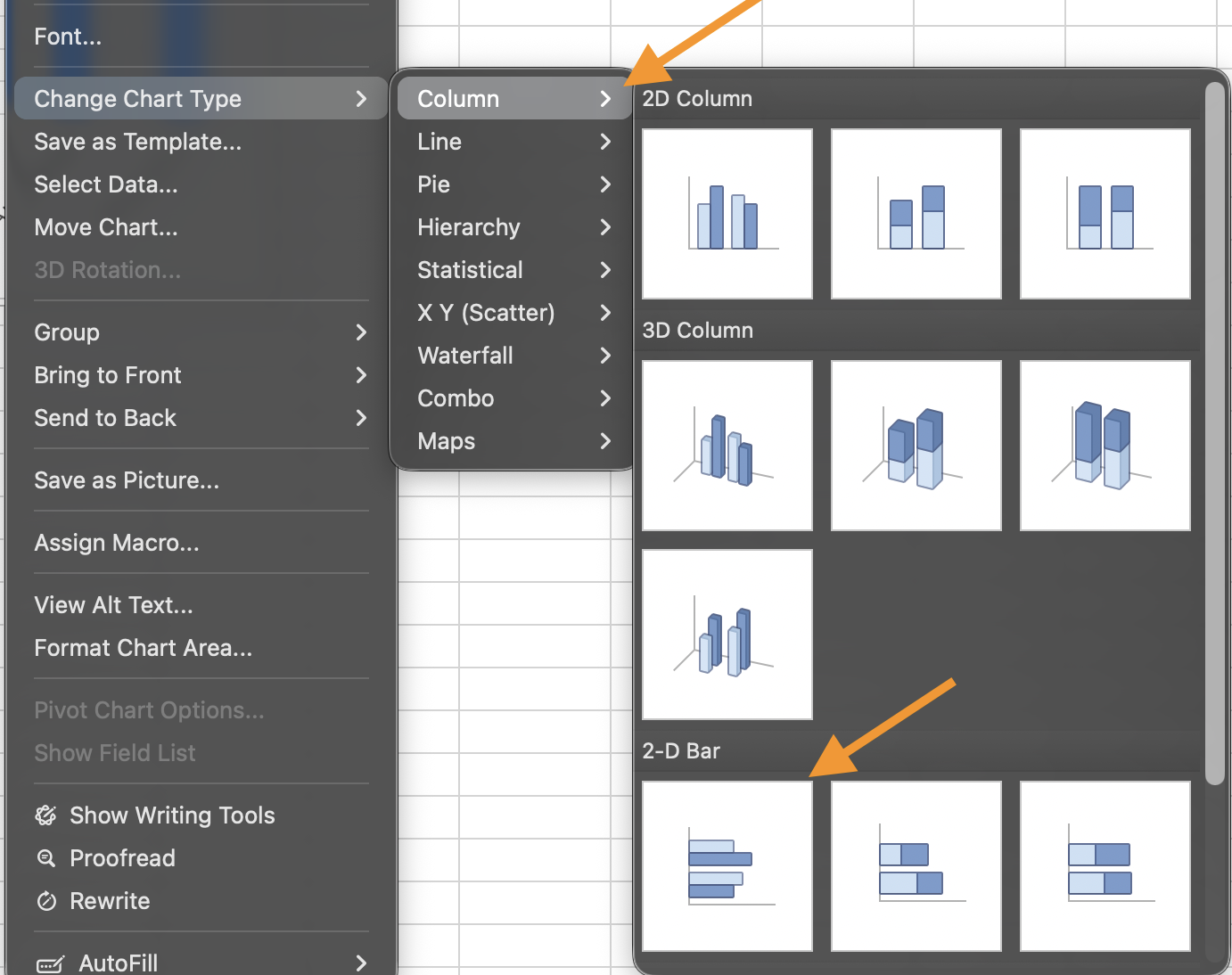
- Choose Change Chart Type;
- Select Bar Chart.
Choosing Between Column and Bar
Improving Clarity
Sort the source data before creating the chart if ranking matters. Remove unnecessary gridlines. Avoid 3D styles. Use consistent colors. Add data labels only when they improve readability. The goal is immediate comparison, not decoration.
Using the provided dataset:
- Insert a Clustered Column Chart;
- Change the chart type to a Bar Chart.
The goal is to compare how column and bar charts display the same categorical data.
フィードバックありがとうございます!
AIに質問する

AIに質問する

何でも質問するか、提案された質問の1つを試してチャットを始めてください
