Notice: This page requires JavaScript to function properly.
Please enable JavaScript in your browser settings or update your browser.
学ぶ Adjusting Light and Color with Levels and Curves in Photoshop | Advanced Photoshop Image Cleanup & Enhancement Techniques
/
Adobe Photoshop Essentials

bookAdjusting Light and Color with Levels and Curves in Photoshop

メニューを表示するにはスワイプしてください

There are a lot of ways to adjust the light and color of an image. But the most common method, and perhaps the simplest, is using the Levels adjustments or the Curves adjustments.

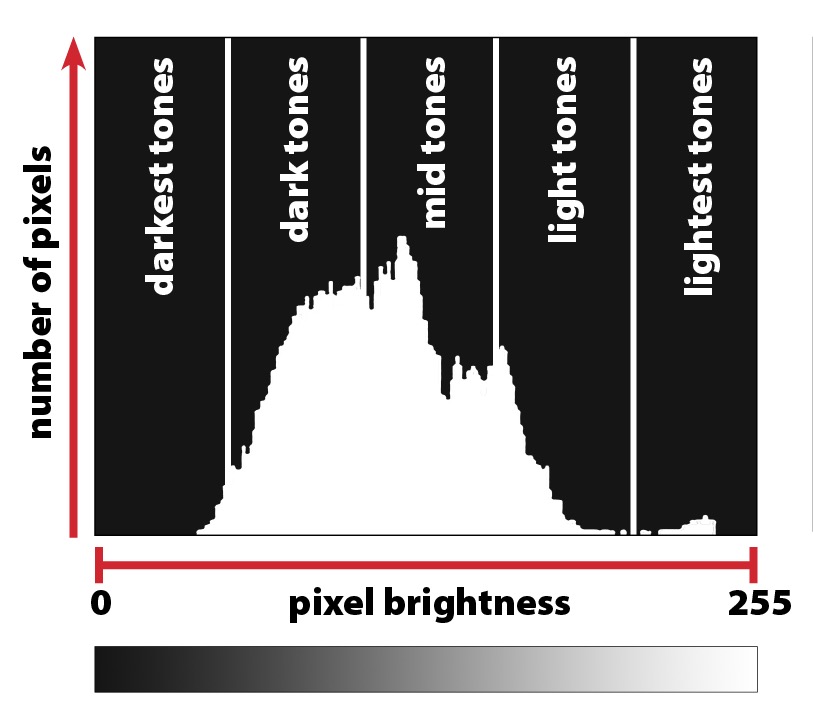
But before we get there, let's first understand what a Histogram is. A histogram is a graphical representation of the tonal values in an image. It displays the distribution of pixels in terms of their brightness levels. It consists of:

  • A Horizontal Axis which represents the tonal range, from black (0) on the left to white (255) on the right (Pixel Brightness);
  • A Vertical Axis: indicates the number of pixels at each brightness level.

In Photoshop there are two types of histograms:

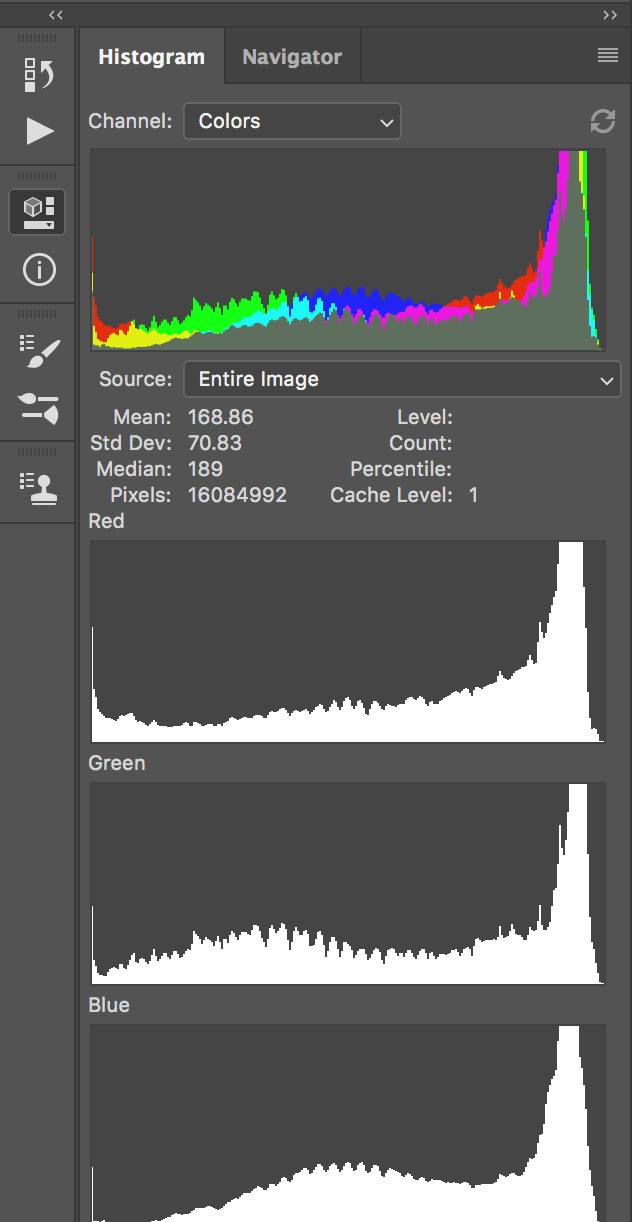
  • RGB Histogram shows the distribution of red, green, and blue channels combined;
  • Individual Channel Histograms display the distribution for each color channel (Red, Green, Blue) separately.

So the histogram can give you an exposure assessment, which helps determine if an image is underexposed, overexposed, or properly exposed, a contrast adjustment which identifies if an image lacks contrast and needs adjustment, and some color correction information which aids in balancing colors by showing the distribution of each channel. It basically gives you a visual guide.

Now let's jump in to see how we can utilize both the levels and the curves adjustments.

Both Curves and Levels are essential for exposure and color adjustments, but Levels is more straightforward while Curves offers more detailed control.
But ultimately, the choice between Curves and Levels depends on your comfort and the specific needs of the editing task at hand.

Note
Note

If you want to turn an image into black and white, you can choose "Black & White" when you create a new adjustment layer, and you can still use the Levels or curves along with it to adjust the contrast and exposure.

question mark

Which adjustment tool gives you more control with light, color and tone?

正しい答えを選んでください

すべて明確でしたか?

どのように改善できますか?

フィードバックありがとうございます!

セクション 3.  3

AIに質問する

expand

AIに質問する

ChatGPT

何でも質問するか、提案された質問の1つを試してチャットを始めてください

セクション 3.  3
some-alt