パスワード保護
メニューを表示するにはスワイプしてください
Excel では、ユーザーがワークブックにパスワード保護を適用し、不正なアクセスを制限することができます。パスワードは、財務報告書、従業員記録、機密の計画書類などの重要なビジネスファイルを保護するのに役立ちます。 パスワード保護は、ワークブックがチーム間で共有されたり、外部に保存されたりする場合に、追加の管理層を提供します。
ワークブックのパスワードの理解
Excel では、さまざまな種類のパスワード保護がサポートされています。ユーザーはワークブックを開く際にパスワードを要求したり、ファイル内の編集権限を制限したりできます。
ワークブックのパスワードは、不正なユーザーがワークブックの内容にアクセスするのを防ぐのに役立ちます。一方、編集制限は、ユーザーがワークブックを開くことはできても、変更のアクセスを制限します。
ワークブックをパスワードで保護する方法
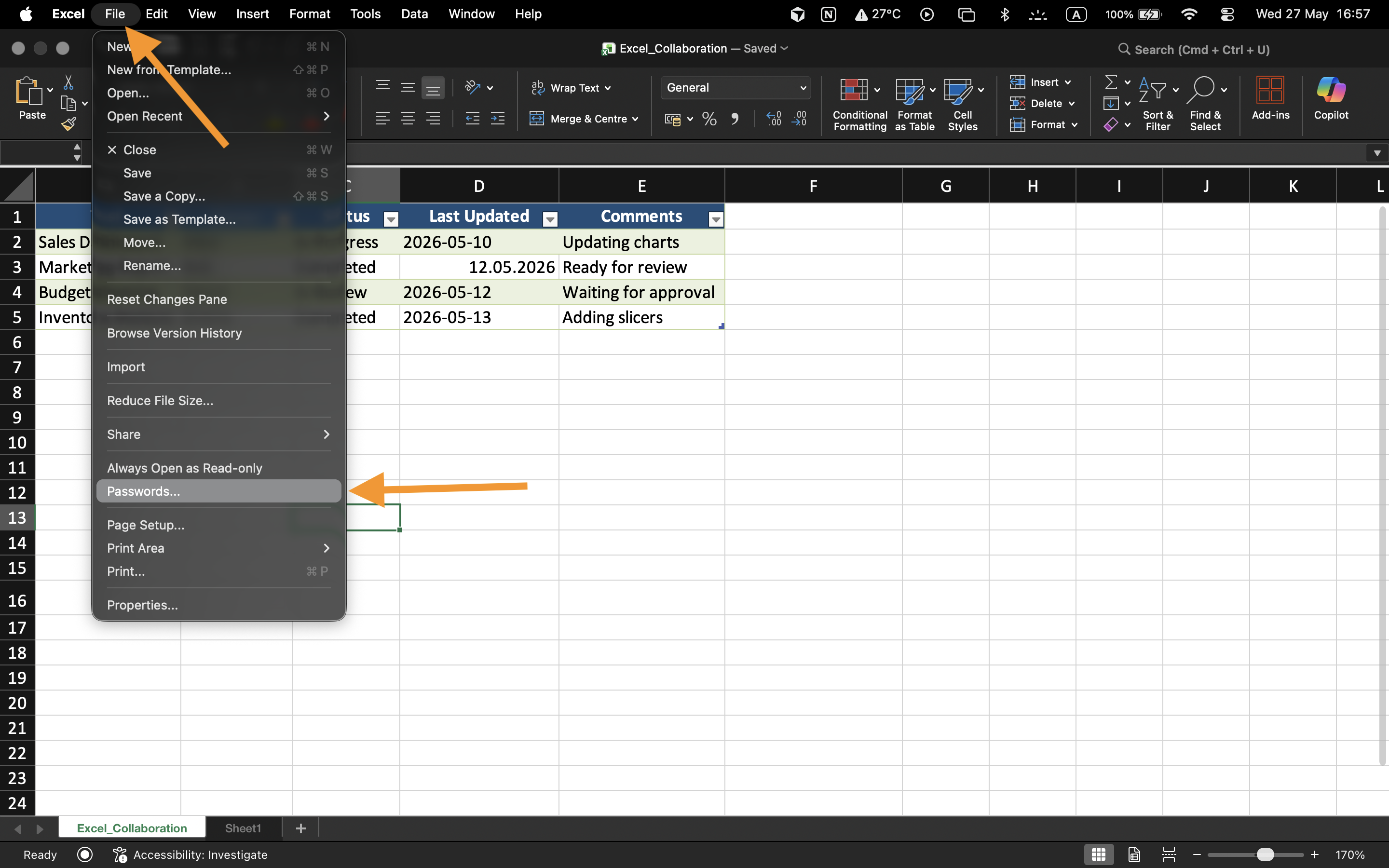
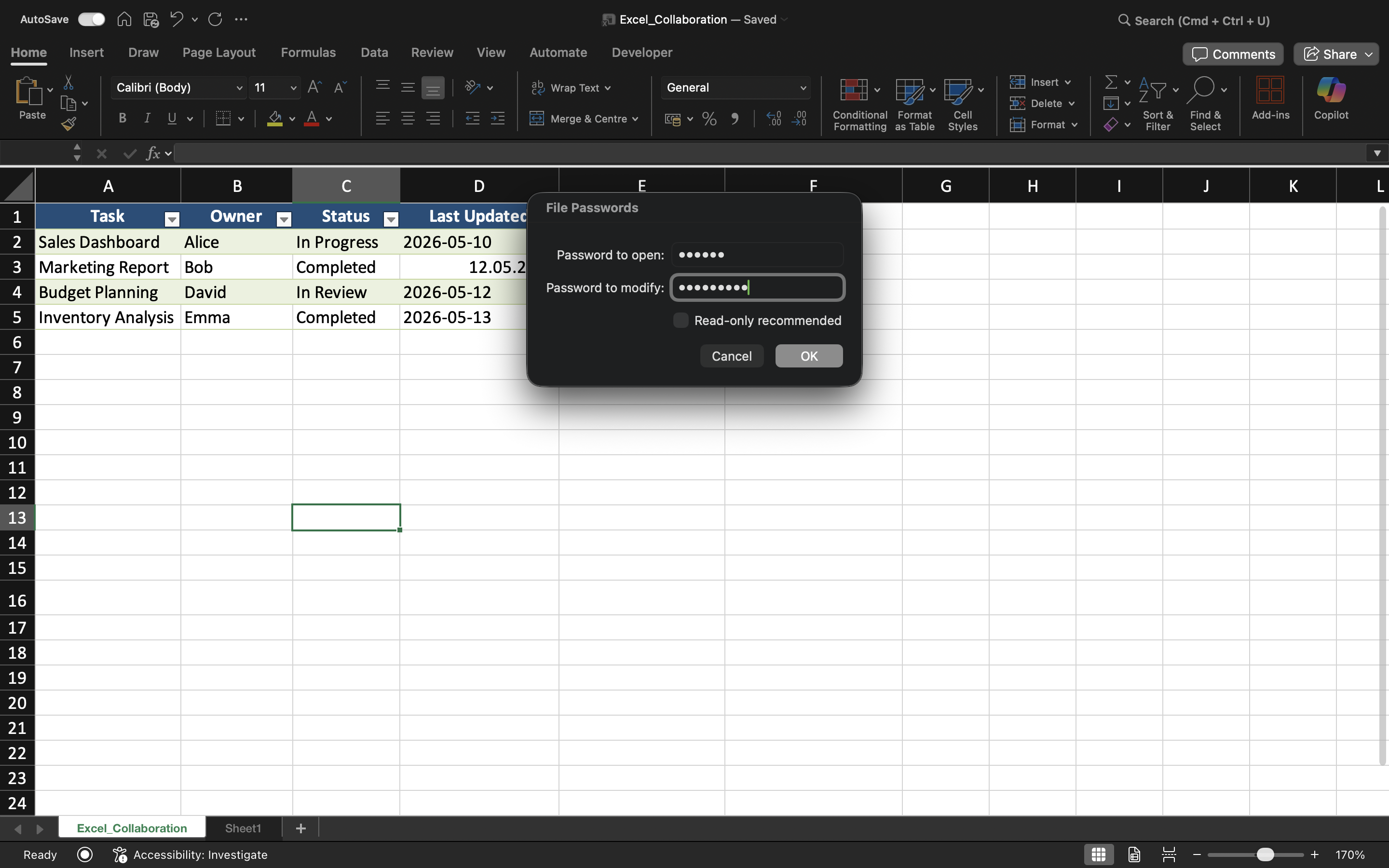
パスワード保護を適用する手順:
- ワークブックを開く;
- ファイル → 情報 を選択;
- ブックの保護 を選択;
- パスワードで暗号化 を選択;
- パスワードを入力し、確認する。
保存後、ワークブックを開こうとするたびにパスワードが必要になります。
パスワードの制限事項の理解
ワークブックのパスワードはファイルのセキュリティを向上させますが、弱いパスワードは依然として不正アクセスのリスクがあります。
より強固な保護のために:
- 強力なパスワードを使用する;
- 単純な単語や日付を避ける;
- パスワードを安全に保管する;
- パスワードは認可された共同作業者のみに共有する。
編集制限
Excel では、ファイルへの完全なアクセスをブロックせずにワークブックの編集を保護することも可能です。これにより、ユーザーはワークブックの内容を確認しつつ、変更を制限できます。
この種の保護は、最終版のレポート、テンプレート、または誤って変更されてはならない共有ダッシュボードに有用です。
パスワード保護が有効な場面
パスワード保護は、ワークブックに機密の財務情報、従業員データ、事業予測、または重要な業務レポートが含まれている場合によく使用されます。 特に、ファイルが組織外で共有されたり、外部デバイスに保存されたりする場合に重要です。
タスク
ワークブックには、認可された管理者のみがアクセスできるべき機密の従業員給与情報が含まれています。目標は、ワークブックをパスワードで保護し、アクセス制限をテストすることです。
- ワークブック保護設定を開く;
- ワークブックのパスワードを適用する;
- ワークブックを保存して閉じる;
- ファイルを再度開き、パスワード保護を確認する;
- 保護されたワークブックで編集制限をテストする。
フィードバックありがとうございます!
AIに質問する

AIに質問する

何でも質問するか、提案された質問の1つを試してチャットを始めてください
パスワード保護
Excel では、ユーザーがワークブックにパスワード保護を適用し、不正なアクセスを制限することができます。パスワードは、財務報告書、従業員記録、機密の計画書類などの重要なビジネスファイルを保護するのに役立ちます。 パスワード保護は、ワークブックがチーム間で共有されたり、外部に保存されたりする場合に、追加の管理層を提供します。
ワークブックのパスワードの理解
Excel では、さまざまな種類のパスワード保護がサポートされています。ユーザーはワークブックを開く際にパスワードを要求したり、ファイル内の編集権限を制限したりできます。
ワークブックのパスワードは、不正なユーザーがワークブックの内容にアクセスするのを防ぐのに役立ちます。一方、編集制限は、ユーザーがワークブックを開くことはできても、変更のアクセスを制限します。
ワークブックをパスワードで保護する方法
パスワード保護を適用する手順:
- ワークブックを開く;
- ファイル → 情報 を選択;
- ブックの保護 を選択;
- パスワードで暗号化 を選択;
- パスワードを入力し、確認する。
保存後、ワークブックを開こうとするたびにパスワードが必要になります。
パスワードの制限事項の理解
ワークブックのパスワードはファイルのセキュリティを向上させますが、弱いパスワードは依然として不正アクセスのリスクがあります。
より強固な保護のために:
- 強力なパスワードを使用する;
- 単純な単語や日付を避ける;
- パスワードを安全に保管する;
- パスワードは認可された共同作業者のみに共有する。
編集制限
Excel では、ファイルへの完全なアクセスをブロックせずにワークブックの編集を保護することも可能です。これにより、ユーザーはワークブックの内容を確認しつつ、変更を制限できます。
この種の保護は、最終版のレポート、テンプレート、または誤って変更されてはならない共有ダッシュボードに有用です。
パスワード保護が有効な場面
パスワード保護は、ワークブックに機密の財務情報、従業員データ、事業予測、または重要な業務レポートが含まれている場合によく使用されます。 特に、ファイルが組織外で共有されたり、外部デバイスに保存されたりする場合に重要です。
タスク
ワークブックには、認可された管理者のみがアクセスできるべき機密の従業員給与情報が含まれています。目標は、ワークブックをパスワードで保護し、アクセス制限をテストすることです。
- ワークブック保護設定を開く;
- ワークブックのパスワードを適用する;
- ワークブックを保存して閉じる;
- ファイルを再度開き、パスワード保護を確認する;
- 保護されたワークブックで編集制限をテストする。
フィードバックありがとうございます!
