Notice: This page requires JavaScript to function properly.
Please enable JavaScript in your browser settings or update your browser.
学ぶ Using SUBSTITUTE for Dynamic Replacement | テキストデータのクリーンアップ
Excelでデータをクリーンデータ化

Using SUBSTITUTE for Dynamic Replacement

メニューを表示するにはスワイプしてください

The SUBSTITUTE function allows you to replace specific text inside a cell while keeping the result dynamic. This means that if the original data changes, the result will update automatically.

SUBSTITUTE Function

The SUBSTITUTE function is used to replace specific text inside a cell with another value. Unlike Find & Replace, which changes the data directly, SUBSTITUTE works inside a formula and returns a new, cleaned result.

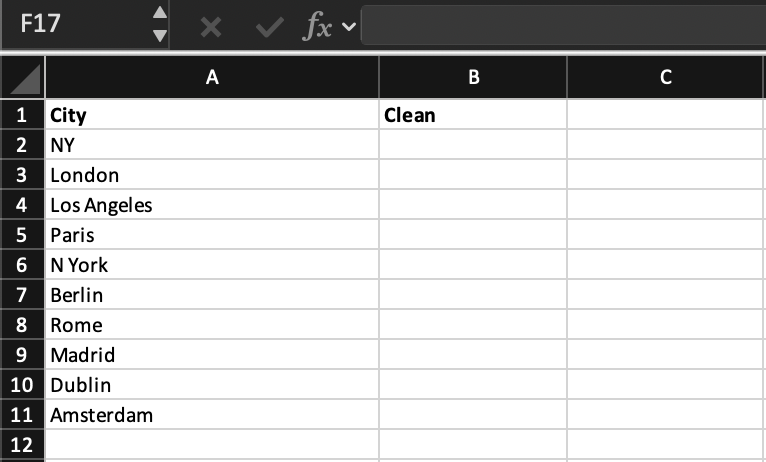
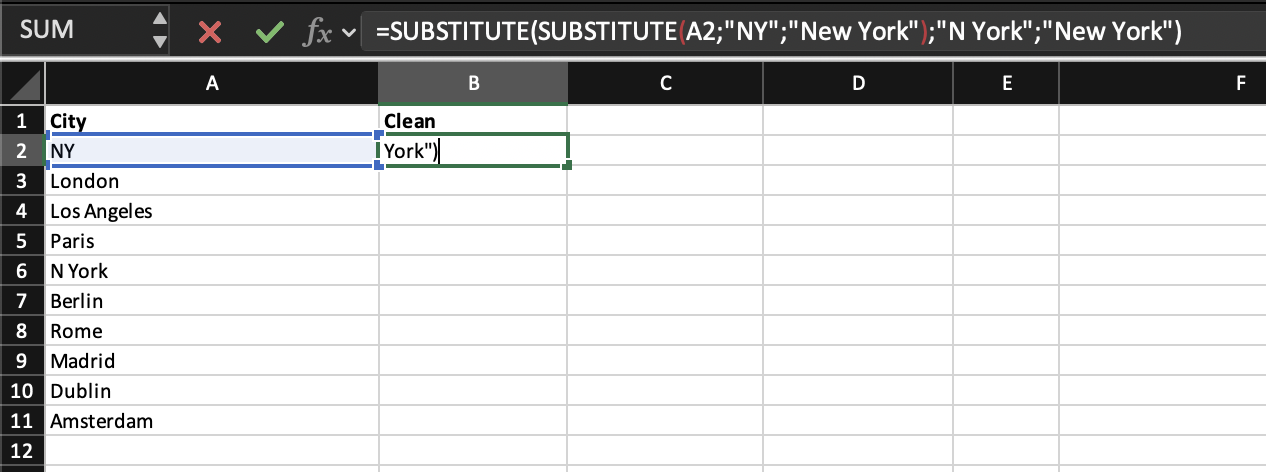
For example, if a cell contains the value "new york", you can use the following formula:

=SUBSTITUTE(A2, "new york", "New York")

Excel will take the original text from cell A2, find the part that matches "new york", and replace it with "New York". As a result, the formula will return "New York".

The important idea here is that the original data in A2 does not change. Instead, you create a new column with corrected values. This makes your solution safer and more flexible, because if the original data changes, the formula will automatically update the result.
carousel-imgcarousel-imgcarousel-img

Task

Create a new column called Standardized City.

Use the SUBSTITUTE function to standardize city names.

Replace all incorrect variations of "new york" with the correct format "New York".

Apply the formula to all rows to ensure consistency across the dataset.

Note
Hint

Use =SUBSTITUTE(C2,"new york","New York") and apply the formula to all rows.

question mark

What is the main advantage of SUBSTITUTE over Find & Replace?

正しい答えを選んでください

すべて明確でしたか?

どのように改善できますか?

フィードバックありがとうございます!

セクション 2.  6

AIに質問する

expand

AIに質問する

ChatGPT

何でも質問するか、提案された質問の1つを試してチャットを始めてください

Using SUBSTITUTE for Dynamic Replacement

The SUBSTITUTE function allows you to replace specific text inside a cell while keeping the result dynamic. This means that if the original data changes, the result will update automatically.

SUBSTITUTE Function

The SUBSTITUTE function is used to replace specific text inside a cell with another value. Unlike Find & Replace, which changes the data directly, SUBSTITUTE works inside a formula and returns a new, cleaned result.

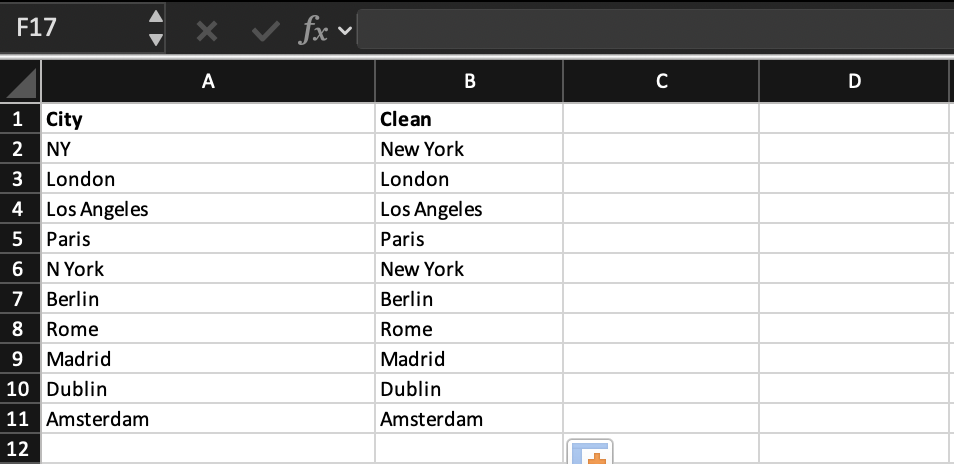
For example, if a cell contains the value "new york", you can use the following formula:

=SUBSTITUTE(A2, "new york", "New York")

Excel will take the original text from cell A2, find the part that matches "new york", and replace it with "New York". As a result, the formula will return "New York".

The important idea here is that the original data in A2 does not change. Instead, you create a new column with corrected values. This makes your solution safer and more flexible, because if the original data changes, the formula will automatically update the result.
carousel-imgcarousel-imgcarousel-img

Task

Create a new column called Standardized City.

Use the SUBSTITUTE function to standardize city names.

Replace all incorrect variations of "new york" with the correct format "New York".

Apply the formula to all rows to ensure consistency across the dataset.

Note
Hint

Use =SUBSTITUTE(C2,"new york","New York") and apply the formula to all rows.

すべて明確でしたか?

どのように改善できますか?

フィードバックありがとうございます!

セクション 2.  6
some-alt