ブランチ間の移動と削除
メニューを表示するにはスワイプしてください
新しいブランチの作成と切り替え
既存のブランチに切り替えるには、git checkout コマンドを使用。
ただし、新しいブランチを作成してすぐに切り替える操作はよく行われるため、Git では便利なオプションが用意されています。
同じ git checkout コマンドに -b フラグを付けて使用:
git checkout -b <new_branch_name>
ブランチの削除
ブランチを削除するには、-d フラグ(delete の略)を使用。これは、そのブランチの変更がすでに現在のブランチにマージされている場合のみ削除されます:
git branch -d <branch_name>
ここで <branch_name> は削除したいブランチ名。

未マージの変更がある場合、Git は削除を防止し、警告を表示。
例を使って説明します。
例となるワークフロー
まず、作業ツリーとステージングエリアの状態を確認します:
git status
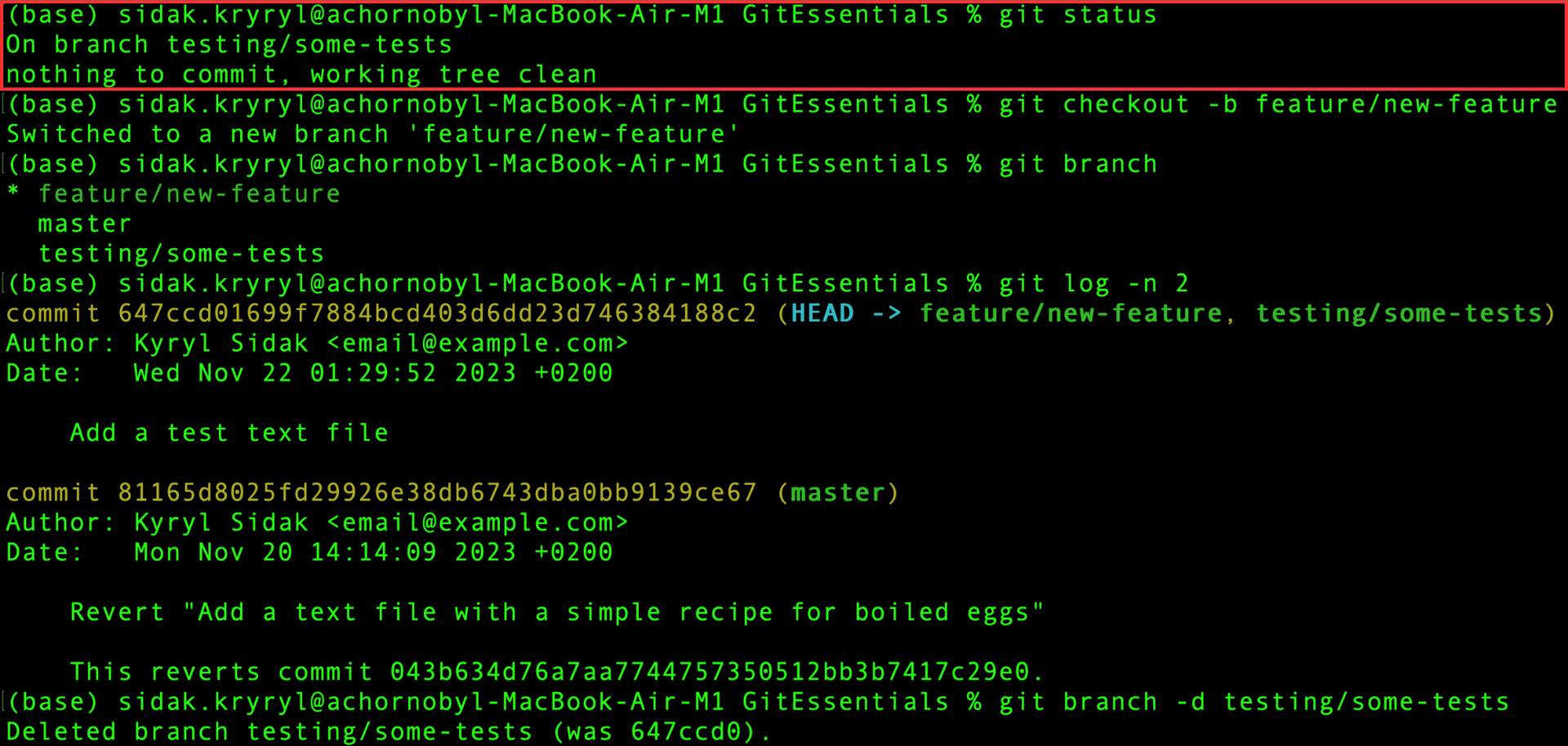
ご覧のとおり、作業ツリーとステージングエリアは空であり、現在はtesting/some-testsブランチ上にいます。
ここで、新しいブランチfeature/new-featureを作成し、直ちにそのブランチに切り替えてから、すべてのブランチを一覧表示します:
git checkout -b feature/new-feature
git branch
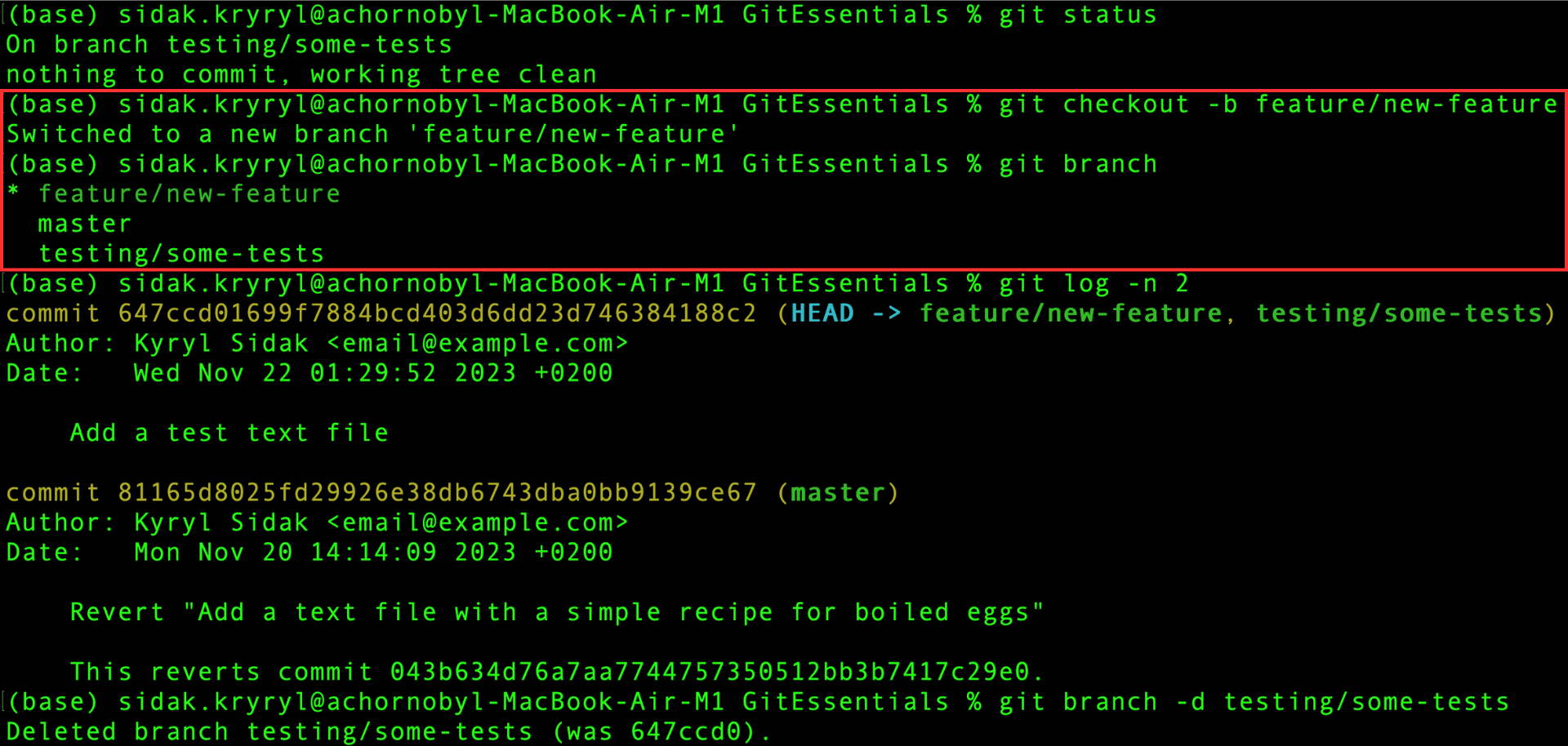
HEAD は現在新しいブランチを指しているため、直近2つのコミットを表示:
git log -n 2
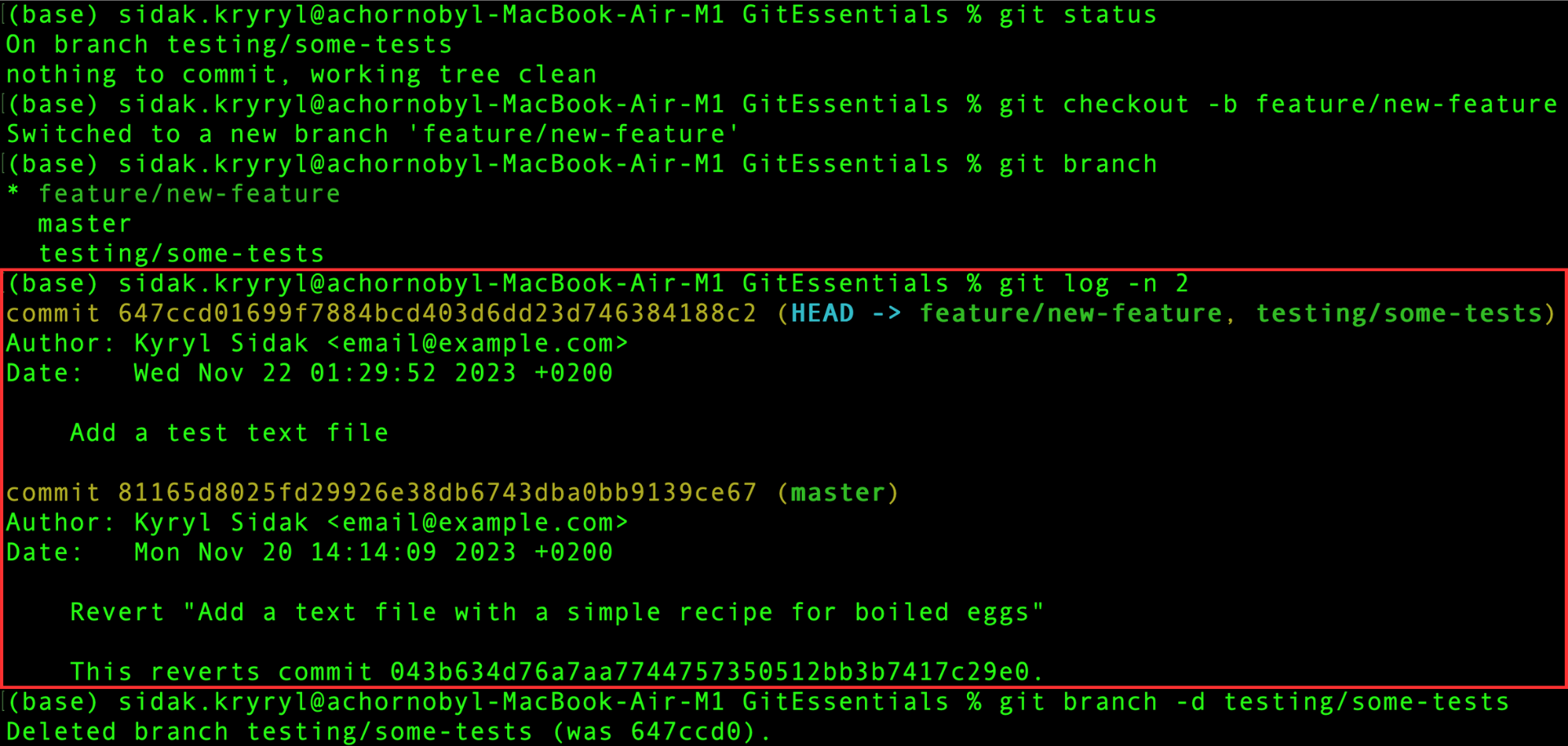
新しいブランチと testing/some-tests ブランチは、同じ最新のコミットを指している。
現在新しいブランチにいるため、testing/some-tests ブランチを安全に削除できる:
git branch -d testing/some-tests
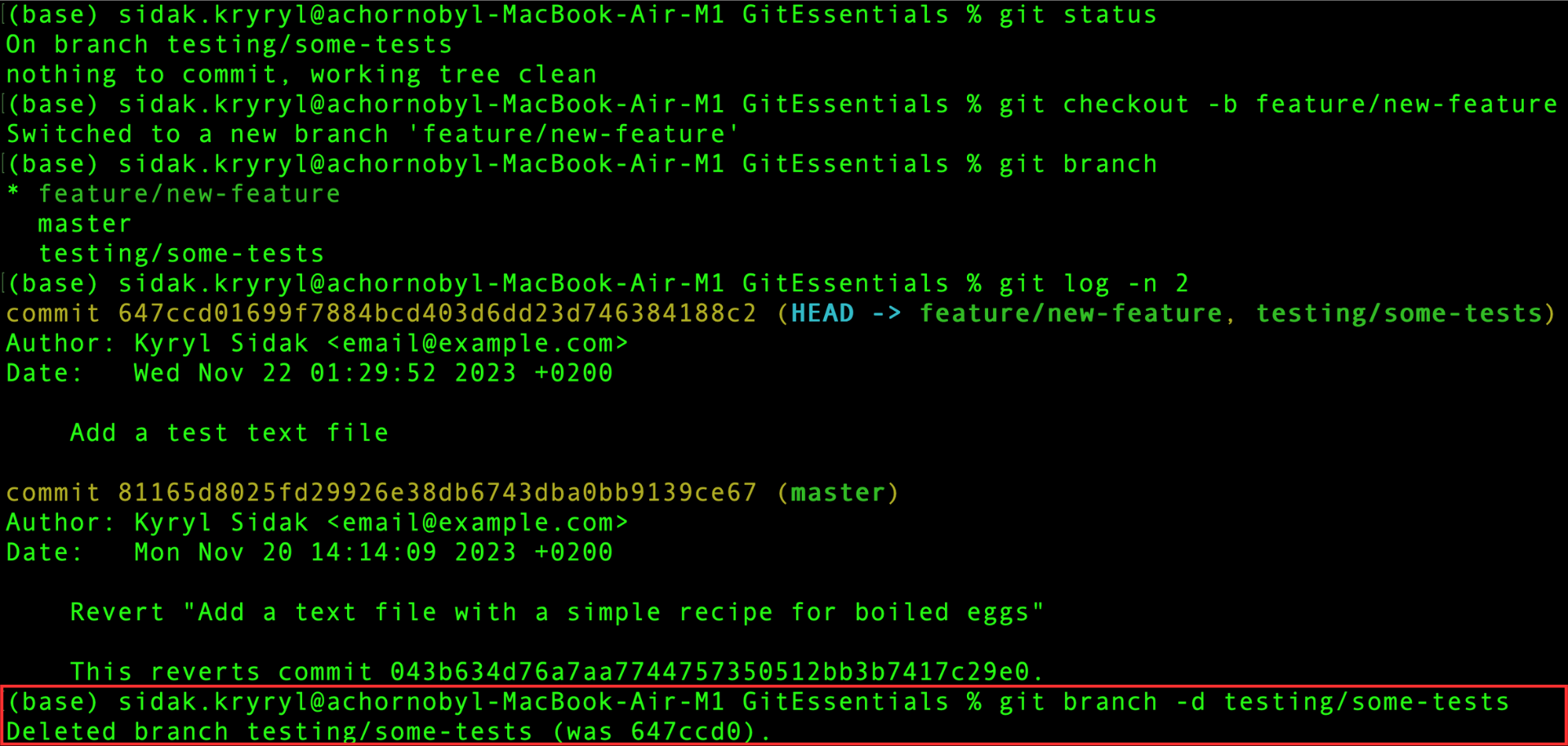
削除が正常に完了。 直近2件のコミットを確認し、すべての既存ブランチを一覧表示:
git log -n 2
git branch
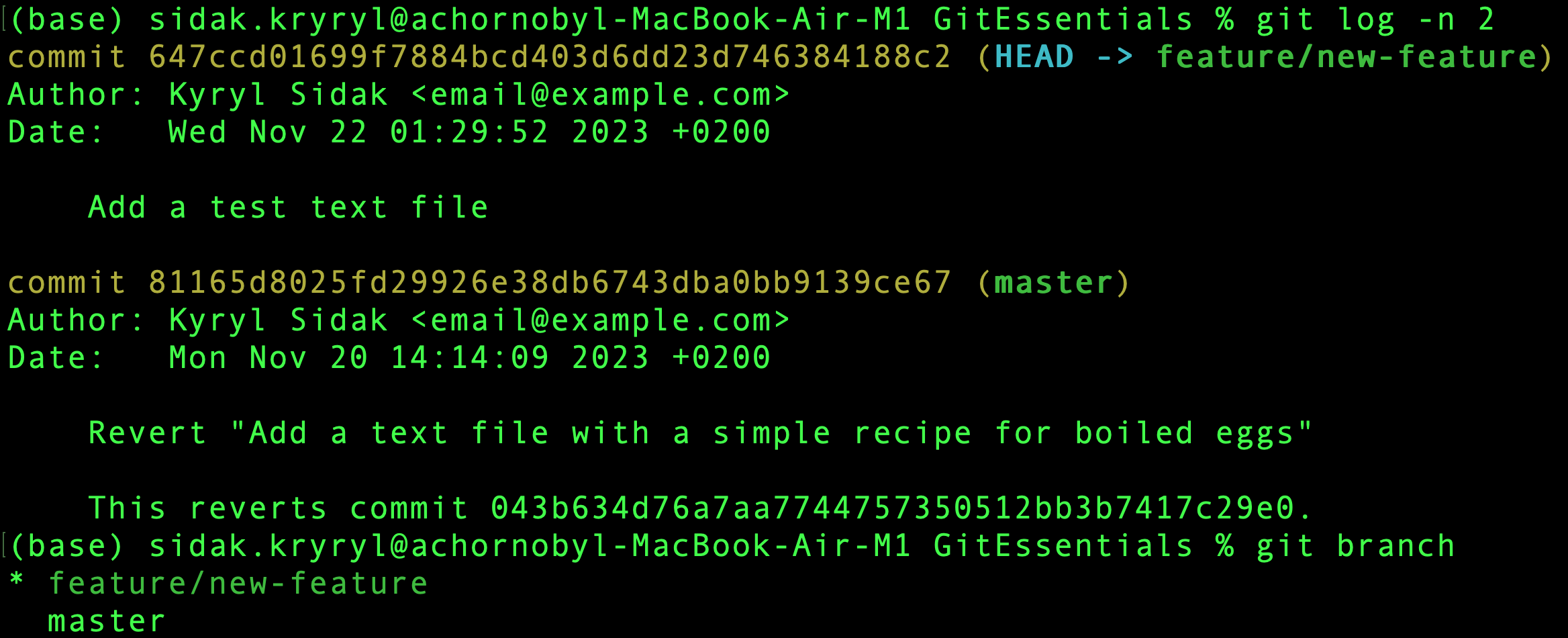
ブランチは正常に削除され、2つのブランチのみが残っています。
新しいブランチは最新のコミットを指しており、masterブランチは1つ前のコミットにとどまっています。
フィードバックありがとうございます!
AIに質問する

AIに質問する

何でも質問するか、提案された質問の1つを試してチャットを始めてください
ブランチ間の移動と削除
新しいブランチの作成と切り替え
既存のブランチに切り替えるには、git checkout コマンドを使用。
ただし、新しいブランチを作成してすぐに切り替える操作はよく行われるため、Git では便利なオプションが用意されています。
同じ git checkout コマンドに -b フラグを付けて使用:
git checkout -b <new_branch_name>
ブランチの削除
ブランチを削除するには、-d フラグ(delete の略)を使用。これは、そのブランチの変更がすでに現在のブランチにマージされている場合のみ削除されます:
git branch -d <branch_name>
ここで <branch_name> は削除したいブランチ名。
未マージの変更がある場合、Git は削除を防止し、警告を表示。
例を使って説明します。
例となるワークフロー
まず、作業ツリーとステージングエリアの状態を確認します:
git status
ご覧のとおり、作業ツリーとステージングエリアは空であり、現在はtesting/some-testsブランチ上にいます。
ここで、新しいブランチfeature/new-featureを作成し、直ちにそのブランチに切り替えてから、すべてのブランチを一覧表示します:
git checkout -b feature/new-feature
git branch
HEAD は現在新しいブランチを指しているため、直近2つのコミットを表示:
git log -n 2
新しいブランチと testing/some-tests ブランチは、同じ最新のコミットを指している。
現在新しいブランチにいるため、testing/some-tests ブランチを安全に削除できる:
git branch -d testing/some-tests
削除が正常に完了。 直近2件のコミットを確認し、すべての既存ブランチを一覧表示:
git log -n 2
git branch
ブランチは正常に削除され、2つのブランチのみが残っています。
新しいブランチは最新のコミットを指しており、masterブランチは1つ前のコミットにとどまっています。
フィードバックありがとうございます!
