高速データシェーピング
メニューを表示するにはスワイプしてください
テキスト区切り、区切り記号モード
値が1つのセルに一貫した文字(カンマ、スペース、ダッシュ、パイプなど)で詰め込まれている場合、テキスト区切りが最適なツールです。区切り記号を基準に、元のセルをセグメント数だけ列に分割します。
分割の視覚的な動作例 — 区切り記号が各分割点を示します:
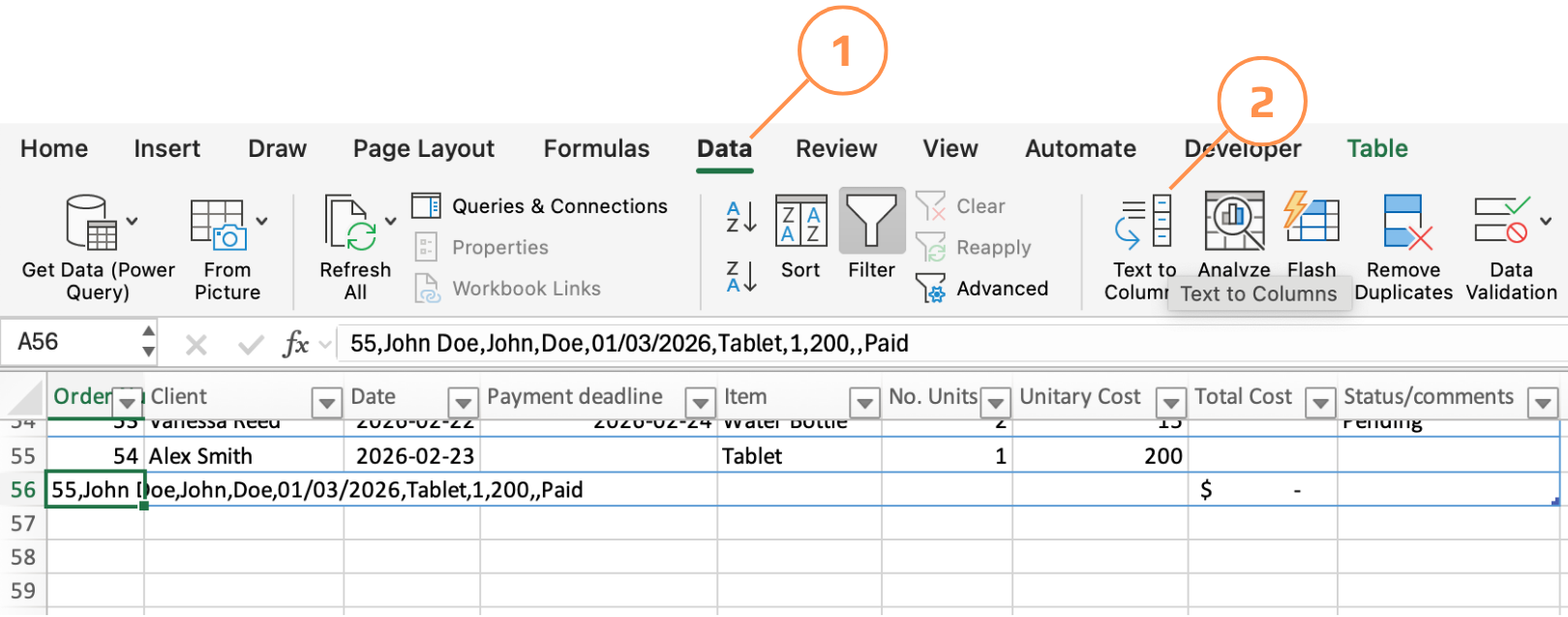
55,John Doe,John,Doe,01/03/2026,Tablet,1,200,,Paid
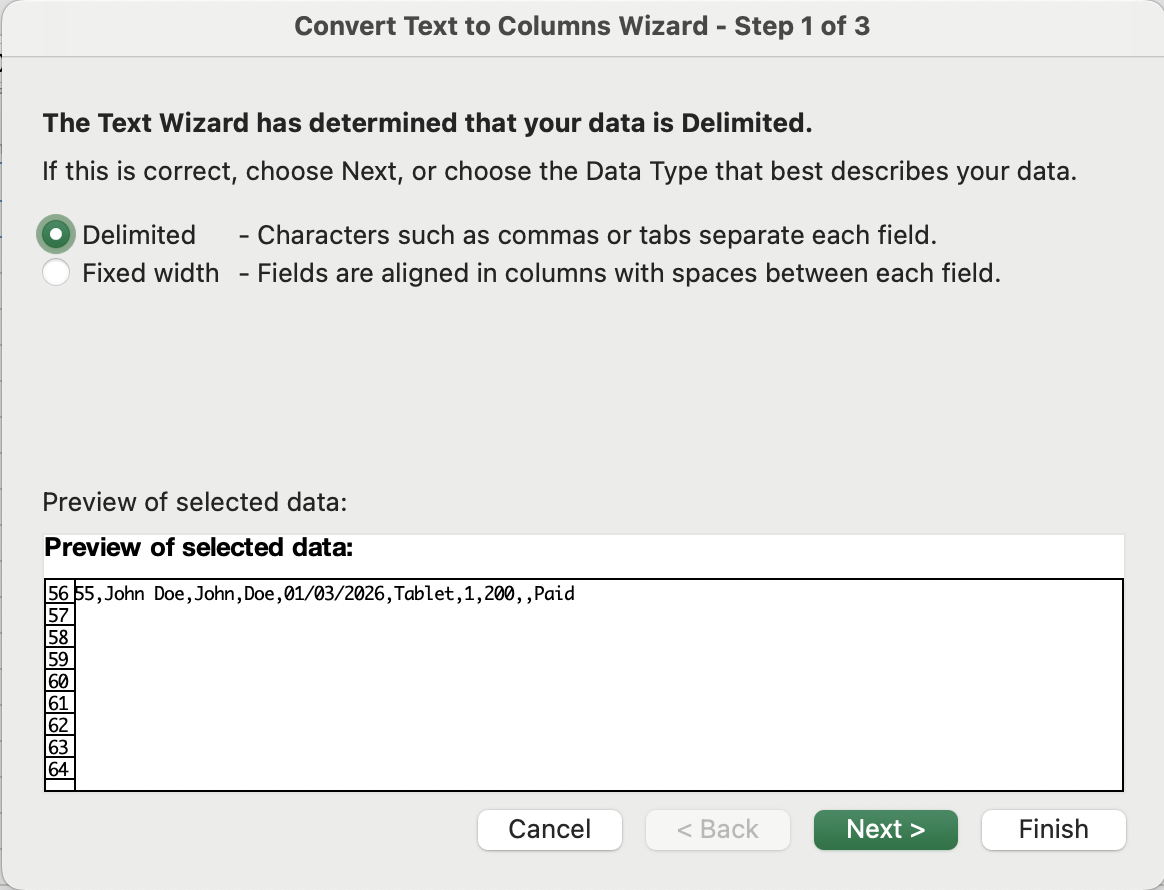
- 元データ範囲を選択 → データタブ → テキスト区切り → 区切り記号付きを選択 → 次へ;
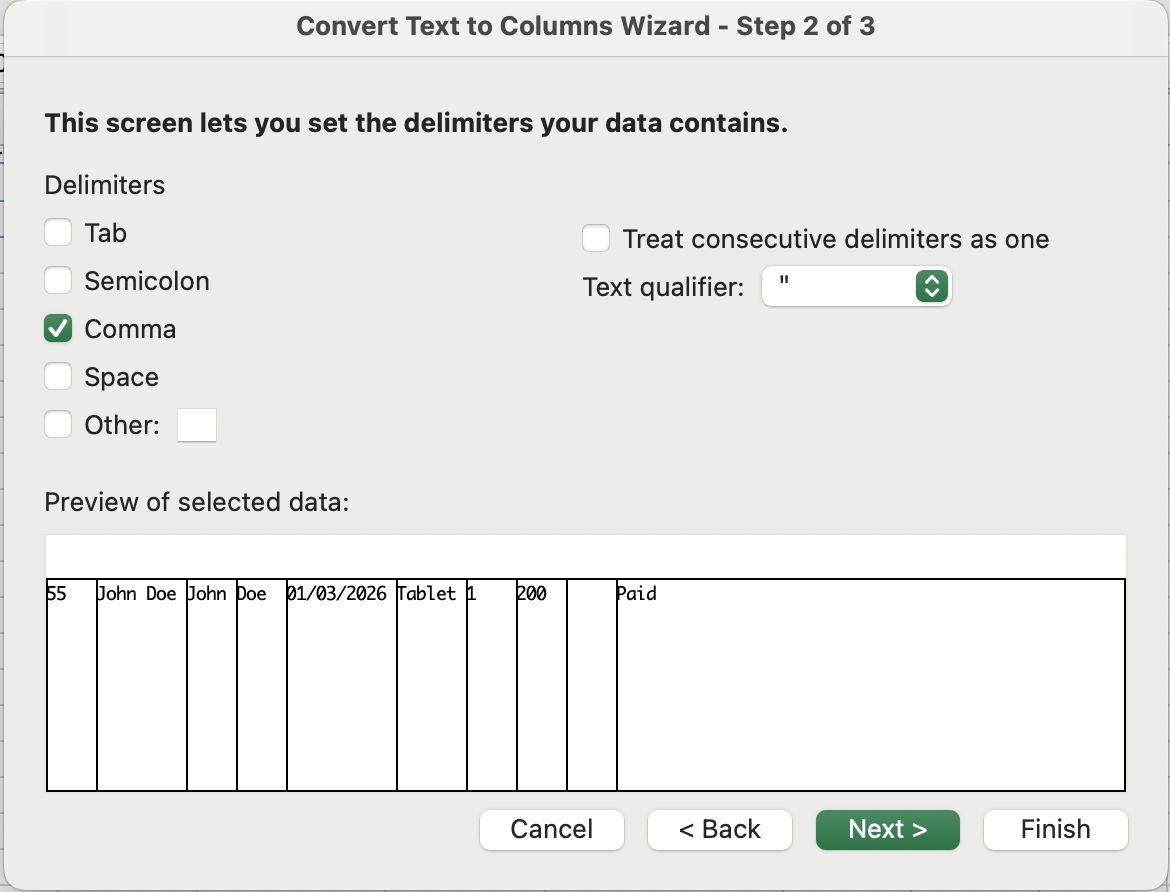
- 区切り記号(カンマ、スペース、タブ、またはカスタム)を選択 → プレビューがリアルタイムで更新 → 次へ;
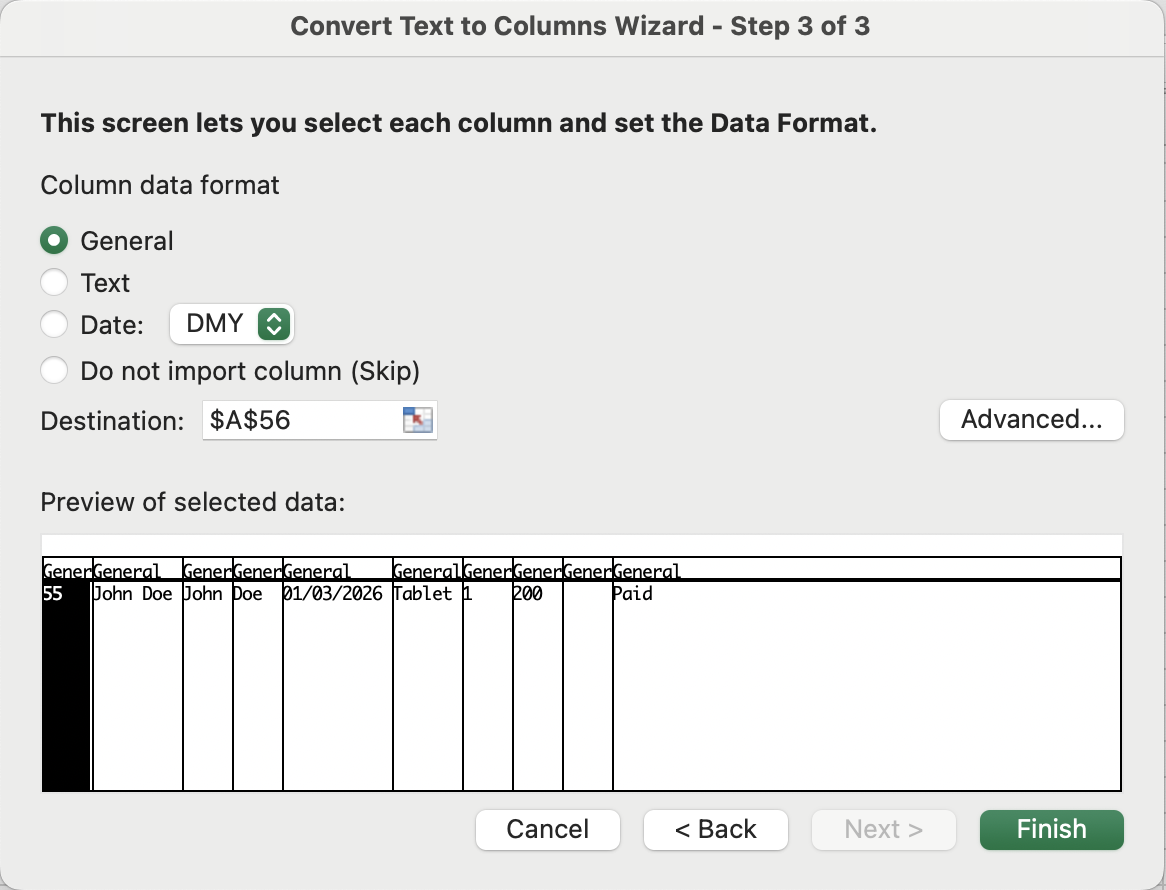
- 必要に応じて各列のデータ型(テキスト、日付、標準)を設定 → 完了;
テキスト区切り、固定幅
テキスト区切りのモードの一つで、プレビュー画面で垂直の区切り線をドラッグして、区切り記号ではなく文字位置で列の境界を定義します。データ構造は視覚的に一貫している必要があり、各フィールドがすべての行で同じ文字数を占めます。
& 演算子
アンパサンドは、Excelにおけるテキスト結合用の記号。セル参照、引用符で囲んだ文字列、関数の結果など、任意の組み合わせを1つの値として結合。
=C2 & D2 & "@email.com" →
EmilyJohnson@email.com
すべて明確でしたか?
フィードバックありがとうございます!
セクション 1. 章 6
AIに質問する

AIに質問する

何でも質問するか、提案された質問の1つを試してチャットを始めてください
セクション 1. 章 6
