結果の表示と可視化
メニューを表示するにはスワイプしてください

display() 関数は、データをインタラクティブ、表形式、またはグラフィカルな形式で表示するために使用されるDatabricksの組み込みコマンド。外部ライブラリを必要とせず、ノートブック内でデータセットの探索や視覚チャートの作成が可能。
Databricks では、変数名やクエリを実行するだけで生データが表示される。しかし、そのデータを読みやすく「プレゼンテーション向け」にするためには、display() コマンドを使用する。これは、生の数値を視覚的なインサイトに変換する主な方法。
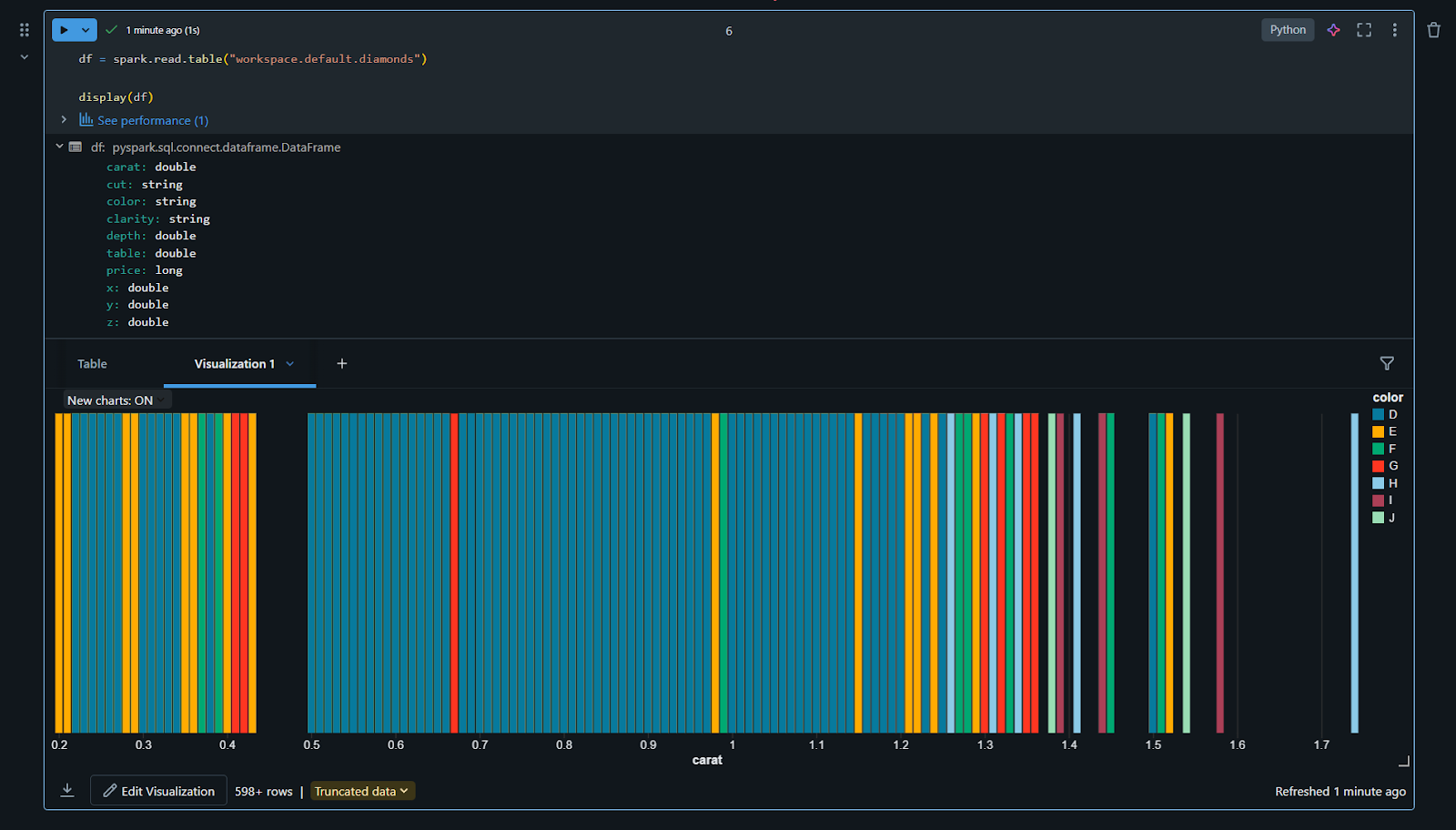
display() の強力さ
Python を使用する際、print() を使うことに慣れているかもしれません。print() はテキストには適していますが、大規模なデータセットには理想的ではありません。display(your_dataframe) を使用すると、Databricks はデータをインタラクティブなテーブルとして表示します。
数千行のデータをスクロールして閲覧可能。 列ヘッダーをクリックして、データを昇順または降順で並べ替え可能。 結果内の組み込み検索バーを使って、特定の値を即座に検索可能:
- 数千行のデータをスクロールして閲覧可能;
- 列ヘッダーをクリックして、データを昇順または降順で並べ替え可能;
- 結果内の組み込み検索バーを使って、特定の値を即座に検索可能。
自動チャートの作成
display() を使ってセルを実行するか、SQL クエリを実行すると、結果テーブルが表示されます。このテーブルの直下に 「+」 アイコンが表示されます。これをクリックすると 「Visualization」 を選択できます。
- これにより Visualization Editor が開きます;
- 棒グラフ、折れ線グラフ、エリアチャート、円グラフ、散布図など、さまざまなチャートタイプから選択可能;
- X軸やY軸に使用したい列をドラッグ&ドロップするだけで、Databricks が自動的に集計(合計や平均など)を処理します。
ビジュアルのカスタマイズ
Visualization Editor は高速な操作性を重視した設計。
- 色の変更: 異なるデータ系列に特定の色を割り当て;
- 軸ラベル: 横軸および縦軸にカスタムタイトルを追加;
- データのグループ化: 「Group by」フィールドを使用し、「Region」や「Product Type」などのカテゴリごとに単一の折れ線グラフを複数の線に分割。
ノートブックへのビジュアル追加
ビジュアルを保存すると、データテーブルと並んで別タブとして表示。1つのセルに複数のビジュアルを持つことが可能。例えば、1つのタブで生の売上データ、2つ目のタブで地域別売上の棒グラフ、3つ目のタブで製品分布の円グラフを表示。ノートブックの整理が容易になり、関係者がコードを見ずにデータの「ストーリー」を把握可能。
データプロファイリング
グラフに加え、Databricks では結果エリアに 「Data Profile」 タブを提供。クリックすると、各列の値の分布、欠損数、最小/最大範囲など、データの統計サマリーを即座に表示。詳細な分析前のデータクリーニングに不可欠なステップ。
1. データセットに対して print() ではなく display() を使用する主な利点は何ですか?
2. クエリ結果からチャート作成を開始するには、どこをクリックしますか?
フィードバックありがとうございます!
AIに質問する

AIに質問する

何でも質問するか、提案された質問の1つを試してチャットを始めてください
結果の表示と可視化
display() 関数は、データをインタラクティブ、表形式、またはグラフィカルな形式で表示するために使用されるDatabricksの組み込みコマンド。外部ライブラリを必要とせず、ノートブック内でデータセットの探索や視覚チャートの作成が可能。
Databricks では、変数名やクエリを実行するだけで生データが表示される。しかし、そのデータを読みやすく「プレゼンテーション向け」にするためには、display() コマンドを使用する。これは、生の数値を視覚的なインサイトに変換する主な方法。
display() の強力さ
Python を使用する際、print() を使うことに慣れているかもしれません。print() はテキストには適していますが、大規模なデータセットには理想的ではありません。display(your_dataframe) を使用すると、Databricks はデータをインタラクティブなテーブルとして表示します。
数千行のデータをスクロールして閲覧可能。 列ヘッダーをクリックして、データを昇順または降順で並べ替え可能。 結果内の組み込み検索バーを使って、特定の値を即座に検索可能:
- 数千行のデータをスクロールして閲覧可能;
- 列ヘッダーをクリックして、データを昇順または降順で並べ替え可能;
- 結果内の組み込み検索バーを使って、特定の値を即座に検索可能。
自動チャートの作成
display() を使ってセルを実行するか、SQL クエリを実行すると、結果テーブルが表示されます。このテーブルの直下に 「+」 アイコンが表示されます。これをクリックすると 「Visualization」 を選択できます。
- これにより Visualization Editor が開きます;
- 棒グラフ、折れ線グラフ、エリアチャート、円グラフ、散布図など、さまざまなチャートタイプから選択可能;
- X軸やY軸に使用したい列をドラッグ&ドロップするだけで、Databricks が自動的に集計(合計や平均など)を処理します。
ビジュアルのカスタマイズ
Visualization Editor は高速な操作性を重視した設計。
- 色の変更: 異なるデータ系列に特定の色を割り当て;
- 軸ラベル: 横軸および縦軸にカスタムタイトルを追加;
- データのグループ化: 「Group by」フィールドを使用し、「Region」や「Product Type」などのカテゴリごとに単一の折れ線グラフを複数の線に分割。
ノートブックへのビジュアル追加
ビジュアルを保存すると、データテーブルと並んで別タブとして表示。1つのセルに複数のビジュアルを持つことが可能。例えば、1つのタブで生の売上データ、2つ目のタブで地域別売上の棒グラフ、3つ目のタブで製品分布の円グラフを表示。ノートブックの整理が容易になり、関係者がコードを見ずにデータの「ストーリー」を把握可能。
データプロファイリング
グラフに加え、Databricks では結果エリアに 「Data Profile」 タブを提供。クリックすると、各列の値の分布、欠損数、最小/最大範囲など、データの統計サマリーを即座に表示。詳細な分析前のデータクリーニングに不可欠なステップ。
フィードバックありがとうございます!
