Formattazione Rapida su Larga Scala
Scorri per mostrare il menu
La formattazione è uno degli ambiti in cui si perde molto tempo senza rendersene conto. Cliccare su Grassetto, scegliere un colore di riempimento, regolare l'allineamento: ognuna di queste azioni richiede un secondo. Su una tabella di 50 righe e 5 colonne, se eseguite in modo incoerente, possono richiedere minuti e il risultato appare comunque disomogeneo.
Scorciatoie essenziali per la formattazione
Le operazioni di formattazione più rapide non prevedono mai l'uso della barra multifunzione.
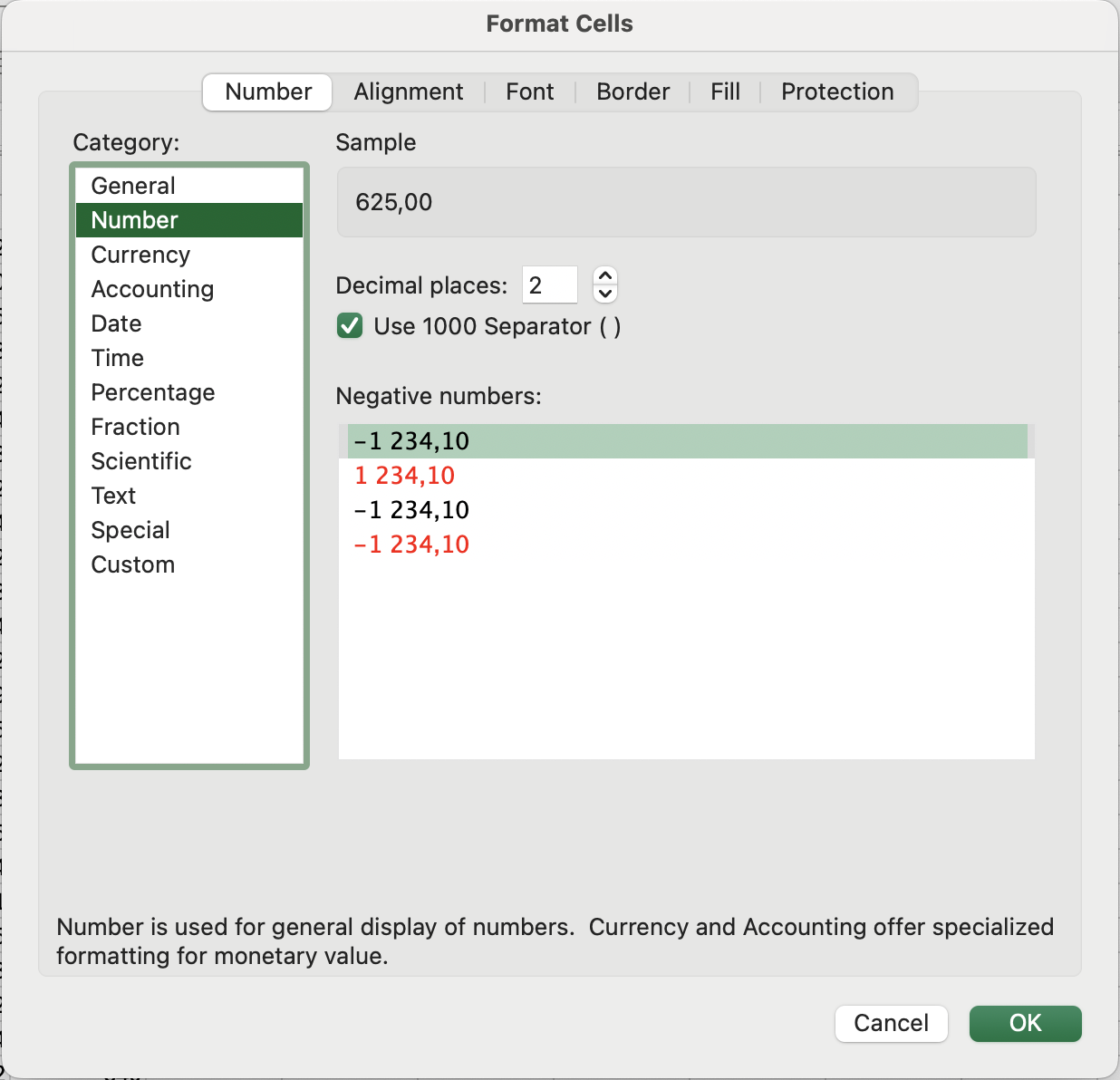
Finestra di dialogo Formato celle
Aprire la finestra Formato celle con Ctrl + 1 / Fn + Control + 1 e navigare tramite tastiera è spesso più veloce rispetto all'uso della barra multifunzione, soprattutto per formati meno comuni.
Stili cella
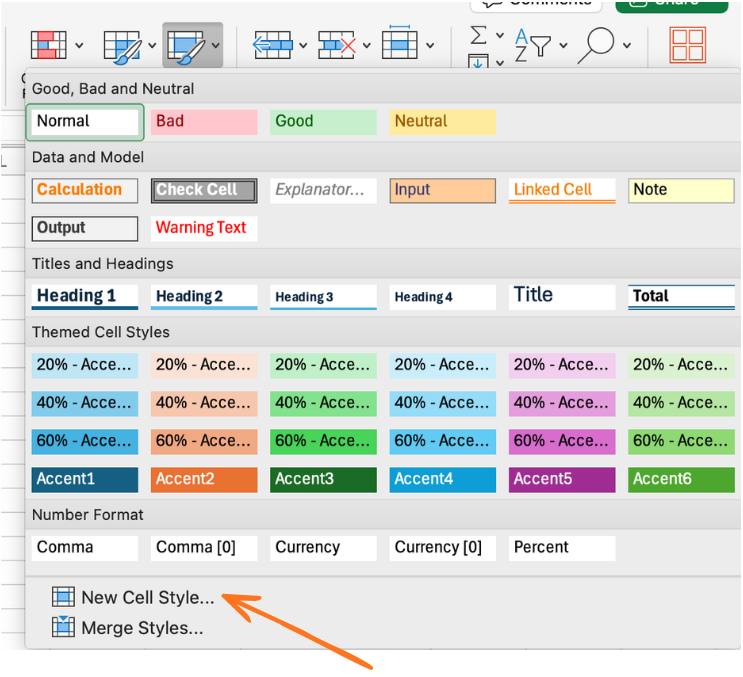
Stili cella sono insiemi di formati predefiniti e nominati che puoi applicare a qualsiasi cella o intervallo con un solo clic — e aggiornare globalmente in un unico passaggio.
Applicazione di uno stile: Home → gruppo Stili → clic su uno stile qualsiasi (Intestazione 1, Buono, Cattivo, Neutro, Calcolo, ecc.)
Importanza per la scalabilità: se applichi lo stile Intestazione 1 a tutte le righe di intestazione e successivamente decidi che le intestazioni devono avere un colore diverso, basta modificare una sola volta la definizione dello stile — tutte le celle che utilizzano quello stile si aggiornano automaticamente in tutto il file di lavoro.
Creazione di uno stile personalizzato:
- Formatta una cella esattamente come desideri che appaia lo stile;
- Home → Stili cella → Nuovo stile cella;
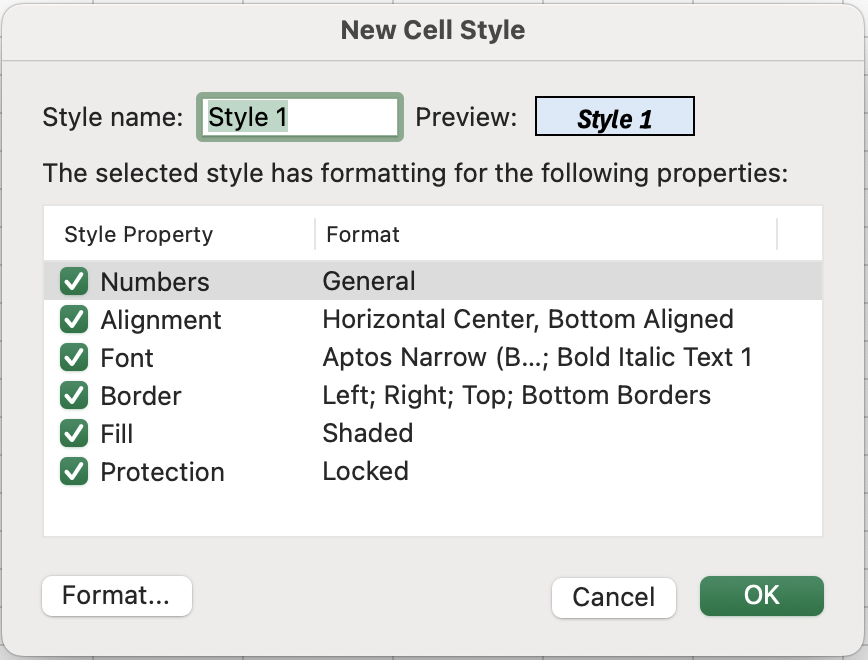
- Assegna un nome (ad es. Intestazione vendite, Valore KPI);
- Clicca OK.
Lo stile è ora disponibile nel file di lavoro per un riutilizzo immediato.
- Selezionare l'intestazione della colonna Unit Cost per selezionare l'intera colonna.
- Premere
Ctrl + Shift + $per applicare il formato valuta. - Applicare uno stile personalizzato Table Header alla riga 1. Ad esempio, rendere il testo in grassetto e corsivo, con sfondo azzurro chiaro e bordi.
Grazie per i tuoi commenti!
Chieda ad AI

Chieda ad AI

Chieda pure quello che desidera o provi una delle domande suggerite per iniziare la nostra conversazione
