Condivisione dei file e gestione degli accessi
Scorri per mostrare il menu
Excel consente agli utenti di condividere le cartelle di lavoro direttamente tramite OneDrive e collaborare senza inviare manualmente allegati di file. Invece di creare più copie della cartella di lavoro, i team possono lavorare all'interno dello stesso file condiviso.
Prima che una cartella di lavoro possa essere condivisa, deve essere archiviata in OneDrive o SharePoint. I file locali salvati solo sul computer non possono utilizzare le funzionalità di collaborazione moderne.
Apertura della finestra di condivisione
Per condividere una cartella di lavoro:
- Aprire la cartella di lavoro Excel;
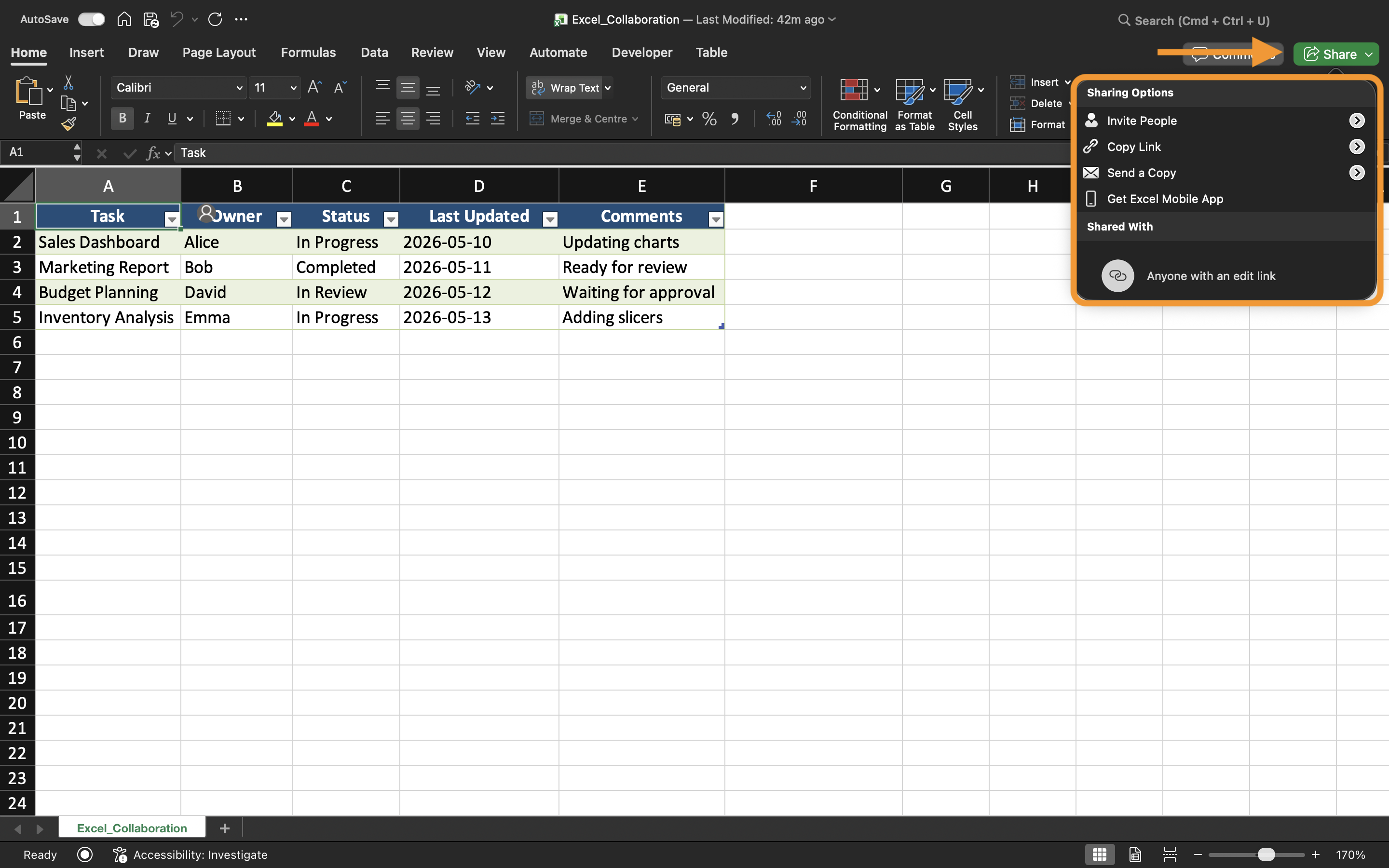
- Selezionare il pulsante Condividi vicino all'angolo in alto a destra;
- Scegliere come verrà condiviso il file.
Excel consente agli utenti di invitare collaboratori tramite indirizzi email o generare link di condivisione.
Comprendere i tipi di autorizzazione
Quando si condivide una cartella di lavoro, Excel consente diversi livelli di autorizzazione a seconda di come i collaboratori devono interagire con il file.
I due tipi di autorizzazione più comuni sono:
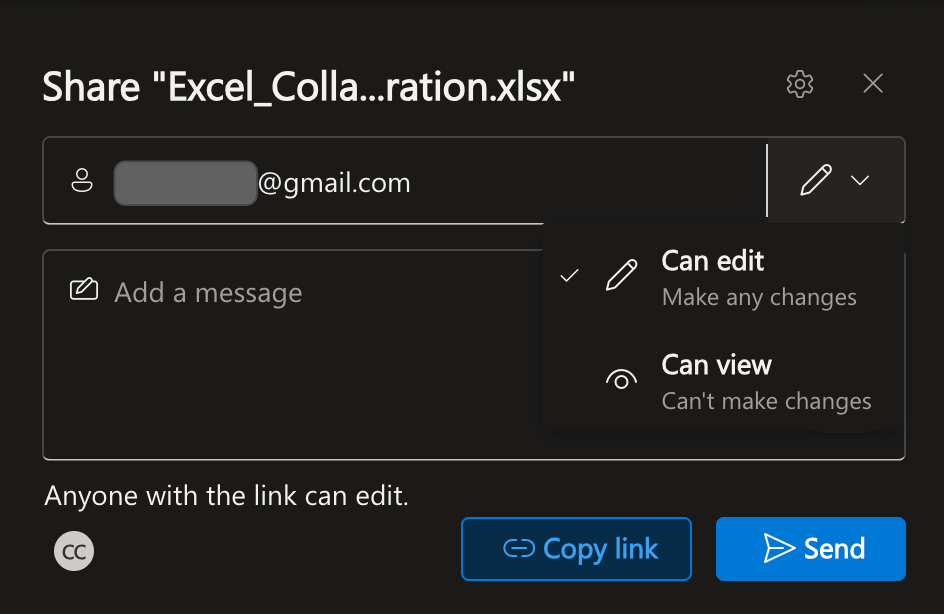
- Può modificare: gli utenti possono modificare il contenuto della cartella di lavoro;
- Può visualizzare: gli utenti possono solo visualizzare la cartella di lavoro.
La scelta del tipo di autorizzazione corretto è importante quando si lavora con report sensibili o file finalizzati.
Ad esempio, un responsabile finanziario può consentire al team contabile di modificare una cartella di lavoro mentre i dirigenti ricevono solo l'accesso in sola visualizzazione.
Condivisione tramite inviti email
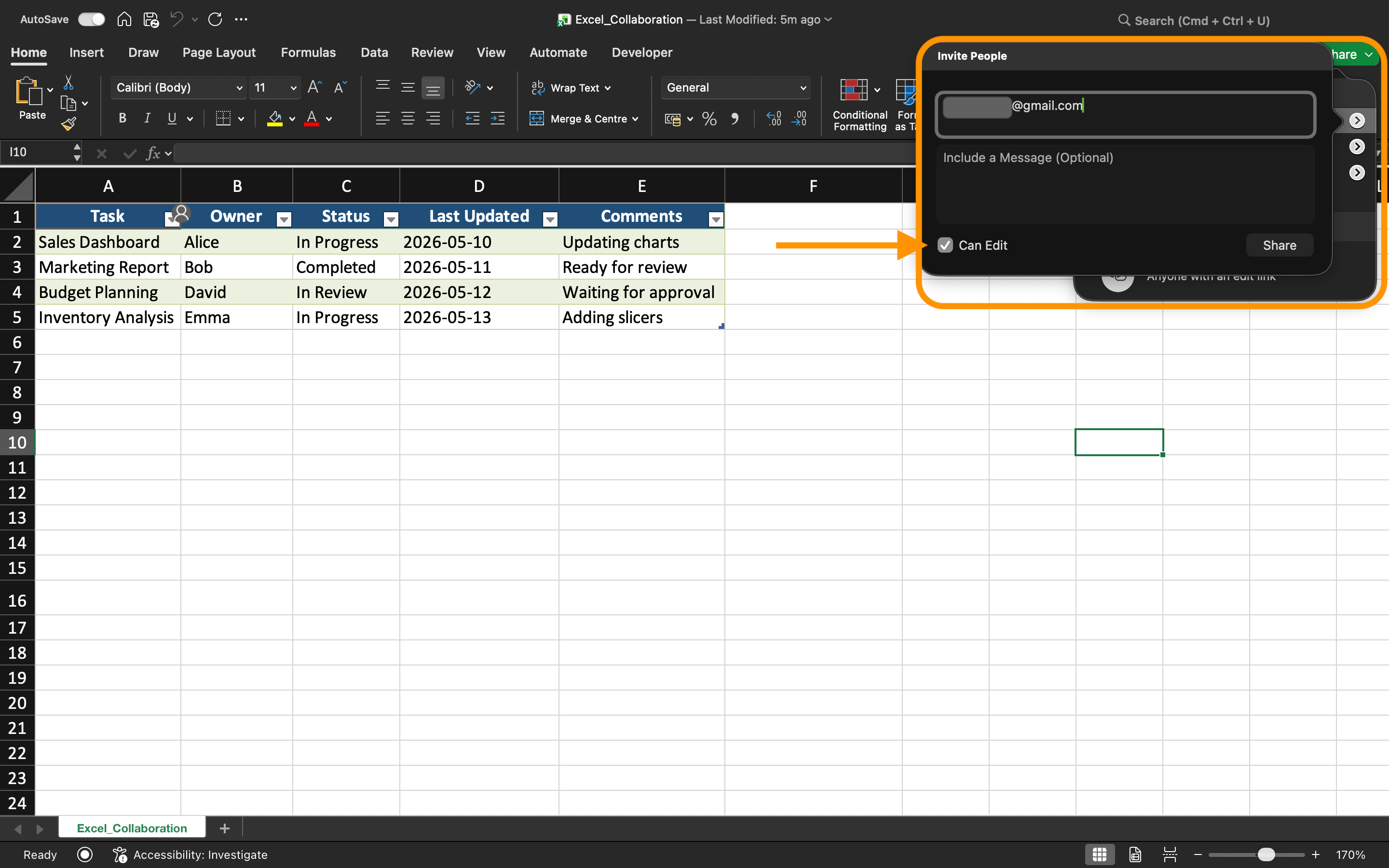
Excel può inviare inviti per la cartella di lavoro direttamente tramite email. Dopo aver inserito gli indirizzi email dei collaboratori, gli utenti ricevono un link che apre automaticamente la cartella di lavoro condivisa.
Questo metodo è comunemente utilizzato all'interno delle organizzazioni perché l'accesso rimane collegato a specifici account utente.
Quando si condivide tramite inviti, Excel consente anche di:
- Aggiungere un breve messaggio;
- Controllare le autorizzazioni di modifica;
- Impedire ai collaboratori di ricondividere il file.
Creazione di link di condivisione
Invece di invitare singolarmente gli utenti, Excel può generare link di collaborazione.
I tipi di link più comuni includono:
- Link di sola visualizzazione;
- Link modificabili;
- Link riservati all'organizzazione.
I link rendono la collaborazione più rapida, soprattutto quando molti utenti necessitano di accedere alla stessa cartella di lavoro.
Tuttavia, le impostazioni delle autorizzazioni devono sempre essere verificate attentamente prima di inviare i link all'esterno.
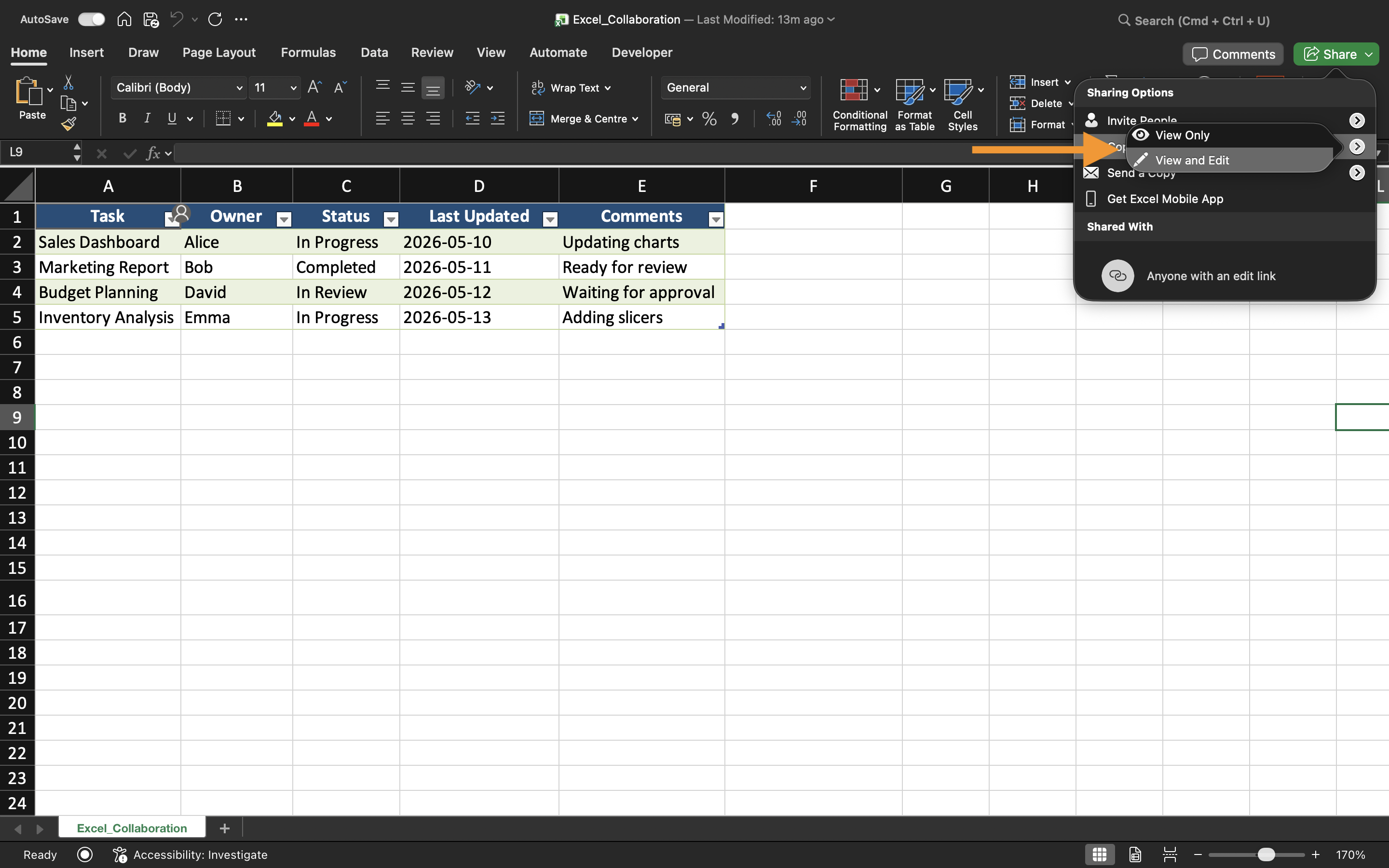
Gestione dell'accesso alla cartella di lavoro
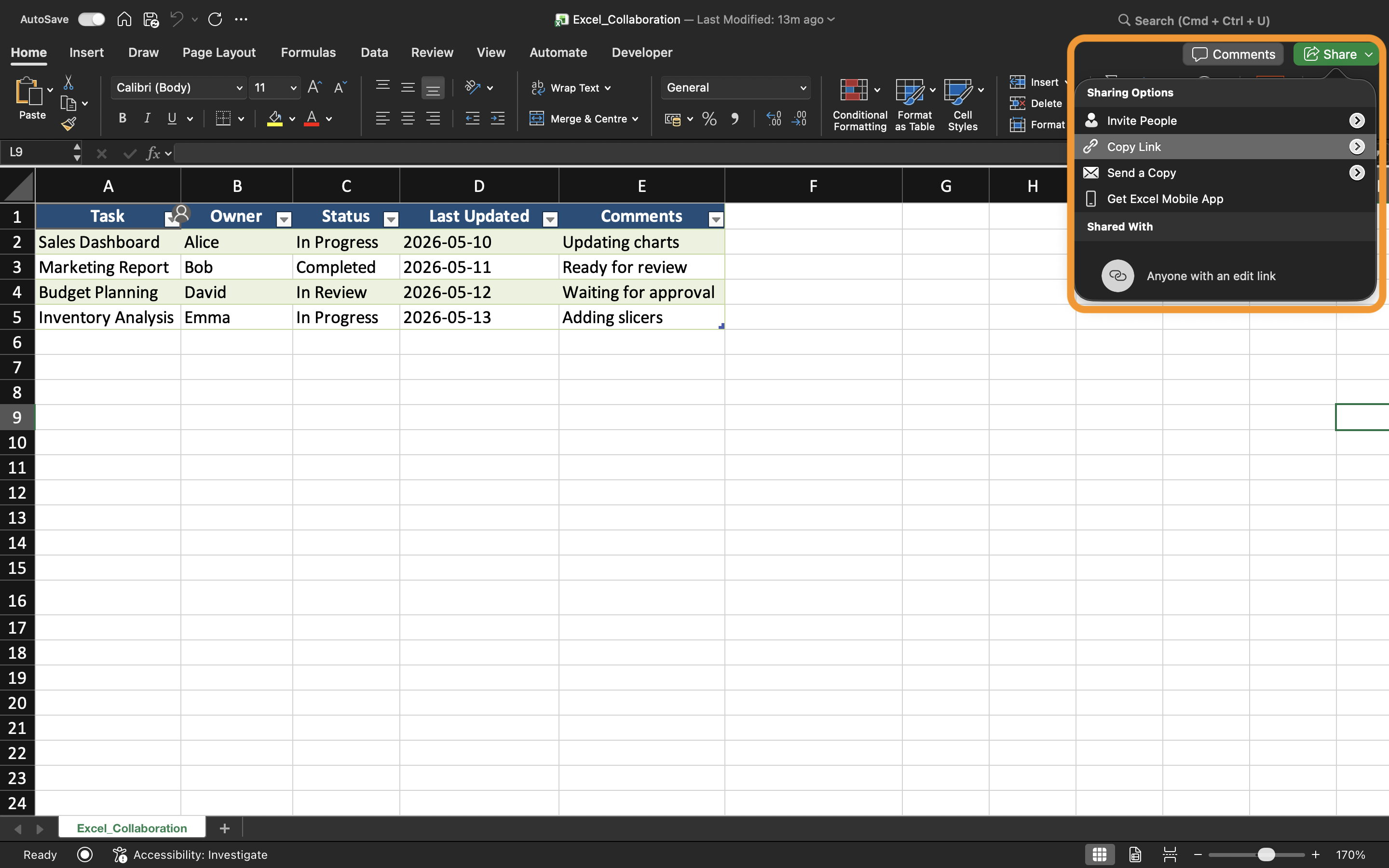
L'accesso alla cartella di lavoro può essere modificato in qualsiasi momento tramite le impostazioni di condivisione.
Excel consente agli utenti di:
- Rimuovere collaboratori;
- Modificare le autorizzazioni;
- Disabilitare i link di condivisione;
- Verificare chi ha attualmente accesso.
Queste funzionalità aiutano a mantenere una maggiore sicurezza e a prevenire modifiche non autorizzate alla cartella di lavoro.
Best practice per file condivisi
Quando si condividono cartelle di lavoro Excel in ambito professionale:
- Utilizzare nomi chiari per le cartelle di lavoro;
- Archiviare i file in cartelle organizzate;
- Evitare l'invio di allegati duplicati;
- Limitare le autorizzazioni di modifica quando possibile;
- Verificare regolarmente l'accesso dei collaboratori.
Queste abitudini aiutano i team a mantenere flussi di lavoro collaborativi più ordinati e sicuri.
Attività
La cartella di lavoro contiene un report mensile sulle vendite utilizzato da diversi responsabili di reparto. L'obiettivo è condividere la cartella di lavoro con accesso in modifica per i membri del team e creare un link separato di sola visualizzazione per i dirigenti.
- Salvare la cartella di lavoro su OneDrive;
- Aprire la finestra di condivisione;
- Creare un invito alla condivisione con autorizzazioni di modifica;
- Generare un link di sola visualizzazione;
- Verificare le impostazioni di accesso attuali della cartella di lavoro.
Grazie per i tuoi commenti!
Chieda ad AI

Chieda ad AI

Chieda pure quello che desidera o provi una delle domande suggerite per iniziare la nostra conversazione
Condivisione dei file e gestione degli accessi
Excel consente agli utenti di condividere le cartelle di lavoro direttamente tramite OneDrive e collaborare senza inviare manualmente allegati di file. Invece di creare più copie della cartella di lavoro, i team possono lavorare all'interno dello stesso file condiviso.
Prima che una cartella di lavoro possa essere condivisa, deve essere archiviata in OneDrive o SharePoint. I file locali salvati solo sul computer non possono utilizzare le funzionalità di collaborazione moderne.
Apertura della finestra di condivisione
Per condividere una cartella di lavoro:
- Aprire la cartella di lavoro Excel;
- Selezionare il pulsante Condividi vicino all'angolo in alto a destra;
- Scegliere come verrà condiviso il file.
Excel consente agli utenti di invitare collaboratori tramite indirizzi email o generare link di condivisione.
Comprendere i tipi di autorizzazione
Quando si condivide una cartella di lavoro, Excel consente diversi livelli di autorizzazione a seconda di come i collaboratori devono interagire con il file.
I due tipi di autorizzazione più comuni sono:
- Può modificare: gli utenti possono modificare il contenuto della cartella di lavoro;
- Può visualizzare: gli utenti possono solo visualizzare la cartella di lavoro.
La scelta del tipo di autorizzazione corretto è importante quando si lavora con report sensibili o file finalizzati.
Ad esempio, un responsabile finanziario può consentire al team contabile di modificare una cartella di lavoro mentre i dirigenti ricevono solo l'accesso in sola visualizzazione.
Condivisione tramite inviti email
Excel può inviare inviti per la cartella di lavoro direttamente tramite email. Dopo aver inserito gli indirizzi email dei collaboratori, gli utenti ricevono un link che apre automaticamente la cartella di lavoro condivisa.
Questo metodo è comunemente utilizzato all'interno delle organizzazioni perché l'accesso rimane collegato a specifici account utente.
Quando si condivide tramite inviti, Excel consente anche di:
- Aggiungere un breve messaggio;
- Controllare le autorizzazioni di modifica;
- Impedire ai collaboratori di ricondividere il file.
Creazione di link di condivisione
Invece di invitare singolarmente gli utenti, Excel può generare link di collaborazione.
I tipi di link più comuni includono:
- Link di sola visualizzazione;
- Link modificabili;
- Link riservati all'organizzazione.
I link rendono la collaborazione più rapida, soprattutto quando molti utenti necessitano di accedere alla stessa cartella di lavoro.
Tuttavia, le impostazioni delle autorizzazioni devono sempre essere verificate attentamente prima di inviare i link all'esterno.
Gestione dell'accesso alla cartella di lavoro
L'accesso alla cartella di lavoro può essere modificato in qualsiasi momento tramite le impostazioni di condivisione.
Excel consente agli utenti di:
- Rimuovere collaboratori;
- Modificare le autorizzazioni;
- Disabilitare i link di condivisione;
- Verificare chi ha attualmente accesso.
Queste funzionalità aiutano a mantenere una maggiore sicurezza e a prevenire modifiche non autorizzate alla cartella di lavoro.
Best practice per file condivisi
Quando si condividono cartelle di lavoro Excel in ambito professionale:
- Utilizzare nomi chiari per le cartelle di lavoro;
- Archiviare i file in cartelle organizzate;
- Evitare l'invio di allegati duplicati;
- Limitare le autorizzazioni di modifica quando possibile;
- Verificare regolarmente l'accesso dei collaboratori.
Queste abitudini aiutano i team a mantenere flussi di lavoro collaborativi più ordinati e sicuri.
Attività
La cartella di lavoro contiene un report mensile sulle vendite utilizzato da diversi responsabili di reparto. L'obiettivo è condividere la cartella di lavoro con accesso in modifica per i membri del team e creare un link separato di sola visualizzazione per i dirigenti.
- Salvare la cartella di lavoro su OneDrive;
- Aprire la finestra di condivisione;
- Creare un invito alla condivisione con autorizzazioni di modifica;
- Generare un link di sola visualizzazione;
- Verificare le impostazioni di accesso attuali della cartella di lavoro.
Grazie per i tuoi commenti!
