Protezione di fogli e celle
Scorri per mostrare il menu
Excel consente agli utenti di proteggere i fogli di lavoro e bloccare le celle importanti per prevenire modifiche accidentali. Questo è particolarmente utile quando i file condivisi contengono formule, calcoli, modelli o dati aziendali rilevanti.
La protezione del foglio di lavoro aiuta a mantenere l'accuratezza del file, consentendo comunque ai collaboratori di interagire con aree selezionate del documento.
Comprendere le celle bloccate
In Excel, tutte le celle di un foglio di lavoro sono tecnicamente contrassegnate come Bloccate per impostazione predefinita. Tuttavia, questa impostazione diventa attiva solo dopo che la protezione del foglio è stata abilitata.
Ciò significa che gli utenti possono normalmente modificare le celle bloccate fino a quando il foglio di lavoro non viene protetto.
I fogli protetti vengono comunemente utilizzati per:
- Prevenire l'eliminazione di formule;
- Limitare l'accesso alla modifica;
- Proteggere le strutture di reportistica;
- Controllare le aree di inserimento dati da parte degli utenti.
Proteggere un foglio di lavoro
Per proteggere un foglio di lavoro:
- Aprire il foglio di lavoro;
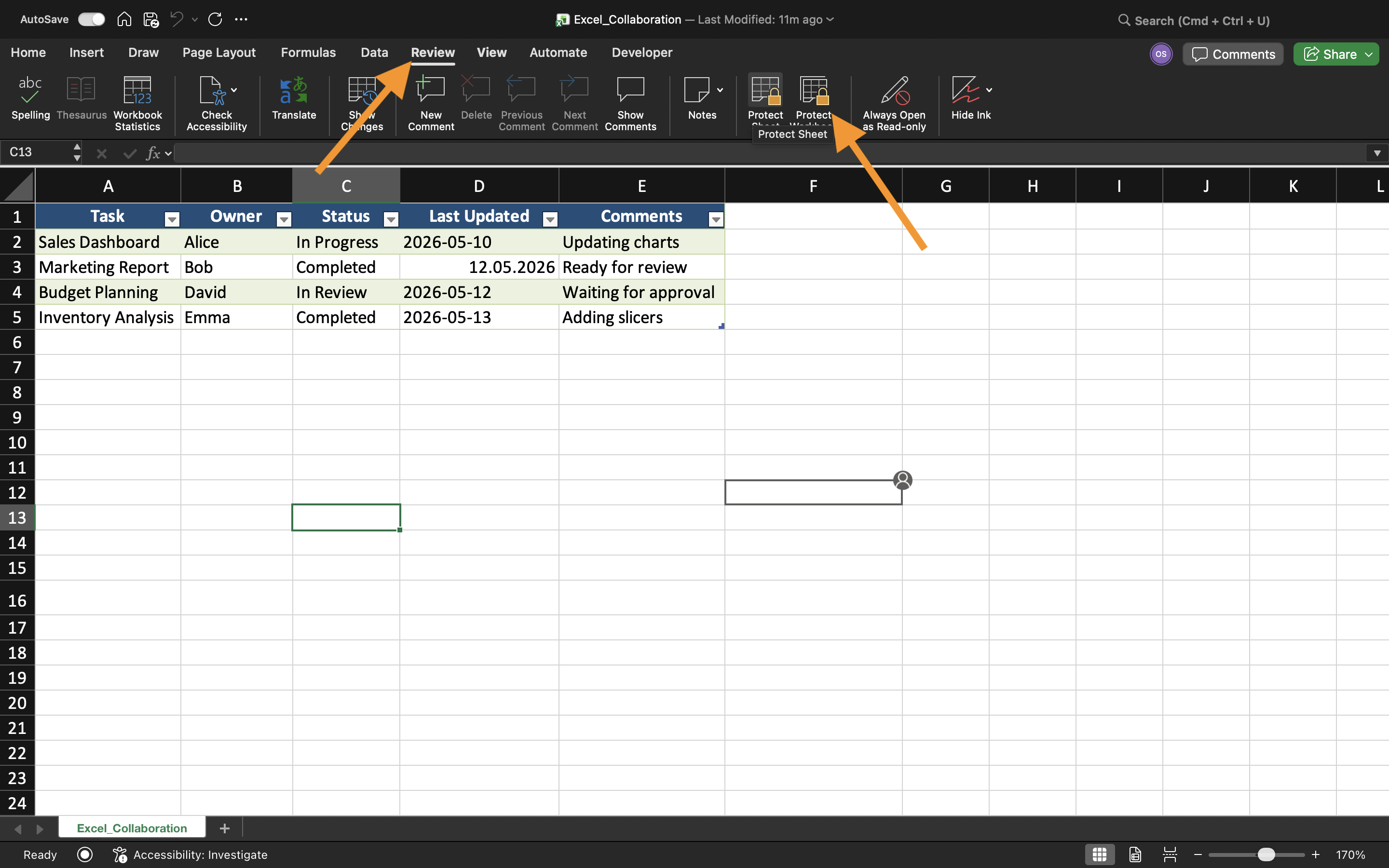
- Selezionare la scheda Revisione;
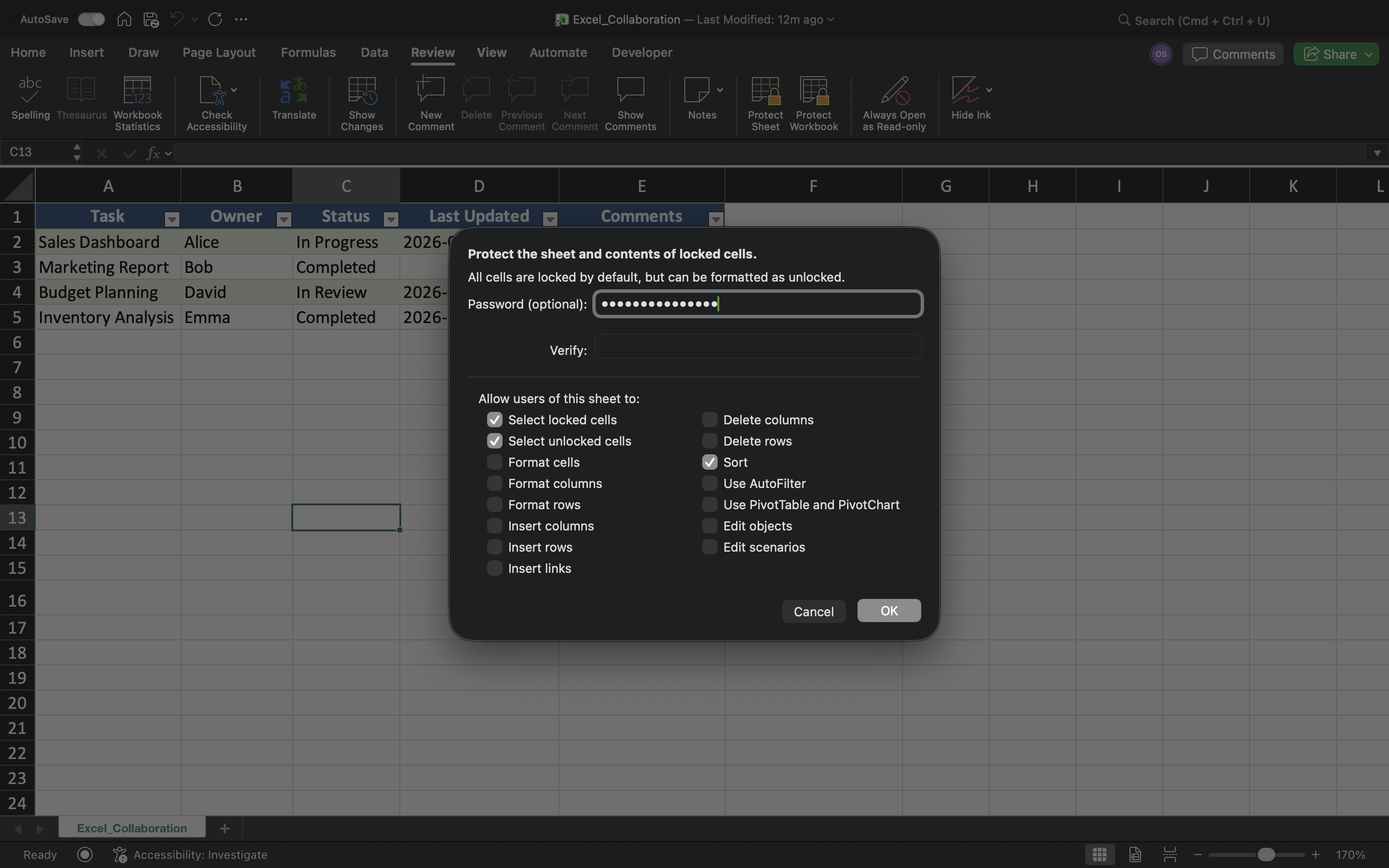
- Scegliere Proteggi foglio;
- Configurare le impostazioni di protezione;
- Applicare la protezione.
Excel può limitare azioni come la modifica delle celle, l'eliminazione di righe, l'inserimento di colonne o la modifica della formattazione del foglio di lavoro.
Consentire aree di input modificabili
Sebbene la protezione del foglio limiti la modifica, alcune celle specifiche possono comunque rimanere modificabili.
Per creare aree modificabili:
- Selezionare le celle di input;
- Aprire Formato celle;
- Disattivare l'impostazione Bloccata;
- Proteggere il foglio di lavoro.
Protezione delle formule
Uno dei principali motivi per proteggere un foglio di lavoro è prevenire modifiche accidentali alle formule.
Senza protezione, i collaboratori potrebbero accidentalmente:
- Eliminare formule;
- Sovrascrivere calcoli;
- Compromettere la logica del foglio di lavoro;
- Modificare riferimenti importanti.
Limitazioni della protezione
La protezione del foglio di lavoro migliora la sicurezza della cartella, ma non è progettata come una crittografia di sicurezza avanzata. Utenti esperti possono comunque aggirare metodi di protezione deboli.
Per questo motivo, la protezione del foglio di lavoro dovrebbe essere considerata principalmente come uno strumento per prevenire modifiche accidentali piuttosto che per proteggere completamente dati aziendali sensibili.
Attività
La cartella di lavoro contiene un registro spese condiviso utilizzato da più dipendenti. L'obiettivo è proteggere le formule e la struttura del foglio di lavoro consentendo agli utenti di modificare solo le aree di input selezionate.
- Proteggere il foglio di lavoro utilizzando Proteggi foglio;
- Bloccare le celle delle formule;
- Creare aree di input modificabili;
- Testare le restrizioni di modifica;
- Verificare che le celle protette non possano essere modificate.
Grazie per i tuoi commenti!
Chieda ad AI

Chieda ad AI

Chieda pure quello che desidera o provi una delle domande suggerite per iniziare la nostra conversazione
Protezione di fogli e celle
Excel consente agli utenti di proteggere i fogli di lavoro e bloccare le celle importanti per prevenire modifiche accidentali. Questo è particolarmente utile quando i file condivisi contengono formule, calcoli, modelli o dati aziendali rilevanti.
La protezione del foglio di lavoro aiuta a mantenere l'accuratezza del file, consentendo comunque ai collaboratori di interagire con aree selezionate del documento.
Comprendere le celle bloccate
In Excel, tutte le celle di un foglio di lavoro sono tecnicamente contrassegnate come Bloccate per impostazione predefinita. Tuttavia, questa impostazione diventa attiva solo dopo che la protezione del foglio è stata abilitata.
Ciò significa che gli utenti possono normalmente modificare le celle bloccate fino a quando il foglio di lavoro non viene protetto.
I fogli protetti vengono comunemente utilizzati per:
- Prevenire l'eliminazione di formule;
- Limitare l'accesso alla modifica;
- Proteggere le strutture di reportistica;
- Controllare le aree di inserimento dati da parte degli utenti.
Proteggere un foglio di lavoro
Per proteggere un foglio di lavoro:
- Aprire il foglio di lavoro;
- Selezionare la scheda Revisione;
- Scegliere Proteggi foglio;
- Configurare le impostazioni di protezione;
- Applicare la protezione.
Excel può limitare azioni come la modifica delle celle, l'eliminazione di righe, l'inserimento di colonne o la modifica della formattazione del foglio di lavoro.
Consentire aree di input modificabili
Sebbene la protezione del foglio limiti la modifica, alcune celle specifiche possono comunque rimanere modificabili.
Per creare aree modificabili:
- Selezionare le celle di input;
- Aprire Formato celle;
- Disattivare l'impostazione Bloccata;
- Proteggere il foglio di lavoro.
Protezione delle formule
Uno dei principali motivi per proteggere un foglio di lavoro è prevenire modifiche accidentali alle formule.
Senza protezione, i collaboratori potrebbero accidentalmente:
- Eliminare formule;
- Sovrascrivere calcoli;
- Compromettere la logica del foglio di lavoro;
- Modificare riferimenti importanti.
Limitazioni della protezione
La protezione del foglio di lavoro migliora la sicurezza della cartella, ma non è progettata come una crittografia di sicurezza avanzata. Utenti esperti possono comunque aggirare metodi di protezione deboli.
Per questo motivo, la protezione del foglio di lavoro dovrebbe essere considerata principalmente come uno strumento per prevenire modifiche accidentali piuttosto che per proteggere completamente dati aziendali sensibili.
Attività
La cartella di lavoro contiene un registro spese condiviso utilizzato da più dipendenti. L'obiettivo è proteggere le formule e la struttura del foglio di lavoro consentendo agli utenti di modificare solo le aree di input selezionate.
- Proteggere il foglio di lavoro utilizzando Proteggi foglio;
- Bloccare le celle delle formule;
- Creare aree di input modificabili;
- Testare le restrizioni di modifica;
- Verificare che le celle protette non possano essere modificate.
Grazie per i tuoi commenti!
