Controllo della Struttura della Cartella di Lavoro
Scorri per mostrare il menu
Oltre a proteggere il contenuto dei fogli di lavoro, Excel consente anche di proteggere la struttura della cartella di lavoro. Questa funzione aiuta a impedire che i collaboratori modifichino l'organizzazione dei fogli all'interno del file.
La protezione della struttura della cartella di lavoro è comunemente utilizzata in report condivisi, modelli, dashboard e sistemi operativi in cui l'organizzazione dei fogli deve rimanere stabile.
Comprendere la protezione della struttura della cartella di lavoro
La protezione della struttura della cartella di lavoro limita le azioni che influiscono sull'organizzazione dei fogli. Una volta abilitata, gli utenti non potranno più aggiungere, eliminare, rinominare, spostare, nascondere o mostrare i fogli di lavoro.
Proteggere la struttura della cartella di lavoro
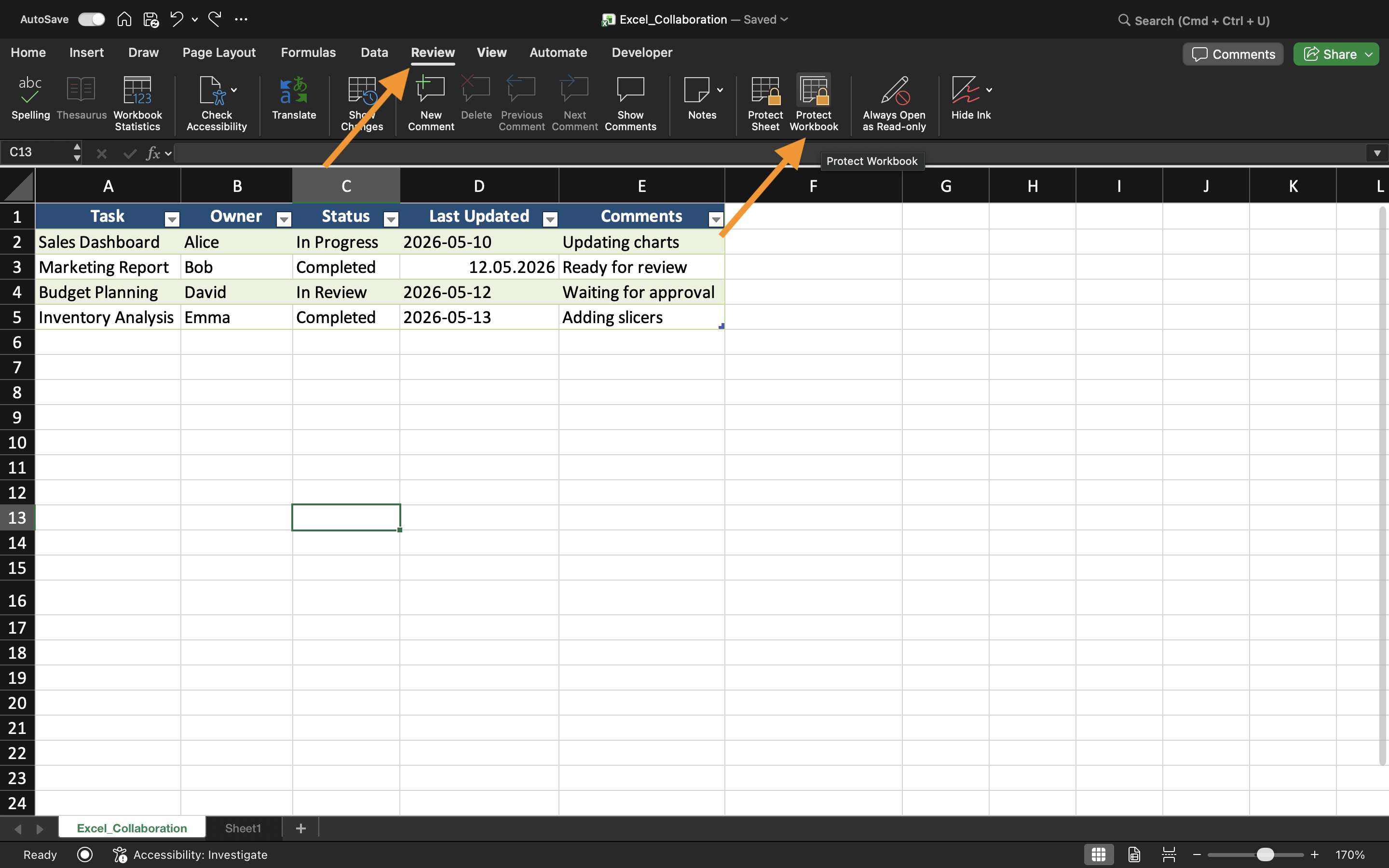
Per proteggere la struttura della cartella di lavoro:
- Aprire la scheda Revisione;
- Selezionare Proteggi cartella di lavoro;
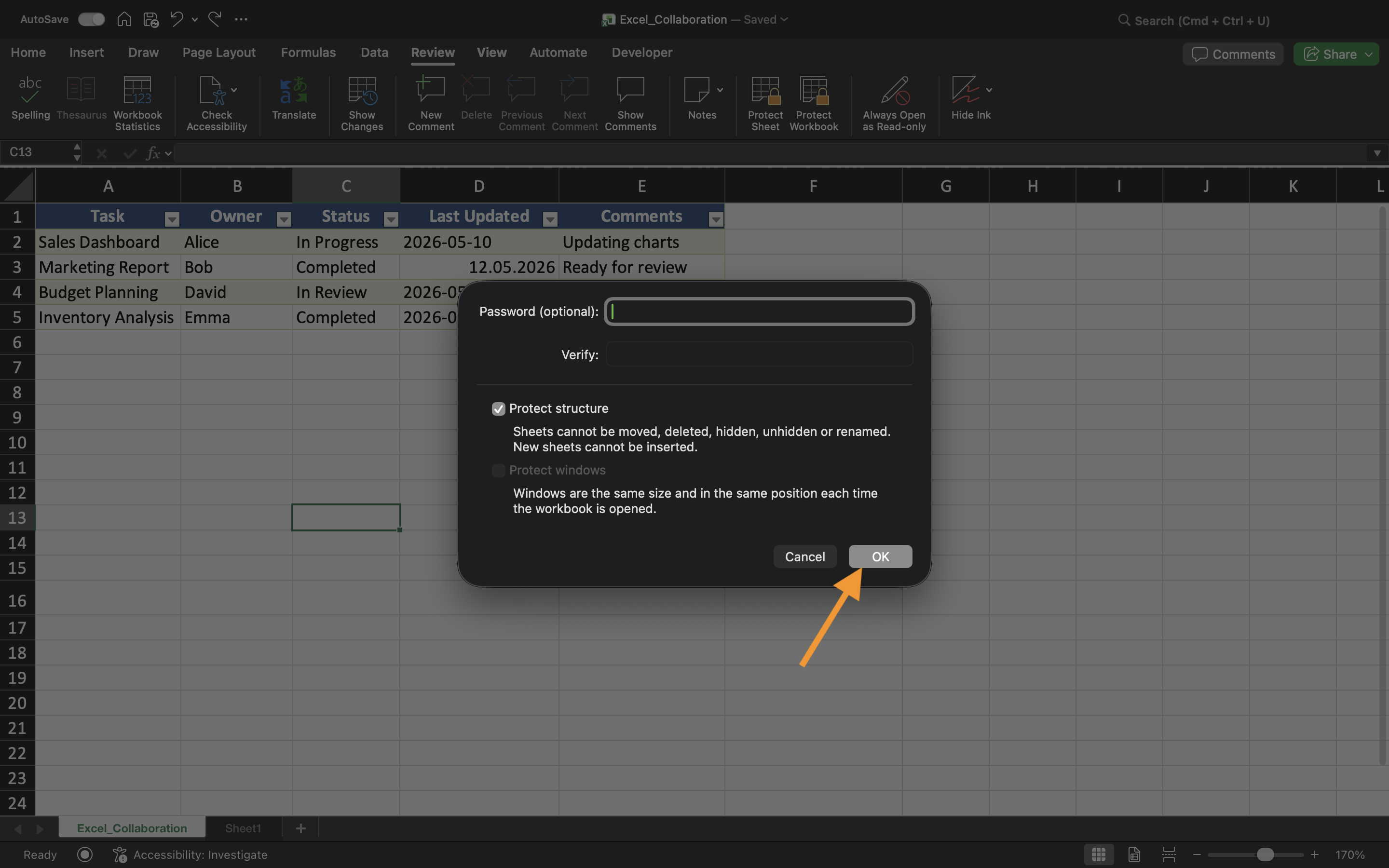
- Abilitare la protezione Struttura;
- Applicare le impostazioni.
Dopo aver abilitato la protezione, l'organizzazione dei fogli di lavoro diventa limitata per i collaboratori.
Questa funzione è particolarmente utile quando le cartelle di lavoro contengono sistemi di reportistica organizzati con cura o strutture di fogli collegate.
Nascondere i fogli di lavoro
Excel consente anche di nascondere i fogli di lavoro dalla visualizzazione normale della cartella. I fogli nascosti rimangono all'interno della cartella di lavoro ma non sono immediatamente visibili ai collaboratori.
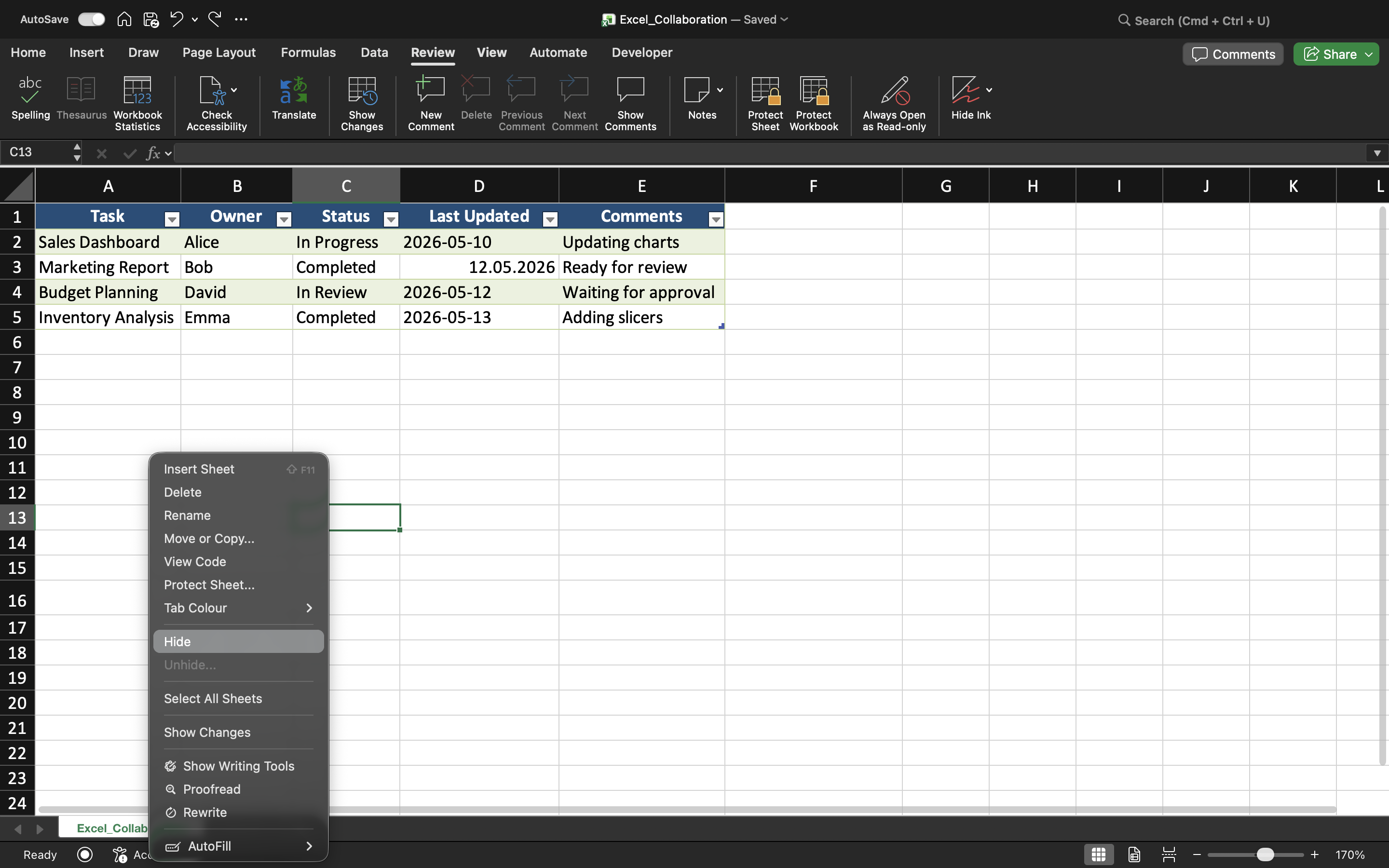
Per nascondere un foglio di lavoro:
- Fare clic con il tasto destro sulla scheda del foglio;
- Selezionare Nascondi.
I fogli di lavoro nascosti sono spesso utilizzati per calcoli di supporto, dati archiviati, tabelle di supporto o informazioni amministrative. Questo aiuta a creare interfacce di cartelle di lavoro più pulite e organizzate.
Visualizzazione dei fogli di lavoro nascosti
Se la protezione della struttura della cartella di lavoro è disattivata, i fogli di lavoro nascosti possono essere ripristinati tramite l'opzione Scopri. Tuttavia, quando la protezione della struttura della cartella di lavoro è attiva, i collaboratori potrebbero non essere in grado di scoprire autonomamente i fogli. Questo aggiunge un ulteriore livello di controllo organizzativo all'interno delle cartelle di lavoro condivise.
Quando è utile la protezione della struttura della cartella di lavoro
La protezione della struttura della cartella di lavoro è particolarmente utile quando i team collaborano all'interno di sistemi di cartelle di lavoro complessi o dashboard con layout di fogli di lavoro attentamente organizzati.
Senza protezione strutturale, i collaboratori potrebbero accidentalmente riorganizzare le schede dei fogli di lavoro, rimuovere fogli importanti o compromettere la navigazione nella cartella di lavoro.
Attività
La cartella di lavoro contiene un sistema di reportistica condiviso con più fogli di lavoro e schede di calcolo nascoste. L'obiettivo è proteggere l'organizzazione della cartella di lavoro e prevenire modifiche strutturali durante la collaborazione.
- Proteggere la struttura della cartella di lavoro;
- Nascondere i fogli di lavoro selezionati;
- Tentare di rinominare o spostare le schede dei fogli di lavoro;
- Verificare che le modifiche strutturali siano limitate;
- Testare la visualizzazione dei fogli di lavoro nascosti prima e dopo la protezione.
Grazie per i tuoi commenti!
Chieda ad AI

Chieda ad AI

Chieda pure quello che desidera o provi una delle domande suggerite per iniziare la nostra conversazione
