Cronologia delle versioni e recupero dei file
Scorri per mostrare il menu
Excel memorizza automaticamente le versioni precedenti delle cartelle di lavoro quando i file vengono salvati in OneDrive o SharePoint. Questo consente agli utenti di esaminare stati precedenti della cartella di lavoro, recuperare informazioni perse e ripristinare file dopo modifiche accidentali.
La Cronologia delle Versioni è una delle funzionalità di collaborazione più importanti perché aiuta i team a gestire in modo sicuro le cartelle di lavoro condivise nel tempo.
Comprendere la Cronologia delle Versioni
Ogni volta che vengono apportate modifiche a una cartella di lavoro basata su cloud, Excel salva automaticamente le versioni storiche. Queste versioni creano una sequenza temporale degli aggiornamenti della cartella di lavoro.
La Cronologia delle Versioni aiuta gli utenti a:
- Ripristinare stati precedenti della cartella di lavoro;
- Recuperare informazioni eliminate;
- Esaminare modifiche precedenti della cartella di lavoro;
- Annullare errori di modifica rilevanti.
Questo è particolarmente utile quando più collaboratori lavorano all'interno dello stesso file.
Apertura della Cronologia delle Versioni
Per visualizzare la cronologia della cartella di lavoro:
- Aprire la cartella di lavoro condivisa;
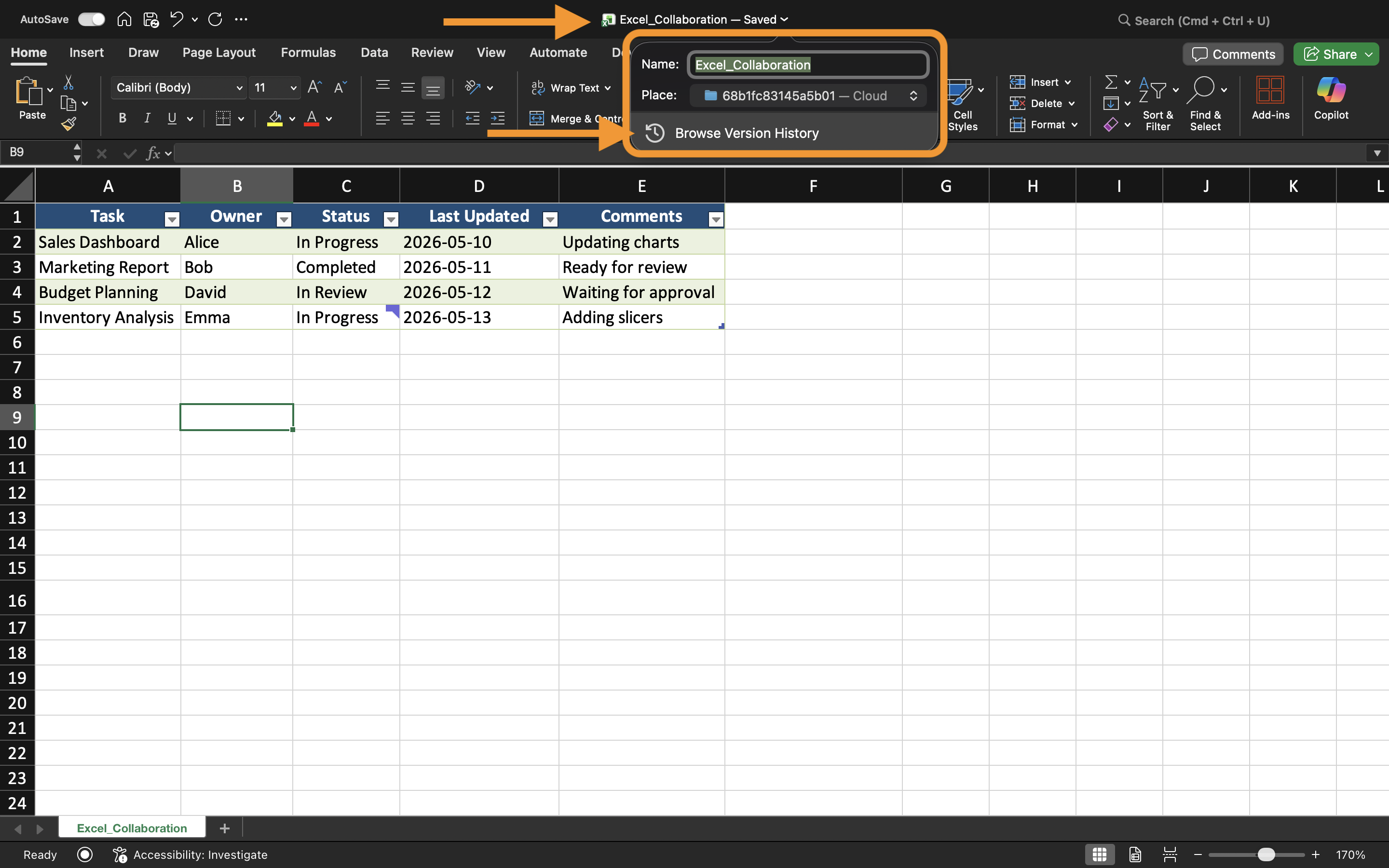
- Selezionare il nome della cartella di lavoro vicino alla parte superiore di Excel;
- Scegliere Cronologia delle Versioni.
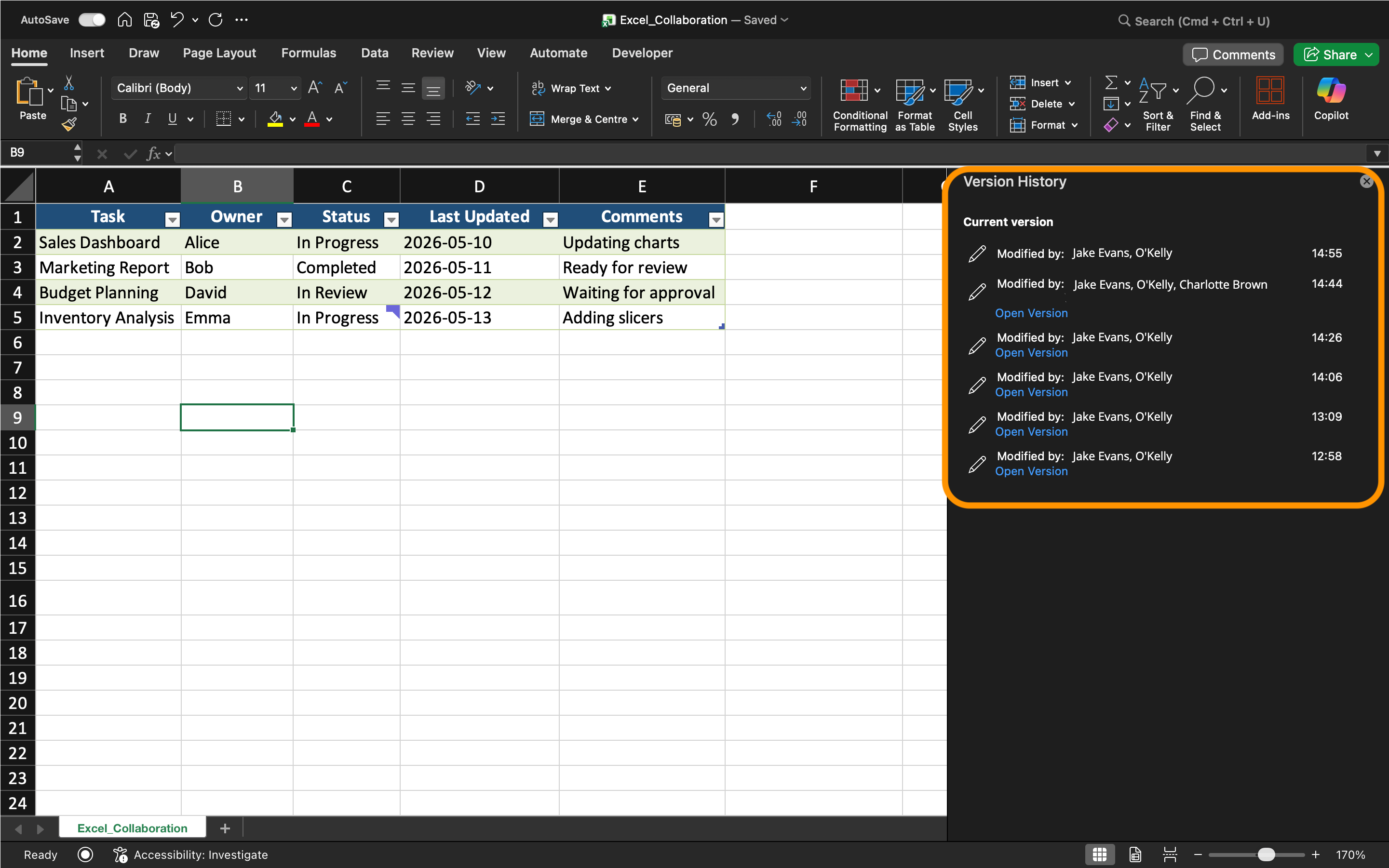
Excel mostra un elenco delle versioni precedentemente salvate della cartella di lavoro insieme a data/ora e informazioni sui collaboratori.
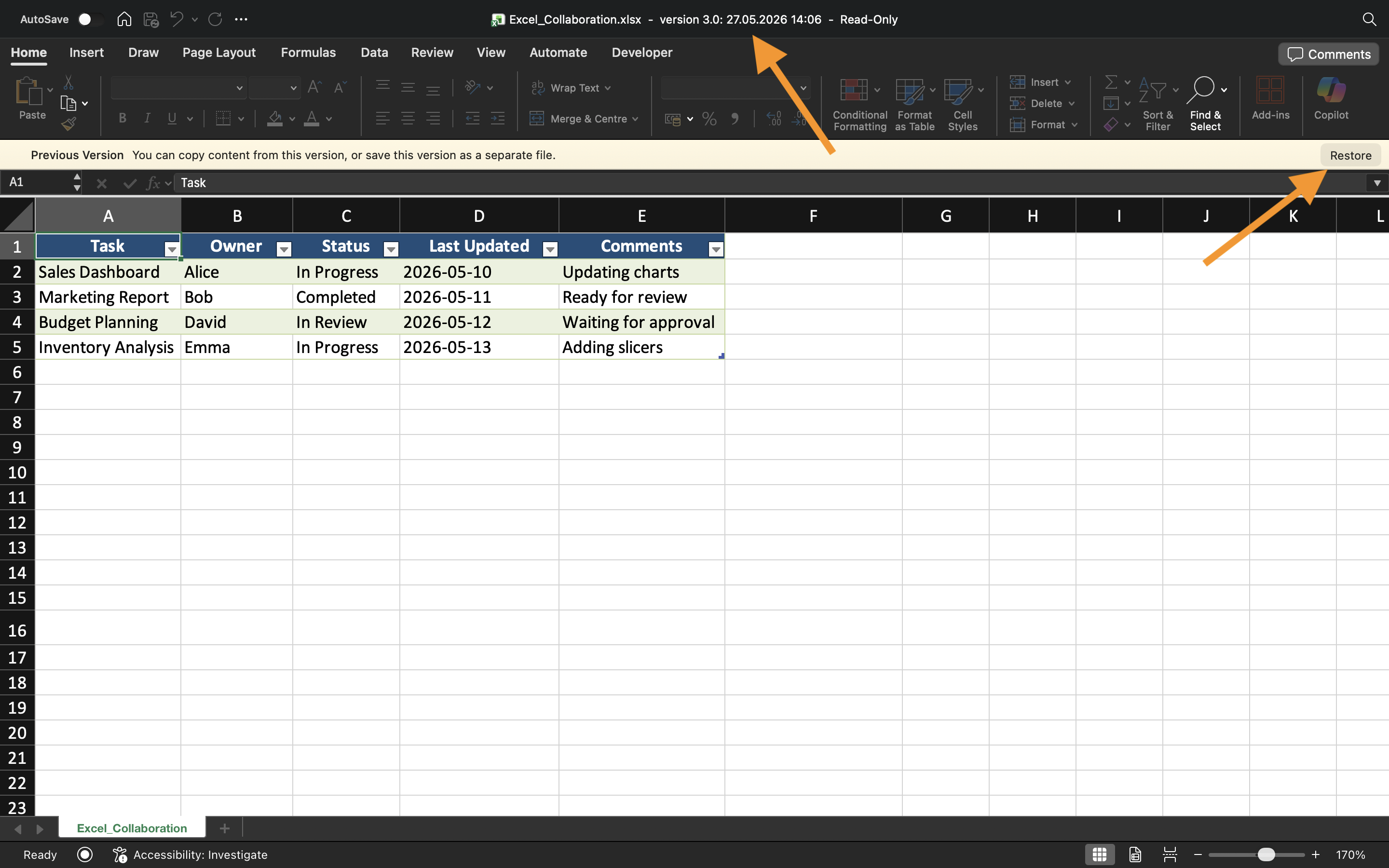
Gli utenti possono aprire versioni precedenti senza sostituire immediatamente la cartella di lavoro corrente.
Ripristino di Versioni Precedenti
Se i dati della cartella di lavoro vengono danneggiati o eliminati accidentalmente, è possibile ripristinare una versione precedente.
Per ripristinare una versione:
- Aprire la Cronologia delle Versioni;
- Selezionare la versione desiderata della cartella di lavoro;
- Esaminare il contenuto della cartella di lavoro;
- Scegliere Ripristina se la versione è corretta.
Excel sostituisce quindi lo stato attuale della cartella di lavoro con la versione storica selezionata.
Il ripristino delle versioni viene comunemente utilizzato dopo:
- Eliminazioni accidentali;
- Importazioni di dati errate;
- Errori nelle formule;
- Modifiche indesiderate di grande entità.
Recupero del lavoro non salvato
Excel include anche AutoRecover, che aiuta a ripristinare le modifiche non salvate della cartella di lavoro dopo arresti anomali o chiusure improvvise.
Quando Excel si chiude inaspettatamente, i file di recupero possono apparire automaticamente al successivo avvio dell'applicazione.
AutoRecover è diverso dalla Cronologia delle versioni:
Attività
La cartella di lavoro contiene un report operativo condiviso che è stato modificato accidentalmente durante la collaborazione. L'obiettivo è esaminare la cronologia della cartella di lavoro e recuperare una versione precedente del file.
- Aprire la cronologia delle versioni della cartella di lavoro;
- Esaminare le versioni disponibili della cartella di lavoro;
- Aprire uno stato precedente della cartella di lavoro;
- Ripristinare la versione selezionata della cartella di lavoro;
- Testare la funzione di salvataggio automatico riaprendo una cartella di lavoro temporanea non salvata.
Grazie per i tuoi commenti!
Chieda ad AI

Chieda ad AI

Chieda pure quello che desidera o provi una delle domande suggerite per iniziare la nostra conversazione
Cronologia delle versioni e recupero dei file
Excel memorizza automaticamente le versioni precedenti delle cartelle di lavoro quando i file vengono salvati in OneDrive o SharePoint. Questo consente agli utenti di esaminare stati precedenti della cartella di lavoro, recuperare informazioni perse e ripristinare file dopo modifiche accidentali.
La Cronologia delle Versioni è una delle funzionalità di collaborazione più importanti perché aiuta i team a gestire in modo sicuro le cartelle di lavoro condivise nel tempo.
Comprendere la Cronologia delle Versioni
Ogni volta che vengono apportate modifiche a una cartella di lavoro basata su cloud, Excel salva automaticamente le versioni storiche. Queste versioni creano una sequenza temporale degli aggiornamenti della cartella di lavoro.
La Cronologia delle Versioni aiuta gli utenti a:
- Ripristinare stati precedenti della cartella di lavoro;
- Recuperare informazioni eliminate;
- Esaminare modifiche precedenti della cartella di lavoro;
- Annullare errori di modifica rilevanti.
Questo è particolarmente utile quando più collaboratori lavorano all'interno dello stesso file.
Apertura della Cronologia delle Versioni
Per visualizzare la cronologia della cartella di lavoro:
- Aprire la cartella di lavoro condivisa;
- Selezionare il nome della cartella di lavoro vicino alla parte superiore di Excel;
- Scegliere Cronologia delle Versioni.
Excel mostra un elenco delle versioni precedentemente salvate della cartella di lavoro insieme a data/ora e informazioni sui collaboratori.
Gli utenti possono aprire versioni precedenti senza sostituire immediatamente la cartella di lavoro corrente.
Ripristino di Versioni Precedenti
Se i dati della cartella di lavoro vengono danneggiati o eliminati accidentalmente, è possibile ripristinare una versione precedente.
Per ripristinare una versione:
- Aprire la Cronologia delle Versioni;
- Selezionare la versione desiderata della cartella di lavoro;
- Esaminare il contenuto della cartella di lavoro;
- Scegliere Ripristina se la versione è corretta.
Excel sostituisce quindi lo stato attuale della cartella di lavoro con la versione storica selezionata.
Il ripristino delle versioni viene comunemente utilizzato dopo:
- Eliminazioni accidentali;
- Importazioni di dati errate;
- Errori nelle formule;
- Modifiche indesiderate di grande entità.
Recupero del lavoro non salvato
Excel include anche AutoRecover, che aiuta a ripristinare le modifiche non salvate della cartella di lavoro dopo arresti anomali o chiusure improvvise.
Quando Excel si chiude inaspettatamente, i file di recupero possono apparire automaticamente al successivo avvio dell'applicazione.
AutoRecover è diverso dalla Cronologia delle versioni:
Attività
La cartella di lavoro contiene un report operativo condiviso che è stato modificato accidentalmente durante la collaborazione. L'obiettivo è esaminare la cronologia della cartella di lavoro e recuperare una versione precedente del file.
- Aprire la cronologia delle versioni della cartella di lavoro;
- Esaminare le versioni disponibili della cartella di lavoro;
- Aprire uno stato precedente della cartella di lavoro;
- Ripristinare la versione selezionata della cartella di lavoro;
- Testare la funzione di salvataggio automatico riaprendo una cartella di lavoro temporanea non salvata.
Grazie per i tuoi commenti!
