Dynamic Arrays in Dropdown List
Scorri per mostrare il menu
In many real-world scenarios, you don't just analyze data—you also need to create interactive inputs that adapt to your data automatically. One common example is a dropdown list that allows users to select values such as Employees, Departments, or Projects.
Traditionally, dropdown lists in Excel required manual range selection or named ranges that had to be updated when data changed. With dynamic arrays, you can now build dropdowns that are fully automatic and always up to date.
Using functions like UNIQUE, you can generate a clean list of values from a column, and then use that spilled result as the source for a dropdown list.
=UNIQUE(Employee_Projects[Employee Name])
or
=UNIQUE(C2:C28)
This formula returns a list of unique employee names that automatically updates when new employees are added to the table. You can put this formula into the separate sheet.
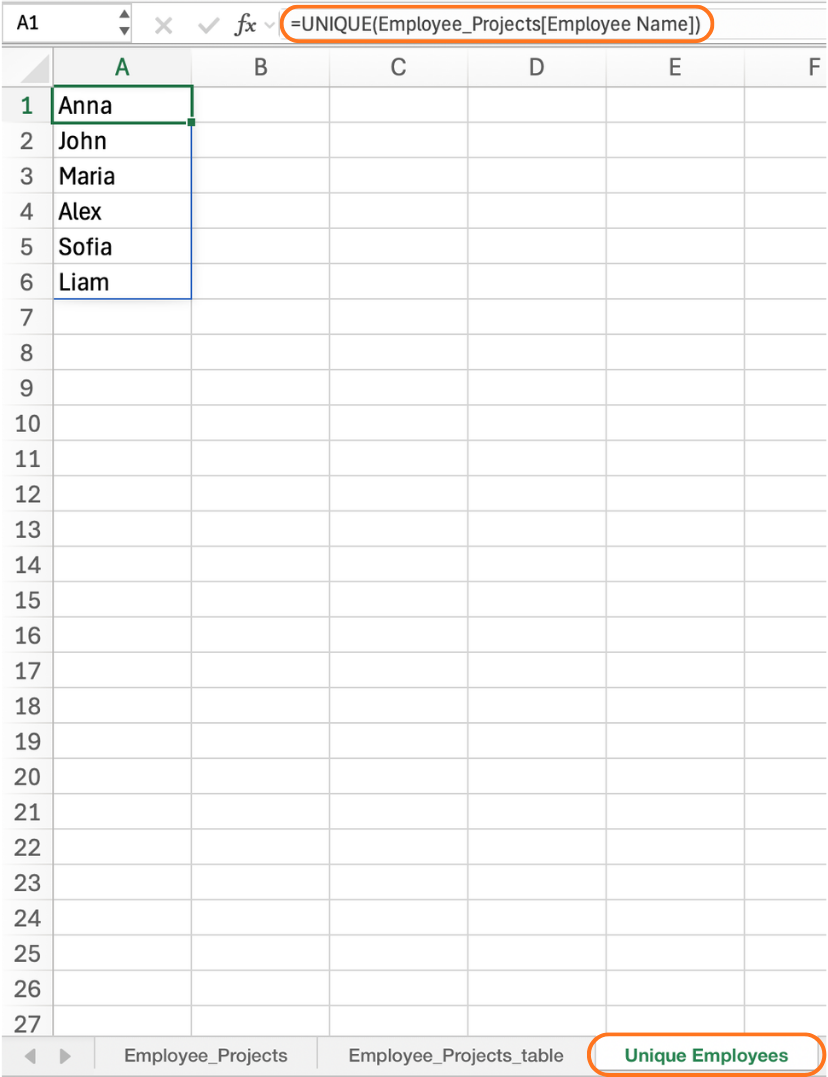
To use this result in a dropdown:
1. After creating a dynamic array formula (for example, unique Employee Names), select a cell where you want the dropdown;
2-4. Open Data → Data Validation → List;
5. In the Source field, reference the spill range using the # operator;
='Unique Employees'!$A$1#
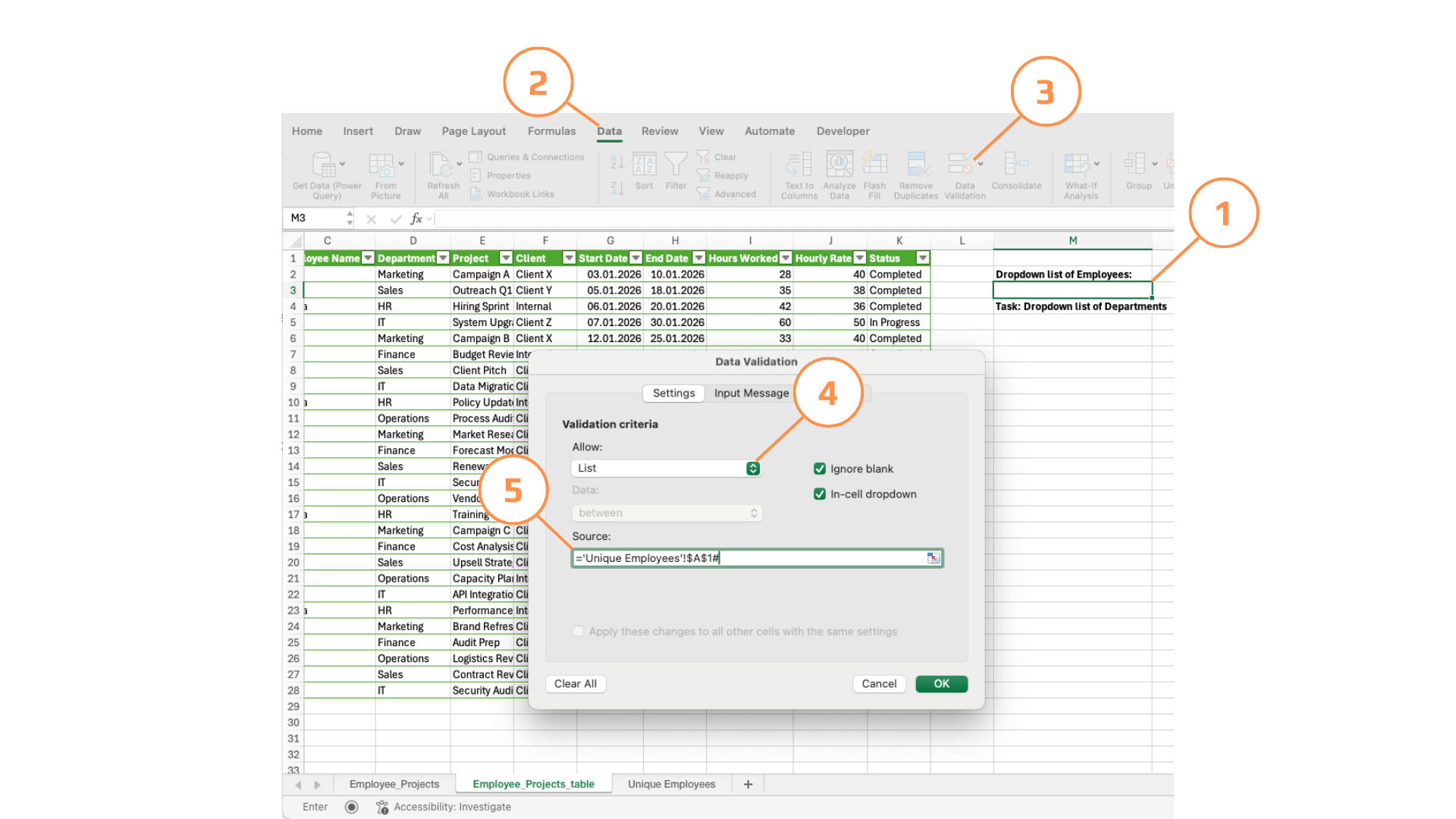
6. Press OK.
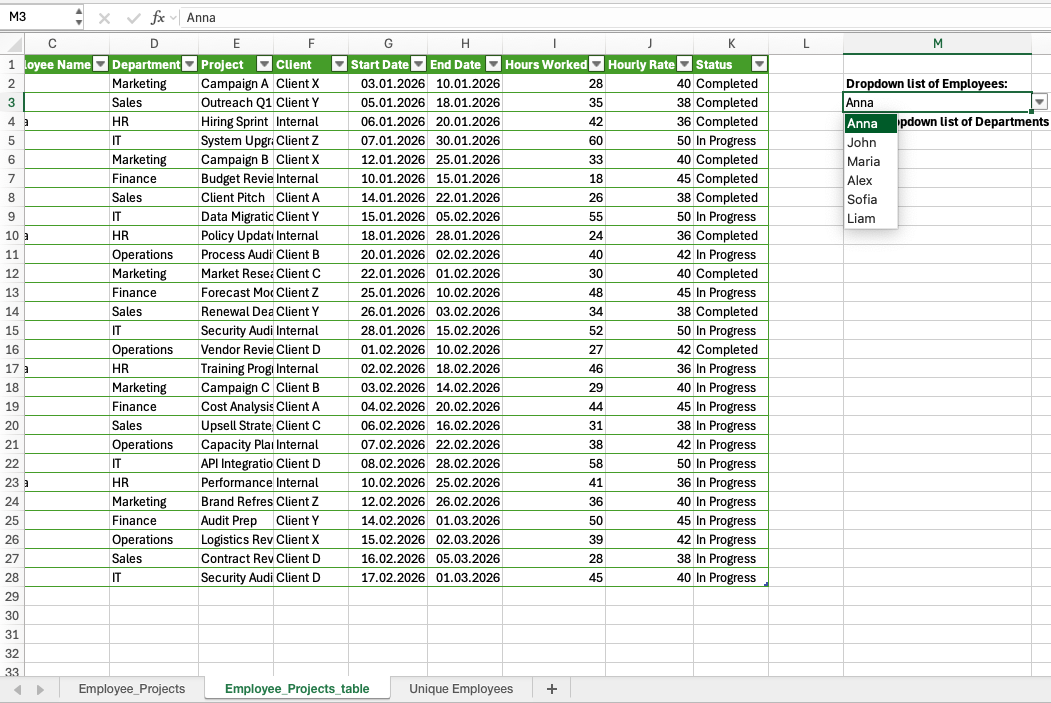
Any changes in the Employee_Projects table—such as adding new employees or removing old ones—are immediately reflected in the dropdown list.
Create a dynamic dropdown list of Departments from the Employee_Projects table.
First, generate a unique list of Departments using a dynamic array formula. Then, use that spilled result as the source for a dropdown list in another cell.
- Use a
UNIQUEformula to generate the list;
=UNIQUE(Employee_Projects[Departments])
or
=UNIQUE(D2:D28)
- Use the
#operator in Data Validation.
Grazie per i tuoi commenti!
Chieda ad AI

Chieda ad AI

Chieda pure quello che desidera o provi una delle domande suggerite per iniziare la nostra conversazione
Dynamic Arrays in Dropdown List
In many real-world scenarios, you don't just analyze data—you also need to create interactive inputs that adapt to your data automatically. One common example is a dropdown list that allows users to select values such as Employees, Departments, or Projects.
Traditionally, dropdown lists in Excel required manual range selection or named ranges that had to be updated when data changed. With dynamic arrays, you can now build dropdowns that are fully automatic and always up to date.
Using functions like UNIQUE, you can generate a clean list of values from a column, and then use that spilled result as the source for a dropdown list.
=UNIQUE(Employee_Projects[Employee Name])
or
=UNIQUE(C2:C28)
This formula returns a list of unique employee names that automatically updates when new employees are added to the table. You can put this formula into the separate sheet.
To use this result in a dropdown:
1. After creating a dynamic array formula (for example, unique Employee Names), select a cell where you want the dropdown;
2-4. Open Data → Data Validation → List;
5. In the Source field, reference the spill range using the # operator;
='Unique Employees'!$A$1#
6. Press OK.
Any changes in the Employee_Projects table—such as adding new employees or removing old ones—are immediately reflected in the dropdown list.
Create a dynamic dropdown list of Departments from the Employee_Projects table.
First, generate a unique list of Departments using a dynamic array formula. Then, use that spilled result as the source for a dropdown list in another cell.
- Use a
UNIQUEformula to generate the list;
=UNIQUE(Employee_Projects[Departments])
or
=UNIQUE(D2:D28)
- Use the
#operator in Data Validation.
Grazie per i tuoi commenti!
