Dealing with Missing or Invalid Values
Scorri per mostrare il menu
When working with real datasets, it is very common to encounter missing or invalid values. Some cells may be empty, while others may contain incorrect data like "text" instead of a number or "invalid" instead of a date.
At first glance, these issues may seem minor, but they can significantly affect your analysis. Excel formulas often rely on consistent data types, and unexpected values can lead to errors or misleading results.
Why This Is a Problem
If you try to calculate the average or total, Excel may ignore empty cells but return errors when it encounters invalid values. This leads to inconsistent results, where part of your data is processed correctly and part of it breaks the calculation.
How to Handle Missing and Invalid Values
The goal is not just to detect these values, but to define a clear rule for handling them.
One common approach is to use logical functions like IF together with ISNUMBER or ISERROR.
For example:
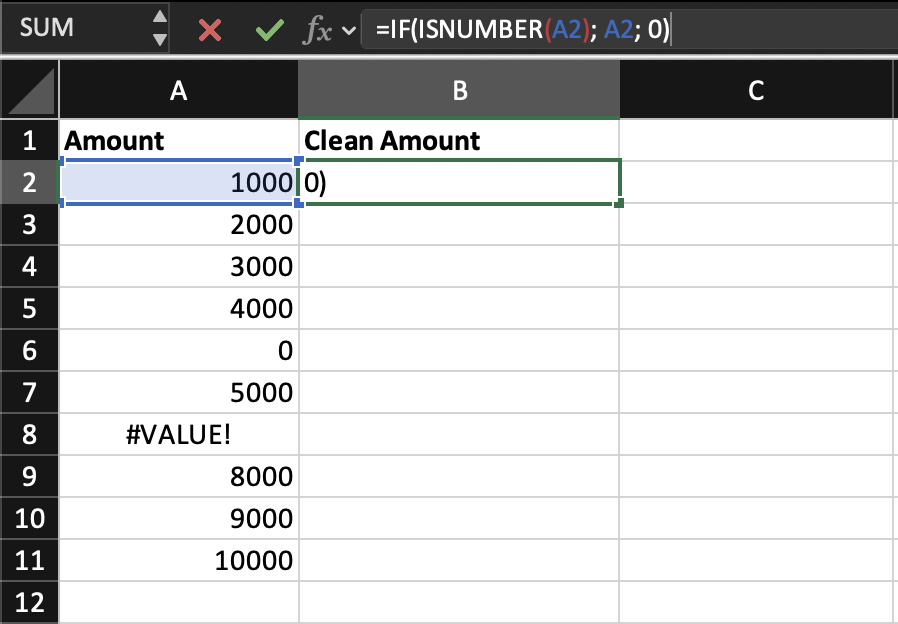
=IF(ISNUMBER(A2), A2, 0)
This formula checks whether the value is a number. If it is, it keeps the value; if not, it replaces it with 0.
You can also use:
=IF(A2="", "N/A", A2)
This helps handle empty cells by assigning a placeholder value.
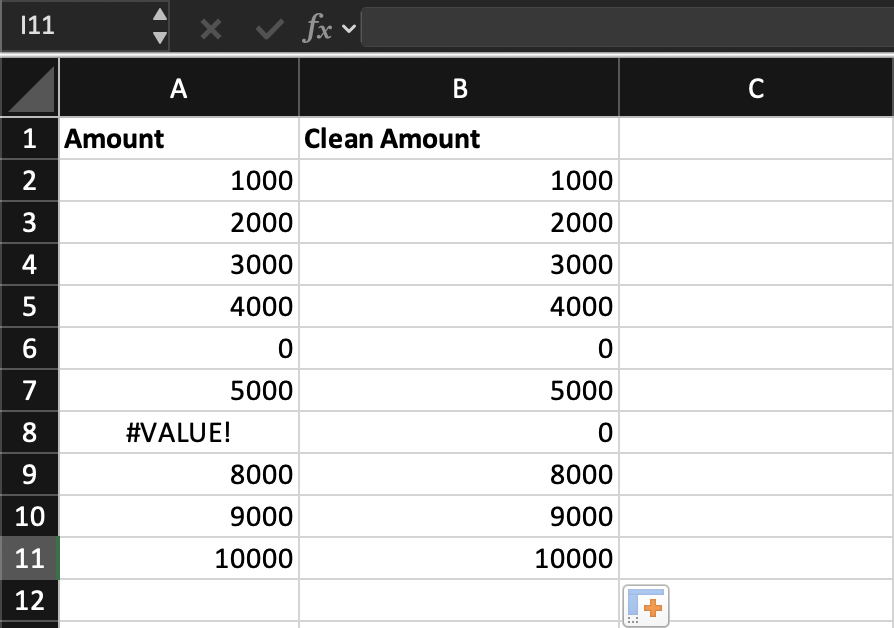
If a cell contains a valid number, the formula keeps it unchanged. If the value is empty or invalid, the formula replaces it with a defined value such as 0 or "N/A". This ensures that your dataset remains consistent and does not break calculations.
Task
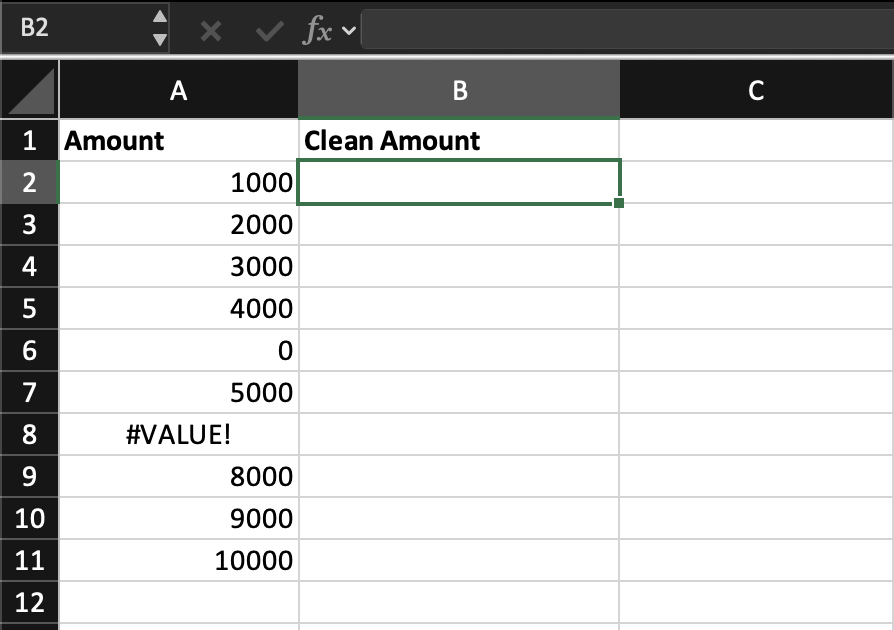
Create a new column called Clean Amount.
Use an IF formula to check each value in the Amount column. If the value is a number, return it as is; if not, replace it with 0. Apply the formula to all rows.

Use =IF(ISNUMBER(B2), B2, 0) to validate and clean the values.
Grazie per i tuoi commenti!
Chieda ad AI

Chieda ad AI

Chieda pure quello che desidera o provi una delle domande suggerite per iniziare la nostra conversazione
Dealing with Missing or Invalid Values
When working with real datasets, it is very common to encounter missing or invalid values. Some cells may be empty, while others may contain incorrect data like "text" instead of a number or "invalid" instead of a date.
At first glance, these issues may seem minor, but they can significantly affect your analysis. Excel formulas often rely on consistent data types, and unexpected values can lead to errors or misleading results.
Why This Is a Problem
If you try to calculate the average or total, Excel may ignore empty cells but return errors when it encounters invalid values. This leads to inconsistent results, where part of your data is processed correctly and part of it breaks the calculation.
How to Handle Missing and Invalid Values
The goal is not just to detect these values, but to define a clear rule for handling them.
One common approach is to use logical functions like IF together with ISNUMBER or ISERROR.
For example:
=IF(ISNUMBER(A2), A2, 0)
This formula checks whether the value is a number. If it is, it keeps the value; if not, it replaces it with 0.
You can also use:
=IF(A2="", "N/A", A2)
This helps handle empty cells by assigning a placeholder value.
If a cell contains a valid number, the formula keeps it unchanged. If the value is empty or invalid, the formula replaces it with a defined value such as 0 or "N/A". This ensures that your dataset remains consistent and does not break calculations.
Task
Create a new column called Clean Amount.
Use an IF formula to check each value in the Amount column. If the value is a number, return it as is; if not, replace it with 0. Apply the formula to all rows.
Use =IF(ISNUMBER(B2), B2, 0) to validate and clean the values.
Grazie per i tuoi commenti!
