Data Types and Cell Content
Scorri per mostrare il menu
Ogni nuova cella in Excel è impostata di default sul formato Generale — una modalità flessibile che interpreta automaticamente il contenuto.
I cinque tipi che utilizzerai costantemente e come riconoscerli a colpo d'occhio:
- Generale (predefinito): nessun formato specifico assegnato;
- Testo: allineato a sinistra — mai utilizzato nei calcoli;
- Numero: allineato a destra — utilizzato nei calcoli;
- Valuta: valori monetari con simbolo, numero con formattazione finanziaria applicata;
- Data: date del calendario (memorizzate come numeri interi), consente ordinamento, sottrazione e calcoli temporali.
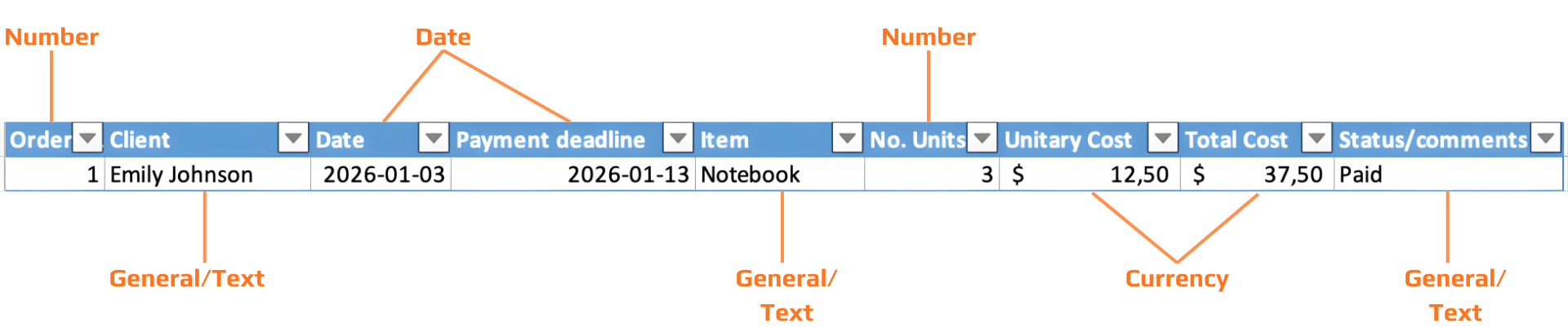

In Excel, il testo è sempre allineato a sinistra; i numeri sono sempre allineati a destra. Se formatti una colonna come Numero e una cella è allineata a sinistra, il valore viene memorizzato come testo — non come numero. Non verrà calcolato correttamente.
Ogni data viene memorizzata come un numero intero — un numero seriale che conta i giorni dal 1° gennaio 1900. Il "formato data" è solo una maschera di visualizzazione applicata a quell'intero. Per questo motivo è possibile sottrarre le date, ordinarle cronologicamente e calcolare le differenze temporali.
Poiché le date sono numeri, l'aritmetica delle date è semplicemente una sottrazione. =B2-A2 dove entrambe le celle contengono date restituisce il numero di giorni tra di esse. Nessuna funzione speciale necessaria.
Data breve: 03/01/2026. Data estesa: Sunday, 1 March 2026. Cambiare il formato di visualizzazione non modifica mai il valore memorizzato, i tuoi calcoli rimangono invariati.
Il simbolo ###
Quando una cella mostra ###, il valore è corretto ma la colonna è troppo stretta per visualizzarlo. Questo accade più spesso con date e valori monetari.
Soluzione: fai doppio clic sul bordo della colonna nell'intestazione per adattare automaticamente la larghezza, oppure trascina il bordo per allargarla manualmente. Il dato stesso non viene modificato.
Cos'altro può contenere una cella?
Oltre ai valori digitati, le celle di Excel possono contenere altri tre tipi di contenuto — ciascuno inserito dalla scheda Inserisci, gruppo Illustrazioni:
- Immagine: una foto o un'immagine inserita dal tuo dispositivo o online. Si posiziona sopra la griglia — non è vincolata a una singola cella a meno che non si utilizzi "Inserisci nella cella" (Excel 365);
- Icona: un'icona vettoriale scalabile dalla libreria integrata di Excel. A differenza delle immagini, le icone sono indipendenti dalla risoluzione e possono essere ricolorate. Inserisci tramite Inserisci → Icone;
- Collegamento ipertestuale: un link cliccabile a un URL, file, indirizzo email o posizione all'interno dello stesso file di lavoro. Inserisci con
Ctrl+K. La cella mostra il testo visualizzato; l'URL effettivo si trova nella destinazione del collegamento. Utile per collegare a documenti di origine o risorse esterne.
Trova e Sostituisci
Trova e Sostituisci consente di correggere l'intero set di dati in pochi secondi — e rispetta la selezione corrente, permettendo di limitarne l'applicazione a una singola colonna.
Sostituisci tutto apporta modifiche istantaneamente all'intero ambito selezionato. Utilizzare prima Trova successivo per verificare le corrispondenze prima di procedere con Sostituisci tutto. In caso di errore, Ctrl+Z / Cmd+Z annulla l'intera operazione di Sostituisci tutto in un solo passaggio.
Attività
-
Applicare i formati dati corretti
Formattare ogni colonna in base alla sua funzione:- Client → Testo
- Date → Data (formato Data breve)
- No. of Units → Numero
- Unit Cost → Valuta
- Total Cost → Valuta
Dopo la formattazione, verificare:
- I valori di testo sono allineati a sinistra.
- Numeri e date sono allineati a destra.
-
Correggere i problemi di visibilità (
###)- Identificare eventuali colonne che mostrano
### - Regolare la larghezza utilizzando Adatta larghezza (doppio clic sul bordo della colonna)
- Identificare eventuali colonne che mostrano
-
Standardizzare i dati utilizzando Trova e sostituisci
Nella colonna Status:
- Sostituire tutte le varianti di “Paid” (ad es. “paid.”, “PAID”) con “Paid”
Utilizzare:
Ctrl/Cmd + H- Trova successivo → poi Sostituisci tutto
- Aggiungere una nuova colonna per i contenuti di supporto
Inserire una nuova colonna a destra chiamata: Receipts.
-
Inserire elementi visivi e collegamenti
- In almeno una riga: inserire un'immagine nella colonna Receipts
- In un'altra riga: inserire un'icona nella colonna Receipts
- Nella colonna Item: aggiungere un collegamento ipertestuale (
Ctrl/Cmd + K)
Grazie per i tuoi commenti!
Chieda ad AI

Chieda ad AI

Chieda pure quello che desidera o provi una delle domande suggerite per iniziare la nostra conversazione
