Creazione della Prima Risorsa di Calcolo
Scorri per mostrare il menu

La creazione di una risorsa di calcolo (Cluster) consiste nel fornire hardware virtuale nel cloud per eseguire le attività sui dati. A scopo didattico, utilizziamo una configurazione Single Node per bilanciare prestazioni e costi.
È il momento di avviare il "motore". In questo capitolo, verranno illustrati i passaggi esatti per creare il primo cluster. Questa è la risorsa che consentirà di eseguire il codice SQL e Python che verrà scritto più avanti nel corso. Seguire attentamente questi passaggi per assicurarsi che l'ambiente sia configurato correttamente e in modo economico.

Databricks consente di creare cluster più specializzati, come il job compute, più adatto ai flussi di lavoro. Sebbene lo scopo di questo capitolo sia affrontare le basi, e quindi verrà esplorata la creazione di un all-purpose cluster, tutto ciò si applica anche alla creazione e gestione di altre categorie di cluster.
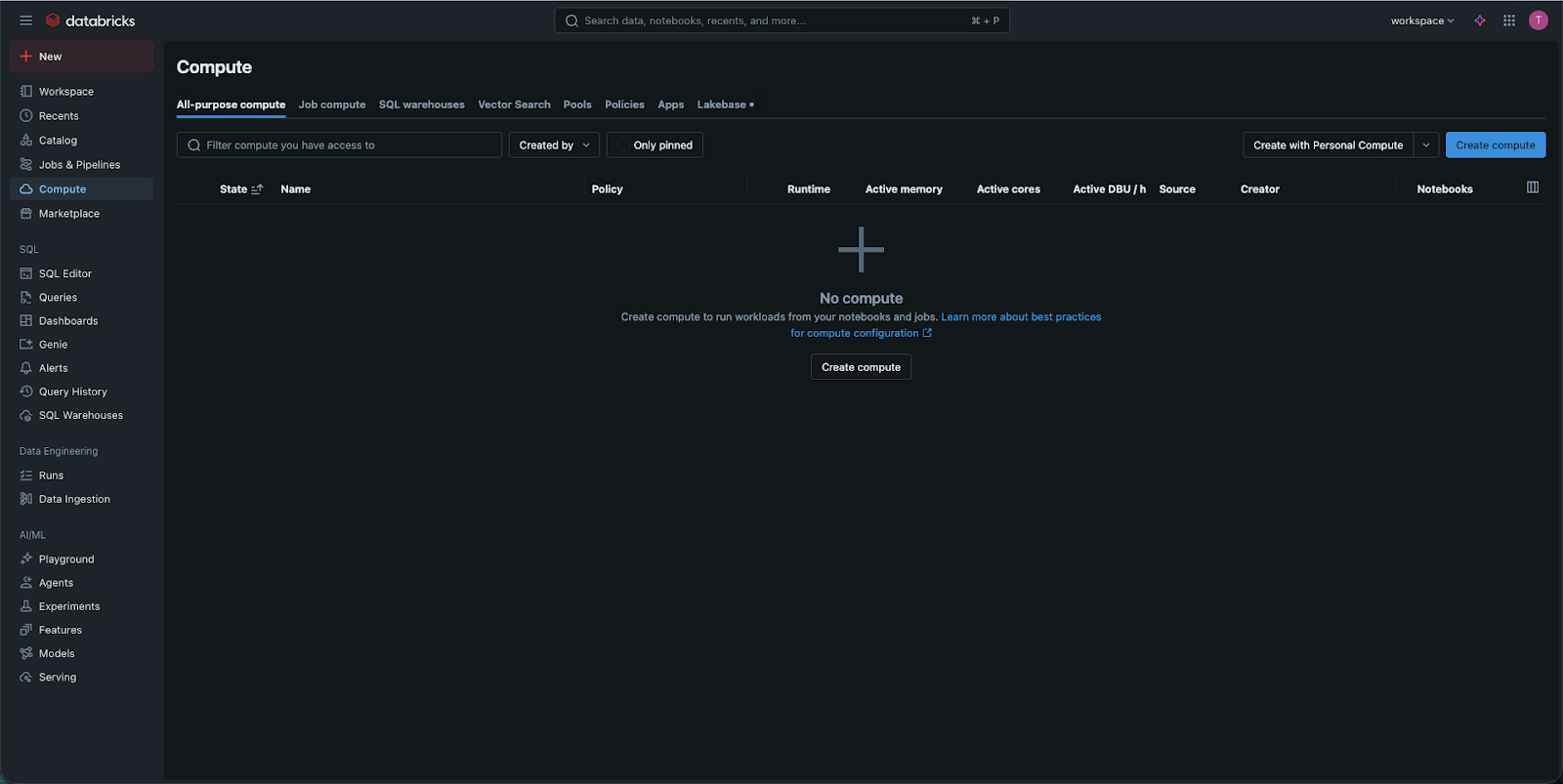
Passo 1: Accesso al menu Compute
Nella barra laterale sinistra, cliccare sull'icona Compute. Questo porterà alla pagina panoramica delle risorse di calcolo. In alto a destra, cliccare sul pulsante blu etichettato Create Compute.
Passo 2: Scelta del tipo di cluster
Verranno visualizzate due opzioni principali in alto: Multi Node e Single Node.
- Selezionare Single Node. Perché? I cluster multi-nodo sono destinati a dati di grandi o enormi dimensioni, tipici di ambienti aziendali. Per l'apprendimento, un cluster Single Node è molto più economico (o addirittura gratuito in alcune edizioni) e offre potenza sufficiente per i dataset che utilizzeremo.
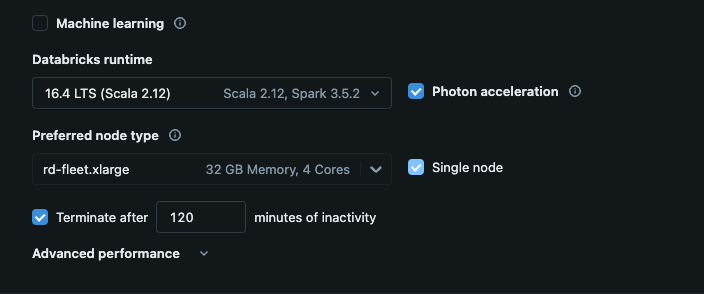
Passaggio 3: Nome e Runtime
- Nome: assegnare al cluster un nome chiaro, ad esempio
Student_Cluster_1; - Versione Databricks Runtime: questo menu a tendina determina la versione del "motore". Cercare la versione più recente che presenta LTS accanto. LTS significa "Long Term Support". È la versione più stabile e quella utilizzata dalla maggior parte delle aziende nei progetti reali.
Passaggio 4: Configurazione dell'"Hardware"
Alla voce Tipo di nodo, viene visualizzato un elenco di macchine virtuali cloud (come Standard_DS3_v2 su Azure o i3.xlarge su AWS).
- Per questo corso, la selezione predefinita è generalmente adeguata;
- Assicurarsi che disponga di almeno 15GB di memoria se si prevede di svolgere attività avanzate di data science in seguito, ma per SQL e Python di base, l'opzione più piccola disponibile è spesso sufficiente.
Passaggio 5: Il Passaggio Più Importante - Terminazione Automatica
Cerca la casella di controllo etichettata "Termina dopo ___ minuti di inattività."
- Imposta questo valore su 20 minuti;
- Come discusso nel capitolo precedente, questa è la tua rete di sicurezza. Se termini il lavoro e chiudi il laptop ma dimentichi di spegnere il cluster, Databricks rileverà che nessun codice è in esecuzione e spegnerà automaticamente il "motore" dopo 20 minuti per interrompere la fatturazione.
Passaggio 6: Creazione e Attesa
Fai clic su Crea Compute. Vedrai un cerchio pieno che ruota accanto al nome del cluster. Di solito occorrono da 3 a 5 minuti affinché il provider cloud "riscaldi" i server. Una volta che il cerchio diventa un segno di spunta verde o uno stato verde "In esecuzione", il motore è pronto all'uso!
1. Qual è il modo corretto per accedere al menu di creazione di una nuova risorsa di calcolo (cluster) in Databricks?
2. Quando configuri il tuo primo cluster Databricks per questo corso, perché dovresti scegliere un cluster Single Node invece di un cluster Multi Node?
Grazie per i tuoi commenti!
Chieda ad AI

Chieda ad AI

Chieda pure quello che desidera o provi una delle domande suggerite per iniziare la nostra conversazione
