Collage spécial pour la rapidité
Glissez pour afficher le menu
Le collage standard avec Ctrl + V colle tout : valeurs, formules, mise en forme, bordures, règles de validation des données. La plupart du temps, c'est trop. Vous souhaitez uniquement les nombres, ou seulement la mise en forme, ou bien multiplier toute une colonne par un facteur sans écrire de formule.
Collage spécial offre un contrôle précis sur ce qui est collé. C'est un de ces outils qui semble mineur jusqu'à ce que vous réalisiez combien de manipulations complexes il permet d'éviter.
Ouvrir Collage spécial
Commencez par copier une cellule ou une plage avec Ctrl + C, puis :
- Raccourci clavier :
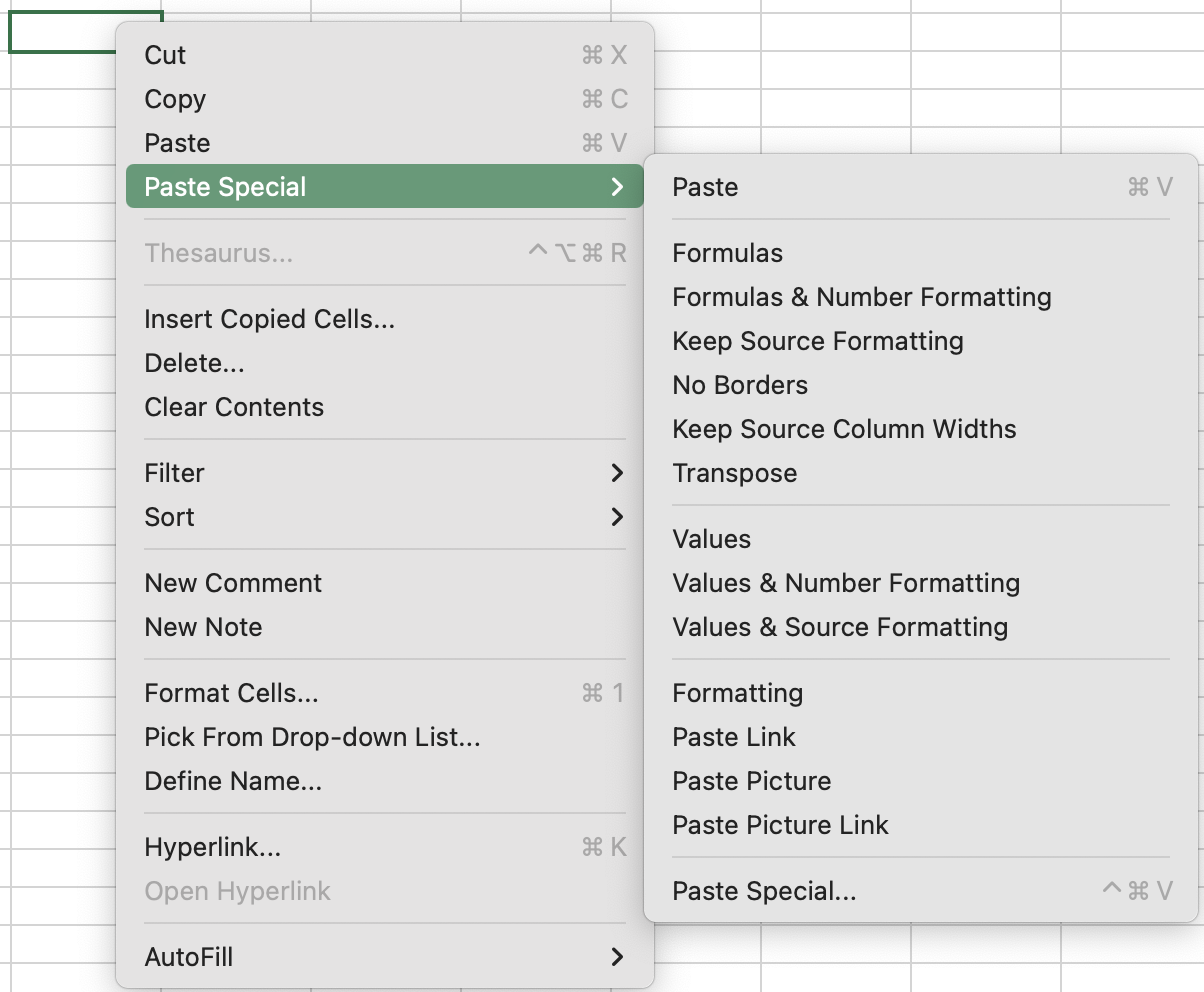
Ctrl + Alt + V(Win) ouCtrl + Cmd + V(Mac) ; - Menu contextuel : Clic droit sur la destination → Collage spécial ;
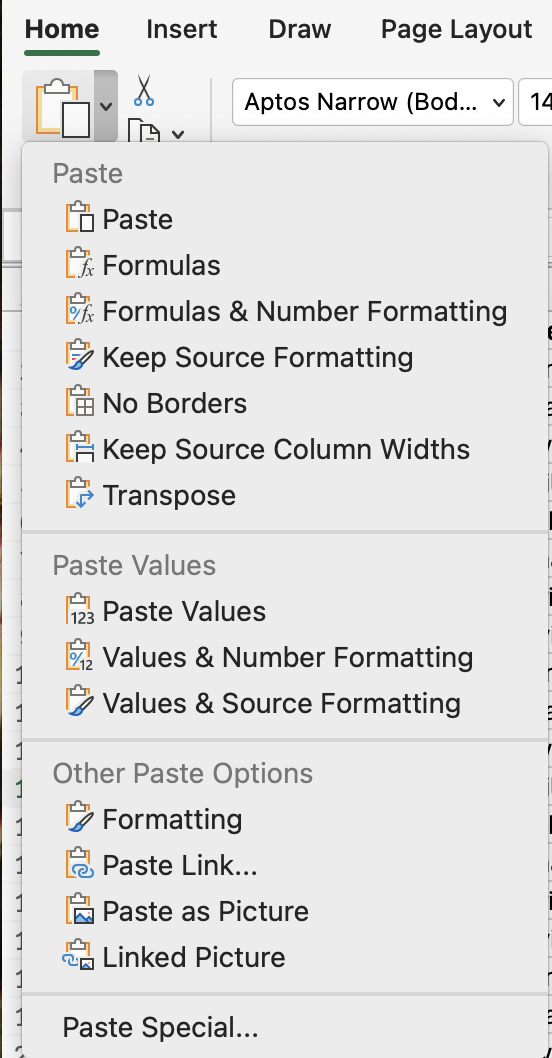
3. Ruban : Accueil → Menu déroulant Coller → Collage spécial.
Opération
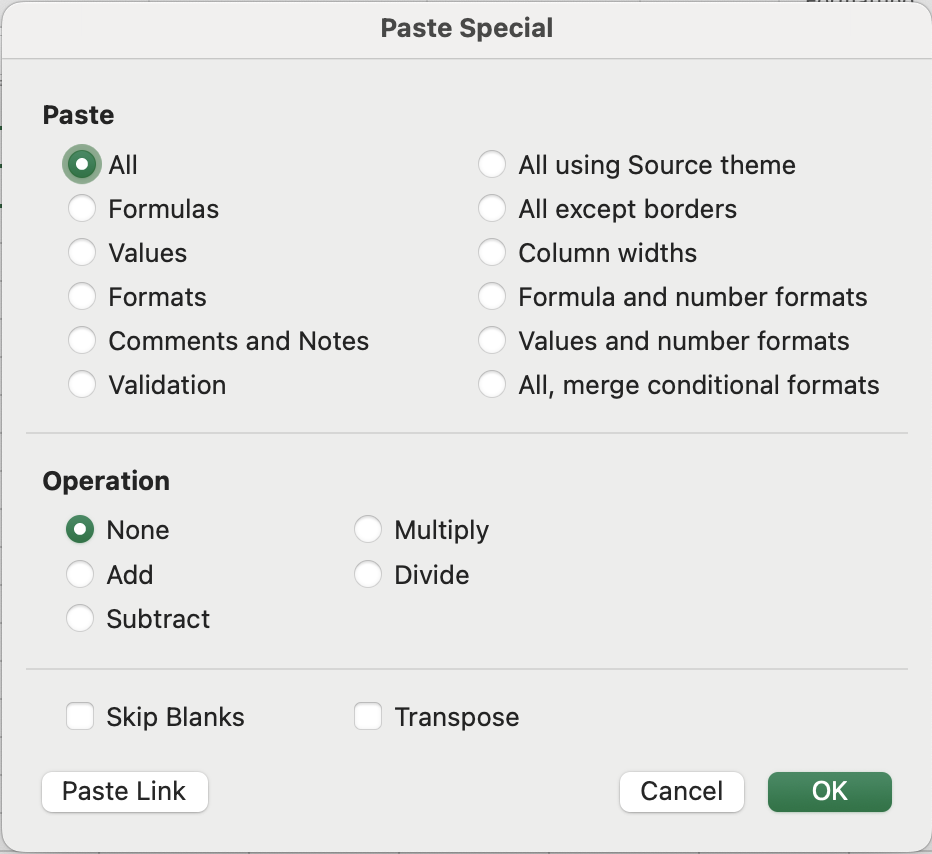
L'une des fonctionnalités les moins utilisées du collage spécial. Au lieu de simplement remplacer la destination par ce que vous avez copié, Excel peut effectuer une opération arithmétique entre les deux :
- Aucune : remplacement standard (par défaut) ;
- Ajouter : additionne la valeur copiée à la destination ;
- Soustraire : soustrait la valeur copiée de la destination ;
- Multiplier : multiplie la destination par la valeur copiée ;
- Diviser : divise la destination par la valeur copiée.
Autres options
- Ignorer les cellules vides : ne remplace pas les cellules de destination lorsque la plage copiée contient des cellules vides ;
- Transposer : fait pivoter les données — les lignes deviennent des colonnes, les colonnes deviennent des lignes.
Les opérations Collage spécial les plus utiles
- Coller les valeurs : suppression de la dépendance à la formule — coller en tant que valeurs ;
- Coller les formats : seul le formatage est transféré. Les valeurs de destination restent inchangées ;

Reproduire la mise en forme (l’icône de pinceau) est plus rapide pour un transfert de format ponctuel en un seul clic. Collage spécial → Formats est préférable lorsque vous devez appliquer un format à plusieurs plages distinctes, car le format copié reste dans le presse-papiers.
- Coller les largeurs de colonne : par exemple, vous avez soigneusement ajusté les largeurs de colonne dans une feuille et vous souhaitez le même agencement dans une autre feuille ;
- Coller avec opération : ce processus a déjà été démontré dans le chapitre précédent ;
- Transposer : inverse les lignes et les colonnes. Si vos données sont disposées horizontalement sur une ligne et que vous en avez besoin dans une colonne verticale (ou inversement), Transposer le fait en une seule étape.
Appliquer une augmentation de prix en masse avec Multiplier
- Saisir
1,15dans une cellule vide (augmentation de 15 %). Copier cette cellule. - Sélectionner la plage de données de la colonne Unit Cost.
- Collage spécial → Multiplier. Vérifier que toutes les valeurs de Unit Cost ont augmenté de 15 %.
- Supprimer la cellule d'aide
1,15.
Merci pour vos commentaires !
Demandez à l'IA

Demandez à l'IA

Posez n'importe quelle question ou essayez l'une des questions suggérées pour commencer notre discussion
Collage spécial pour la rapidité
Le collage standard avec Ctrl + V colle tout : valeurs, formules, mise en forme, bordures, règles de validation des données. La plupart du temps, c'est trop. Vous souhaitez uniquement les nombres, ou seulement la mise en forme, ou bien multiplier toute une colonne par un facteur sans écrire de formule.
Collage spécial offre un contrôle précis sur ce qui est collé. C'est un de ces outils qui semble mineur jusqu'à ce que vous réalisiez combien de manipulations complexes il permet d'éviter.
Ouvrir Collage spécial
Commencez par copier une cellule ou une plage avec Ctrl + C, puis :
- Raccourci clavier :
Ctrl + Alt + V(Win) ouCtrl + Cmd + V(Mac) ; - Menu contextuel : Clic droit sur la destination → Collage spécial ;
3. Ruban : Accueil → Menu déroulant Coller → Collage spécial.
Opération
L'une des fonctionnalités les moins utilisées du collage spécial. Au lieu de simplement remplacer la destination par ce que vous avez copié, Excel peut effectuer une opération arithmétique entre les deux :
- Aucune : remplacement standard (par défaut) ;
- Ajouter : additionne la valeur copiée à la destination ;
- Soustraire : soustrait la valeur copiée de la destination ;
- Multiplier : multiplie la destination par la valeur copiée ;
- Diviser : divise la destination par la valeur copiée.
Autres options
- Ignorer les cellules vides : ne remplace pas les cellules de destination lorsque la plage copiée contient des cellules vides ;
- Transposer : fait pivoter les données — les lignes deviennent des colonnes, les colonnes deviennent des lignes.
Les opérations Collage spécial les plus utiles
- Coller les valeurs : suppression de la dépendance à la formule — coller en tant que valeurs ;
- Coller les formats : seul le formatage est transféré. Les valeurs de destination restent inchangées ;
Reproduire la mise en forme (l’icône de pinceau) est plus rapide pour un transfert de format ponctuel en un seul clic. Collage spécial → Formats est préférable lorsque vous devez appliquer un format à plusieurs plages distinctes, car le format copié reste dans le presse-papiers.
- Coller les largeurs de colonne : par exemple, vous avez soigneusement ajusté les largeurs de colonne dans une feuille et vous souhaitez le même agencement dans une autre feuille ;
- Coller avec opération : ce processus a déjà été démontré dans le chapitre précédent ;
- Transposer : inverse les lignes et les colonnes. Si vos données sont disposées horizontalement sur une ligne et que vous en avez besoin dans une colonne verticale (ou inversement), Transposer le fait en une seule étape.
Appliquer une augmentation de prix en masse avec Multiplier
- Saisir
1,15dans une cellule vide (augmentation de 15 %). Copier cette cellule. - Sélectionner la plage de données de la colonne Unit Cost.
- Collage spécial → Multiplier. Vérifier que toutes les valeurs de Unit Cost ont augmenté de 15 %.
- Supprimer la cellule d'aide
1,15.
Merci pour vos commentaires !
