Protection des feuilles et des cellules
Glissez pour afficher le menu
Excel permet aux utilisateurs de protéger les feuilles de calcul et de verrouiller les cellules importantes afin d'éviter toute modification accidentelle. Ceci est particulièrement utile lorsque des classeurs partagés contiennent des formules, des calculs, des modèles ou des données professionnelles importantes.
La protection des feuilles de calcul aide à maintenir l'exactitude du classeur tout en permettant aux collaborateurs d'interagir avec certaines zones du fichier.
Comprendre les cellules verrouillées
Dans Excel, toutes les cellules d'une feuille de calcul sont techniquement marquées comme Verrouillées par défaut. Cependant, ce paramètre n'est actif qu'après l'activation de la protection de la feuille.
Cela signifie que les utilisateurs peuvent normalement modifier les cellules verrouillées tant que la feuille de calcul n'est pas protégée.
Les feuilles de calcul protégées sont couramment utilisées pour :
- Empêcher la suppression de formules ;
- Restreindre l'accès à la modification ;
- Protéger les structures de rapport ;
- Contrôler les zones de saisie utilisateur.
Protection d'une feuille de calcul
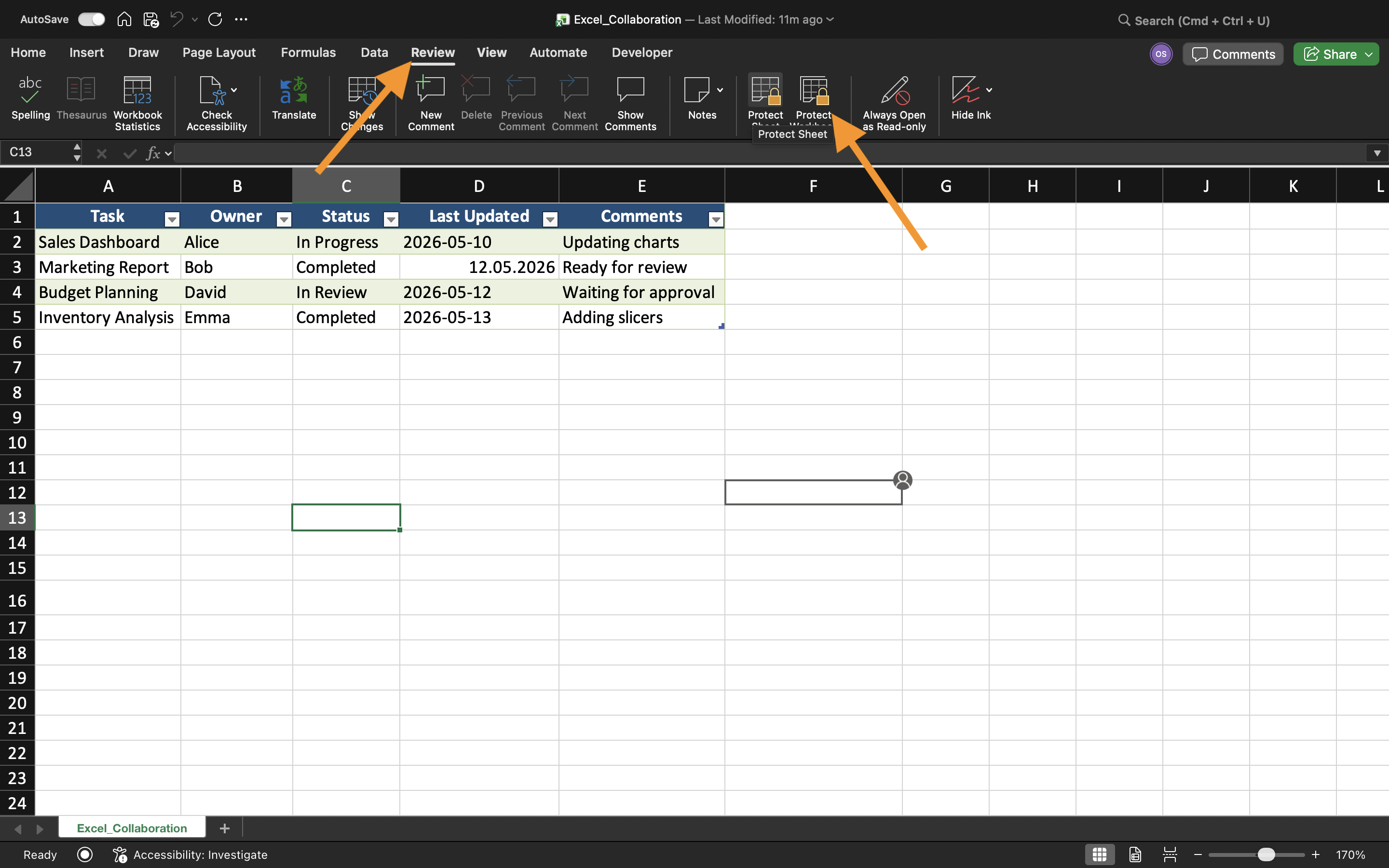
Pour protéger une feuille de calcul :
- Ouvrir la feuille de calcul ;
- Sélectionner l’onglet Révision ;
- Choisir Protéger la feuille ;
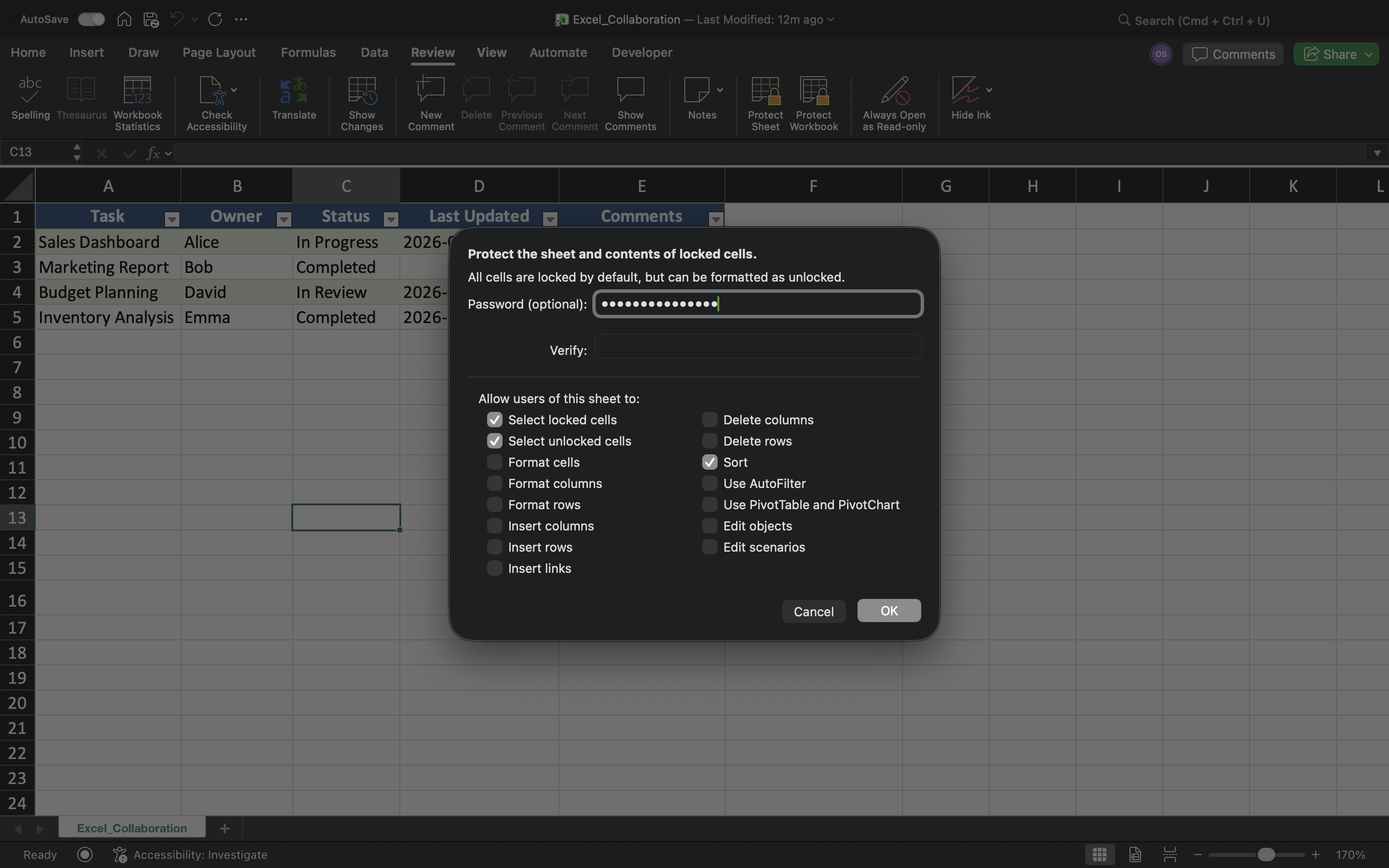
- Configurer les paramètres de protection ;
- Appliquer la protection.
Excel peut restreindre des actions telles que la modification des cellules, la suppression de lignes, l’insertion de colonnes ou la modification du format de la feuille de calcul.
Autorisation des zones de saisie modifiables
Bien que la protection de la feuille limite la modification, certaines cellules peuvent rester modifiables.
Pour créer des zones modifiables :
- Sélectionner les cellules de saisie ;
- Ouvrir Format de cellule ;
- Désactiver l’option Verrouillé ;
- Protéger la feuille de calcul.
Protection des formules
L’une des principales raisons de la protection des feuilles est d’éviter les modifications accidentelles des formules.
Sans protection, les collaborateurs peuvent accidentellement :
- Supprimer des formules ;
- Écraser des calculs ;
- Rompre la logique de la feuille ;
- Modifier des références importantes.
Limites de la protection
La protection des feuilles améliore la sécurité du classeur, mais elle n’est pas conçue comme un chiffrement de sécurité avancé. Des utilisateurs expérimentés peuvent toujours contourner des méthodes de protection faibles.
Pour cette raison, la protection des feuilles doit surtout être considérée comme un outil pour éviter les modifications accidentelles plutôt que pour sécuriser totalement des données professionnelles sensibles.
Exercice
Le classeur contient un suivi des dépenses partagé utilisé par plusieurs employés. L’objectif est de protéger les formules et la structure de la feuille tout en permettant aux utilisateurs de modifier uniquement certaines zones de saisie.
- Protéger la feuille à l’aide de Protéger la feuille ;
- Verrouiller les cellules contenant des formules ;
- Créer des zones de saisie modifiables ;
- Tester les restrictions de modification ;
- Vérifier que les cellules protégées ne peuvent pas être modifiées.
Merci pour vos commentaires !
Demandez à l'IA

Demandez à l'IA

Posez n'importe quelle question ou essayez l'une des questions suggérées pour commencer notre discussion
Protection des feuilles et des cellules
Excel permet aux utilisateurs de protéger les feuilles de calcul et de verrouiller les cellules importantes afin d'éviter toute modification accidentelle. Ceci est particulièrement utile lorsque des classeurs partagés contiennent des formules, des calculs, des modèles ou des données professionnelles importantes.
La protection des feuilles de calcul aide à maintenir l'exactitude du classeur tout en permettant aux collaborateurs d'interagir avec certaines zones du fichier.
Comprendre les cellules verrouillées
Dans Excel, toutes les cellules d'une feuille de calcul sont techniquement marquées comme Verrouillées par défaut. Cependant, ce paramètre n'est actif qu'après l'activation de la protection de la feuille.
Cela signifie que les utilisateurs peuvent normalement modifier les cellules verrouillées tant que la feuille de calcul n'est pas protégée.
Les feuilles de calcul protégées sont couramment utilisées pour :
- Empêcher la suppression de formules ;
- Restreindre l'accès à la modification ;
- Protéger les structures de rapport ;
- Contrôler les zones de saisie utilisateur.
Protection d'une feuille de calcul
Pour protéger une feuille de calcul :
- Ouvrir la feuille de calcul ;
- Sélectionner l’onglet Révision ;
- Choisir Protéger la feuille ;
- Configurer les paramètres de protection ;
- Appliquer la protection.
Excel peut restreindre des actions telles que la modification des cellules, la suppression de lignes, l’insertion de colonnes ou la modification du format de la feuille de calcul.
Autorisation des zones de saisie modifiables
Bien que la protection de la feuille limite la modification, certaines cellules peuvent rester modifiables.
Pour créer des zones modifiables :
- Sélectionner les cellules de saisie ;
- Ouvrir Format de cellule ;
- Désactiver l’option Verrouillé ;
- Protéger la feuille de calcul.
Protection des formules
L’une des principales raisons de la protection des feuilles est d’éviter les modifications accidentelles des formules.
Sans protection, les collaborateurs peuvent accidentellement :
- Supprimer des formules ;
- Écraser des calculs ;
- Rompre la logique de la feuille ;
- Modifier des références importantes.
Limites de la protection
La protection des feuilles améliore la sécurité du classeur, mais elle n’est pas conçue comme un chiffrement de sécurité avancé. Des utilisateurs expérimentés peuvent toujours contourner des méthodes de protection faibles.
Pour cette raison, la protection des feuilles doit surtout être considérée comme un outil pour éviter les modifications accidentelles plutôt que pour sécuriser totalement des données professionnelles sensibles.
Exercice
Le classeur contient un suivi des dépenses partagé utilisé par plusieurs employés. L’objectif est de protéger les formules et la structure de la feuille tout en permettant aux utilisateurs de modifier uniquement certaines zones de saisie.
- Protéger la feuille à l’aide de Protéger la feuille ;
- Verrouiller les cellules contenant des formules ;
- Créer des zones de saisie modifiables ;
- Tester les restrictions de modification ;
- Vérifier que les cellules protégées ne peuvent pas être modifiées.
Merci pour vos commentaires !
