Sorting Dynamic Results
Glissez pour afficher le menu
When analyzing data in Excel, you often need not just to filter information but also to present it in a meaningful order. Dynamic sorting is essential in scenarios where your filtered results might change as the underlying data updates.
Instead of manually re-sorting your data every time, you can use Excel's dynamic array functions—specifically SORT and SORTBY—to automatically arrange the output of a spill range, such as a filtered list. This ensures that your analysis always reflects the latest information, ordered exactly as you need, without ever changing the original Transactions table. Both SORT and SORTBY can be combined with other dynamic array functions, letting you build flexible, self-updating reports.
=SORT(array; [sort_index]; [sort_order]; [by_col])

=SORTBY(array; by_array1; [sort_order1]; …)
While both SORT and SORTBY allow you to order your results, they serve slightly different purposes.
SORT is best used when you want to sort a range by its own columns, such as sorting a filtered list of revenues by the revenue values themselves. You specify the column number and sort order directly within the function, making it straightforward for simple sorts.
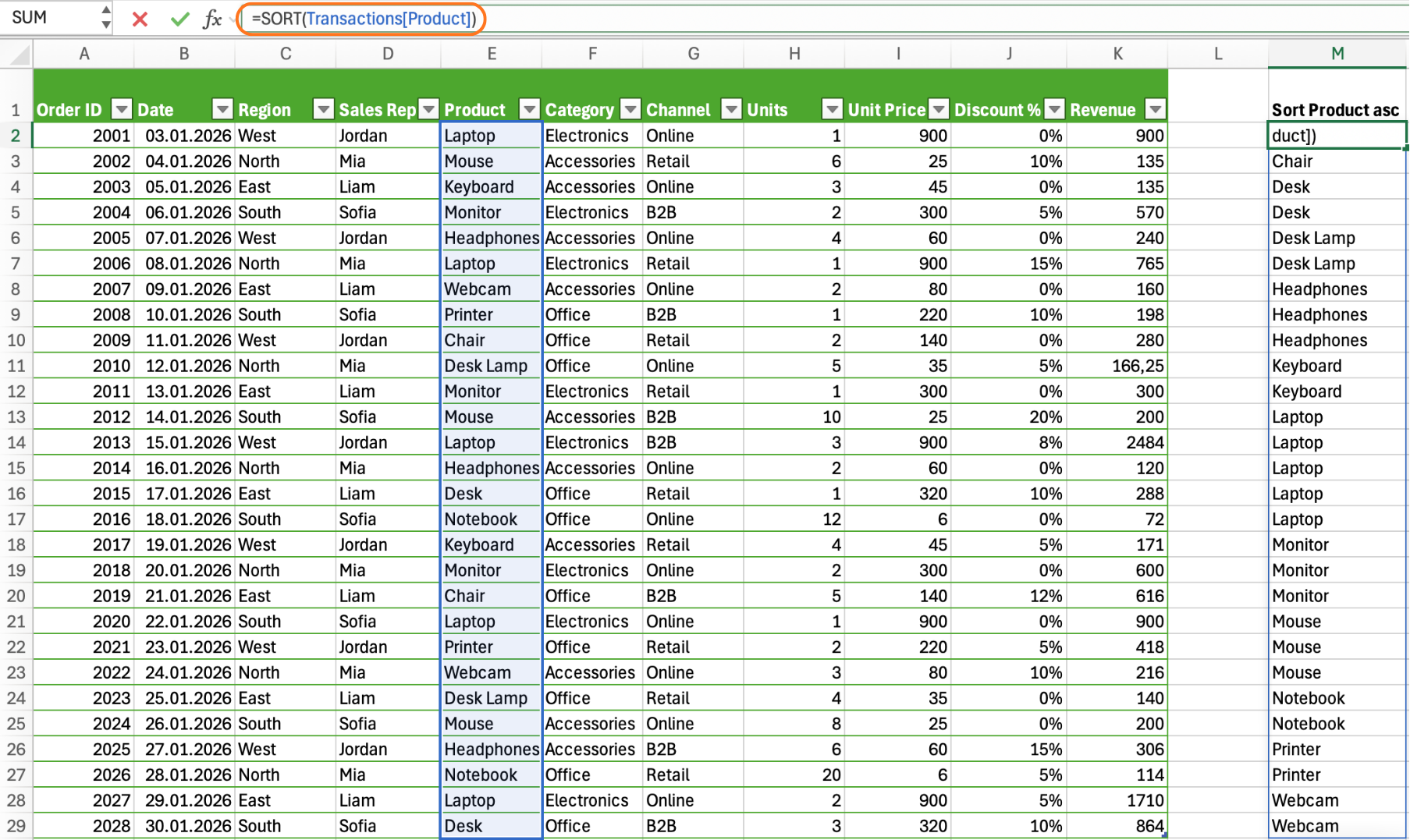
Sorts the Product column in ascending order (A → Z):
=SORT(Transactions[Product])
or
=SORT(E2:E29)
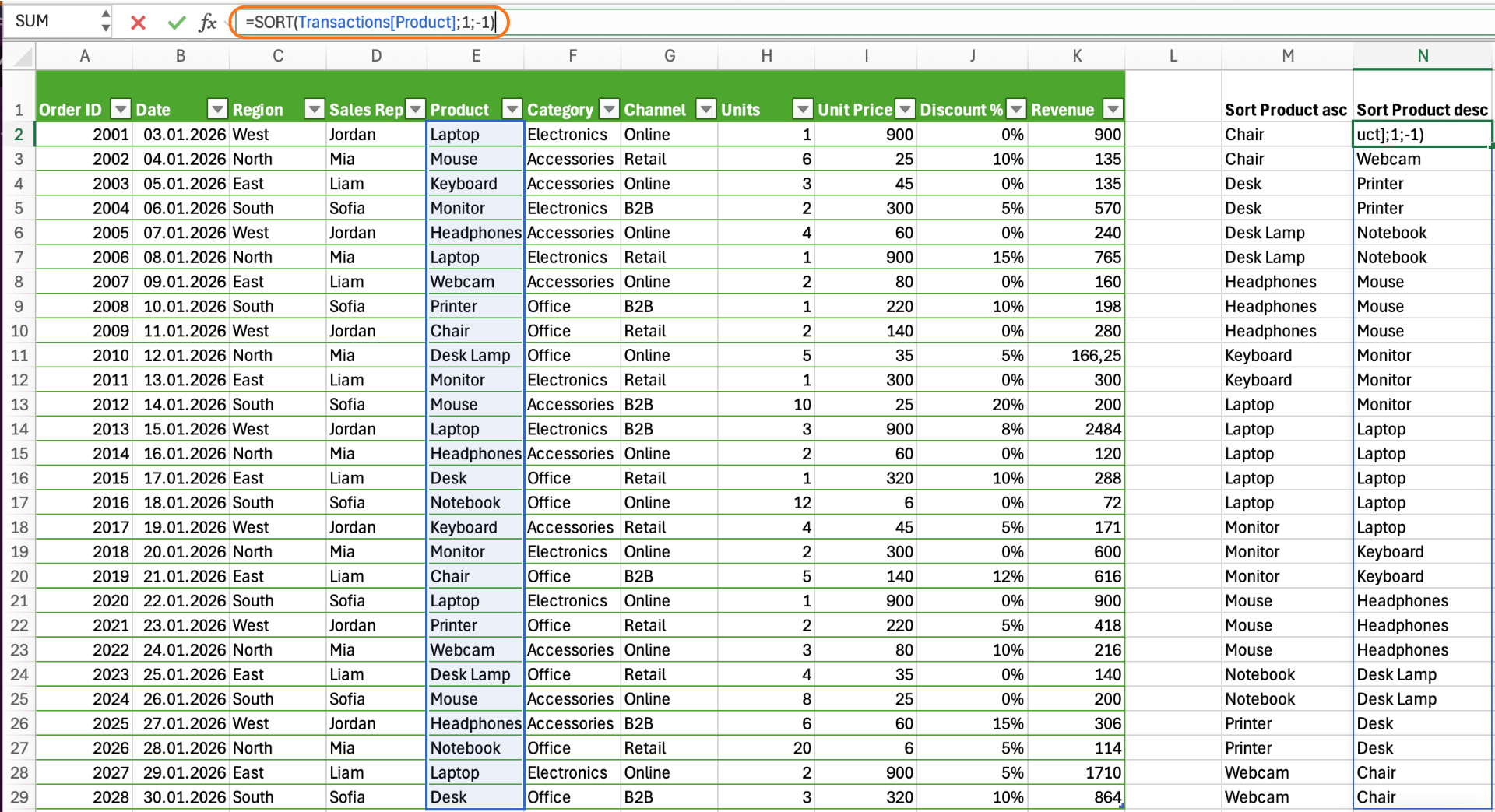
Sorts the Product column in descending order (Z → A):
=SORT(Transactions[Product];1;-1)
or
=SORT(E2:E29;1;-1)
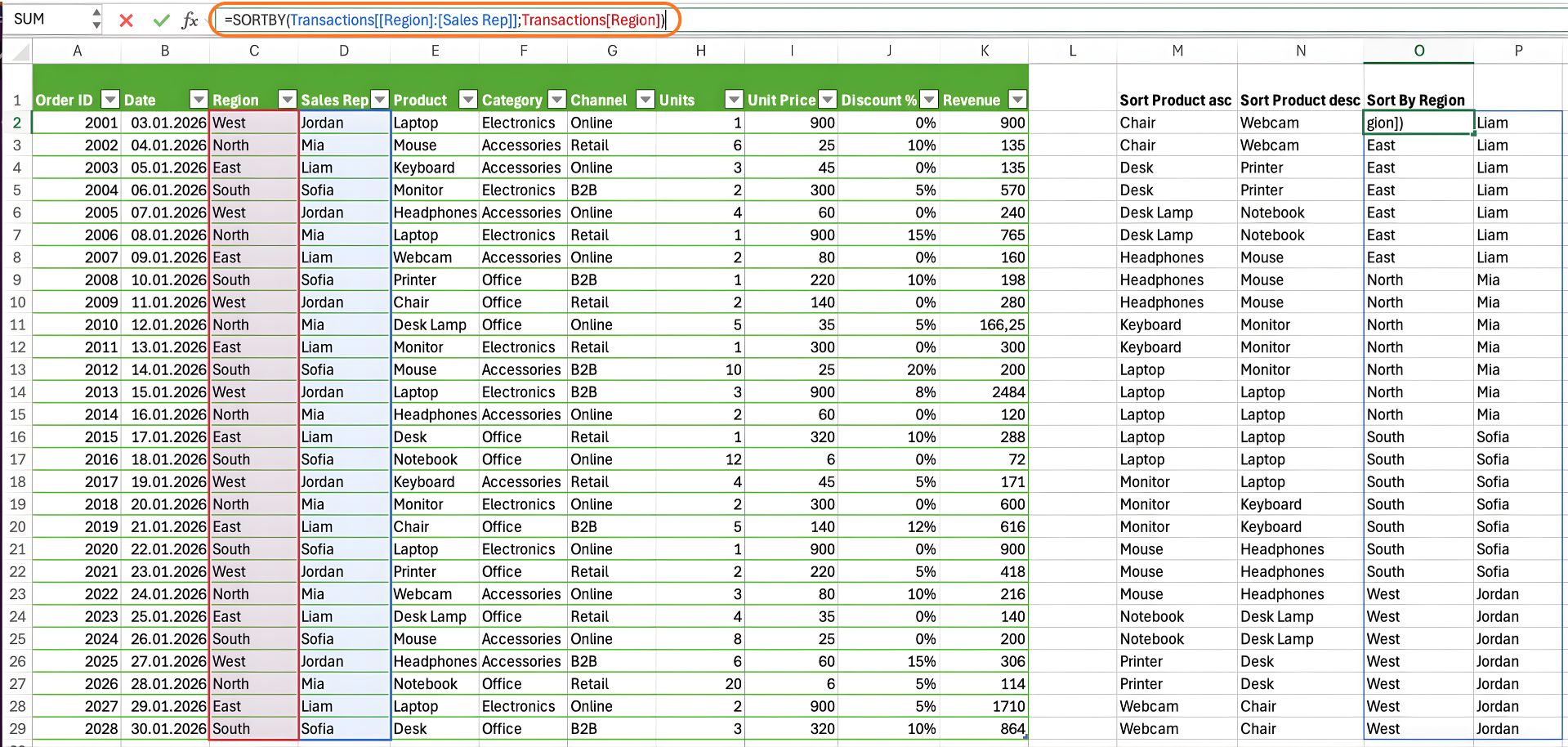
On the other hand, SORTBY lets you sort one range or array by the values from another range or array of the same size. This is especially useful when you want to display one set of results but sort them based on a different column—such as showing Order IDs sorted by their corresponding Revenues, even though the Order IDs themselves might not be in order. With SORTBY, you have more flexibility, especially in dynamic reports where sorting needs to follow a column not present in the displayed results.
=SORTBY(Transactions[[Region]:[Sales Rep]];Transactions[Region])
or
=SORTBY(C2:D29;C2:C29)
Use the Transactions table to create a sorted list of Products based on their Revenue in descending order.
Return only the Product column, but make sure the sorting is driven by the Revenue column, without modifying the original table.
If you need to sort one column based on another, use SORTBY, not SORT.
=SORTBY(Transactions[Product]; Transactions[Revenue]; -1)
or
=SORTBY(E2:E29; K2:K29; -1)
Merci pour vos commentaires !
Demandez à l'IA

Demandez à l'IA

Posez n'importe quelle question ou essayez l'une des questions suggérées pour commencer notre discussion
Sorting Dynamic Results
When analyzing data in Excel, you often need not just to filter information but also to present it in a meaningful order. Dynamic sorting is essential in scenarios where your filtered results might change as the underlying data updates.
Instead of manually re-sorting your data every time, you can use Excel's dynamic array functions—specifically SORT and SORTBY—to automatically arrange the output of a spill range, such as a filtered list. This ensures that your analysis always reflects the latest information, ordered exactly as you need, without ever changing the original Transactions table. Both SORT and SORTBY can be combined with other dynamic array functions, letting you build flexible, self-updating reports.
=SORT(array; [sort_index]; [sort_order]; [by_col])

=SORTBY(array; by_array1; [sort_order1]; …)
While both SORT and SORTBY allow you to order your results, they serve slightly different purposes.
SORT is best used when you want to sort a range by its own columns, such as sorting a filtered list of revenues by the revenue values themselves. You specify the column number and sort order directly within the function, making it straightforward for simple sorts.
Sorts the Product column in ascending order (A → Z):
=SORT(Transactions[Product])
or
=SORT(E2:E29)
Sorts the Product column in descending order (Z → A):
=SORT(Transactions[Product];1;-1)
or
=SORT(E2:E29;1;-1)
On the other hand, SORTBY lets you sort one range or array by the values from another range or array of the same size. This is especially useful when you want to display one set of results but sort them based on a different column—such as showing Order IDs sorted by their corresponding Revenues, even though the Order IDs themselves might not be in order. With SORTBY, you have more flexibility, especially in dynamic reports where sorting needs to follow a column not present in the displayed results.
=SORTBY(Transactions[[Region]:[Sales Rep]];Transactions[Region])
or
=SORTBY(C2:D29;C2:C29)
Use the Transactions table to create a sorted list of Products based on their Revenue in descending order.
Return only the Product column, but make sure the sorting is driven by the Revenue column, without modifying the original table.
If you need to sort one column based on another, use SORTBY, not SORT.
=SORTBY(Transactions[Product]; Transactions[Revenue]; -1)
or
=SORTBY(E2:E29; K2:K29; -1)
Merci pour vos commentaires !
