Notice: This page requires JavaScript to function properly.
Please enable JavaScript in your browser settings or update your browser.
Apprendre Removing Extra Spaces with TRIM | Nettoyage des données textuelles
Nettoyer des données dans Excel

Removing Extra Spaces with TRIM

Glissez pour afficher le menu

When working with text data in Excel, one of the most common problems is extra spaces.

These spaces may appear:

  • At the beginning of a cell;
  • At the end;
  • Or between words.

The tricky part is that you often don't see them, but Excel does.

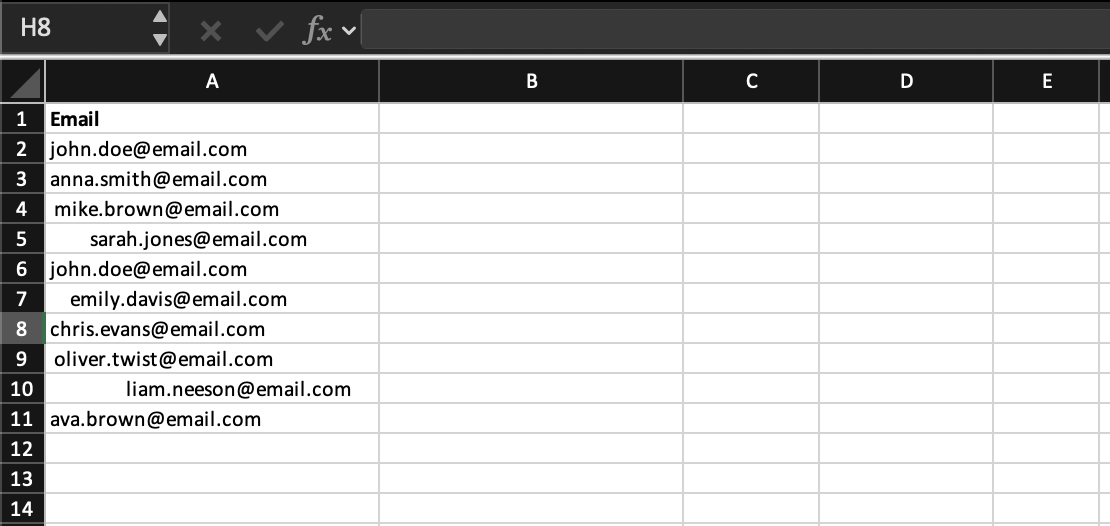
Because of this, two values that look identical may actually be different. This can break formulas like VLOOKUP, comparisons, filtering, and grouping.

For example, "John" and " John" look the same, but Excel treats them as different values.

TRIM function

To fix this, Excel provides the TRIM function, which removes leading spaces, trailing spaces, and extra spaces between words, leaving only a single space and making your text clean, consistent, and ready for further processing or analysis.

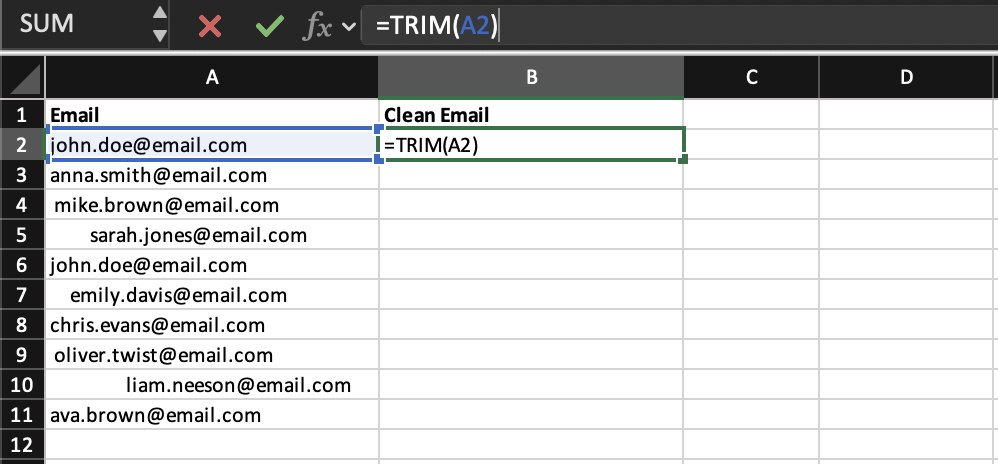
=TRIM(A2)

The formula =TRIM(A2) takes the text from cell A2 and automatically cleans it by removing leading and trailing spaces, as well as reducing multiple spaces between words to a single space.
carousel-imgcarousel-imgcarousel-img

Task

Use the dataset to clean text values using the TRIM function.

Create a new column Clean Email and apply TRIM to remove extra spaces from the original Email column. Fill the formula down for all rows so that all values are clean and consistent.

Note
Hint

Use =TRIM(B2) and apply the formula to the entire column.

question mark

What does the TRIM function do?

Sélectionnez la réponse correcte

Tout était clair ?

Comment pouvons-nous l'améliorer ?

Merci pour vos commentaires !

Section 2. Chapitre 1

Demandez à l'IA

expand

Demandez à l'IA

ChatGPT

Posez n'importe quelle question ou essayez l'une des questions suggérées pour commencer notre discussion

Removing Extra Spaces with TRIM

When working with text data in Excel, one of the most common problems is extra spaces.

These spaces may appear:

  • At the beginning of a cell;
  • At the end;
  • Or between words.

The tricky part is that you often don't see them, but Excel does.

Because of this, two values that look identical may actually be different. This can break formulas like VLOOKUP, comparisons, filtering, and grouping.

For example, "John" and " John" look the same, but Excel treats them as different values.

TRIM function

To fix this, Excel provides the TRIM function, which removes leading spaces, trailing spaces, and extra spaces between words, leaving only a single space and making your text clean, consistent, and ready for further processing or analysis.

=TRIM(A2)

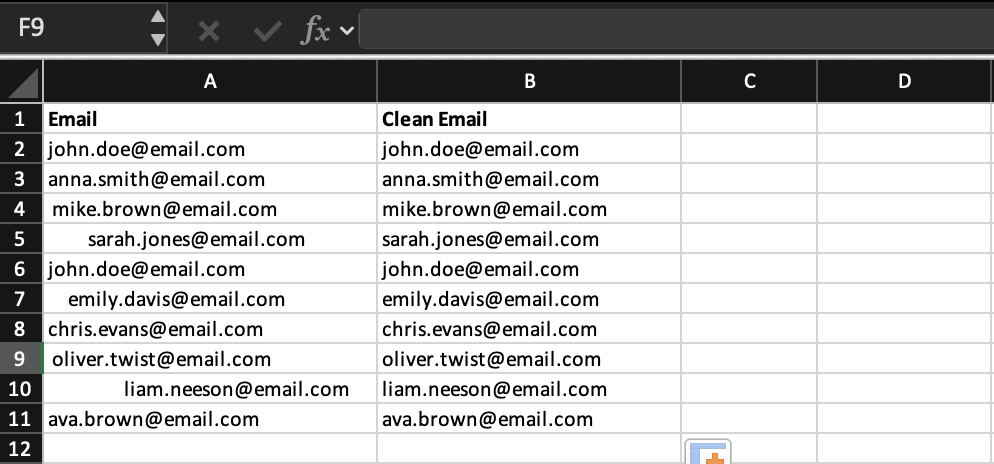
The formula =TRIM(A2) takes the text from cell A2 and automatically cleans it by removing leading and trailing spaces, as well as reducing multiple spaces between words to a single space.
carousel-imgcarousel-imgcarousel-img

Task

Use the dataset to clean text values using the TRIM function.

Create a new column Clean Email and apply TRIM to remove extra spaces from the original Email column. Fill the formula down for all rows so that all values are clean and consistent.

Note
Hint

Use =TRIM(B2) and apply the formula to the entire column.

Tout était clair ?

Comment pouvons-nous l'améliorer ?

Merci pour vos commentaires !

Section 2. Chapitre 1
some-alt