Tri
Glissez pour afficher le menu
Le tri dans Excel permet d’organiser rapidement les données afin de retrouver plus facilement des informations et d’identifier aisément des tendances ou des valeurs aberrantes. Il est possible de réorganiser les lignes selon du texte, des nombres, des dates ou même des couleurs, rendant ainsi la feuille de calcul plus pertinente pour l’analyse.

Le tri réorganise définitivement les lignes. Une fois le tri effectué et enregistré, l’ordre d’origine est perdu.
Excel applique automatiquement la logique de tri appropriée en fonction du type de données de la colonne. Le même bouton A→Z se comporte différemment selon le contenu de la colonne :
Si une colonne numérique est formatée en tant que texte (fréquent après l'importation de fichiers CSV), le tri suit l'ordre alphabétique des chaînes : 1, 10, 100, 2, 20, 3 — et non l'ordre numérique. Corriger d'abord le format de la colonne, puis trier. Vérification rapide : les nombres stockés en texte sont alignés à gauche dans leurs cellules.
Tri personnalisé
Accessible via Données → Trier ou Accueil → Trier et filtrer → Tri personnalisé. Prend en charge plusieurs niveaux, des ordres de tri personnalisés, le tri par couleur ou icône, et la confirmation de la détection de l'en-tête.
L'ordre alphabétique ne reflète pas toujours la logique métier. Trier une colonne Statut par ordre alphabétique place « Payé » avant « En attente » — mais opérationnellement, il peut être préférable d'afficher les éléments en attente en haut. Les ordres de tri personnalisés permettent de définir précisément la séquence à suivre par Excel.
Tri selon une liste personnalisée (Windows) :
- Cliquez sur une cellule du tableau → Données → Trier pour ouvrir la boîte de dialogue Trier ;
- Dans la liste déroulante Trier par, choisissez la colonne (par exemple Statut) ;
- Dans la liste déroulante Ordre, choisissez Liste personnalisée ;
- Saisissez la séquence souhaitée, un élément par ligne (par exemple En attente → Payé → Annulé) et cliquez sur Ajouter ;
- Cliquez deux fois sur OK — Excel réorganise les lignes selon la séquence définie, et non l'ordre alphabétique.
Tri selon une liste personnalisée (Mac) :
- Commencez par créer votre liste personnalisée : allez dans menu Excel → Préférences → Listes personnalisées. Saisissez votre séquence, un élément par ligne (par exemple En attente → Payé → Annulé), cliquez sur Ajouter, puis sur OK.
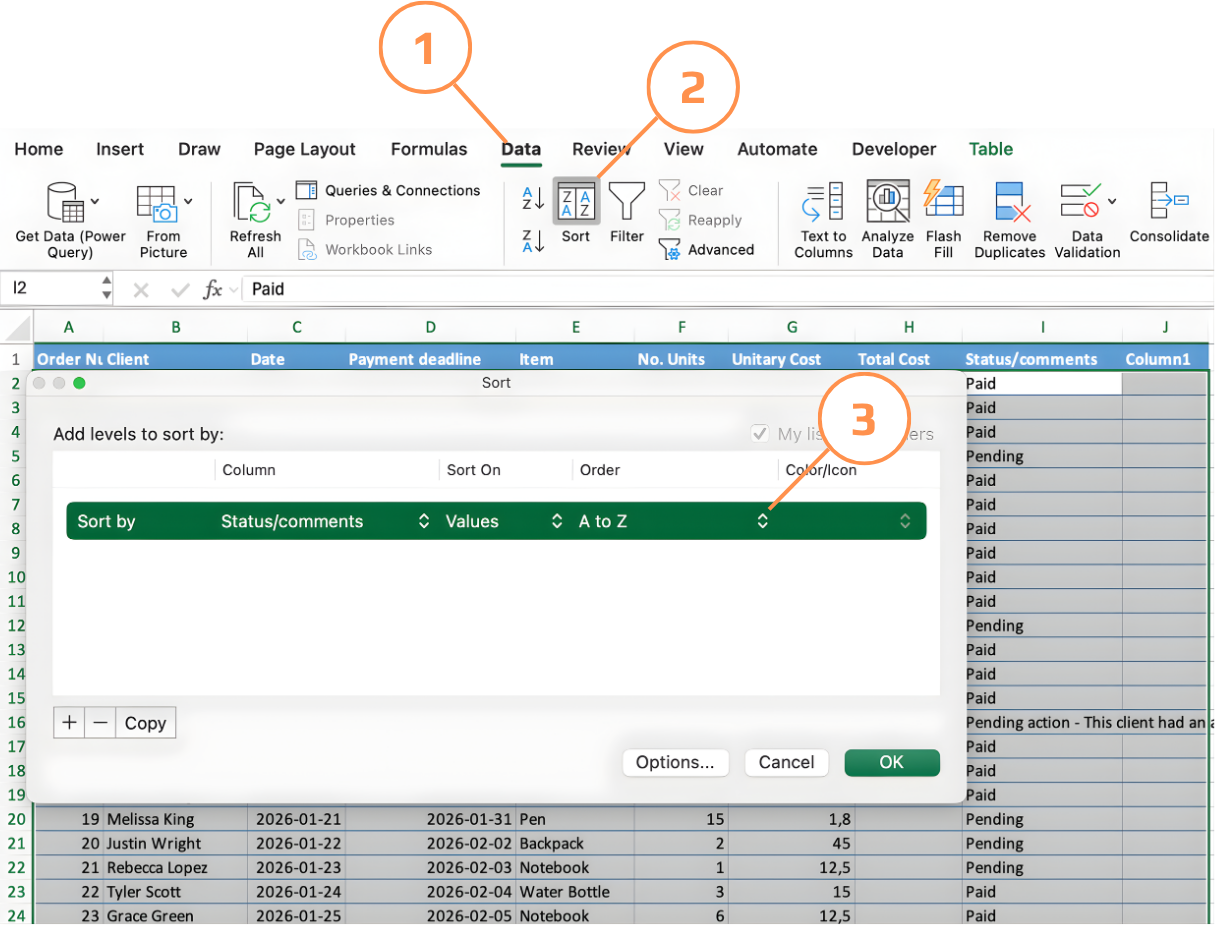
- Cliquez sur une cellule du tableau → Données → Trier pour ouvrir la boîte de dialogue Trier ;
- Dans la liste déroulante Trier par, choisissez la colonne (par exemple Statut).
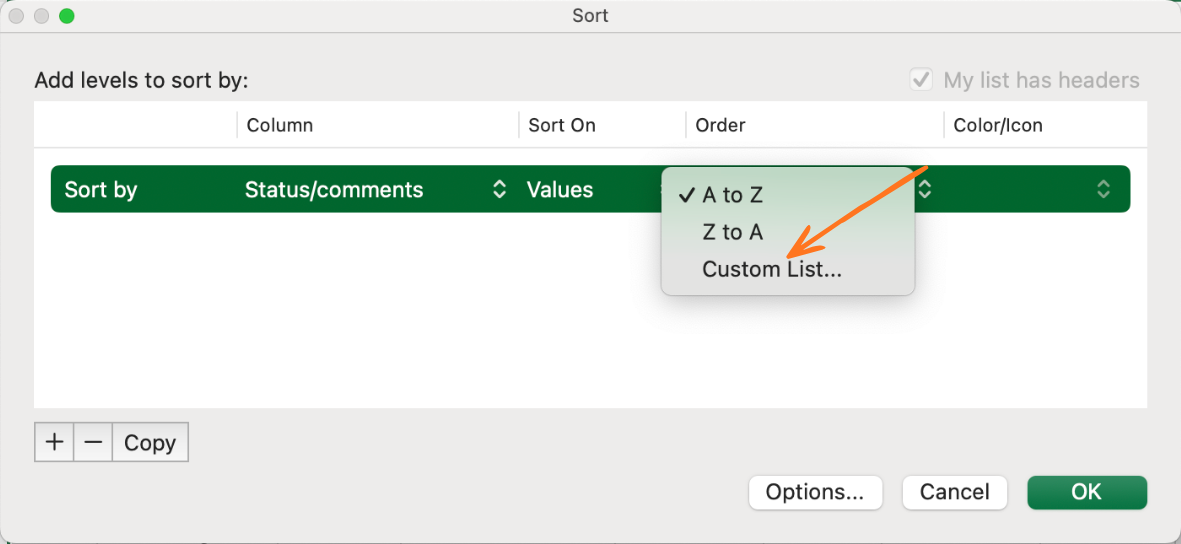
- Dans la liste déroulante Ordre, choisissez Liste personnalisée — votre liste enregistrée apparaîtra ici ;
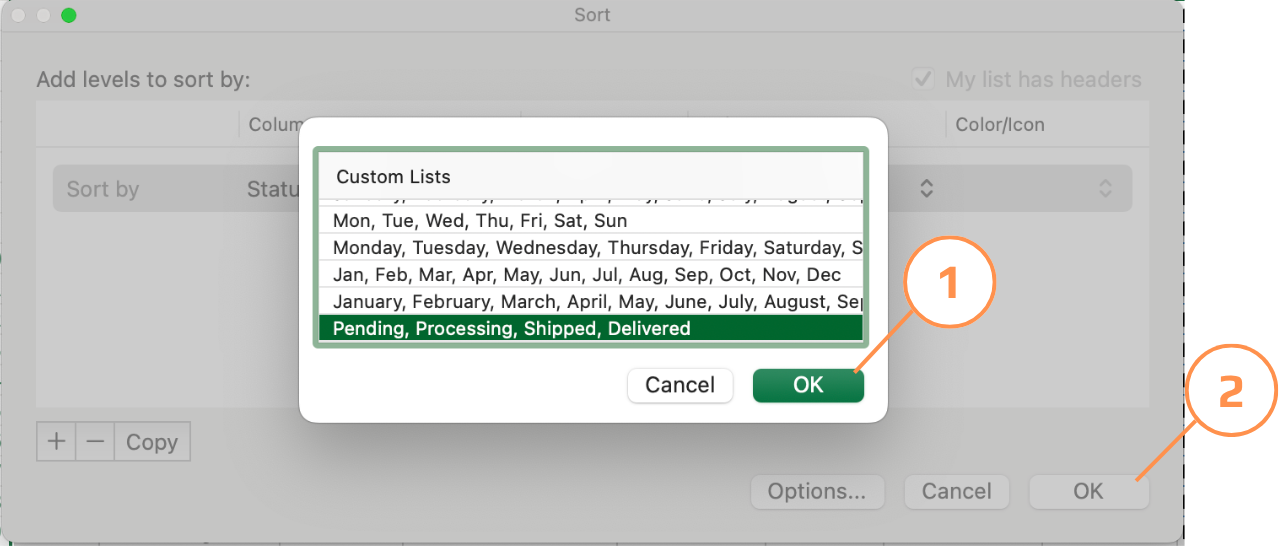
- Sélectionnez votre liste et cliquez deux fois sur OK — Excel réorganise les lignes selon la séquence définie.
Merci pour vos commentaires !
Demandez à l'IA

Demandez à l'IA

Posez n'importe quelle question ou essayez l'une des questions suggérées pour commencer notre discussion
