Remplir les données efficacement
Glissez pour afficher le menu

Nous continuons à travailler dans le même classeur que dans le chapitre précédent.

Remplissage automatique et Remplissage instantané visent tous deux à réduire le travail répétitif, mais remplissent des fonctions fondamentalement différentes. Remplissage automatique prolonge, c'est-à-dire qu'il copie ou continue ce qui existe déjà. Remplissage instantané transforme, c'est-à-dire qu'il extrait ou reformate selon un modèle que vous indiquez.
Le même geste de glisser sur différentes valeurs de départ produit un comportement complètement différent. Essayez chaque scénario ci-dessous pour voir ce qui se passe réellement :
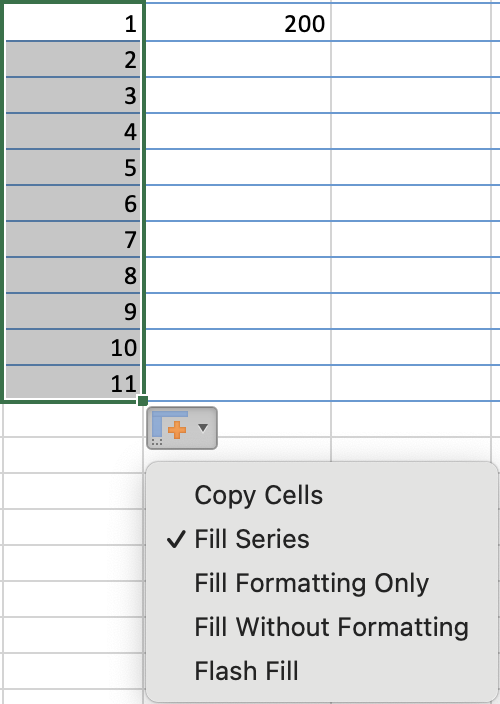
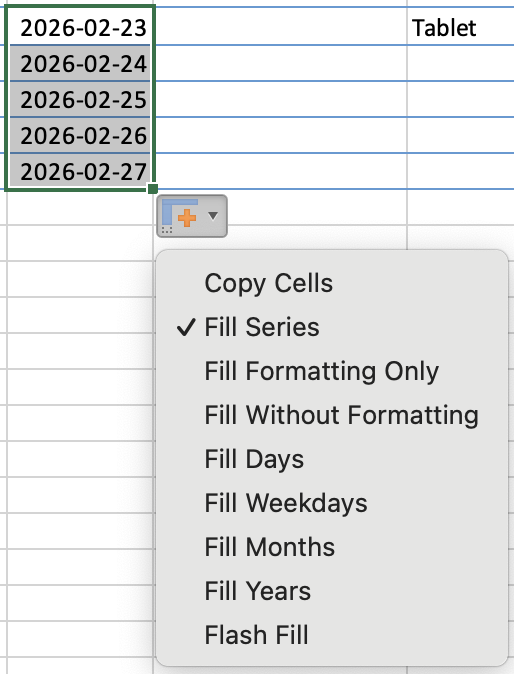
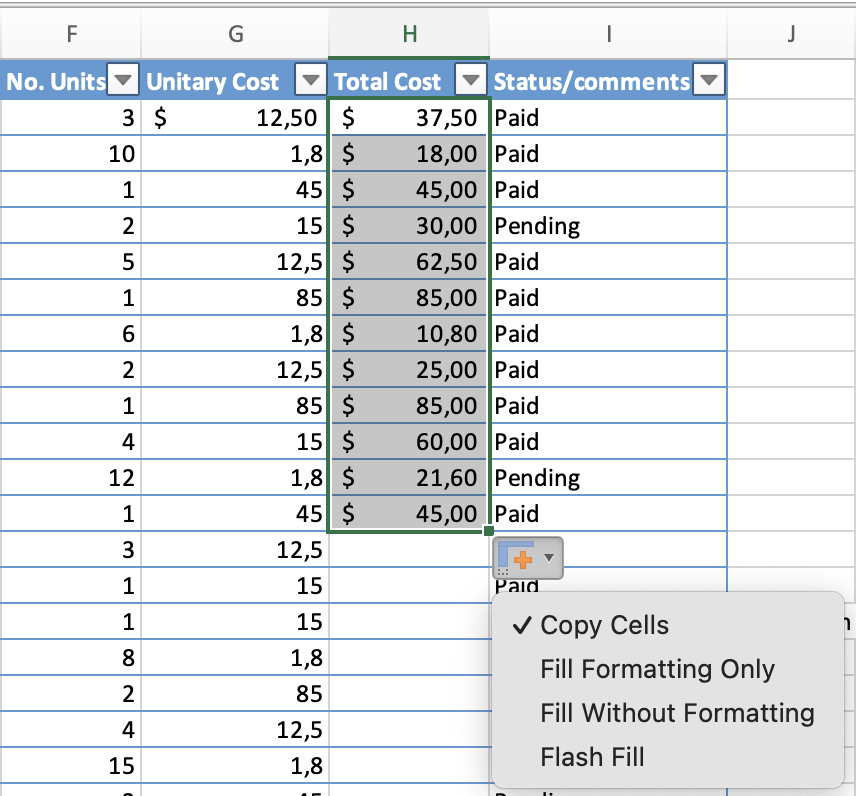
Le menu Options de remplissage automatique (la petite icône qui apparaît après avoir fait glisser) agit comme une soupape de sécurité. Il permet de choisir explicitement le type de remplissage au lieu de faire confiance à l'interprétation d'Excel.
Un double-clic sur la poignée de recopie remplit automatiquement jusqu'à la dernière ligne de la colonne adjacente, sans avoir besoin de faire glisser. C'est de loin la méthode la plus rapide pour propager une formule sur l'ensemble d'un jeu de données. Le remplissage s'arrête à la première ligne vide de la colonne voisine, ce qui le rend parfaitement adapté à une table bien structurée.
Listes personnalisées
Excel est livré avec des séquences intégrées (Lun–Dim, Jan–Déc), mais vous pouvez ajouter toute séquence adaptée à votre flux de travail. Une fois enregistrée, elle fonctionne exactement comme les séquences intégrées — saisissez le premier élément et faites glisser pour continuer.
Création d'une liste personnalisée (Windows) :
- Fichier → Options → Avancé — faites défiler jusqu'à la section Général en bas ;
- Cliquez sur Modifier les listes personnalisées ;
- Dans la zone Entrées de la liste, saisissez chaque élément sur une ligne distincte, en appuyant sur Entrée après chacun ;
- Cliquez sur Ajouter puis sur OK — la séquence est désormais disponible globalement dans tous les classeurs.
Création d'une liste personnalisée (Mac) :
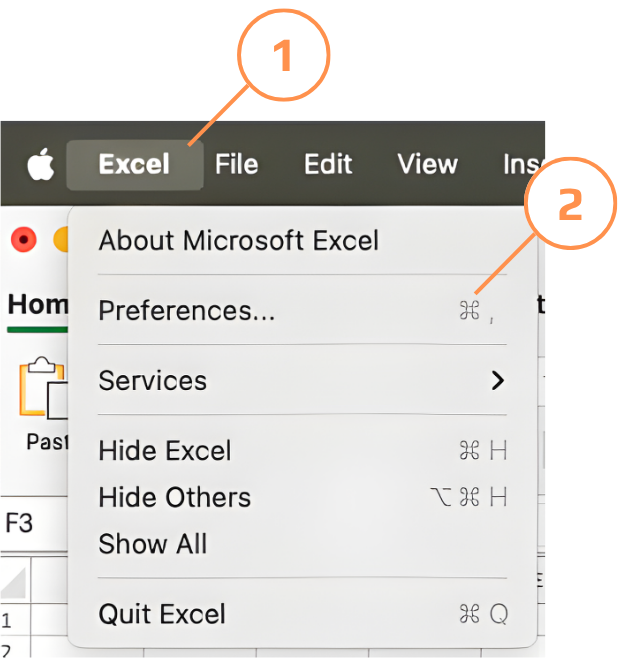
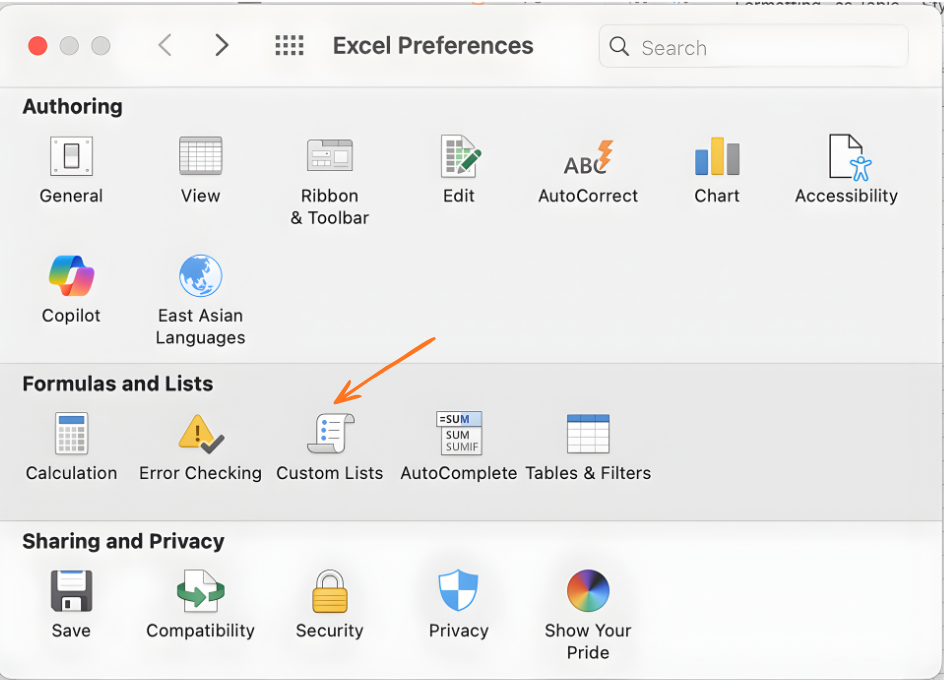
- Excel → Réglages → Listes personnalisées — ou allez dans Excel dans la barre de menu et choisissez Préférences ;
- Cliquez sur Listes personnalisées sous la section Formules et listes ;
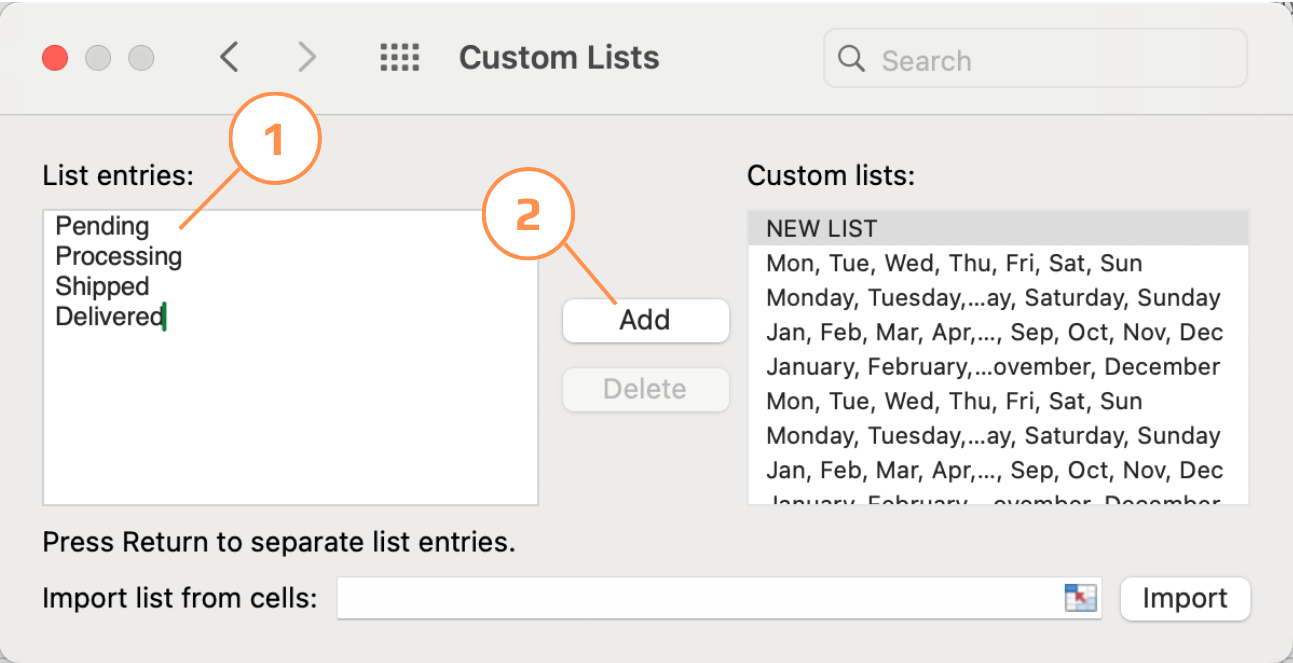
- Dans la zone Entrées de la liste, saisissez chaque élément sur une ligne distincte, en appuyant sur Entrée après chacun ;
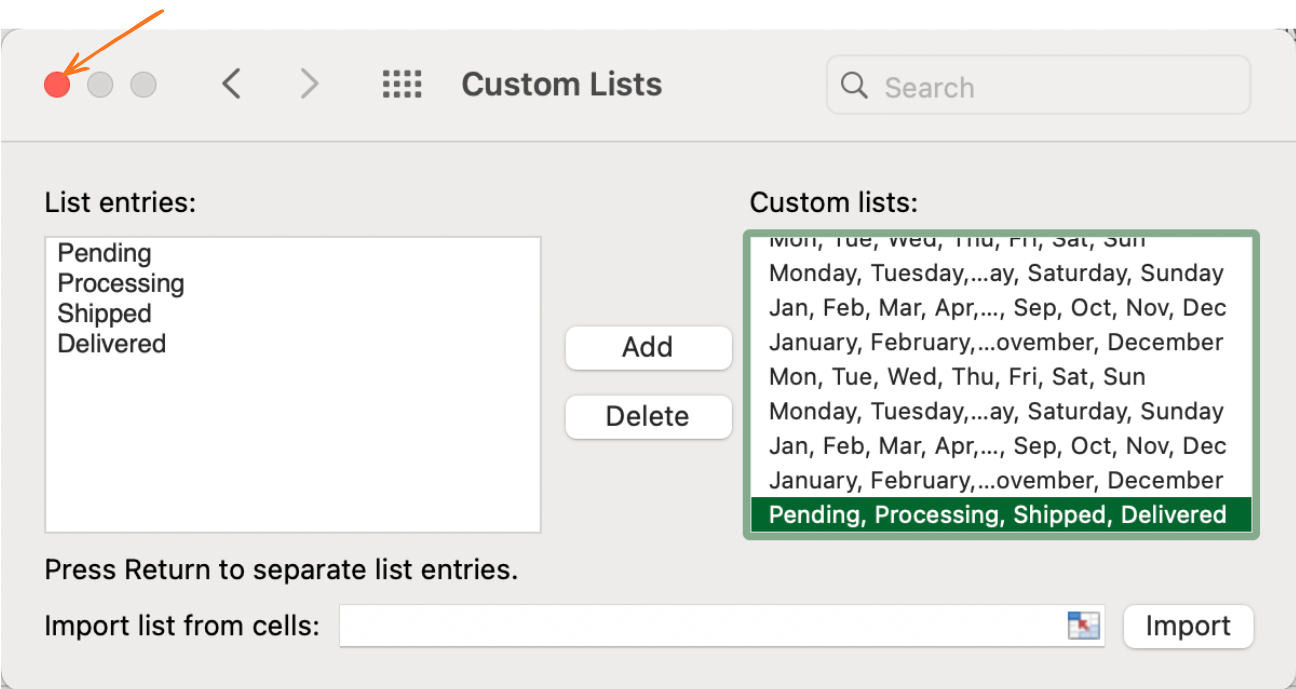
- Cliquez sur Ajouter puis vous pouvez fermer la fenêtre — la séquence est désormais disponible globalement dans tous les classeurs.
Remplissage instantané
Remplissage instantané détecte le modèle entre votre colonne source et l'exemple que vous saisissez, puis applique cette transformation à toutes les lignes restantes. Aucune formule à écrire — il suffit de montrer à Excel à quoi doit ressembler le résultat.
Le remplissage instantané gère une large gamme de transformations à partir d'un seul exemple :
- Séparer les prénoms — source : "Emily Johnson" → exemple : "Emily" → extrait tous les prénoms ;
- Extraire le domaine d'un e-mail — source : "user@company.com" → exemple : "company.com" → complète tous les domaines ;
- Reformater les dates — source : "2026-03-01" → exemple : "01/03/2026" → reformate toutes les dates ;
- Combiner des colonnes — colonnes sources A+B : "John" + "Smith" → exemple : "John Smith" → fusionne toutes les lignes ;
- Extraire des codes — source : "ORDER-2024-0042" → exemple : "0042" → extrait les numéros finaux de toutes les lignes.
Les valeurs remplies sont statiques. Si la colonne source change — un nom est corrigé, un e-mail est mis à jour — le résultat du remplissage instantané reste inchangé. Le remplissage instantané est destiné à un nettoyage ponctuel.
Merci pour vos commentaires !
Demandez à l'IA

Demandez à l'IA

Posez n'importe quelle question ou essayez l'une des questions suggérées pour commencer notre discussion
