Tableaux
Glissez pour afficher le menu
Les plages sont puissantes, mais elles sont statiques. Lorsque vos données continuent de croître — nouvelles lignes, nouveaux clients, nouvelles transactions — il vous faut une solution plus intelligente. C'est là que les Tableaux interviennent.
Points clés
- Un Tableau transforme une plage en un ensemble de données structuré et évolutif ;
- Appuyez sur Ctrl / Cmd + T pour convertir n'importe quelle plage en Tableau ;
- Les Tableaux ajoutent des filtres, des références structurées et une extension automatique ;
- Chaque colonne = un type de données. Chaque ligne = un enregistrement. Aucune ligne vide à l'intérieur.
Qu'est-ce qu'un Tableau ?
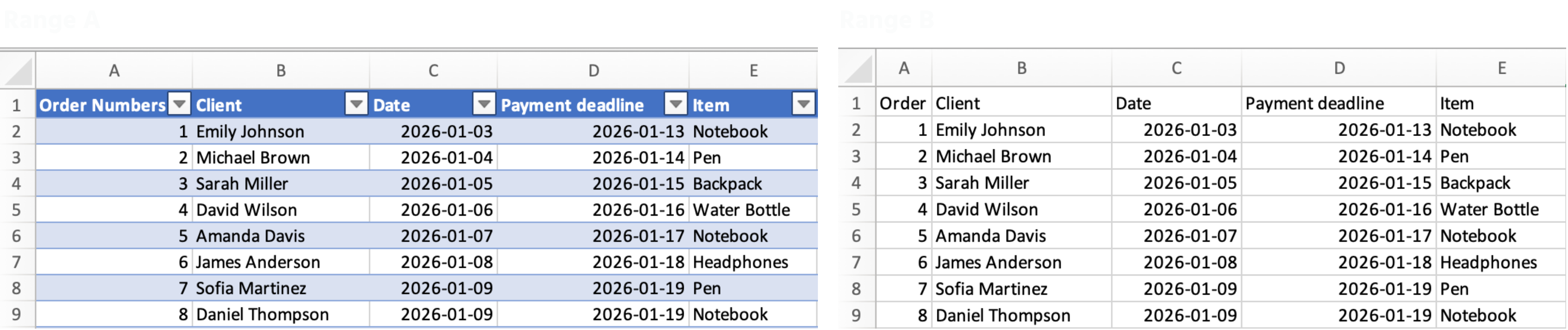
Un Tableau est une plage structurée qui indique à Excel : « ceci est un ensemble de données évolutif, traite-le comme tel. »
Une fois que vous convertissez une plage en Tableau, Excel :
- Ajoute automatiquement des filtres et des boutons de tri aux en-têtes ;
- Étend les formules et la mise en forme à chaque nouvelle ligne ;
- Utilise des références structurées comme
Sales[Total_Cost]au lieu deK2:K54.
Comment créer un tableau
- Cliquez n'importe où dans vos données ;
- Appuyez sur Ctrl + T (Windows) ou Cmd + T (Mac) ;
- Vérifiez que vos données comportent des en-têtes → cliquez sur OK.
Tout était clair ?
Merci pour vos commentaires !
Section 1. Chapitre 2
Demandez à l'IA

Demandez à l'IA

Posez n'importe quelle question ou essayez l'une des questions suggérées pour commencer notre discussion
Section 1. Chapitre 2
