Mise en forme
Glissez pour afficher le menu
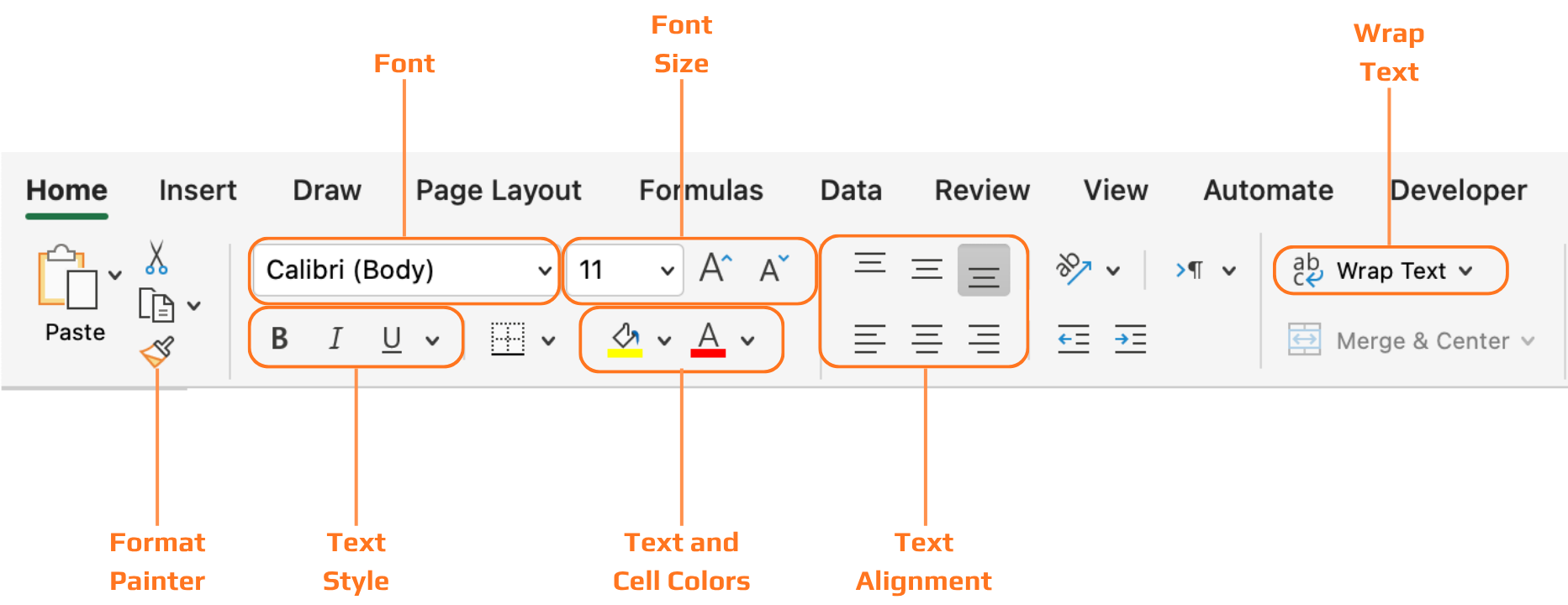
Tous les outils abordés dans ce chapitre se trouvent dans l’onglet Accueil du ruban, organisés en groupes : Police, Alignement, Nombre et Styles. La sélection des cellules précède toujours l’application du formatage sur la sélection.
En-têtes
Sans en-têtes formatés, un tableau de données n'est qu'une grille de texte. Le lecteur doit faire l'effort de comprendre la signification de chaque colonne avant de pouvoir lire les valeurs. Le texte en gras et l'arrière-plan coloré résolvent ce problème instantanément — la ligne d'en-tête se distingue visuellement des lignes de données, et l'œil repère immédiatement où se trouvent les intitulés de colonnes.

Lorsque vous convertissez une plage en tableau Excel avec Ctrl+T, le formatage des en-têtes est appliqué automatiquement — et vous pouvez choisir parmi des styles de tableau prédéfinis dans l'onglet Création de tableau. C'est souvent le moyen le plus rapide d'obtenir un formatage d'en-tête propre et cohérent sans le faire manuellement.
Merci pour vos commentaires !
Demandez à l'IA

Demandez à l'IA

Posez n'importe quelle question ou essayez l'une des questions suggérées pour commencer notre discussion
Mise en forme
Tous les outils abordés dans ce chapitre se trouvent dans l’onglet Accueil du ruban, organisés en groupes : Police, Alignement, Nombre et Styles. La sélection des cellules précède toujours l’application du formatage sur la sélection.
En-têtes
Sans en-têtes formatés, un tableau de données n'est qu'une grille de texte. Le lecteur doit faire l'effort de comprendre la signification de chaque colonne avant de pouvoir lire les valeurs. Le texte en gras et l'arrière-plan coloré résolvent ce problème instantanément — la ligne d'en-tête se distingue visuellement des lignes de données, et l'œil repère immédiatement où se trouvent les intitulés de colonnes.
Lorsque vous convertissez une plage en tableau Excel avec Ctrl+T, le formatage des en-têtes est appliqué automatiquement — et vous pouvez choisir parmi des styles de tableau prédéfinis dans l'onglet Création de tableau. C'est souvent le moyen le plus rapide d'obtenir un formatage d'en-tête propre et cohérent sans le faire manuellement.
Merci pour vos commentaires !
