Partage et Collaboration sur les Notebooks
Glissez pour afficher le menu

La collaboration constitue un pilier central de l'espace de travail Databricks. Elle permet à plusieurs utilisateurs de travailler simultanément sur le même notebook, de laisser des commentaires et de gérer l'historique des versions, de manière similaire à Google Docs pour les documents texte.
Databricks a été conçu pour éliminer les silos entre les membres d'une équipe. Dans ce chapitre, vous découvrirez comment partager vos notebooks avec des collègues et utiliser les outils de communication intégrés pour collaborer plus efficacement.
Le bouton Partager
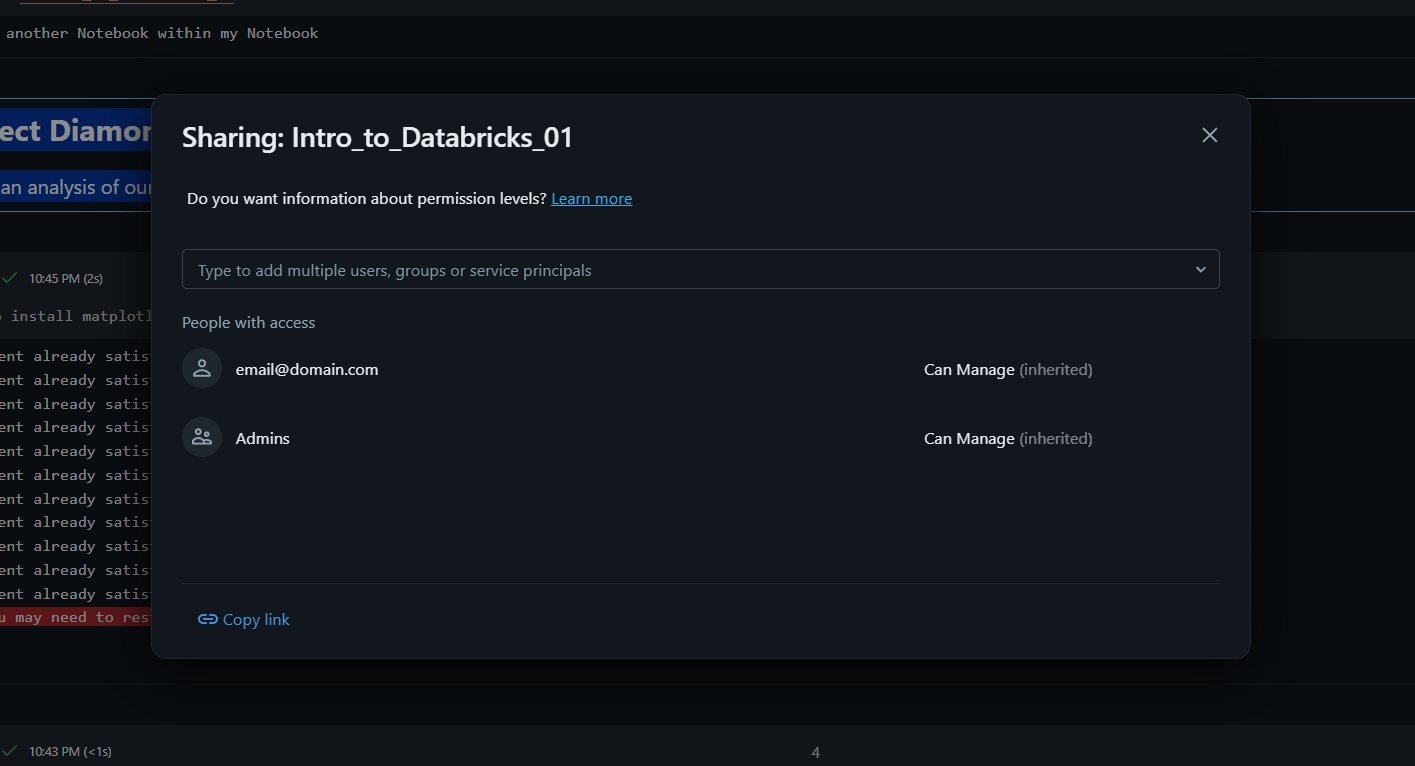
Dans le coin supérieur droit de chaque notebook, vous trouverez le bouton "Partager". C'est ici que vous gérez les autorisations d'accès. Vous pouvez partager un notebook avec des utilisateurs individuels ou des groupes entiers. Plusieurs niveaux d'accès peuvent être attribués :
- Peut voir : l'utilisateur peut consulter le code et les résultats mais ne peut rien modifier ;
- Peut exécuter : l'utilisateur peut attacher le notebook à un cluster et exécuter les cellules mais ne peut pas modifier le code ;
- Peut modifier : l'utilisateur dispose de toutes les autorisations pour modifier le code et la documentation ;
- Peut gérer : l'utilisateur peut également modifier les autorisations de partage pour d'autres personnes.
Co-rédaction en temps réel
Lorsque plusieurs personnes ont le notebook ouvert, leurs icônes de profil apparaissent dans l'en-tête en haut à droite. Databricks prend en charge la co-rédaction en temps réel, ce qui permet de voir le curseur de vos collègues pendant qu'ils saisissent du texte dans une cellule. Cela élimine le besoin d'exporter et d'envoyer les fichiers par e-mail, garantissant que tout le monde travaille toujours sur la « source unique de vérité ».
Utilisation des commentaires pour les retours
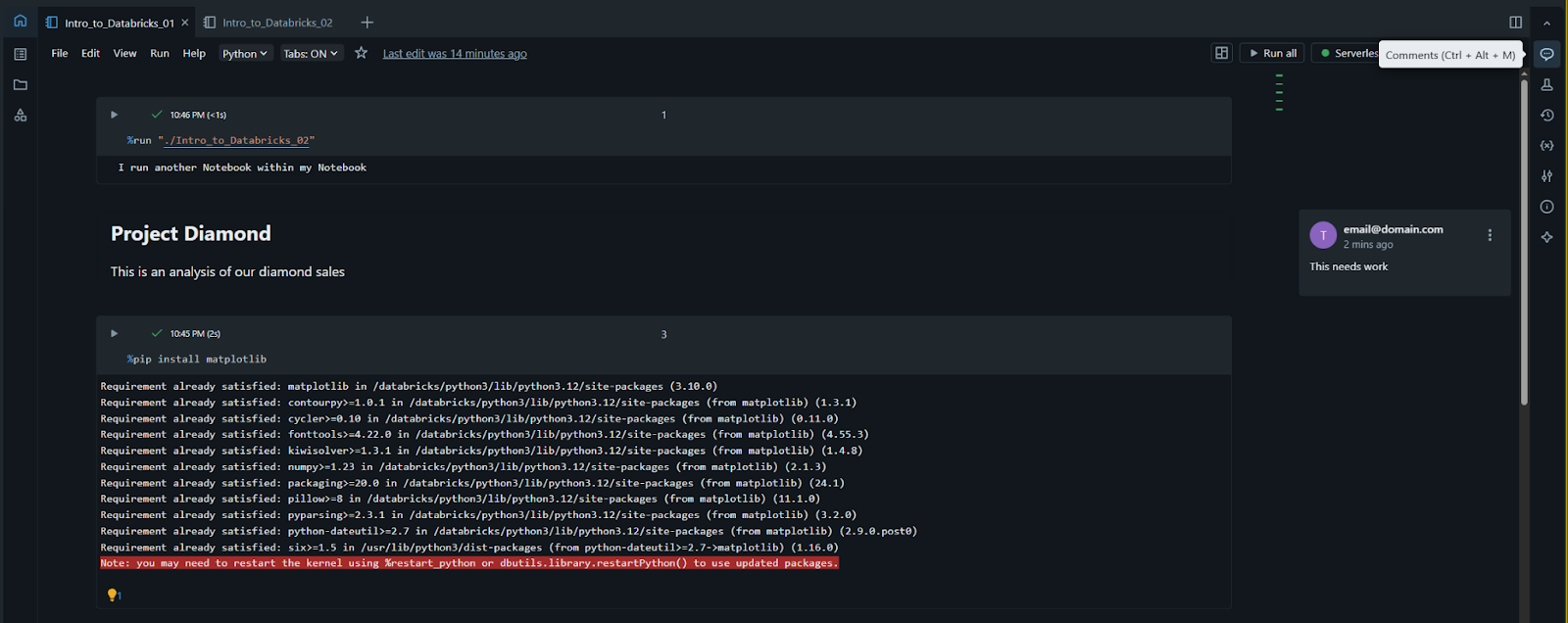
Au lieu d'expliquer vos modifications de code dans une application de messagerie séparée, il est possible de laisser des commentaires directement dans le notebook :
- Pour ajouter un commentaire, sélectionnez un morceau de code ou de texte et cliquez sur l'icône « Commentaire » qui apparaît dans la marge ;
- Les membres de l'équipe peuvent répondre à vos commentaires, et une fois la discussion terminée, il est possible de cliquer sur « Résoudre » pour masquer le fil. Cela permet de garder l'espace de travail organisé tout en conservant l'historique des échanges.
Historique des révisions
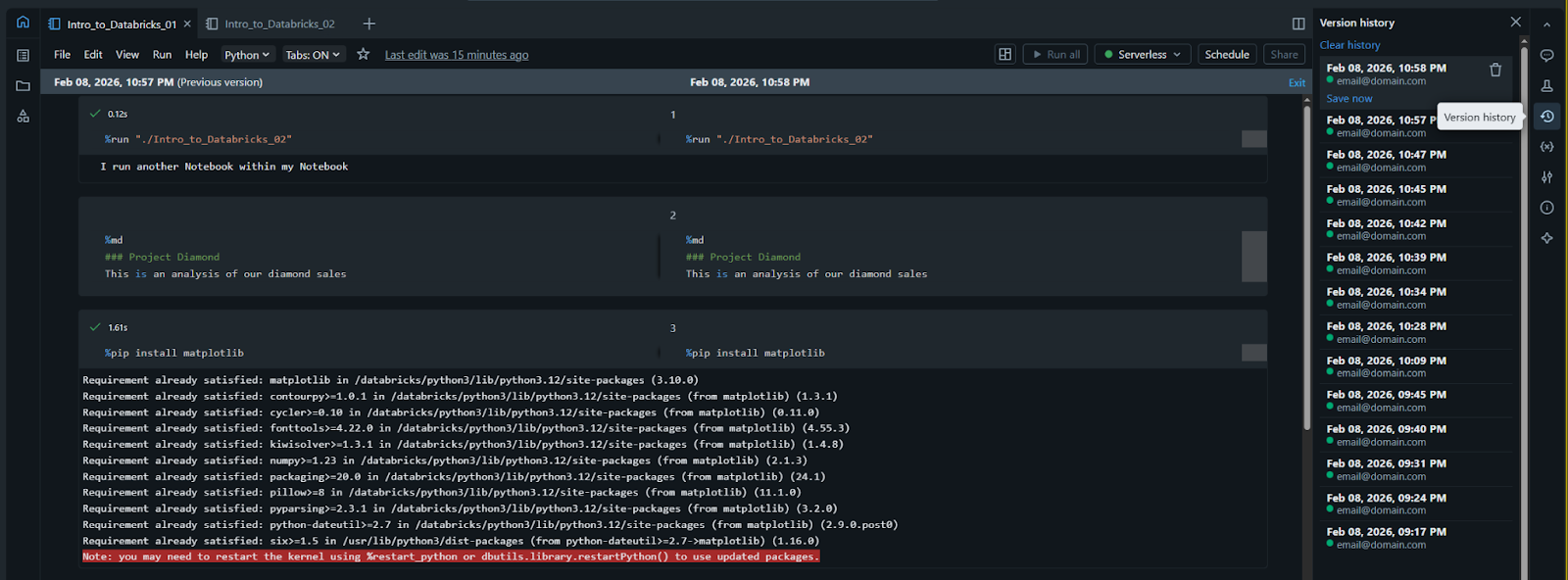
À chaque modification, Databricks l’enregistre automatiquement. En cliquant sur le lien "Historique des révisions" (situé en haut à droite, généralement sous le texte "Dernière sauvegarde"), il est possible d’afficher la liste des versions précédentes :
- Comparer les versions : affichage précis du code ajouté ou supprimé entre deux moments donnés ;
- Restaurer : en cas de suppression accidentelle d’un bloc de code complexe par vous ou un collègue, restauration du notebook à une version antérieure en un clic.
Exportation des notebooks
Bien qu'il soit préférable de travailler directement sur la plateforme, il peut parfois être nécessaire de partager votre travail avec une personne en dehors de l'environnement Databricks. Dans le menu Fichier, vous pouvez choisir d'Exporter votre notebook :
- Archive DBC : idéal pour transférer des notebooks vers un autre espace de travail Databricks ;
- Fichier source : exporte sous forme de fichier standard
.pyou.sql; - HTML/PDF : idéal pour partager un rapport statique avec des parties prenantes qui n'ont pas besoin d'exécuter le code.
1. Quel niveau d'autorisation devez-vous accorder à un collègue si vous souhaitez qu'il puisse voir votre code sans le modifier ?
2. Quel est l'avantage de la fonctionnalité « Historique des révisions » ?
Merci pour vos commentaires !
Demandez à l'IA

Demandez à l'IA

Posez n'importe quelle question ou essayez l'une des questions suggérées pour commencer notre discussion
Partage et Collaboration sur les Notebooks
La collaboration constitue un pilier central de l'espace de travail Databricks. Elle permet à plusieurs utilisateurs de travailler simultanément sur le même notebook, de laisser des commentaires et de gérer l'historique des versions, de manière similaire à Google Docs pour les documents texte.
Databricks a été conçu pour éliminer les silos entre les membres d'une équipe. Dans ce chapitre, vous découvrirez comment partager vos notebooks avec des collègues et utiliser les outils de communication intégrés pour collaborer plus efficacement.
Le bouton Partager
Dans le coin supérieur droit de chaque notebook, vous trouverez le bouton "Partager". C'est ici que vous gérez les autorisations d'accès. Vous pouvez partager un notebook avec des utilisateurs individuels ou des groupes entiers. Plusieurs niveaux d'accès peuvent être attribués :
- Peut voir : l'utilisateur peut consulter le code et les résultats mais ne peut rien modifier ;
- Peut exécuter : l'utilisateur peut attacher le notebook à un cluster et exécuter les cellules mais ne peut pas modifier le code ;
- Peut modifier : l'utilisateur dispose de toutes les autorisations pour modifier le code et la documentation ;
- Peut gérer : l'utilisateur peut également modifier les autorisations de partage pour d'autres personnes.
Co-rédaction en temps réel
Lorsque plusieurs personnes ont le notebook ouvert, leurs icônes de profil apparaissent dans l'en-tête en haut à droite. Databricks prend en charge la co-rédaction en temps réel, ce qui permet de voir le curseur de vos collègues pendant qu'ils saisissent du texte dans une cellule. Cela élimine le besoin d'exporter et d'envoyer les fichiers par e-mail, garantissant que tout le monde travaille toujours sur la « source unique de vérité ».
Utilisation des commentaires pour les retours
Au lieu d'expliquer vos modifications de code dans une application de messagerie séparée, il est possible de laisser des commentaires directement dans le notebook :
- Pour ajouter un commentaire, sélectionnez un morceau de code ou de texte et cliquez sur l'icône « Commentaire » qui apparaît dans la marge ;
- Les membres de l'équipe peuvent répondre à vos commentaires, et une fois la discussion terminée, il est possible de cliquer sur « Résoudre » pour masquer le fil. Cela permet de garder l'espace de travail organisé tout en conservant l'historique des échanges.
Historique des révisions
À chaque modification, Databricks l’enregistre automatiquement. En cliquant sur le lien "Historique des révisions" (situé en haut à droite, généralement sous le texte "Dernière sauvegarde"), il est possible d’afficher la liste des versions précédentes :
- Comparer les versions : affichage précis du code ajouté ou supprimé entre deux moments donnés ;
- Restaurer : en cas de suppression accidentelle d’un bloc de code complexe par vous ou un collègue, restauration du notebook à une version antérieure en un clic.
Exportation des notebooks
Bien qu'il soit préférable de travailler directement sur la plateforme, il peut parfois être nécessaire de partager votre travail avec une personne en dehors de l'environnement Databricks. Dans le menu Fichier, vous pouvez choisir d'Exporter votre notebook :
- Archive DBC : idéal pour transférer des notebooks vers un autre espace de travail Databricks ;
- Fichier source : exporte sous forme de fichier standard
.pyou.sql; - HTML/PDF : idéal pour partager un rapport statique avec des parties prenantes qui n'ont pas besoin d'exécuter le code.
Merci pour vos commentaires !
