Gestion des Fichiers dans l'Espace de Travail
Glissez pour afficher le menu

Dans Databricks, il existe une distinction claire entre les fichiers de l'espace de travail (vos notebooks et votre code) et les objets de données (vos tables et fichiers bruts). Le catalogue est la passerelle moderne utilisée pour gérer et découvrir ces objets de données.
L'une des premières choses à comprendre est que Databricks possède « deux volets ». Un côté est dédié à votre travail – vos scripts et notebooks. L'autre côté concerne les données réelles que vous analysez. Comprendre où chaque élément se trouve vous évitera bien des frustrations lorsque vous commencerez à écrire du code.
Fichiers de l'espace de travail : Emplacement de votre code
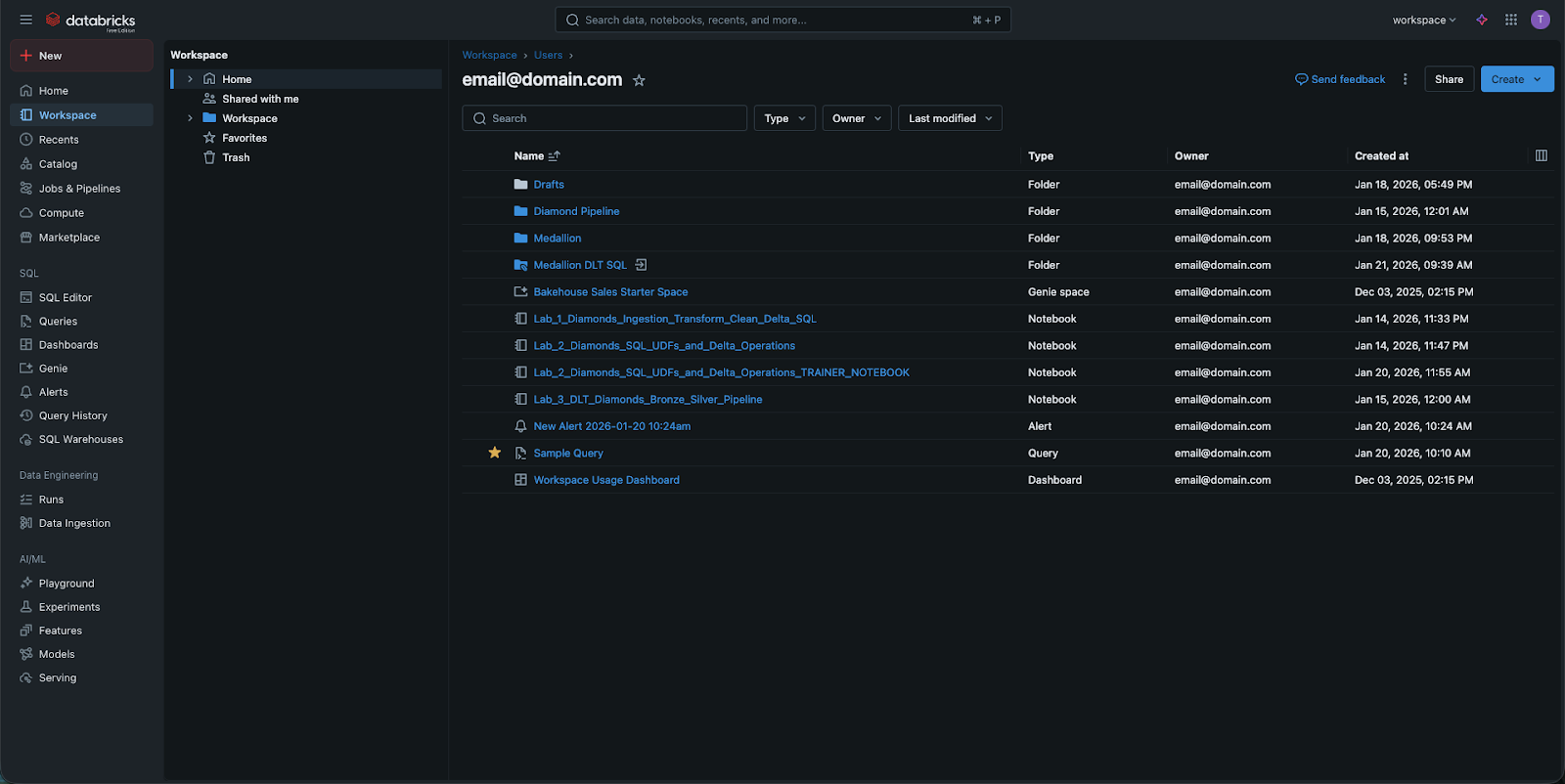
Lorsque vous cliquez sur l’onglet Workspace dans la barre latérale, vous accédez à un système de fichiers pour votre logique.
- C’est ici que vous créez des dossiers, sous-dossiers et notebooks.
- Vous pouvez également stocker ici des fichiers non-notebook, comme de petits scripts Python ou des fichiers de dépendances.
- Important : il ne s’agit pas de « data tables ». Vous ne stockez pas ici un fichier CSV de 100 Go. Cette zone est réservée à votre propriété intellectuelle – le code qui indique à Databricks quoi faire.
Le catalogue : l’emplacement de vos données
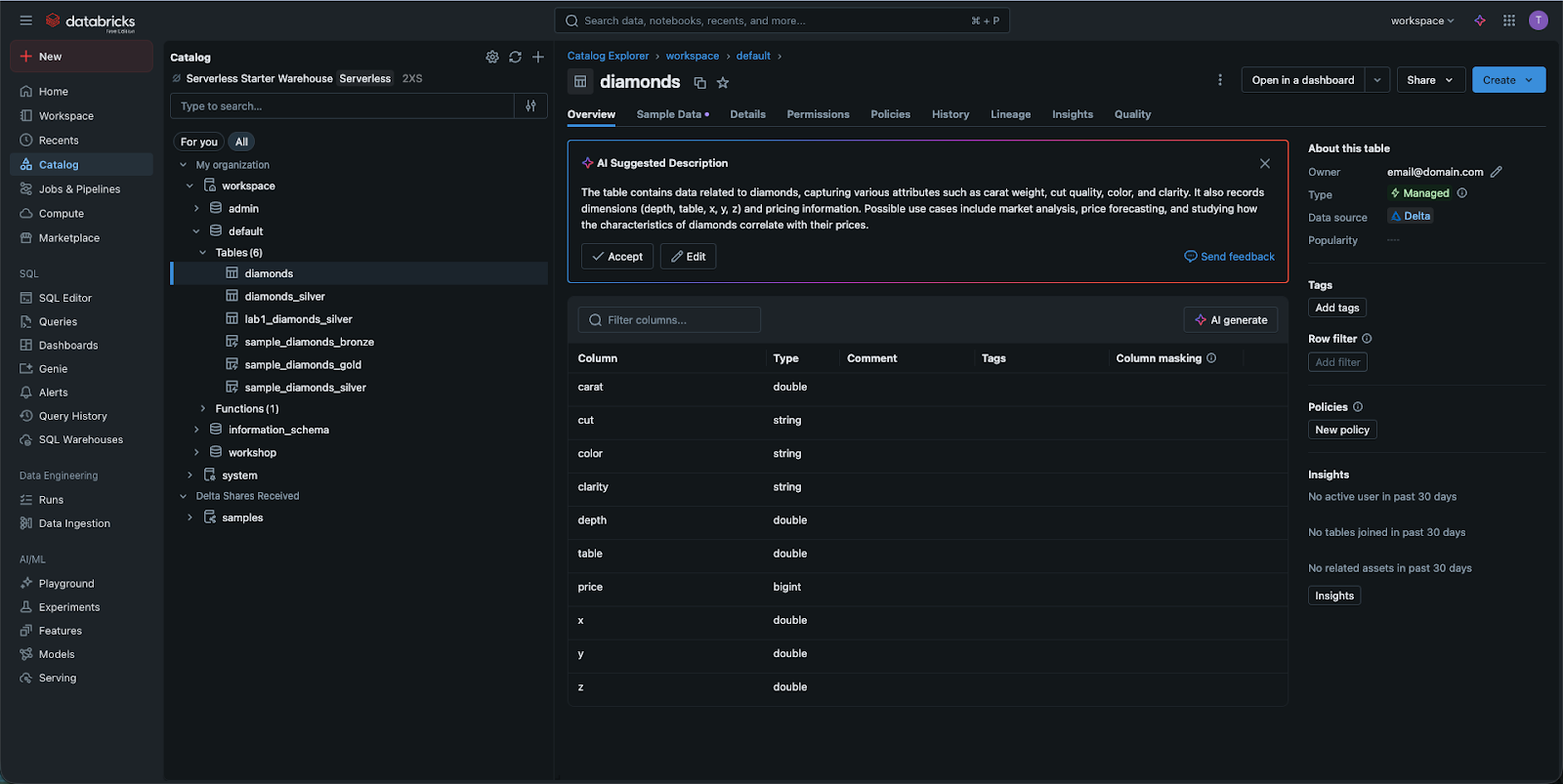
Pour visualiser vos données, accédez à l’onglet Catalogue. Par le passé, Databricks s’appuyait fortement sur ce que l’on appelait le DBFS (Databricks File System). Bien que vous puissiez encore rencontrer des références à DBFS dans l’ancienne documentation, cette approche est désormais considérée comme obsolète.
Aujourd’hui, nous utilisons le Catalogue (alimenté par Unity Catalog). Celui-ci offre une méthode structurée, de type « SQL », pour consulter vos données :
- Catalogues Unity : regroupement logique (par exemple, production_data ou marketing_data) de schémas ;
- Schémas (ou bases de données) : organisation des tables au sein d’un catalogue, ainsi que des volumes (voir ci-dessous), des modèles ML et des fonctions ;
- Tables : lignes et colonnes réelles que vous interrogez.
Volumes : Gestion des fichiers bruts
Parfois, vous disposez de données qui ne sont pas encore sous forme de table, comme un fichier CSV brut ou une image. Dans l'interface moderne de Databricks, ces fichiers sont stockés dans des Volumes. Considérez un Volume comme un pont entre l'ancienne approche par "dossier" et la nouvelle approche sécurisée par "Catalogue". Vous pouvez parcourir ces volumes directement dans l'interface du Catalogue pour visualiser vos fichiers bruts avant qu'ils ne soient chargés dans des tables.
Pourquoi cette distinction est-elle importante ?
Tout repose sur la sécurité et la performance. En séparant le code dans le Workspace et les données dans le Catalog, Databricks permet aux administrateurs d'accorder à un utilisateur la permission de modifier un notebook sans nécessairement lui donner accès aux données sensibles d'une table. Cette "séparation des responsabilités" fait de Databricks une plateforme adaptée aux besoins des entreprises.
1. Si vous souhaitez créer un nouveau dossier pour organiser vos notebooks Python, quel onglet de la barre latérale devez-vous utiliser ?
2. Quelle est la méthode moderne et recommandée pour gérer et découvrir les tables de données dans Databricks ?
3. Quel terme hérité pouvez-vous rencontrer dans l'ancienne documentation Databricks et qui est désormais remplacé par le Catalogue et les Volumes ?
Merci pour vos commentaires !
Demandez à l'IA

Demandez à l'IA

Posez n'importe quelle question ou essayez l'une des questions suggérées pour commencer notre discussion
