Error Handling with XLOOKUP
Glissez pour afficher le menu
A lookup formula works only when the lookup value exists in the lookup table. If no matching value is found, Excel returns an error. In reports and business models, raw errors make worksheets harder to read and harder to trust.
Instead of showing an error, XLOOKUP can display a custom message such as: Not Found, Missing ID, No Match.
This makes the output clearer for anyone using the workbook.
Syntax for Error Handling
The fourth argument controls what Excel should display if no match exists.
=XLOOKUP(lookup_value; lookup_array; return_array; "Not Found")
If a match is found, Excel returns the normal result. If no match is found, Excel returns the custom text instead of an error.
Example Using Employee ID
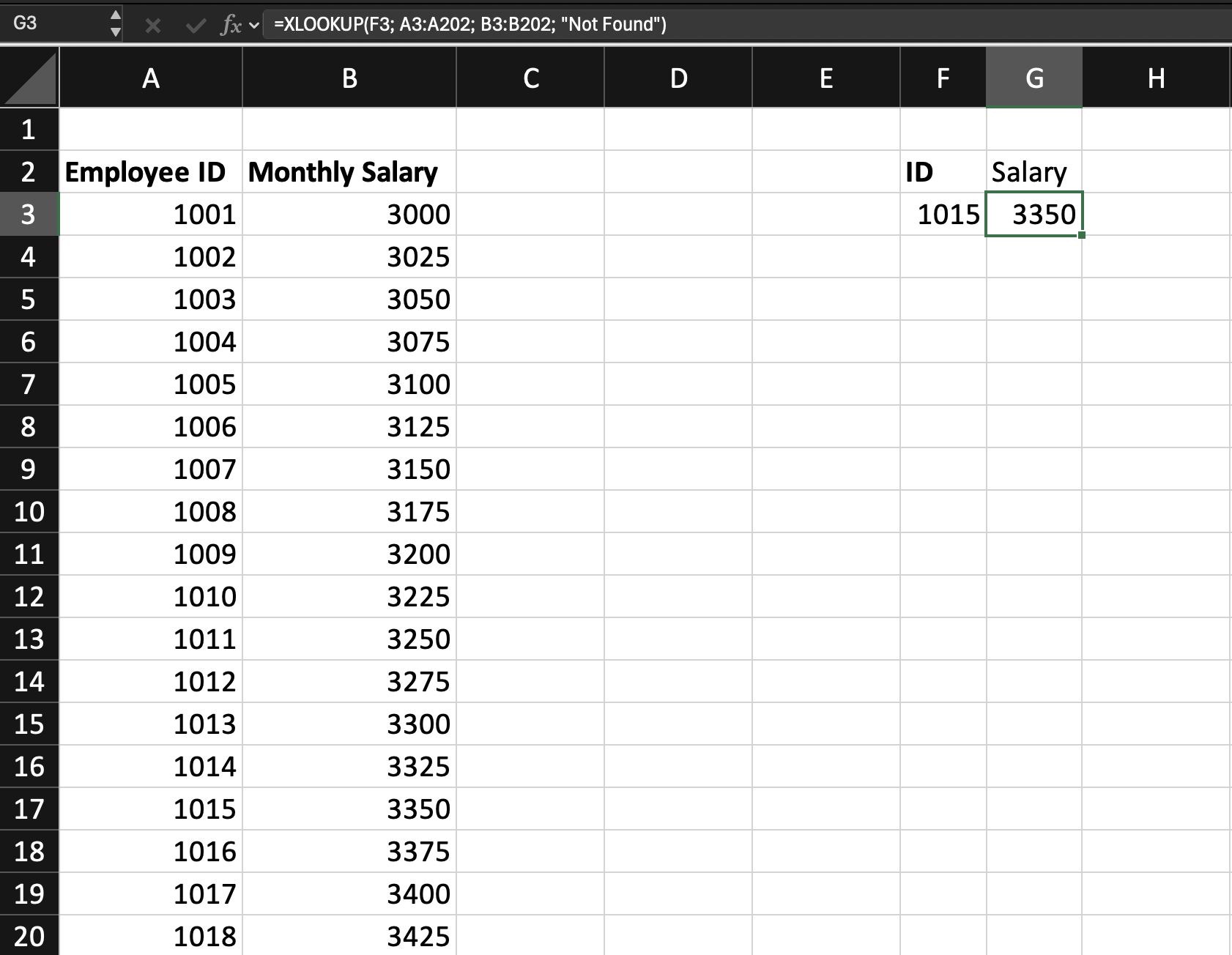
Assume you have an employee table.
Column A contains Employee IDs.
Column B contains Monthly Salary.
Cell F3 contains the Employee ID to search.
The goal is to return salary. If the ID does not exist, the formula should display Not Found.
=XLOOKUP(F3; A3:A202; B3:B202; "Not Found")
F3: contains the Employee ID to search;A3:A202: contains the lookup column with Employee IDs;B3:B202: contains the salaries to return;"Not Found": defines what to display when no matching ID exists.
Task
Scenario
A worksheet contains a product lookup table with Product Code, Product Name, and Product Price.
A Product Code is entered in an input cell. The goal is to return the correct price.
If the Product Code does not exist in the table, the formula should display Not Found.
Task Instructions
- Retrieve
Product Pricebased onProduct Code; - Use
XLOOKUPwith a custom not found message; - Display
Not Foundif theProduct Codeis missing.
Merci pour vos commentaires !
Demandez à l'IA

Demandez à l'IA

Posez n'importe quelle question ou essayez l'une des questions suggérées pour commencer notre discussion
Error Handling with XLOOKUP
A lookup formula works only when the lookup value exists in the lookup table. If no matching value is found, Excel returns an error. In reports and business models, raw errors make worksheets harder to read and harder to trust.
Instead of showing an error, XLOOKUP can display a custom message such as: Not Found, Missing ID, No Match.
This makes the output clearer for anyone using the workbook.
Syntax for Error Handling
The fourth argument controls what Excel should display if no match exists.
=XLOOKUP(lookup_value; lookup_array; return_array; "Not Found")
If a match is found, Excel returns the normal result. If no match is found, Excel returns the custom text instead of an error.
Example Using Employee ID
Assume you have an employee table.
Column A contains Employee IDs.
Column B contains Monthly Salary.
Cell F3 contains the Employee ID to search.
The goal is to return salary. If the ID does not exist, the formula should display Not Found.
=XLOOKUP(F3; A3:A202; B3:B202; "Not Found")
F3: contains the Employee ID to search;A3:A202: contains the lookup column with Employee IDs;B3:B202: contains the salaries to return;"Not Found": defines what to display when no matching ID exists.
Task
Scenario
A worksheet contains a product lookup table with Product Code, Product Name, and Product Price.
A Product Code is entered in an input cell. The goal is to return the correct price.
If the Product Code does not exist in the table, the formula should display Not Found.
Task Instructions
- Retrieve
Product Pricebased onProduct Code; - Use
XLOOKUPwith a custom not found message; - Display
Not Foundif theProduct Codeis missing.
Merci pour vos commentaires !
