Yksinkertaisten Makrojen Tallentaminen
Pyyhkäise näyttääksesi valikon
Makro on tallennettu toimintojen sarja, jonka Excel voi toistaa pyynnöstä. Kaikki toistuvat tehtävät — kuten saman muotoilun soveltaminen kuukausiraporttiin, tuodun datan siivoaminen, otsikoiden ja yhteenlaskujen lisääminen uuteen taulukkoon — voidaan tallentaa kerran ja suorittaa sekunneissa jatkossa.
Makron tallennin tallentaa toimintosi niiden suorittamisen aikana ja muuntaa ne automaattisesti toistettavaksi skriptiksi.
Kehittäjä-välilehden ottaminen käyttöön
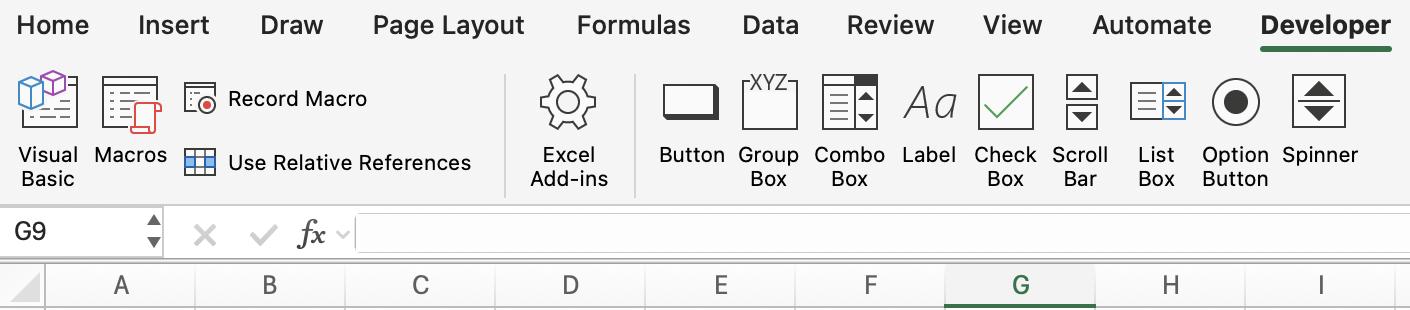
Makron tallennustyökalut löytyvät Kehittäjä-välilehdeltä, joka on oletuksena piilotettu.
Ota se käyttöön näin:
- Windows: Tiedosto → Asetukset → Mukauta valintanauhaa → valitse Kehittäjä oikeasta paneelista → OK;
- Mac: Excel → Asetukset → Valintanauha ja työkalurivi → valitse Kehittäjä → Tallenna.
Kun Kehittäjä-välilehti on otettu käyttöön, se näkyy valintanauhassa, ja siinä on Tallenna makro, Makrot ja Visual Basic -painikkeet.
Makron tallennuksen sijainti
Ennen tallennusta Excel kysyy, mihin makro tallennetaan:
Tallennuspaikat:
- Tämä työkirja: Makro tallennetaan nykyiseen tiedostoon — käytettävissä vain, kun kyseinen tiedosto on auki;
- Uusi työkirja: Makro tallennetaan uuteen työkirjaan;
- Henkilökohtainen makrotyökirja: Makro tallennetaan piilotettuun työkirjaan (
PERSONAL.XLSB), joka avautuu automaattisesti Excelin kanssa — käytettävissä kaikissa työkirjoissa, aina.
Ensimmäisen makron tallentaminen
-
Avaa sales-taulukko. Napsauta solua
A1; -
Siirry kohtaan Kehittäjä → Tallenna makro (tai Näytä → Makrot → Tallenna makro);
-
Valintaikkunassa:
- Makron nimi: FormatHeader (ei välilyöntejä — käytä alaviivoja tai camelCase-muotoa);
- Pikanäppäin:
Ctrl + Shift + H(valitse yhdistelmä, jota Excel ei jo käytä); - Tallenna makro: Tämä työkirja;
- Kuvaus: muotoilee otsikkorivin lihavoitu, sininen täyttö, valkoinen fontti ja sarakkeiden automaattinen sovitus.
-
Napsauta OK — tallennus alkaa. Pieni Lopeta tallennus -painike ilmestyy tilariville;
-
Suorita muotoilutoiminnot:
- Valitse rivi 1 (
Shift + Välilyönti); - Käytä lihavointia:
Ctrl + B; - Käytä tummansinistä täyttöä: Aloitus → Täyttöväri → Tummansininen;
- Käytä valkoista fonttia: Aloitus → Fontin väri → Valkoinen;
- Valitse kaikki sarakkeet:
Ctrl + A; - Sarakkeiden automaattinen sovitus: Aloitus → Muotoile → Sovita sarakkeen leveys automaattisesti.
- Valitse rivi 1 (
-
Napsauta Lopeta tallennus (Kehittäjä → Lopeta tallennus tai painike tilarivillä).
Makro on tallennettu.
Makron suorittaminen
Makron testaaminen
Poista muotoilu riviltä 1 ja paina sitten Ctrl + Shift + H. Muotoilu palautetaan täsmälleen tallennetulla tavalla — alle sekunnissa.
Makron muokkaaminen — lyhyt katsaus
Jokainen tallennettu makro luo VBA (Visual Basic for Applications) -koodia, jota voi tarkastella ja muokata.
Visual Basic Editorin avaaminen: Kehittäjä → Visual Basic (tai Alt + F11 Windowsissa, Opt + F11 Macissa) Tallennettu FormatHeader-makro näyttää suunnilleen tältä:
Sub FormatHeader()
    Rows("1:1").Select
    Selection.Font.Bold = True
    With Selection.Interior
        .Color = RGB(0, 32, 96)
    End With
    Selection.Font.Color = RGB(255, 255, 255)
    Cells.Select
    Cells.EntireColumn.AutoFit
End Sub
Makrojen käyttö ei vaadi VBA:n ymmärtämistä — mutta myös perusmuokkaukset ovat mahdollisia. Esimerkiksi RGB(0, 32, 96)-arvon vaihtaminen toiseen väriin tai "1:1" muuttaminen muotoon "1:2" kahden otsikkorivin muotoilua varten — nämä pienet muutokset ovat luettavissa ilman ohjelmointikokemusta.
Makroja sisältävän työkirjan tallentaminen
Tavalliset .xlsx-tiedostot eivät voi tallentaa makroja. Kun tallennat makroja sisältävän työkirjan, Excel kehottaa tallentamaan makroja tukevaan muotoon:
.xlsm— Excel Macro-Enabled Workbook (vakiovalinta);.xlsb— Excel Binary Workbook (nopeampi avata/tallentaa erittäin suurille tiedostoille, tukee myös makroja).

Jos tallennat muodossa .xlsx, kaikki makrot poistetaan. Tallenna aina makroja sisältävät tiedostot muodossa .xlsm.
Muotoilumakron tallentaminen
-
Ota Kehittäjä-välilehti käyttöön, jos se ei ole näkyvissä.
-
Tallenna makro nimeltä
FormatSalesTabletähän työkirjaan, pikanäppäimelläCtrl + Shift + F:- Muunna tiedot taulukoksi (Ctrl + T) haluamallasi tyylillä;
- Käytä valuuttamuotoilua Revenue-sarakkeeseen (
Ctrl + Shift + $); - Sovita kaikki sarakkeet automaattisesti.
Lopeta tallennus.
Kiitos palautteestasi!
Kysy tekoälyä

Kysy tekoälyä

Kysy mitä tahansa tai kokeile jotakin ehdotetuista kysymyksistä aloittaaksesi keskustelumme
