Salasanasuojaus
Pyyhkäise näyttääksesi valikon
Excel mahdollistaa salasanasuojauksen käyttämisen työkirjoissa luvattoman käytön estämiseksi. Salasanat auttavat suojaamaan arkaluonteisia yritystiedostoja, kuten talousraportteja, henkilöstörekistereitä tai luottamuksellisia suunnitteludokumentteja. Salasanasuojaus lisää ylimääräisen hallintakerroksen, kun työkirjoja jaetaan tiimien kesken tai tallennetaan ulkoisesti.
Työkirjan salasanojen ymmärtäminen
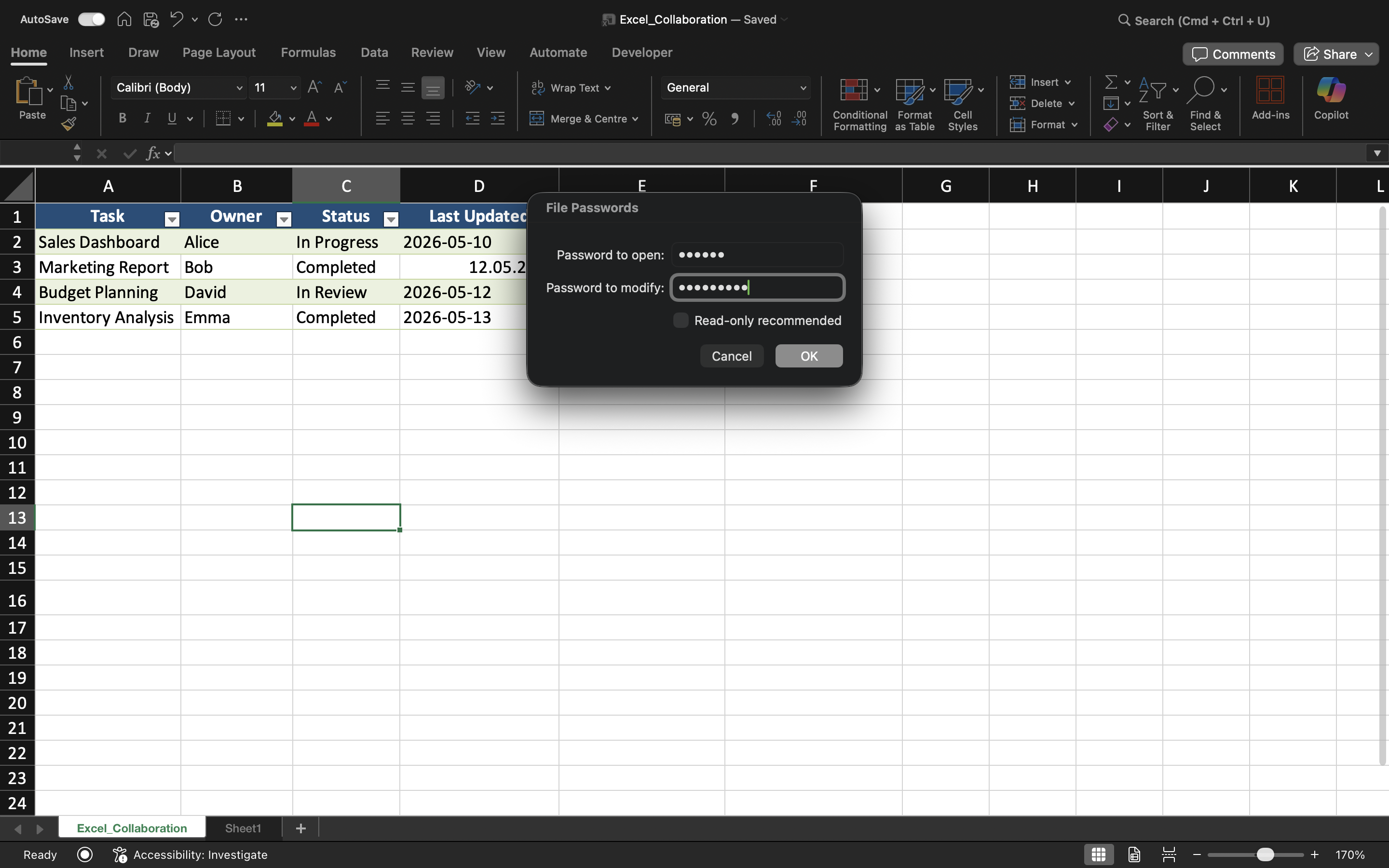
Excel tukee erilaisia salasanasuojauksen muotoja. Käyttäjät voivat vaatia salasanan työkirjan avaamiseen tai rajoittaa muokkausoikeuksia tiedoston sisällä.
Työkirjan salasana estää luvattomia käyttäjiä pääsemästä työkirjan sisältöön. Muokkausrajoitukset puolestaan mahdollistavat työkirjan avaamisen, mutta rajoittavat muokkausoikeuksia.
Työkirjan suojaaminen salasanalla
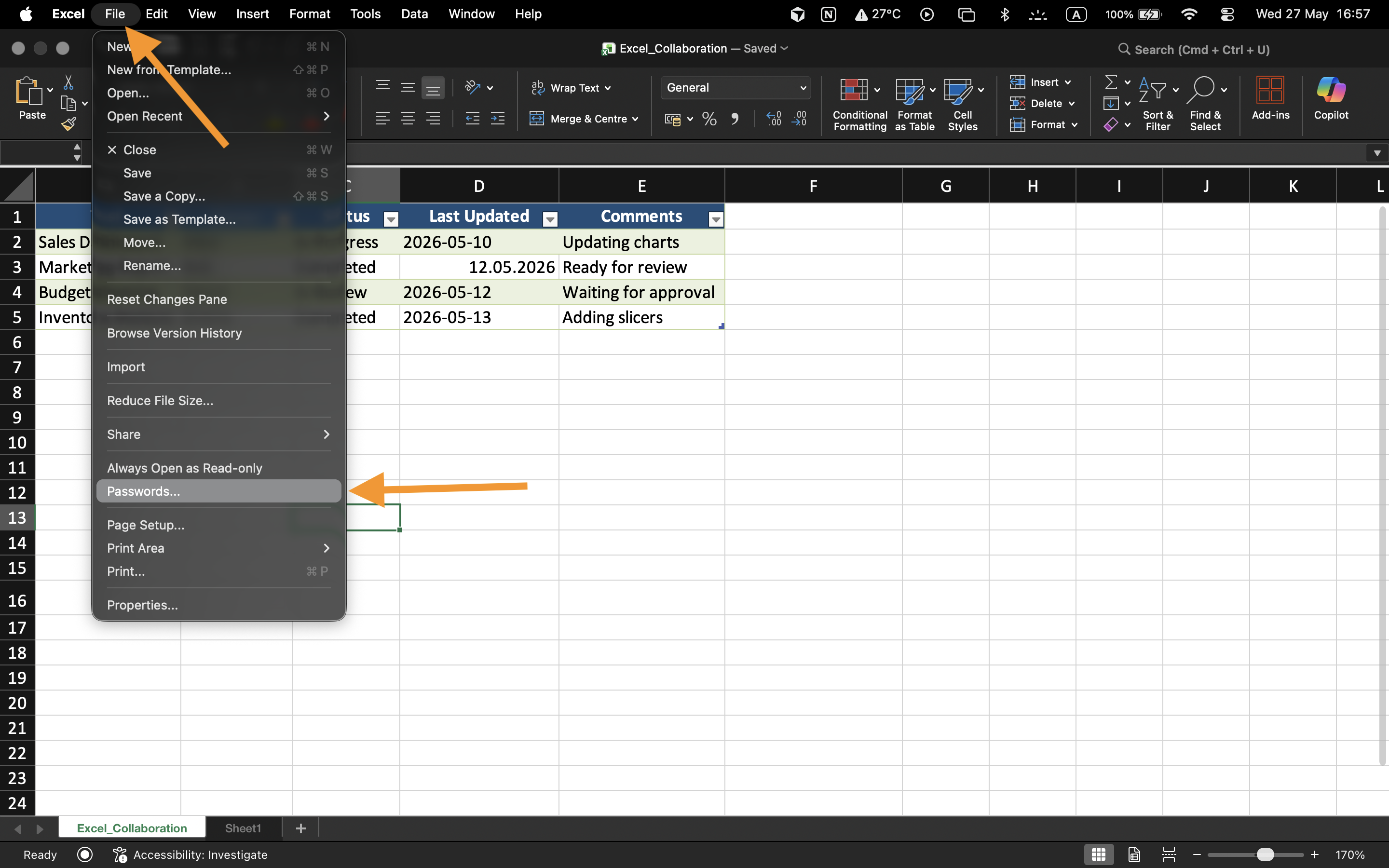
Salasanasuojauksen käyttöönotto:
- Avaa työkirja;
- Valitse Tiedosto → Tiedot;
- Valitse Suojaa työkirja;
- Valitse Salaa salasanalla;
- Syötä ja vahvista salasana.
Kun tiedosto on tallennettu, työkirja vaatii salasanan aina, kun käyttäjät yrittävät avata tiedoston.
Salasanojen rajoitusten ymmärtäminen
Työkirjan salasanat parantavat tiedostojen suojausta, mutta heikot salasanat voivat silti olla alttiita luvattomalle käytölle.
Parempaa suojaa varten:
- Käytä vahvoja salasanoja;
- Vältä yksinkertaisia sanoja tai päivämääriä;
- Säilytä salasanat turvallisesti;
- Jaa salasanat vain valtuutetuille yhteistyökumppaneille.
Muokkausrajoitukset
Excel voi myös suojata työkirjan muokkaamisen ilman, että tiedoston käyttö estetään kokonaan. Tämä mahdollistaa työkirjan sisällön tarkastelun, mutta rajoittaa muutosten tekemistä.
Tämä suojaustyyppi on hyödyllinen valmiissa raporteissa, malleissa tai jaetuissa koontinäytöissä, joita ei tulisi muuttaa vahingossa.
Milloin salasanasuojaus on hyödyllistä
Salasanasuojausta käytetään yleisesti, kun työkirjat sisältävät luottamuksellisia taloustietoja, henkilöstödataa, liiketoiminnan ennusteita tai arkaluonteisia toimintaraportteja. Se on erityisen tärkeää, kun tiedostoja jaetaan organisaation ulkopuolelle tai tallennetaan ulkoisille laitteille.
Tehtävä
Työkirja sisältää luottamuksellisia työntekijöiden palkkatietoja, joiden tulisi olla vain valtuutettujen esimiesten saatavilla. Tavoitteena on suojata työkirja salasanalla ja testata työkirjan käyttörajoituksia.
- Avaa työkirjan suojausasetukset;
- Aseta työkirjalle salasana;
- Tallenna ja sulje työkirja;
- Avaa tiedosto uudelleen ja varmista salasanasuojaus;
- Testaa muokkausrajoituksia suojatussa työkirjassa.
Kiitos palautteestasi!
Kysy tekoälyä

Kysy tekoälyä

Kysy mitä tahansa tai kokeile jotakin ehdotetuista kysymyksistä aloittaaksesi keskustelumme
