Taulukoiden ja solujen suojaaminen
Pyyhkäise näyttääksesi valikon
Excel mahdollistaa laskentataulukoiden suojaamisen ja tärkeiden solujen lukitsemisen estääkseen tahattomat muokkaukset. Tämä on erityisen hyödyllistä, kun jaetuissa työkirjoissa on kaavoja, laskelmia, malleja tai tärkeitä liiketoimintatietoja.
Laskentataulukon suojaus auttaa säilyttämään työkirjan tarkkuuden, mutta sallii silti yhteistyökumppaneiden työskennellä valituilla tiedostoalueilla.
Lukittujen solujen ymmärtäminen
Excelissä kaikki laskentataulukon solut ovat teknisesti oletuksena Lukittuja. Tämä asetus tulee kuitenkin voimaan vasta, kun laskentataulukon suojaus otetaan käyttöön.
Tämä tarkoittaa, että käyttäjät voivat normaalisti muokata lukittuja soluja, kunnes laskentataulukko suojataan.
Suojattuja laskentataulukoita käytetään yleisesti:
- Estämään kaavojen poistaminen;
- Rajoittamaan muokkausoikeuksia;
- Suojaamaan raportointirakenteita;
- Hallitsemaan käyttäjän syöttöalueita.
Laskentataulukon suojaaminen
Laskentataulukon suojaaminen:
- Avaa laskentataulukko;
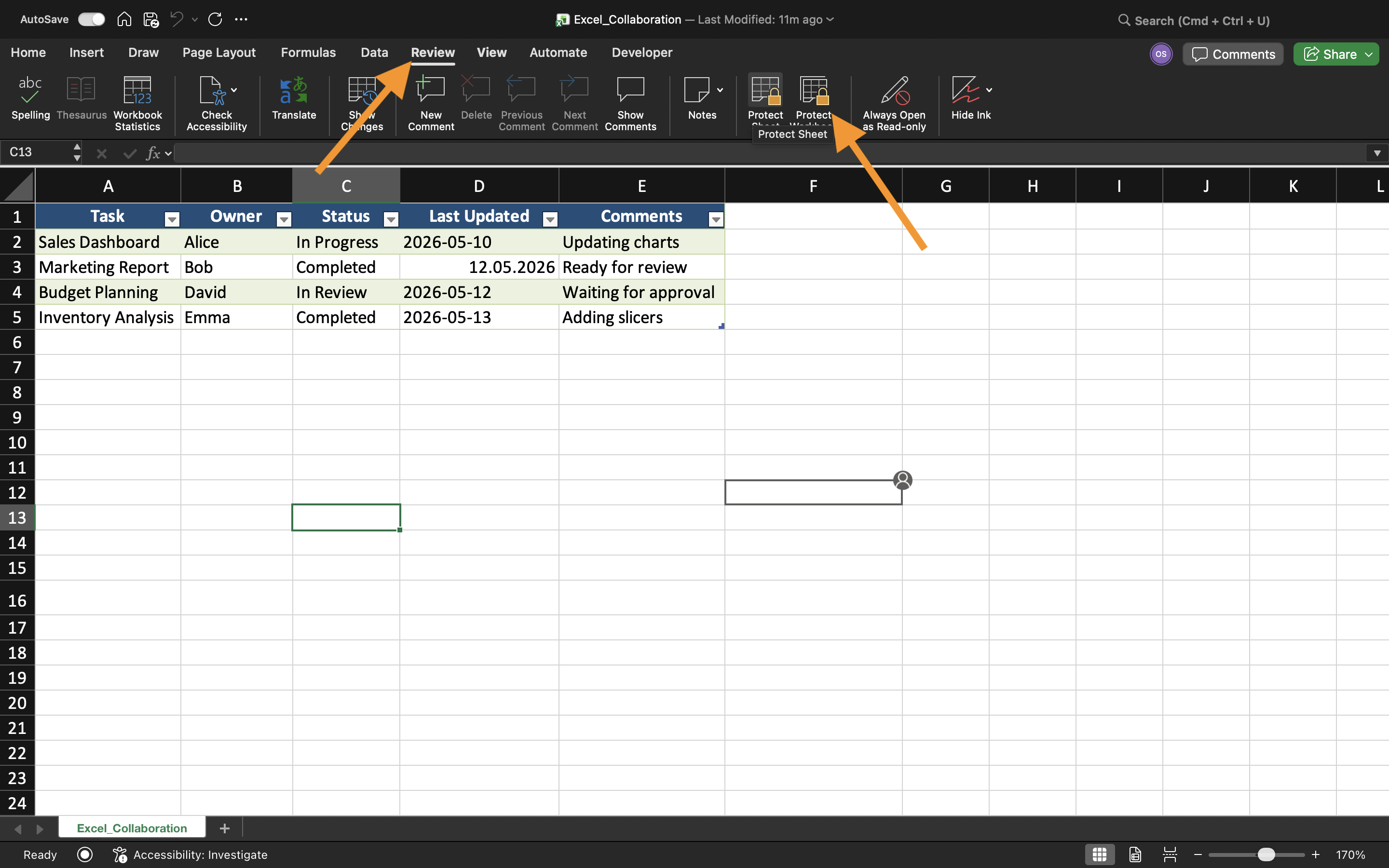
- Valitse Tarkista-välilehti;
- Valitse Suojaa laskentataulukko;
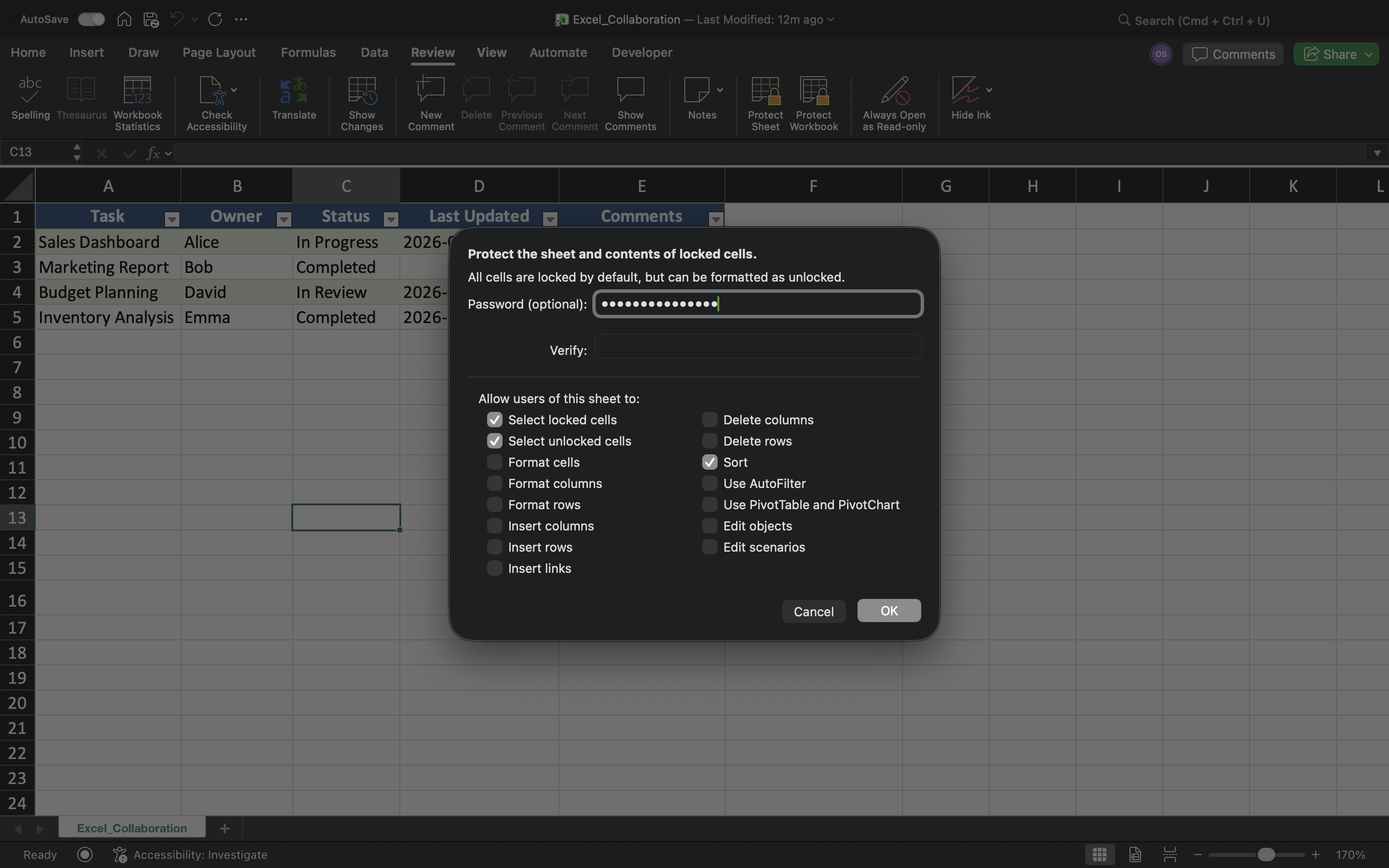
- Määritä suojausasetukset;
- Ota suojaus käyttöön.
Excel voi rajoittaa toimintoja, kuten solujen muokkaamista, rivien poistamista, sarakkeiden lisäämistä tai laskentataulukon muotoilun muuttamista.
Muokattavien syöttöalueiden salliminen
Vaikka taulukon suojaus rajoittaa muokkaamista, tietyt solut voivat silti olla muokattavissa.
Muokattavien alueiden luominen:
- Valitse syöttösolut;
- Avaa Solujen muotoilu;
- Poista käytöstä Lukittu-asetus;
- Suojaa taulukko.
Kaavojen suojaaminen
Yksi taulukon suojauksen päätarkoituksista on estää kaavojen tahattomat muutokset.
Ilman suojausta yhteistyökumppanit voivat vahingossa:
- Poistaa kaavoja;
- Korvata laskentatuloksia;
- Rikkoa taulukon logiikkaa;
- Muuttaa tärkeitä viittauksia.
Suojauksen rajoitukset
Taulukon suojaus parantaa työkirjan turvallisuutta, mutta sitä ei ole suunniteltu edistyneeksi tietoturvasalaukseksi. Kokeneet käyttäjät voivat silti kiertää heikot suojausmenetelmät.
Tämän vuoksi taulukon suojausta tulisi pitää ensisijaisesti työkaluna tahattomien muokkausten estämiseen, ei arkaluonteisten liiketietojen täydelliseen suojaamiseen.
Tehtävä
Työkirja sisältää jaetun kuluseurannan, jota käyttää useampi työntekijä. Tavoitteena on suojata kaavat ja taulukon rakenne, mutta sallia käyttäjien muokata vain valittuja syöttöalueita.
- Suojaa taulukko käyttämällä Suojaa taulukko -toimintoa;
- Lukitse kaavasolut;
- Luo muokattavat syöttöalueet;
- Testaa muokkausrajoitukset;
- Varmista, ettei suojattuja soluja voi muokata.
Kiitos palautteestasi!
Kysy tekoälyä

Kysy tekoälyä

Kysy mitä tahansa tai kokeile jotakin ehdotetuista kysymyksistä aloittaaksesi keskustelumme
