Extracting Text with LEFT, RIGHT, MID
Pyyhkäise näyttääksesi valikon
Sometimes you don't need to split the entire text into columns. Instead, you may want to extract only a specific part of a value. This is very common when working with structured text like product codes, IDs, or formatted strings.
For example, a product code like PRD-001 contains two parts: a prefix (PRD) and a number (001). Instead of splitting everything manually, you can extract exactly the part you need using functions.
LEFT, RIGHT, MID Functions
Excel provides three functions for extracting text:
LEFT→ extracts characters from the beginning;RIGHT→ extracts characters from the end;MID→ extracts characters from the middle.
If a cell contains:
"PRD-001"
Then:
=LEFT(A2, 3) → "PRD"
=RIGHT(A2, 3) → "001"
=MID(A2, 5, 3) → "001"
=LEFT(A2, 3) returns the first 3 characters from the beginning of the text, =RIGHT(A2, 3) returns the last 3 characters from the end, and =MID(A2, 5, 3) extracts 3 characters starting from position 5 in the string.
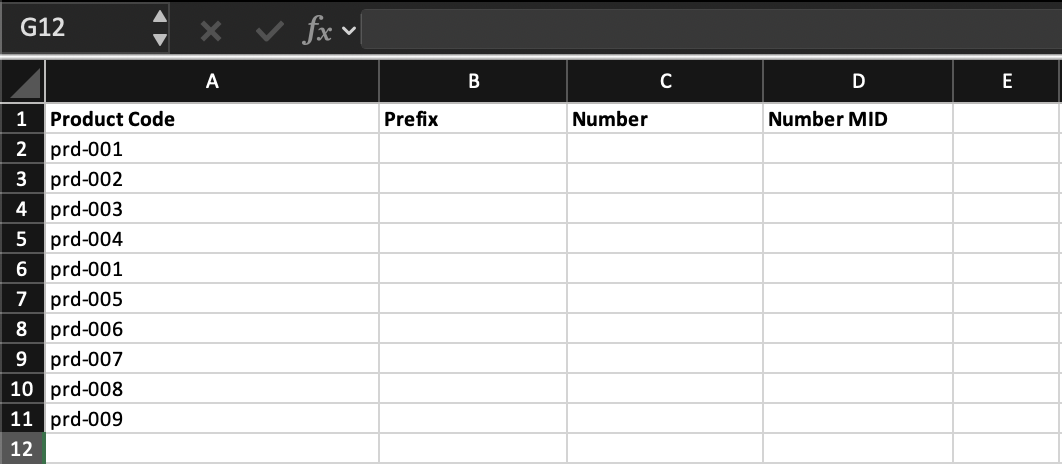
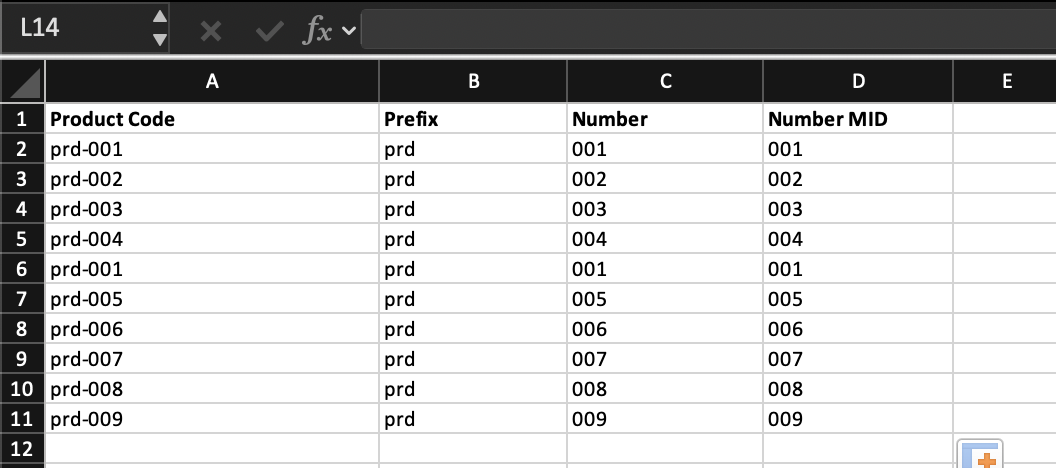
Task
Create two new columns: Product Prefix, Product Number
Extract:
- The first part (
PRD) usingLEFT; - The numeric part (
001) usingRIGHTorMID.
Apply the formulas to all rows.

Use =LEFT(D2,3) for the prefix and =RIGHT(D2,3) or =MID(D2,5,3) for the number, then apply the formulas to all rows.
Kiitos palautteestasi!
Kysy tekoälyä

Kysy tekoälyä

Kysy mitä tahansa tai kokeile jotakin ehdotetuista kysymyksistä aloittaaksesi keskustelumme
