Managing Files and Folders
Pyyhkäise näyttääksesi valikon
Navigating and managing the file system is a core skill in PowerShell. You use cmdlets to move through directories, view contents, and perform actions like creating, copying, or deleting files and folders. Some of the most common navigation commands include Get-ChildItem for listing directory contents, Set-Location for changing the current directory, and Get-Location to display your current path.
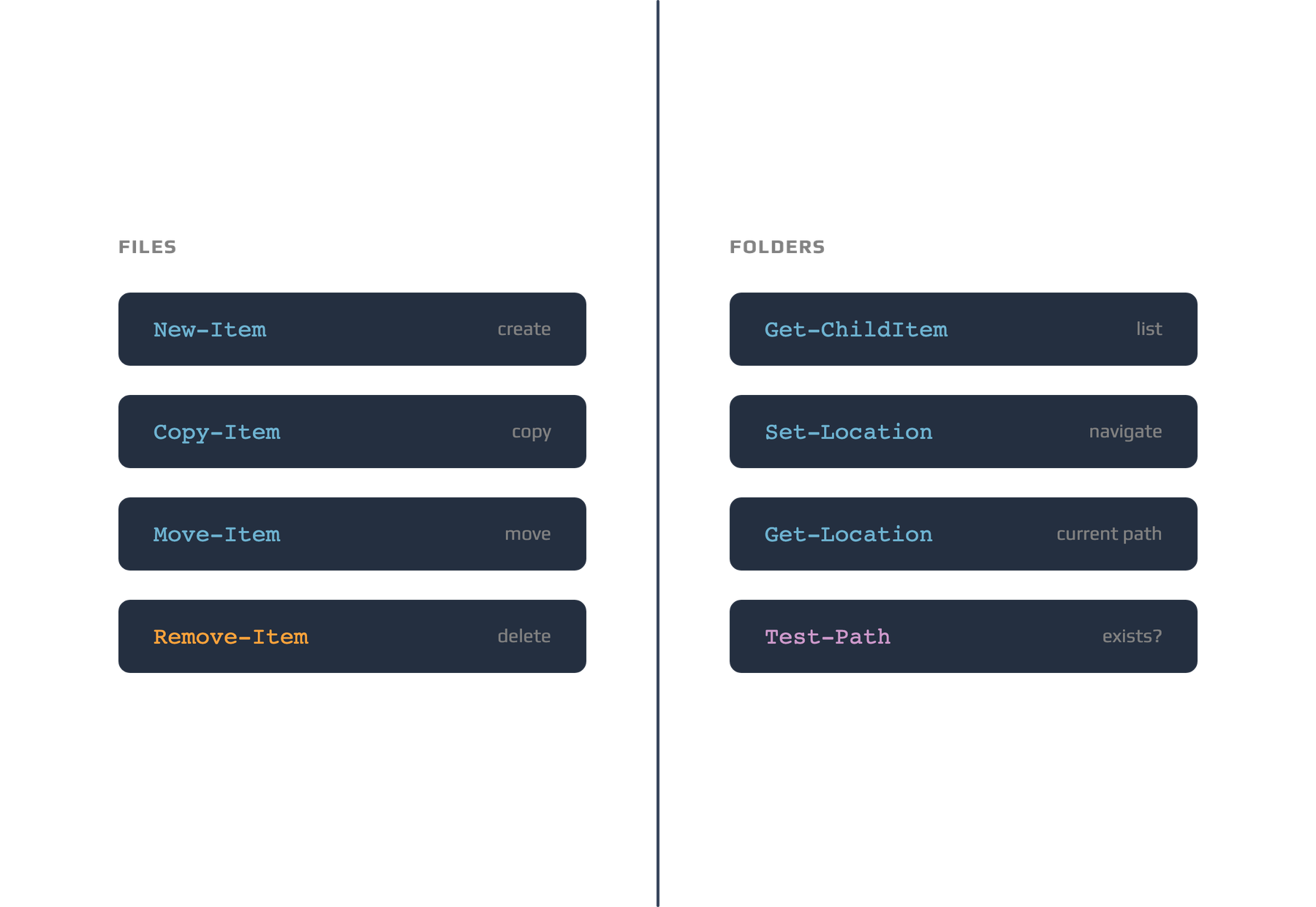
These commands help you interact with the file system efficiently from the command line, making it easy to automate repetitive tasks or manage large numbers of files.
New-Item TestFolder -ItemType Directory
New-Item TestFolder\example.txt -ItemType File
Copy-Item TestFolder\example.txt TestFolder\copy_example.txt
Remove-Item TestFolder\copy_example.txt
Remove-Item TestFolder -Recurse
When working with files and folders, you use file paths to specify their locations. A file path can be absolute (starting from the root, such as C:\Users\YourName\Documents) or relative (starting from your current directory, such as ./Documents). PowerShell also supports wildcards, which are special characters that help you match multiple files or folders with similar names. The * character matches any number of characters, and the ? matches a single character. For example, *.txt matches all text files in a directory, and file?.log matches file1.log, file2.log, and so on. Wildcards make it easier to perform actions on groups of files without specifying each one individually.
Kiitos palautteestasi!
Kysy tekoälyä

Kysy tekoälyä

Kysy mitä tahansa tai kokeile jotakin ehdotetuista kysymyksistä aloittaaksesi keskustelumme
