Suodatus
Pyyhkäise näyttääksesi valikon
Suodattimien päälle- ja poiskytkentä
- Napsauta mitä tahansa solua alueella → Tiedot-välilehti → Suodata, tai paina
Ctrl+Shift+L(Win)/Control+Shift+L(Mac). Pudotusvalikon nuolet ilmestyvät jokaiseen otsikkosoluun; - Taulukot, jotka on luotu
Ctrl+T-komennolla, sisältävät suodattimet automaattisesti otsikkorivillä — ei tarvetta manuaaliselle asetukselle; - Napsauta Suodata uudelleen valintanauhassa tai paina
Ctrl+Shift+Ltoisen kerran. Pudotusvalikon nuolet poistuvat otsikkoriviltä.
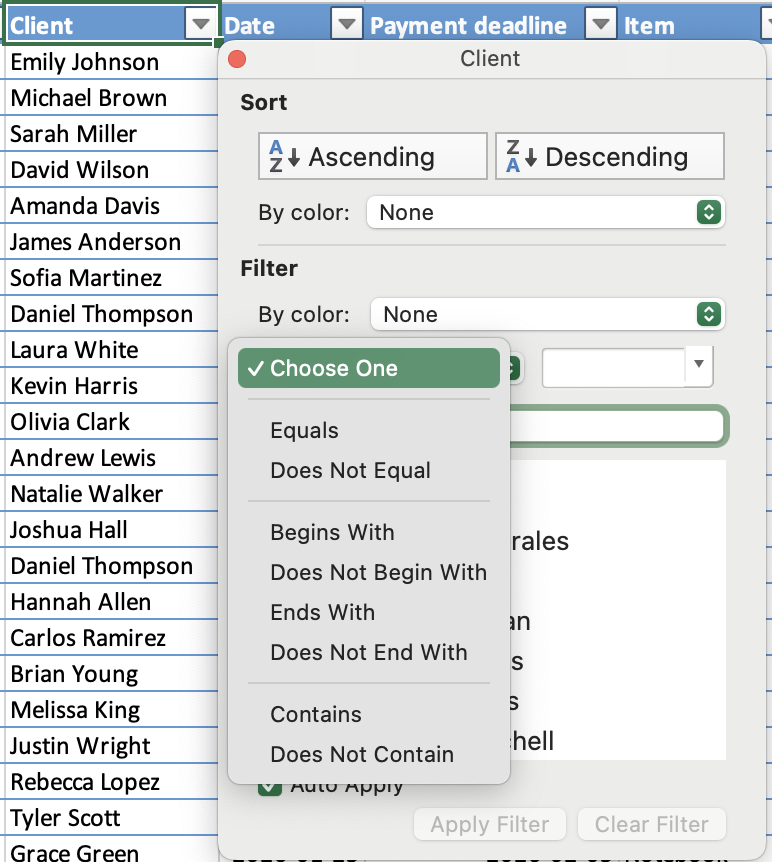
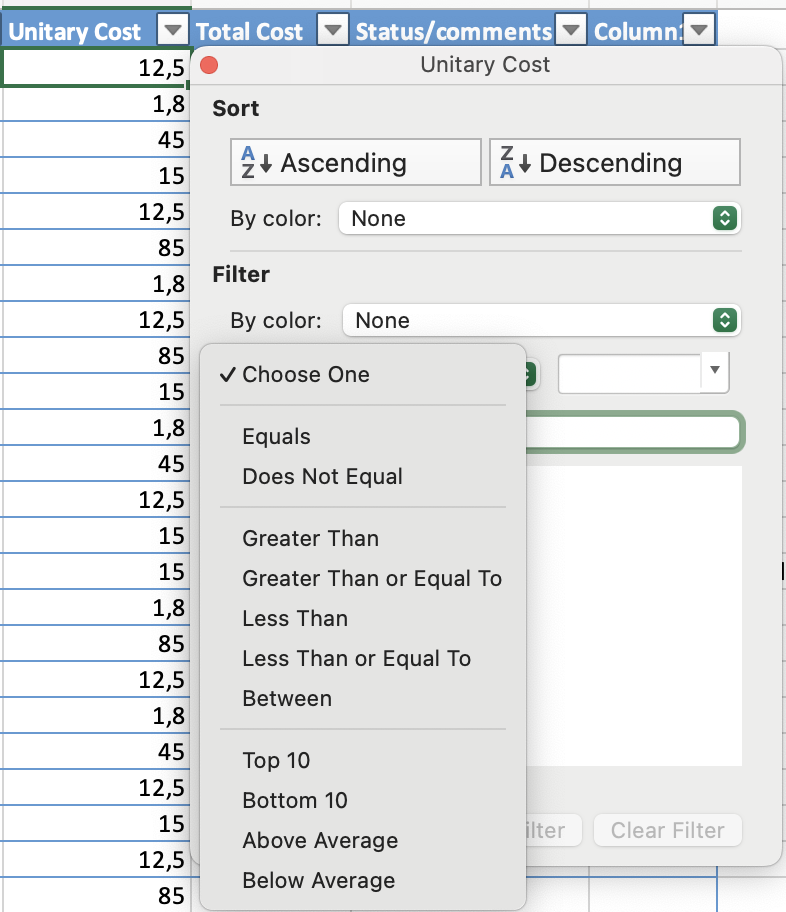
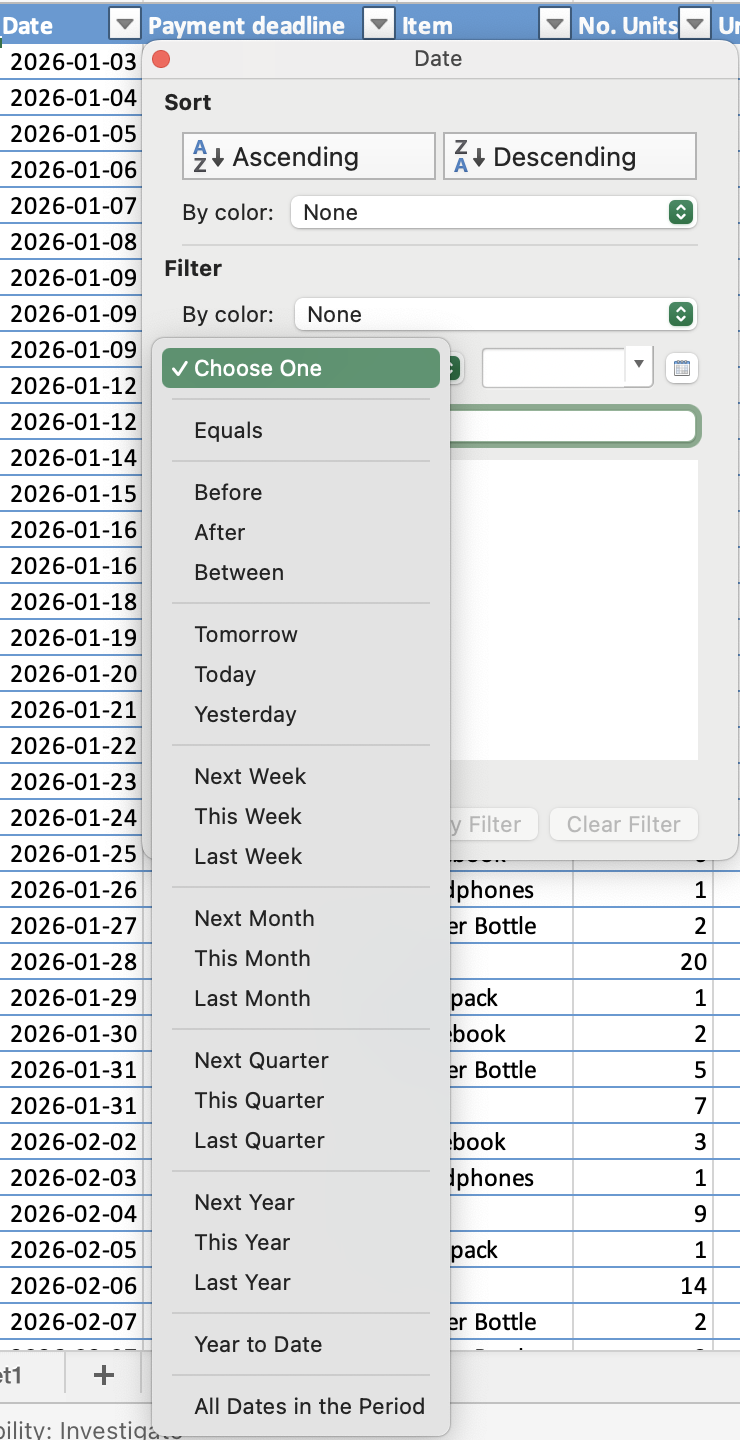
Suodatintyyppi riippuu tietotyypistä:
- Tekstisuodatin: suodatus tiettyjen arvojen tai tekstiehtojen perusteella;
- Numerosuodatin: suodatus vertailujen, kuten suurempi kuin, pienempi kuin tai välillä, perusteella;
- Päivämääräsuodatin: suodatus ajanjaksojen, kuten tiettyjen päivien, kuukausien tai vuosien mukaan.
AND / OR -logiikka useissa suodattimissa
- OR: yhden sarakkeen sisällä — rivi näkyy, jos se täyttää minkä tahansa valitun arvon;
- AND: eri sarakkeiden välillä — rivin on täytettävä kaikki aktiiviset suodattimet pysyäkseen näkyvissä.

Pikanäppäin poistaa kaikki suodattimet kerralla. Kun painat Ctrl+Shift+L poistaaksesi suodattimet, kaikki aktiiviset suodatusehdot poistetaan kaikista sarakkeista samanaikaisesti — ei vain nykyisestä sarakkeesta. Jos haluat nollata vain yhden sarakkeen, käytä kyseisen sarakkeen avattavasta valikosta toimintoa Tyhjennä suodatin.
Kiitos palautteestasi!
Kysy tekoälyä

Kysy tekoälyä

Kysy mitä tahansa tai kokeile jotakin ehdotetuista kysymyksistä aloittaaksesi keskustelumme
Suodatus
Suodattimien päälle- ja poiskytkentä
- Napsauta mitä tahansa solua alueella → Tiedot-välilehti → Suodata, tai paina
Ctrl+Shift+L(Win)/Control+Shift+L(Mac). Pudotusvalikon nuolet ilmestyvät jokaiseen otsikkosoluun; - Taulukot, jotka on luotu
Ctrl+T-komennolla, sisältävät suodattimet automaattisesti otsikkorivillä — ei tarvetta manuaaliselle asetukselle; - Napsauta Suodata uudelleen valintanauhassa tai paina
Ctrl+Shift+Ltoisen kerran. Pudotusvalikon nuolet poistuvat otsikkoriviltä.
Suodatintyyppi riippuu tietotyypistä:
- Tekstisuodatin: suodatus tiettyjen arvojen tai tekstiehtojen perusteella;
- Numerosuodatin: suodatus vertailujen, kuten suurempi kuin, pienempi kuin tai välillä, perusteella;
- Päivämääräsuodatin: suodatus ajanjaksojen, kuten tiettyjen päivien, kuukausien tai vuosien mukaan.
AND / OR -logiikka useissa suodattimissa
- OR: yhden sarakkeen sisällä — rivi näkyy, jos se täyttää minkä tahansa valitun arvon;
- AND: eri sarakkeiden välillä — rivin on täytettävä kaikki aktiiviset suodattimet pysyäkseen näkyvissä.
Pikanäppäin poistaa kaikki suodattimet kerralla. Kun painat Ctrl+Shift+L poistaaksesi suodattimet, kaikki aktiiviset suodatusehdot poistetaan kaikista sarakkeista samanaikaisesti — ei vain nykyisestä sarakkeesta. Jos haluat nollata vain yhden sarakkeen, käytä kyseisen sarakkeen avattavasta valikosta toimintoa Tyhjennä suodatin.
Kiitos palautteestasi!
