Lajittelu
Pyyhkäise näyttääksesi valikon
Lajittelu Excelissä mahdollistaa tietojen nopean järjestämisen, jolloin tiedon löytäminen ja trendien tai poikkeamien havaitseminen on helpompaa. Voit järjestää rivejä tekstin, numeroiden, päivämäärien tai jopa värien perusteella, mikä tekee taulukostasi hyödyllisemmän analysointia varten.

Lajittelu järjestää rivit pysyvästi uudelleen. Kun lajittelet ja tallennat, alkuperäinen järjestys katoaa.
Excel käyttää automaattisesti oikeaa lajittelulogiikkaa sarakkeen tietotyypin perusteella. Sama A→Z-painike toimii eri tavoin riippuen siitä, mitä sarake sisältää:
Jos numerokolumni on muotoiltu tekstiksi (yleistä CSV-tiedostojen tuonnin jälkeen), lajittelu tuottaa merkkijonojärjestyksen: 1, 10, 100, 2, 20, 3 — ei numeerista järjestystä. Korjaa sarakkeen muotoilu ensin ja lajittele sitten. Nopea tarkistus: tekstinä tallennetut numerot ovat vasemmalle tasattuja soluissaan.
Mukautettu lajittelu
Avaa valitsemalla Tiedot → Lajittele tai Aloitus → Lajittele ja suodata → Mukautettu lajittelu. Tukee useita tasoja, mukautettuja lajittelujärjestyksiä, lajittelua värin tai kuvakkeen mukaan sekä otsikkorivin tunnistuksen vahvistusta.
Aakkosjärjestys ei aina vastaa liiketoiminnan logiikkaa. Esimerkiksi "Maksanut" tulee aakkosissa ennen "Odottaa"-tilaa, mutta käytännössä halutaan usein odottavat rivit ylimmäksi. Mukautetut lajittelujärjestykset mahdollistavat tarkan järjestyksen määrittelyn Excelissä.
Lajittelu mukautetun luettelon mukaan (Windows):
- Napsauta mitä tahansa solua taulukossa → Tiedot → Lajittele avaa Lajittelu-ikkunan;
- Valitse Lajittele sarjan mukaan -pudotusvalikosta sarake (esim. Tila);
- Valitse Järjestys-pudotusvalikosta Mukautettu luettelo;
- Kirjoita haluamasi järjestys yksi arvo per rivi (esim. Odottaa → Maksanut → Peruttu) ja napsauta Lisää;
- Napsauta OK kahdesti — Excel järjestää rivit määrittelemäsi järjestyksen mukaan, ei aakkosjärjestyksen mukaan.
Lajittelu mukautetun luettelon mukaan (Mac):
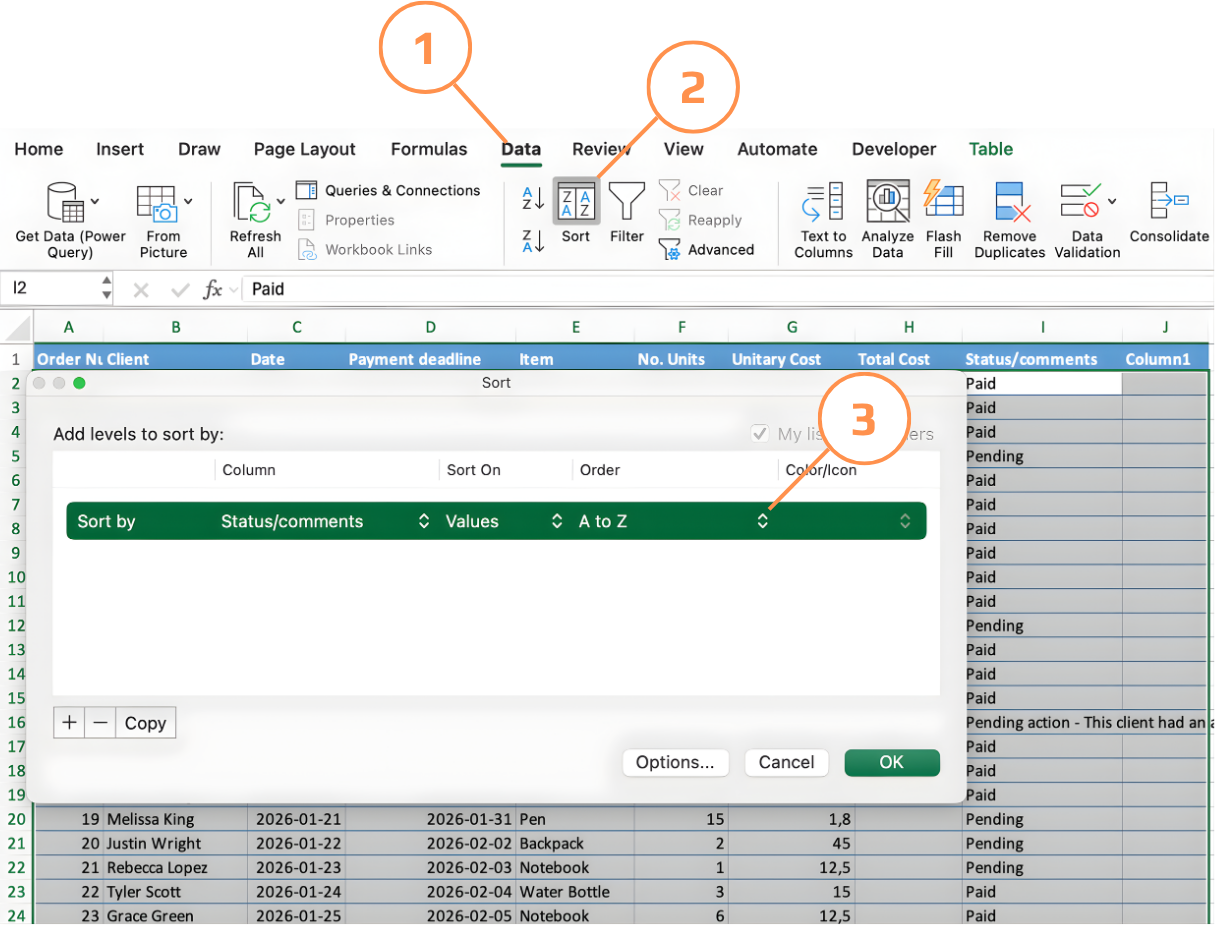
- Luo ensin mukautettu luettelo: siirry Excel-valikko → Asetukset → Mukautetut luettelot. Kirjoita järjestys yksi arvo per rivi (esim. Odottaa → Maksanut → Peruttu) ja napsauta Lisää, sitten OK.
- Napsauta mitä tahansa solua taulukossa → Tiedot → Lajittele avaa Lajittelu-ikkunan;
- Valitse Lajittele sarjan mukaan -pudotusvalikosta sarake (esim. Tila).
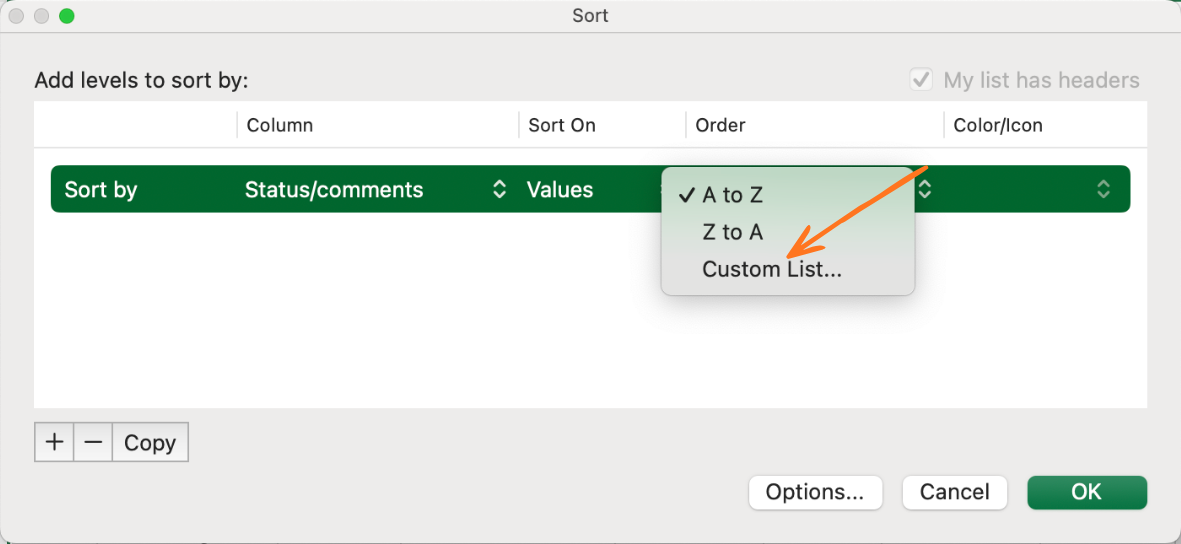
- Valitse Järjestys-pudotusvalikosta Mukautettu luettelo — aiemmin tallentamasi luettelo näkyy tässä;
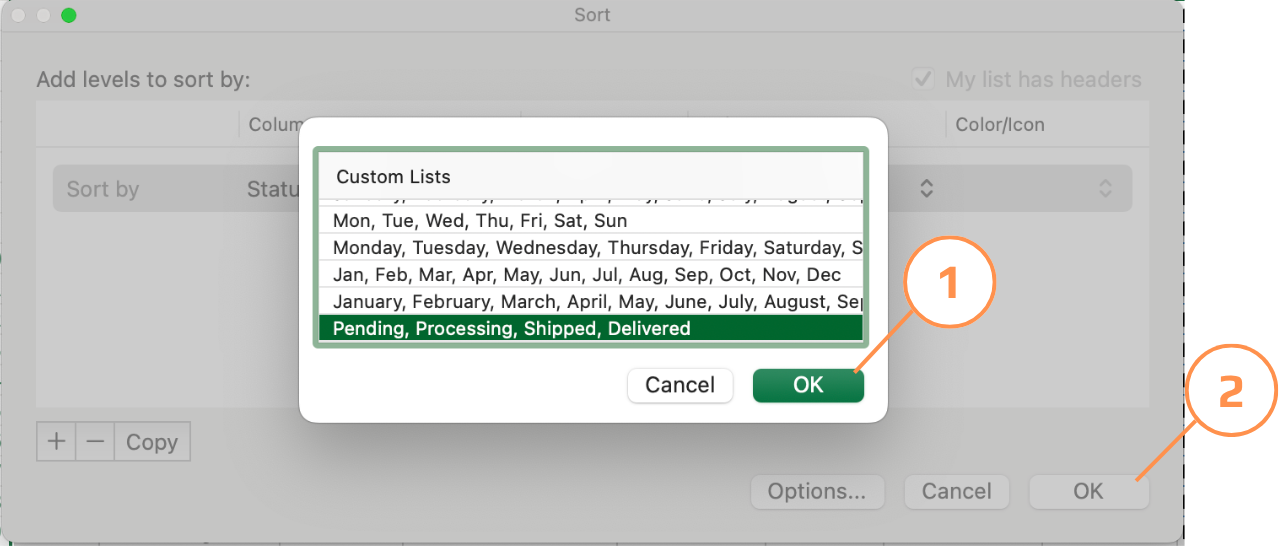
- Valitse luettelosi ja napsauta OK kahdesti — Excel järjestää rivit määrittelemäsi järjestyksen mukaan.
Kiitos palautteestasi!
Kysy tekoälyä

Kysy tekoälyä

Kysy mitä tahansa tai kokeile jotakin ehdotetuista kysymyksistä aloittaaksesi keskustelumme
