Muotoilu
Pyyhkäise näyttääksesi valikon
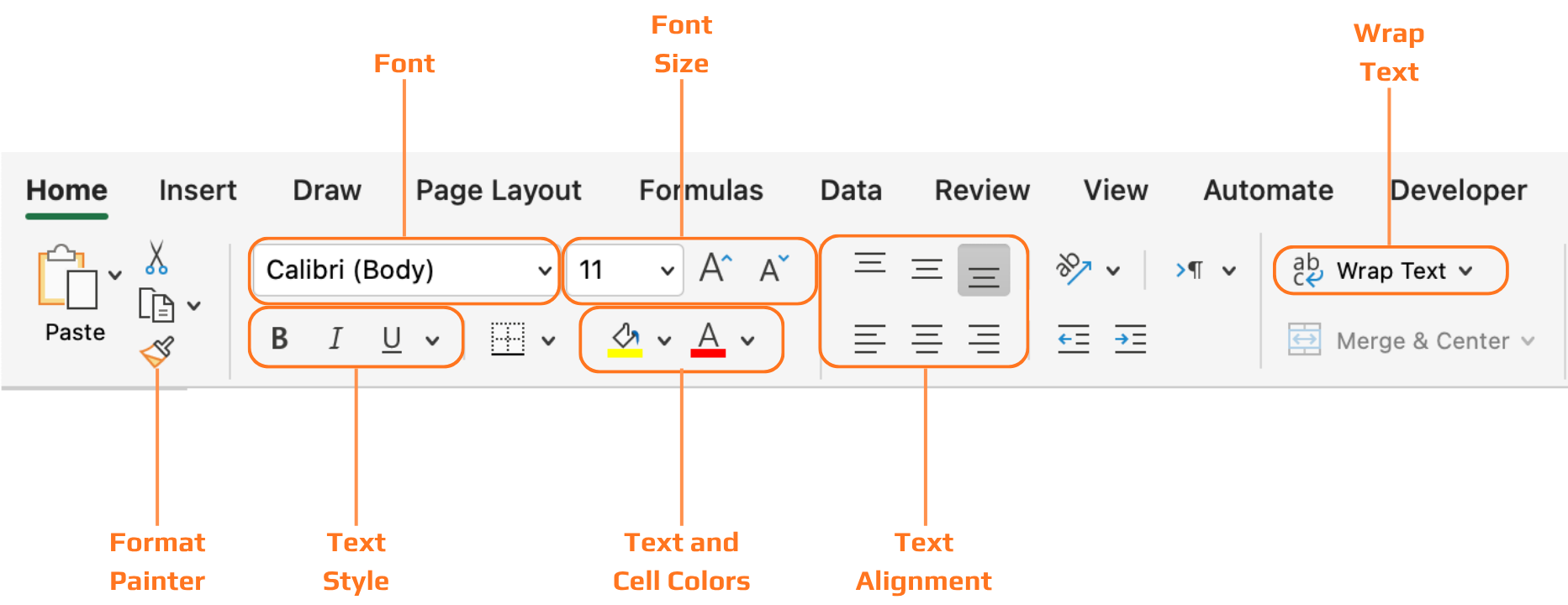
Kaikki tässä luvussa käsitellyt työkalut löytyvät Aloitus-välilehdeltä, joka on jaettu ryhmiin: Fontti, Tasaus, Numero ja Tyylit. Työskentely tapahtuu valitsemalla ensin solut ja sitten soveltamalla muotoilua valittuihin soluihin.
Otsikot
Ilman muotoiltuja otsikoita tietotaulukko on vain tekstiruudukko. Lukijan täytyy nähdä vaivaa ymmärtääkseen, mitä kukin sarake tarkoittaa, ennen kuin hän voi alkaa lukea arvoja. Lihavoitu teksti ja taustaväritys ratkaisevat tämän yhdellä silmäyksellä — otsikkorivi erottuu visuaalisesti datariveistä, ja katse löytää heti sarakkeiden nimet.

Kun muutat alueen Excel-taulukoksi käyttämällä Ctrl+T, otsikoiden muotoilu lisätään automaattisesti — ja voit valita valmiista taulukkotyyleistä Taulukkotyylit-välilehdellä. Tämä on usein nopein tapa saada siistit ja yhtenäiset otsikot ilman manuaalista muotoilua.
Kiitos palautteestasi!
Kysy tekoälyä

Kysy tekoälyä

Kysy mitä tahansa tai kokeile jotakin ehdotetuista kysymyksistä aloittaaksesi keskustelumme
Muotoilu
Kaikki tässä luvussa käsitellyt työkalut löytyvät Aloitus-välilehdeltä, joka on jaettu ryhmiin: Fontti, Tasaus, Numero ja Tyylit. Työskentely tapahtuu valitsemalla ensin solut ja sitten soveltamalla muotoilua valittuihin soluihin.
Otsikot
Ilman muotoiltuja otsikoita tietotaulukko on vain tekstiruudukko. Lukijan täytyy nähdä vaivaa ymmärtääkseen, mitä kukin sarake tarkoittaa, ennen kuin hän voi alkaa lukea arvoja. Lihavoitu teksti ja taustaväritys ratkaisevat tämän yhdellä silmäyksellä — otsikkorivi erottuu visuaalisesti datariveistä, ja katse löytää heti sarakkeiden nimet.
Kun muutat alueen Excel-taulukoksi käyttämällä Ctrl+T, otsikoiden muotoilu lisätään automaattisesti — ja voit valita valmiista taulukkotyyleistä Taulukkotyylit-välilehdellä. Tämä on usein nopein tapa saada siistit ja yhtenäiset otsikot ilman manuaalista muotoilua.
Kiitos palautteestasi!
