Esimerkkidatan Tuominen Harjoittelua Varten
Pyyhkäise näyttääksesi valikon

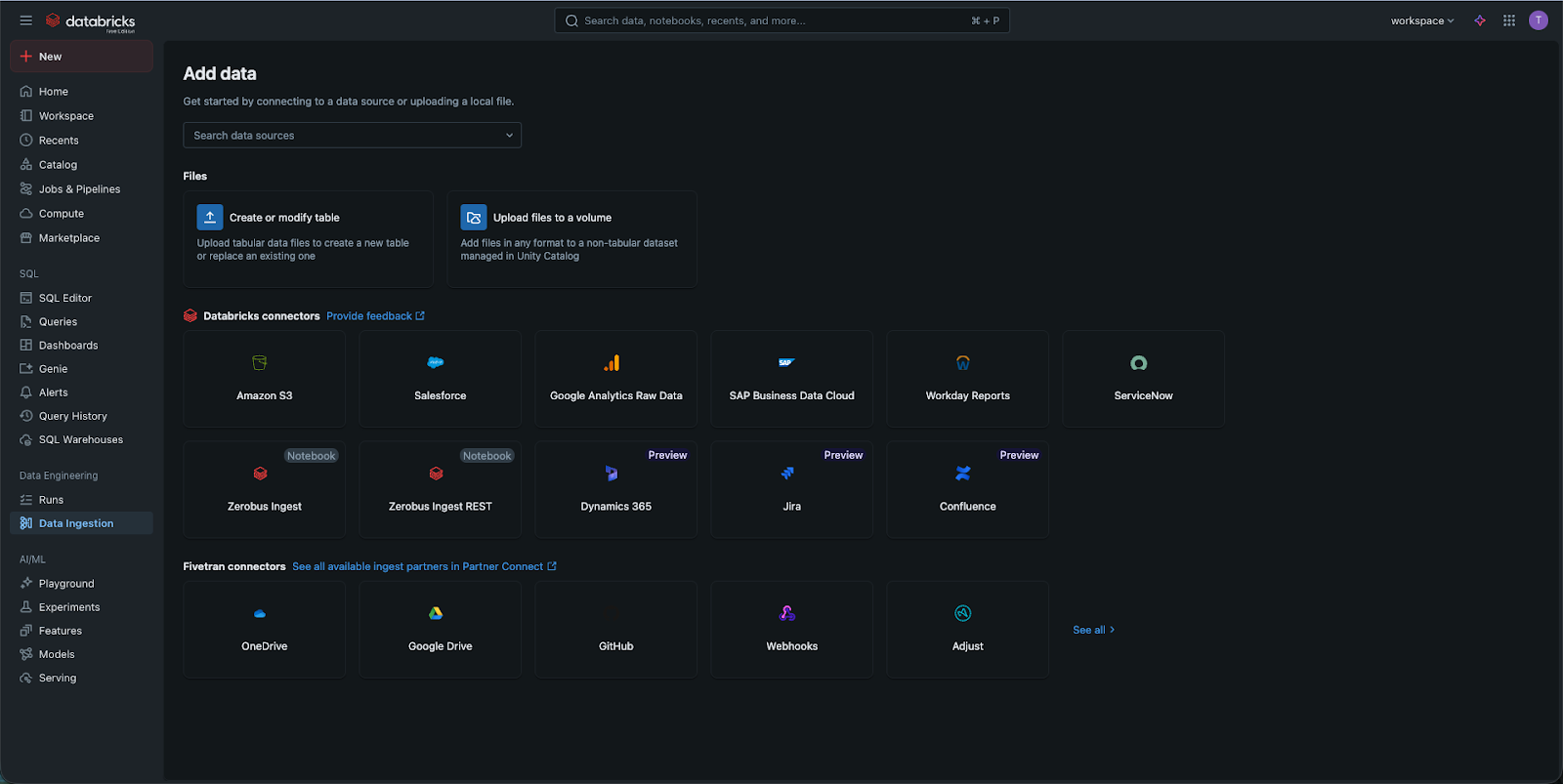
Data Ingestion tarkoittaa prosessia, jossa tuodaan dataa ulkoisista lähteistä Databricks-ympäristöösi. Data Ingestion UI -käyttöliittymän avulla voit muuntaa raakamuotoisen tiedoston, kuten CSV:n, rakenteiseksi taulukoksi Catalogiin vain muutamalla klikkauksella.
Työtila on nyt määritetty ja klusteri käynnissä. Tarvitsemme kuitenkin jotain, jonka kanssa työskennellä. Todellisessa maailmassa data voi tulla esimerkiksi reaaliaikaisista sensoreista tai suurista pilvitietokannoista, mutta useimmat dataprojektit alkavat yksinkertaisella tiedostolla. Tässä luvussa käytät modernia Data Ingestion -ominaisuutta ladataksesi CSV-tiedoston ja muuntaaksesi sen pysyväksi taulukoksi Catalogiin.

Databricksissa on useita tapoja tuoda dataa, joista osa on edistyneempiä ja monimutkaisempia kuin toiset (esimerkiksi voit määrittää omat päätepisteesi pilvipalveluntarjoajallesi tai yhdistää kolmannen osapuolen sovelluksiin). Tässä luvussa tutustutaan perusvaihtoehtoon: datan lataaminen omalta tietokoneelta, jotta pääset alkuun.
Datan tuonnin työkalun löytäminen
Työkalun voi löytää kahdella nopealla tavalla:
- Napsauta sivupalkin yläosassa olevaa "New"-painiketta ja valitse "File Upload".
- Vaihtoehtoisesti siirry Catalog-välilehdelle ja napsauta "Create Table" -painiketta (usein plus-merkillä esitetty).
Vaihe 2: Tiedoston lataaminen
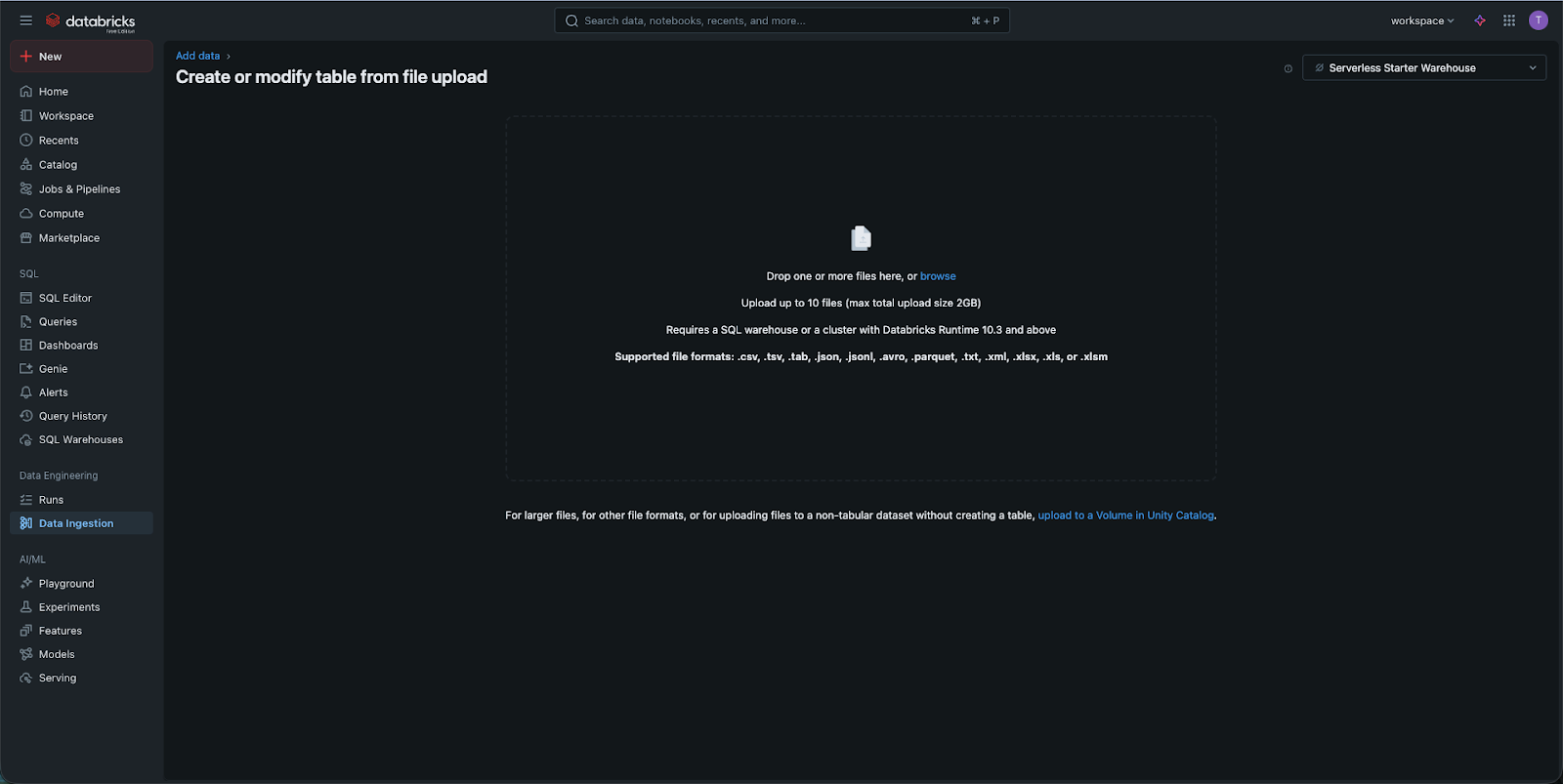
Kun olet latausnäkymässä, voit vetää ja pudottaa tiedoston tai selata tietokonettasi.
- Tilanne: tässä harjoituksessa käytetään esimerkkitiedostoa nimeltä
diamonds.csv; - Lataus: kun tiedosto on ladattu, Databricks tallentaa sen väliaikaisesti "staging"-alueelle ennen kuin se siirretään Catalogiin.
Vaihe 3: Taulun määrittäminen (Esikatselu)
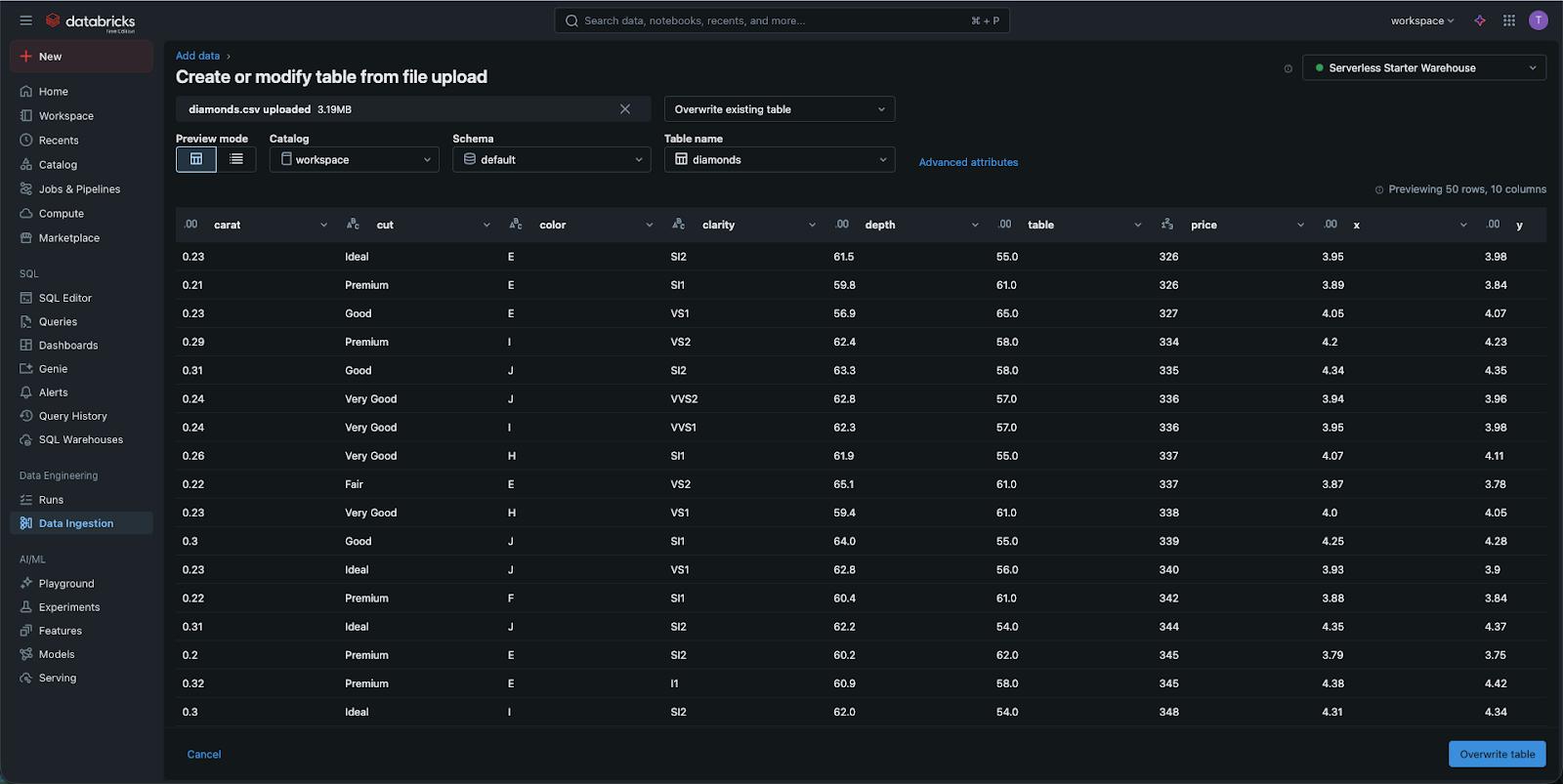
Tässä vaiheessa tapahtuu varsinainen "taika". Databricks näyttää esikatselun datastasi.
- Catalog and Schema: sinun tulee valita, mihin taulu tallennetaan. Tässä vaiheessa käytetään
workspace-katalogia jadefault-skeemaa; - Table Name: anna taululle selkeä nimi, esimerkiksi
diamonds; - Data Types: Tarkastele sarakkeita. Databricks arvaa automaattisesti, onko sarake "String" (teksti), "Integer" (numero) vai "Timestamp" (päivämäärä). Jos arvaus on väärä, voit muuttaa tietotyypin manuaalisesti käyttöliittymässä.
Vaihe 4: Taulun luominen
Napsauta Create Table. Databricks käynnistää nyt pienen taustatyön (käyttäen klusteriasi) lukeakseen CSV-tiedoston ja kirjoittaakseen sen suorituskykyiseksi Delta Table -taulukoksi. Kun prosessi on valmis, sinut ohjataan Table UI -näkymään, jossa voit tarkastella skeemaa, esimerkkidataa ja nähdä, kenellä on oikeus tarkastella sitä.
Onnittelut! Olet onnistuneesti siirtänyt dataa omalta tietokoneeltasi pilvipohjaiseen Lakehouse-ympäristöön.
1. Kun lataat CSV-tiedoston Data Ingestion UI:n avulla, miksi Databricks muuntaa tämän tiedoston?
2. Miksi "Preview"-vaihe on tärkeä datan tuontiprosessin aikana?
3. Jos haluat löytää myöhemmin juuri luomasi taulun, minkä sivupalkin välilehden tulisi avata?
Kiitos palautteestasi!
Kysy tekoälyä

Kysy tekoälyä

Kysy mitä tahansa tai kokeile jotakin ehdotetuista kysymyksistä aloittaaksesi keskustelumme
