Sisäänkirjautuminen ja Työtilan Navigointi
Pyyhkäise näyttääksesi valikon

Kirjautuminen on sisäänkäynti Databricks-ympäristöön. Sisäänkirjautumisen jälkeen Workspace toimii keskitettynä keskuksena, josta pääsee kaikkiin muistikirjoihin, dataan ja laskentaresursseihin.
Tässä luvussa siirrytään teoriasta käytäntöön. Tämä osio opastaa alkuperäisen kirjautumisprosessin läpi ja esittelee Databricksin käyttöliittymän. Riippuen siitä, käytätkö Community Editionia, Azurea, AWS:ää vai GCP:tä, kirjautumis-URL on organisaatiokohtainen, mutta saapumisen jälkeen käyttöliittymä on yhtenäinen.
Ensimmäinen kirjautuminen
Kun avaat Databricks-työtilasi URL-osoitteen ensimmäistä kertaa, sinua pyydetään syöttämään tunnuksesi. Useimmissa organisaatioissa käytetään Single Sign-On (SSO) -ratkaisua, jolloin kirjaudut sisään yrityksen sähköpostilla.

Jos harjoittelet itsenäisesti, varmista, että olet tallentanut työtilasi URL-osoitteen kirjanmerkkeihin. Se noudattaa yleensä kaavaa https://dbc-xxxx.xx.cloud.databricks.com tai muuta vastaavaa pilvikohtaista muotoa.
Aloitussivu (Koti)
Kirjautumisen jälkeen sinut ohjataan Koti-näytölle. Tämä sivu on suunniteltu nopeuttamaan työn aloittamista uudelleen.
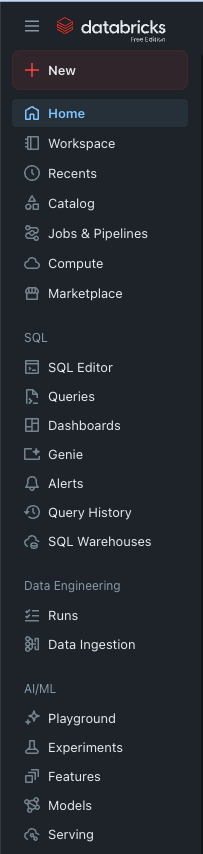
- Yhdistetty sivupalkki: kaikki Databricksin toiminnot löytyvät täältä;
- Käyttäjäasetukset: napsauttamalla oikean yläkulman kuvaketta avaat henkilökohtaiset asetukset, joiden kautta voit mukauttaa Databricks-kokemustasi sekä käyttää kehittäjätoimintoja;
- Viimeisimmät: näytön keskellä näkyy yleensä lista muistikirjoista ja tauluista, joita olet käyttänyt viimeksi. Tämä näkymä mukautuu käytön mukaan.
Yhdistetyn sivupalkin hallinta
Kuten edellisessä osiossa nähtiin, sivupalkki on ensisijainen työkalusi. Tarkastellaan, miten siinä navigoidaan tehokkaasti:
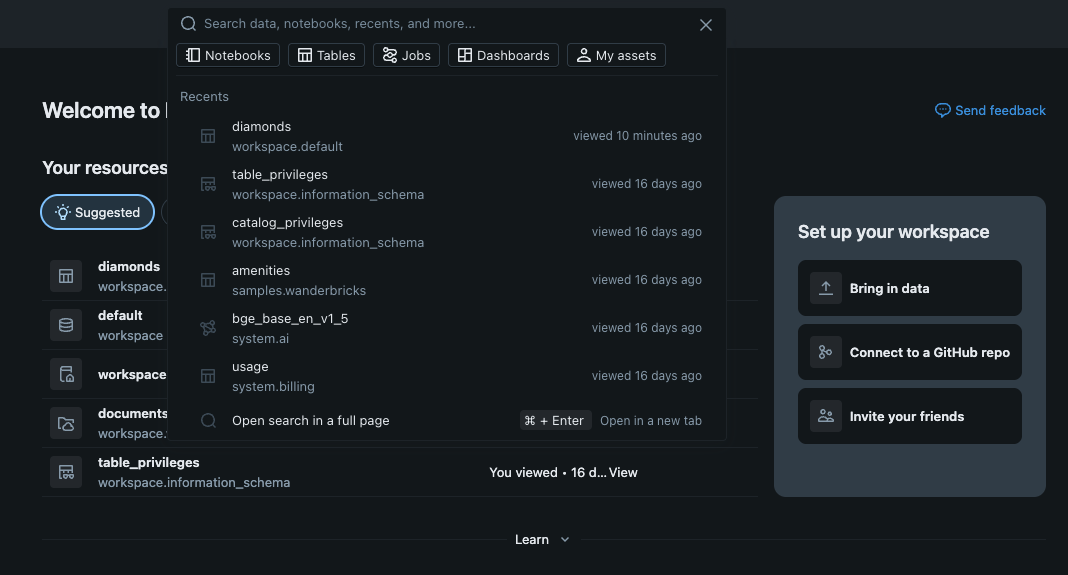
- Hakupalkki: sijaitsee sivupalkin yläosassa. Nopein tapa löytää mitä tahansa. Vinkki: Voit käyttää pikanäppäintä Cmd + P (Mac) tai Ctrl + P (Windows) avataksesi hakupalkin mistä tahansa työtilassa;
- Työtilakansiot: napsauttamalla "Workspace"-kuvaketta avautuu puumainen valikko. Täältä löydät:
- Users: henkilökohtainen kansiosi, jossa voit luoda yksityisiä töitä;
- Shared: kansio, jossa tiedostot ovat kaikkien työtilan käyttäjien nähtävissä—ihanteellinen tiimityöhön.
- Catalog & Compute: nämä ovat kaksi välilehteä, joissa vierailemme seuraavaksi. Catalog näyttää datasi; Compute näyttää laskentatehosi.
Profiilin personointi
Ennen kuin aloitat rakentamisen, napsauta sähköpostiosoitettasi tai profiilikuvaketta kulmassa.
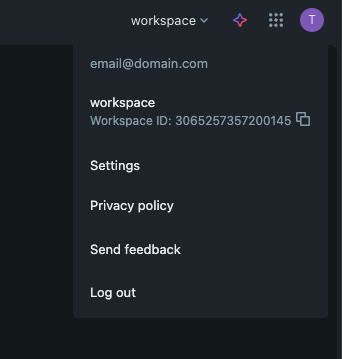
- Käyttäjäasetukset: täällä voit vaihtaa näyttöteeman (Tumma tila vs. Vaalea tila) ja hallita kieliasetuksia;
- Ulkoasu: voit valita, pidätkö sivupalkin laajennettuna vai "kiinnitettynä" niin, että se näyttää vain kuvakkeet, kun viet hiiren sen päälle, jolloin saat enemmän tilaa koodillesi näytölle.
1. Mikä on nopein tapa löytää muistikirja tai taulu, jos et halua klikata kansioiden läpi?
2. Jos haluat vaihtaa Databricksin käyttöliittymän "Tummaksi tilaksi", mistä etsit tätä asetusta?
Kiitos palautteestasi!
Kysy tekoälyä

Kysy tekoälyä

Kysy mitä tahansa tai kokeile jotakin ehdotetuista kysymyksistä aloittaaksesi keskustelumme
Sisäänkirjautuminen ja Työtilan Navigointi
Kirjautuminen on sisäänkäynti Databricks-ympäristöön. Sisäänkirjautumisen jälkeen Workspace toimii keskitettynä keskuksena, josta pääsee kaikkiin muistikirjoihin, dataan ja laskentaresursseihin.
Tässä luvussa siirrytään teoriasta käytäntöön. Tämä osio opastaa alkuperäisen kirjautumisprosessin läpi ja esittelee Databricksin käyttöliittymän. Riippuen siitä, käytätkö Community Editionia, Azurea, AWS:ää vai GCP:tä, kirjautumis-URL on organisaatiokohtainen, mutta saapumisen jälkeen käyttöliittymä on yhtenäinen.
Ensimmäinen kirjautuminen
Kun avaat Databricks-työtilasi URL-osoitteen ensimmäistä kertaa, sinua pyydetään syöttämään tunnuksesi. Useimmissa organisaatioissa käytetään Single Sign-On (SSO) -ratkaisua, jolloin kirjaudut sisään yrityksen sähköpostilla.
Jos harjoittelet itsenäisesti, varmista, että olet tallentanut työtilasi URL-osoitteen kirjanmerkkeihin. Se noudattaa yleensä kaavaa https://dbc-xxxx.xx.cloud.databricks.com tai muuta vastaavaa pilvikohtaista muotoa.
Aloitussivu (Koti)
Kirjautumisen jälkeen sinut ohjataan Koti-näytölle. Tämä sivu on suunniteltu nopeuttamaan työn aloittamista uudelleen.
- Yhdistetty sivupalkki: kaikki Databricksin toiminnot löytyvät täältä;
- Käyttäjäasetukset: napsauttamalla oikean yläkulman kuvaketta avaat henkilökohtaiset asetukset, joiden kautta voit mukauttaa Databricks-kokemustasi sekä käyttää kehittäjätoimintoja;
- Viimeisimmät: näytön keskellä näkyy yleensä lista muistikirjoista ja tauluista, joita olet käyttänyt viimeksi. Tämä näkymä mukautuu käytön mukaan.
Yhdistetyn sivupalkin hallinta
Kuten edellisessä osiossa nähtiin, sivupalkki on ensisijainen työkalusi. Tarkastellaan, miten siinä navigoidaan tehokkaasti:
- Hakupalkki: sijaitsee sivupalkin yläosassa. Nopein tapa löytää mitä tahansa. Vinkki: Voit käyttää pikanäppäintä Cmd + P (Mac) tai Ctrl + P (Windows) avataksesi hakupalkin mistä tahansa työtilassa;
- Työtilakansiot: napsauttamalla "Workspace"-kuvaketta avautuu puumainen valikko. Täältä löydät:
- Users: henkilökohtainen kansiosi, jossa voit luoda yksityisiä töitä;
- Shared: kansio, jossa tiedostot ovat kaikkien työtilan käyttäjien nähtävissä—ihanteellinen tiimityöhön.
- Catalog & Compute: nämä ovat kaksi välilehteä, joissa vierailemme seuraavaksi. Catalog näyttää datasi; Compute näyttää laskentatehosi.
Profiilin personointi
Ennen kuin aloitat rakentamisen, napsauta sähköpostiosoitettasi tai profiilikuvaketta kulmassa.
- Käyttäjäasetukset: täällä voit vaihtaa näyttöteeman (Tumma tila vs. Vaalea tila) ja hallita kieliasetuksia;
- Ulkoasu: voit valita, pidätkö sivupalkin laajennettuna vai "kiinnitettynä" niin, että se näyttää vain kuvakkeet, kun viet hiiren sen päälle, jolloin saat enemmän tilaa koodillesi näytölle.
Kiitos palautteestasi!
