Listas personalizadas para datos repetidos
Desliza para mostrar el menú
Las secuencias de Autorrelleno integradas de Excel (meses, días de la semana, trimestres) son útiles, pero cada conjunto de datos tiene su propio vocabulario repetitivo. En nuestra tabla de ventas, la columna Region alterna entre East, West, North, South. La columna Product alterna entre Laptop, Mouse, Keyboard, Monitor, Printer, Tablet. Cada vez que creas una nueva versión de esta tabla, vuelves a escribir esos valores o los copias de otro lugar.
Listas personalizadas permiten registrar cualquier secuencia una sola vez y luego usar Autorrelleno para completarla siempre — en cualquier libro, en cualquier equipo con ese perfil de Excel.
Las listas personalizadas se almacenan en la configuración de Excel, no en archivos individuales. Esto significa que están disponibles en todos tus libros de manera permanente, hasta que las elimines.
Cómo abrir las listas personalizadas
Crear una lista personalizada
Método 1 — Escribir la lista manualmente
- Abre el cuadro de diálogo Listas personalizadas;
- En el panel izquierdo, haz clic en NUEVA LISTA;
- En el cuadro "Entradas de la lista" a la derecha, escribe cada valor en una línea separada:
East
West
North
South
- Haz clic en Agregar → la lista aparece en el panel izquierdo;
- Haz clic en Aceptar.
Listo. Escribe East en cualquier celda, arrastra el controlador de relleno — Excel alterna entre West, North, South, East, West… indefinidamente.
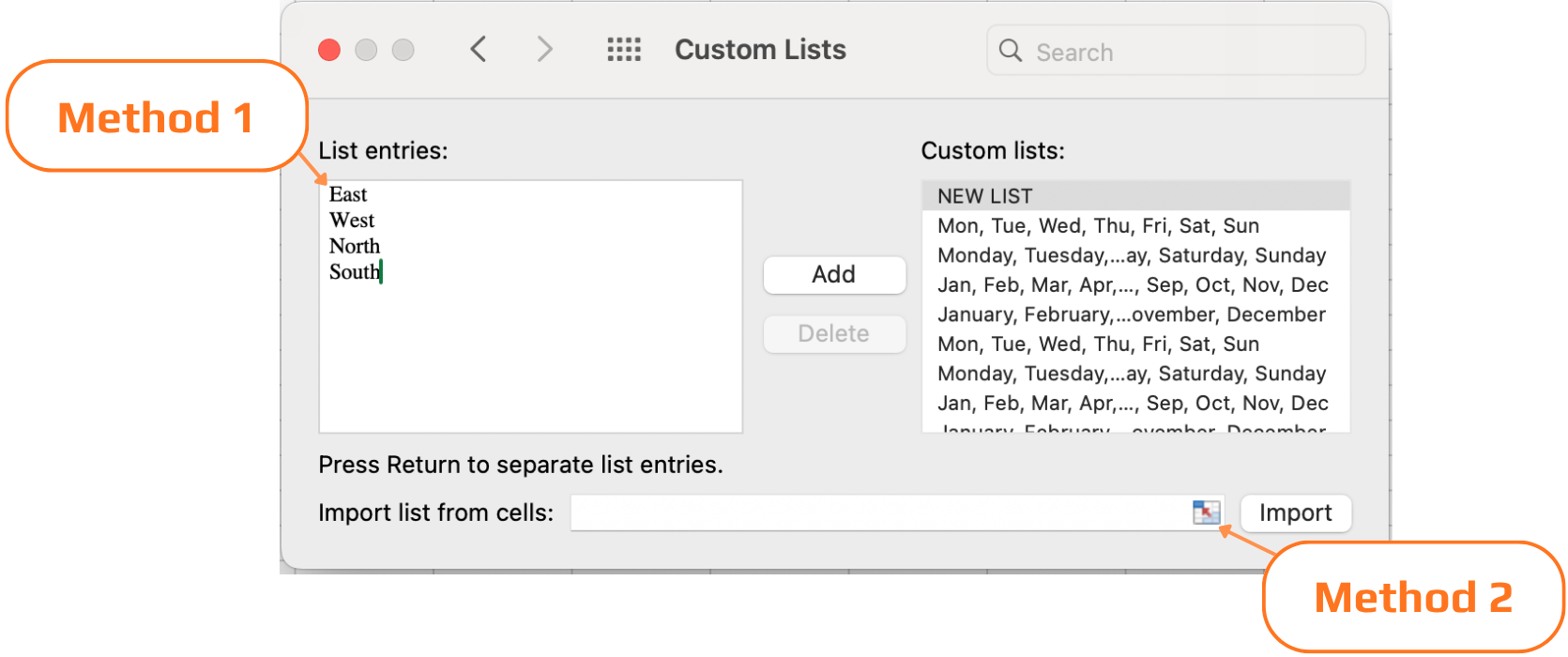
Método 2 — Importar desde un rango
Si tus valores ya existen en la hoja de cálculo (como en nuestra tabla de ventas), no necesitas volver a escribirlos:
- Selecciona las celdas que contienen los valores que deseas, por ejemplo, una lista limpia de tus cuatro regiones en una columna libre;
- Abre el cuadro de diálogo de Listas personalizadas;
- El campo Importar lista desde celdas en la parte inferior muestra el rango seleccionado;
- Haz clic en Importar.
La lista se registra al instante con lo que esté en esas celdas.
Gestión de tus listas personalizadas
Con el tiempo, es posible que desees revisar, editar o eliminar las listas que has creado.
Para editar una lista: abre Listas personalizadas, haz clic en la lista en el panel izquierdo, edita las entradas a la derecha y haz clic en Agregar para guardar los cambios.
Para eliminar una lista: selecciónala en el panel izquierdo y haz clic en Eliminar. Ten en cuenta que las listas integradas de Excel (meses, días de la semana) no se pueden eliminar.

Las listas personalizadas se almacenan en tu perfil local de Excel; no viajan con el archivo del libro. Si un colega abre el mismo archivo en su equipo, no tendrá disponibles tus listas personalizadas. Para flujos de trabajo compartidos en equipo, vale la pena documentar qué listas deben registrarse como parte de la configuración del equipo.
1. Tu tabla de ventas ya tiene las cuatro regiones listadas en la columna C. ¿Cuál es la forma más rápida de registrarlas como una Lista personalizada?
2. Registraste una Lista personalizada con seis productos: Portátil, Ratón, Teclado, Monitor, Impresora, Tableta. Escribes 'Monitor' en una celda y arrastras el controlador de relleno hacia abajo 4 filas. ¿Qué rellena Excel?
¡Gracias por tus comentarios!
Pregunte a AI

Pregunte a AI

Pregunte lo que quiera o pruebe una de las preguntas sugeridas para comenzar nuestra charla
