Uso Avanzado de Buscar y Reemplazar
Desliza para mostrar el menú
Todos los conjuntos de datos se desordenan con el tiempo. No de manera dramática, solo pequeños detalles que se acumulan silenciosamente.
Imagina que exportas datos desde un archivo CSV y, de repente, todos tus números usan puntos en lugar de comas. Ahora Excel los interpreta como texto y tus cálculos dejan de funcionar. O transfieres un archivo de un portátil a otro y todas tus fórmulas dejan de funcionar porque la versión anterior usaba , mientras que el nuevo Excel espera ;.
O tal vez es aún más simple: una región aparece como "North-East" en algunas filas y como "Northeast" en otras. Un vendedor actualiza su nombre a mitad de año. Un código de producto tiene un espacio adicional que ni siquiera puedes ver.
Corregir esto manualmente significa desplazarse por cientos o miles de filas, tratando de no pasar nada por alto. Es lento, frustrante y fácil de hacer mal.
Buscar y reemplazar resuelve esto en segundos. En lugar de editar celda por celda, puedes corregir todo de una vez: limpiar formatos, corregir nombres y estandarizar tus datos en toda la tabla.
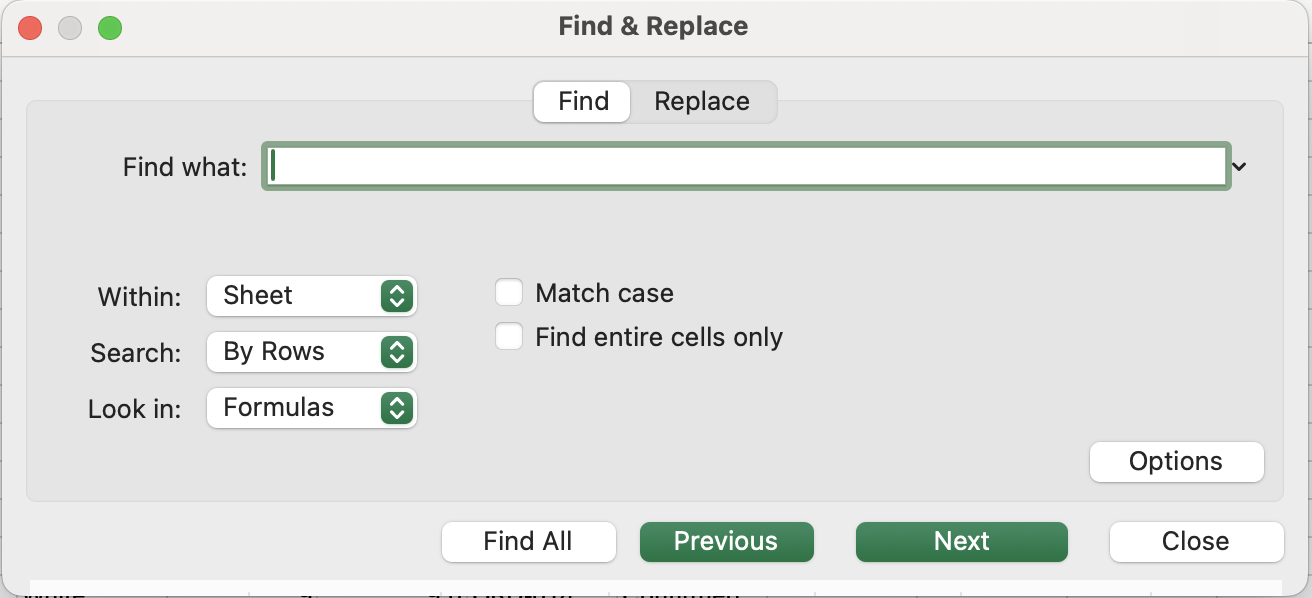
Panel de opciones
El cuadro de diálogo básico gestiona sustituciones de texto simples. Haz clic en Opciones >> para mostrar los controles avanzados que hacen que Buscar y reemplazar sea realmente potente.
Coincidir mayúsculas y minúsculas
Por defecto, Buscar y reemplazar no distingue entre mayúsculas y minúsculas — east, East y EAST se tratan igual. Marca Coincidir mayúsculas y minúsculas para encontrar solo la capitalización exacta que especifiques.
Buscar todo el contenido de la celda
Por defecto, Excel encuentra tu término de búsqueda en cualquier parte de una celda — East coincidiría con East, East Coast, Northeast y SouthEast. Marca Buscar todo el contenido de la celda para encontrar solo las celdas cuyo contenido completo sea exactamente tu término de búsqueda.
Alcance de búsqueda — Hoja vs Libro
El menú desplegable "Dentro de" tiene como valor predeterminado Hoja. Cámbialo a Libro para buscar y reemplazar en todas las hojas del archivo simultáneamente — útil cuando el mismo error aparece en varias hojas mensuales.
Buscar en — Valores, fórmulas o notas
El menú desplegable "Buscar en" controla en qué busca Excel:
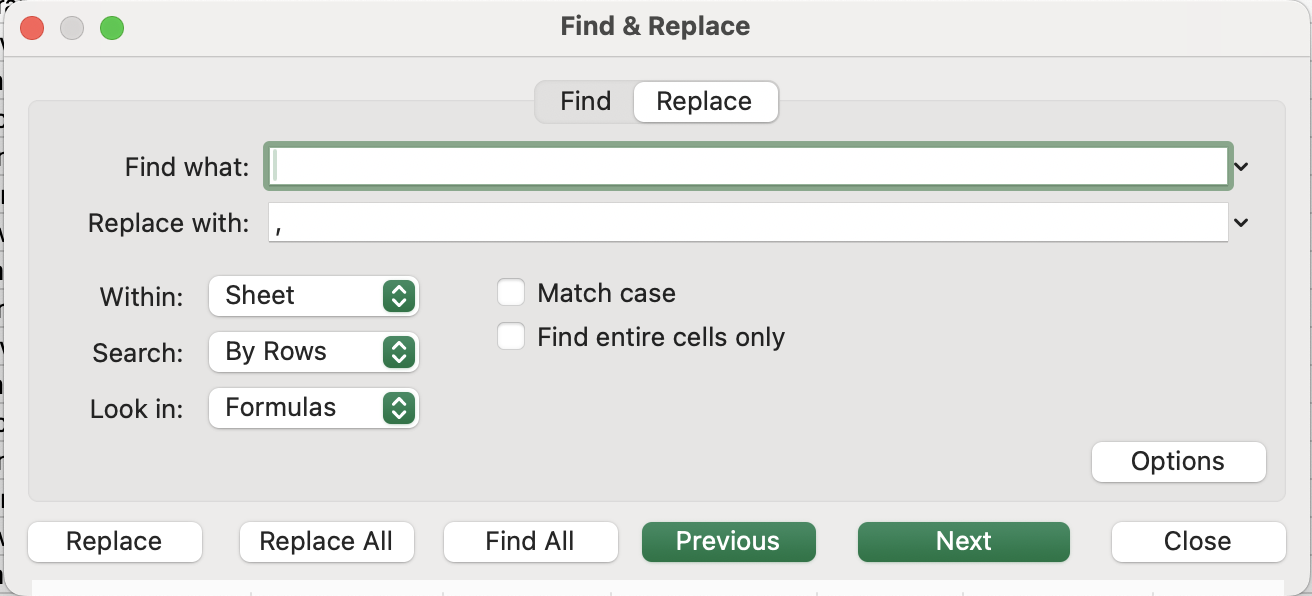

Excel informa cuántos reemplazos se realizaron. Ctrl + Z los deshace todos a la vez si es necesario.
Uso de comodines
Los comodines permiten buscar patrones en lugar de valores exactos, lo que resulta muy útil para limpiar datos inconsistentes.
Corregir separadores decimales en Unit Cost.
En la columna Unit Cost, algunos valores utilizan un punto (.) en lugar de una coma (,), lo que puede hacer que Excel los trate como texto o cause errores en los cálculos.
La tarea consiste en reemplazar todos los puntos por comas solo en la columna Unit Cost.
- Seleccionar primero la columna Unit Cost (importante para evitar cambiar otros datos).
- Cambiar el tipo de dato de General a Number.
- Presionar
Ctrl + H(Windows) ocontrol + H(Mac) para abrir Buscar y reemplazar. - En Buscar, ingresar:
. - En Reemplazar con, ingresar:
, - Hacer clic en Reemplazar todo.
¡Gracias por tus comentarios!
Pregunte a AI

Pregunte a AI

Pregunte lo que quiera o pruebe una de las preguntas sugeridas para comenzar nuestra charla
