Formateo Rápido a Gran Escala
Desliza para mostrar el menú
El formato es donde desaparece mucho tiempo invisible. Hacer clic en Negrita, elegir un color de relleno, ajustar la alineación — cada acción toma un segundo. En una tabla de 50 filas por 5 columnas, si se hace de manera inconsistente, toma minutos y aún así se ve desigual.
Atajos esenciales de formato
Las operaciones de formato más rápidas nunca tocan la cinta de opciones.
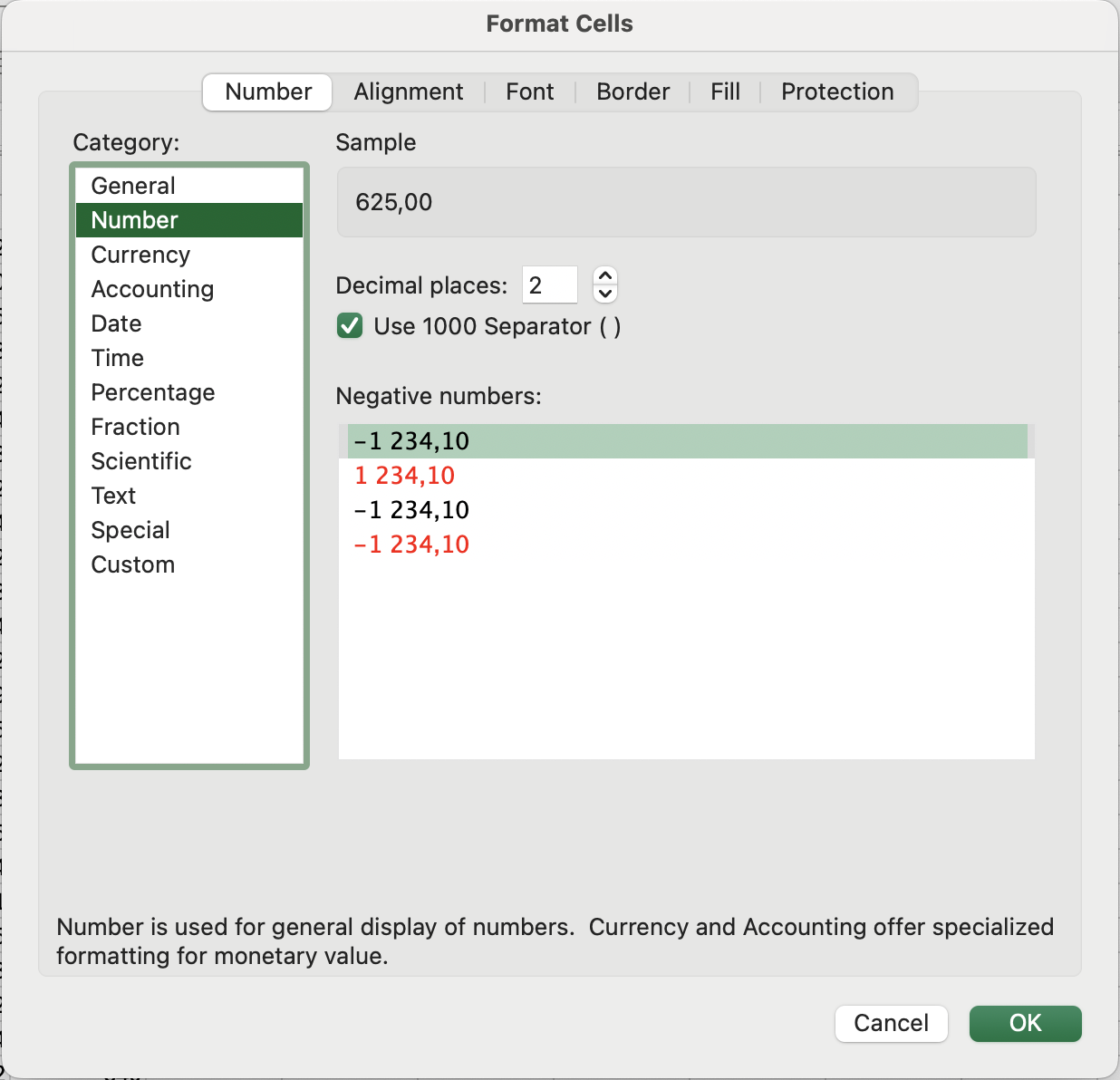
Cuadro de diálogo Formato de celdas
Abrir el cuadro de Formato de celdas con Ctrl + 1 / Fn + Control + 1 y navegar con el teclado suele ser más rápido que usar la cinta de opciones, especialmente para formatos menos comunes.
Estilos de celda
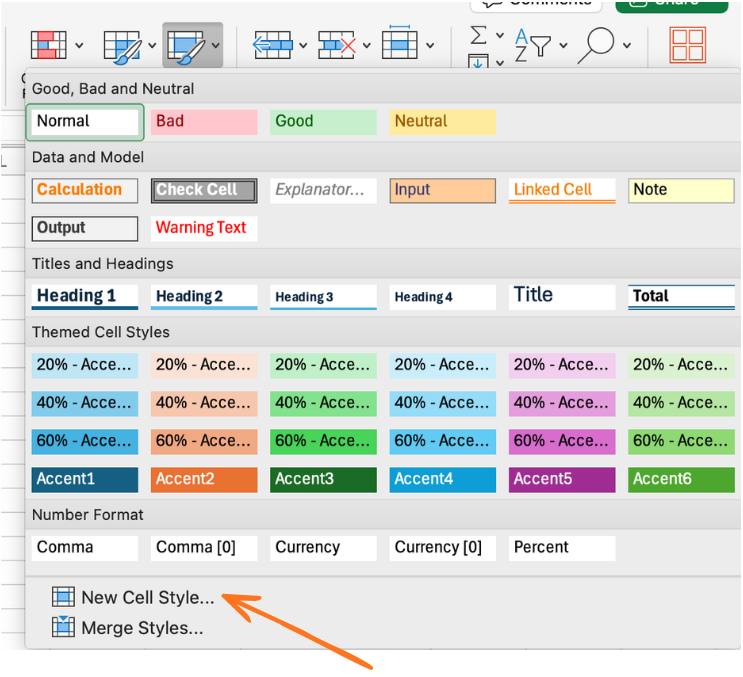
Estilos de celda son conjuntos de formato predefinidos y nombrados que se pueden aplicar a cualquier celda o rango con un solo clic, y actualizar globalmente en un solo paso.
Aplicar un estilo: Inicio → grupo Estilos → haz clic en cualquier estilo (Encabezado 1, Bueno, Malo, Neutral, Cálculo, etc.)
Importancia para el trabajo a escala: si aplicas el estilo Encabezado 1 a todas las filas de encabezado y luego decides que los encabezados deben tener otro color, solo necesitas cambiar la definición del estilo una vez; todas las celdas que usan ese estilo se actualizan automáticamente en todo el libro.
Crear un estilo personalizado:
- Da formato a una celda exactamente como deseas que se vea el estilo;
- Inicio → Estilos de celda → Nuevo estilo de celda;
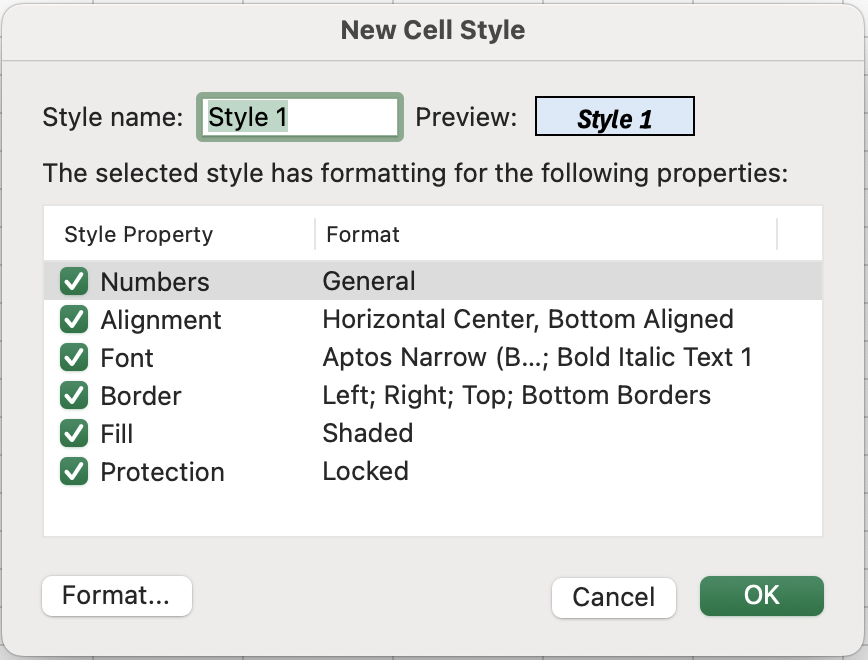
- Asígnale un nombre (por ejemplo, Encabezado de ventas, Valor KPI);
- Haz clic en Aceptar.
El estilo ahora está disponible en tu libro para reutilizarlo al instante.
- Seleccionar el encabezado de la columna Unit Cost para seleccionar toda la columna.
- Presionar
Ctrl + Shift + $para aplicar el formato de moneda. - Aplicar un estilo personalizado de Table Header a la fila 1. Por ejemplo, ponerlo en negrita y cursiva, con un fondo azul claro y bordes.
¡Gracias por tus comentarios!
Pregunte a AI

Pregunte a AI

Pregunte lo que quiera o pruebe una de las preguntas sugeridas para comenzar nuestra charla
Formateo Rápido a Gran Escala
El formato es donde desaparece mucho tiempo invisible. Hacer clic en Negrita, elegir un color de relleno, ajustar la alineación — cada acción toma un segundo. En una tabla de 50 filas por 5 columnas, si se hace de manera inconsistente, toma minutos y aún así se ve desigual.
Atajos esenciales de formato
Las operaciones de formato más rápidas nunca tocan la cinta de opciones.
Cuadro de diálogo Formato de celdas
Abrir el cuadro de Formato de celdas con Ctrl + 1 / Fn + Control + 1 y navegar con el teclado suele ser más rápido que usar la cinta de opciones, especialmente para formatos menos comunes.
Estilos de celda
Estilos de celda son conjuntos de formato predefinidos y nombrados que se pueden aplicar a cualquier celda o rango con un solo clic, y actualizar globalmente en un solo paso.
Aplicar un estilo: Inicio → grupo Estilos → haz clic en cualquier estilo (Encabezado 1, Bueno, Malo, Neutral, Cálculo, etc.)
Importancia para el trabajo a escala: si aplicas el estilo Encabezado 1 a todas las filas de encabezado y luego decides que los encabezados deben tener otro color, solo necesitas cambiar la definición del estilo una vez; todas las celdas que usan ese estilo se actualizan automáticamente en todo el libro.
Crear un estilo personalizado:
- Da formato a una celda exactamente como deseas que se vea el estilo;
- Inicio → Estilos de celda → Nuevo estilo de celda;
- Asígnale un nombre (por ejemplo, Encabezado de ventas, Valor KPI);
- Haz clic en Aceptar.
El estilo ahora está disponible en tu libro para reutilizarlo al instante.
- Seleccionar el encabezado de la columna Unit Cost para seleccionar toda la columna.
- Presionar
Ctrl + Shift + $para aplicar el formato de moneda. - Aplicar un estilo personalizado de Table Header a la fila 1. Por ejemplo, ponerlo en negrita y cursiva, con un fondo azul claro y bordes.
¡Gracias por tus comentarios!
