Notice: This page requires JavaScript to function properly.
Please enable JavaScript in your browser settings or update your browser.
Aprende Gemini Basics You Need to Know | Gemini Tools, Workspace and Agents
Working with Google Gemini

Gemini Basics You Need to Know

Desliza para mostrar el menú

Getting In

Sign in with a Google account at gemini.google.com, or install the mobile or desktop app. Everything syncs, so a chat you start on a laptop continues on a phone.

Finding Your Way Around

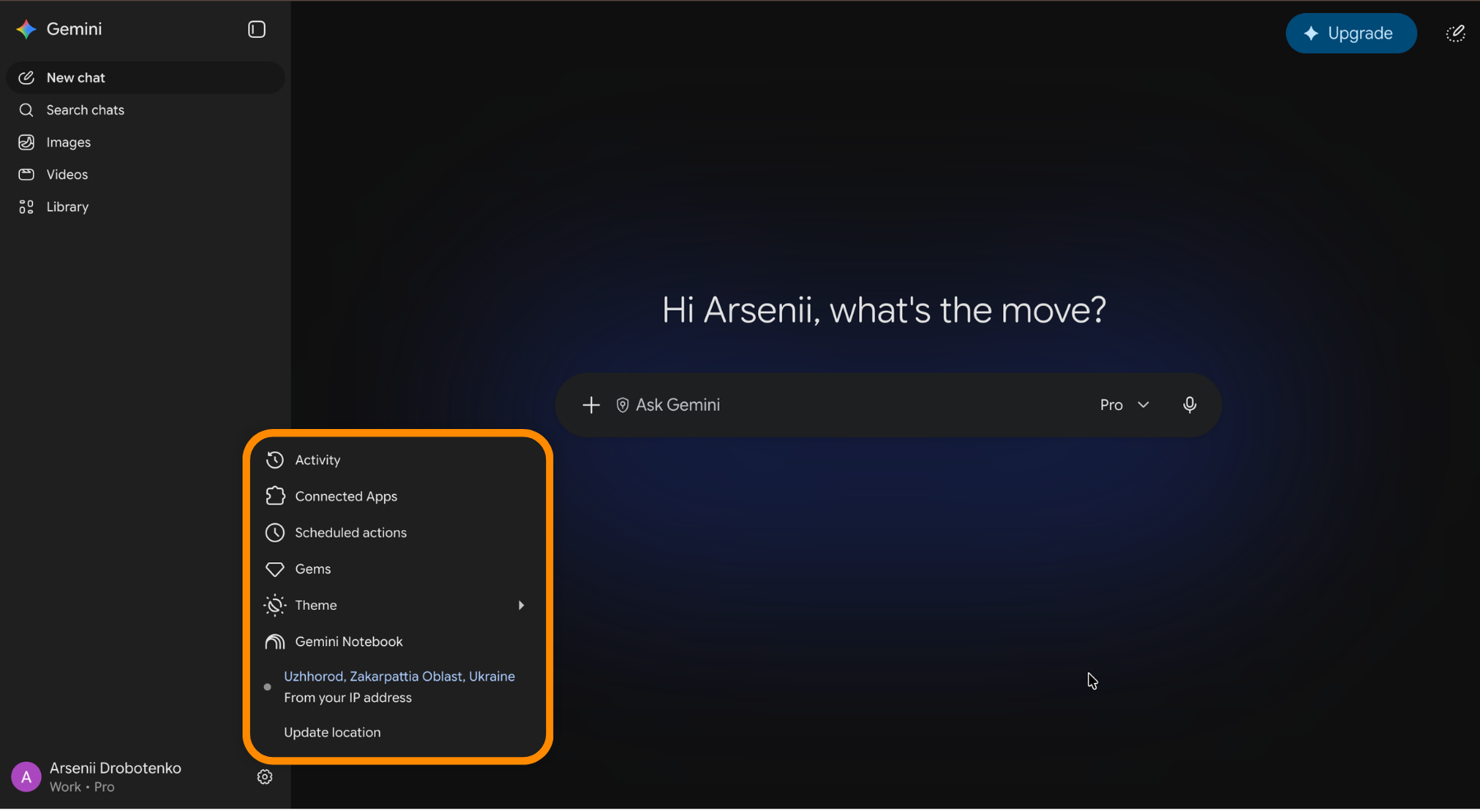
The app was rebuilt in 2026, so older tutorials show a layout that no longer exists. Four places matter:

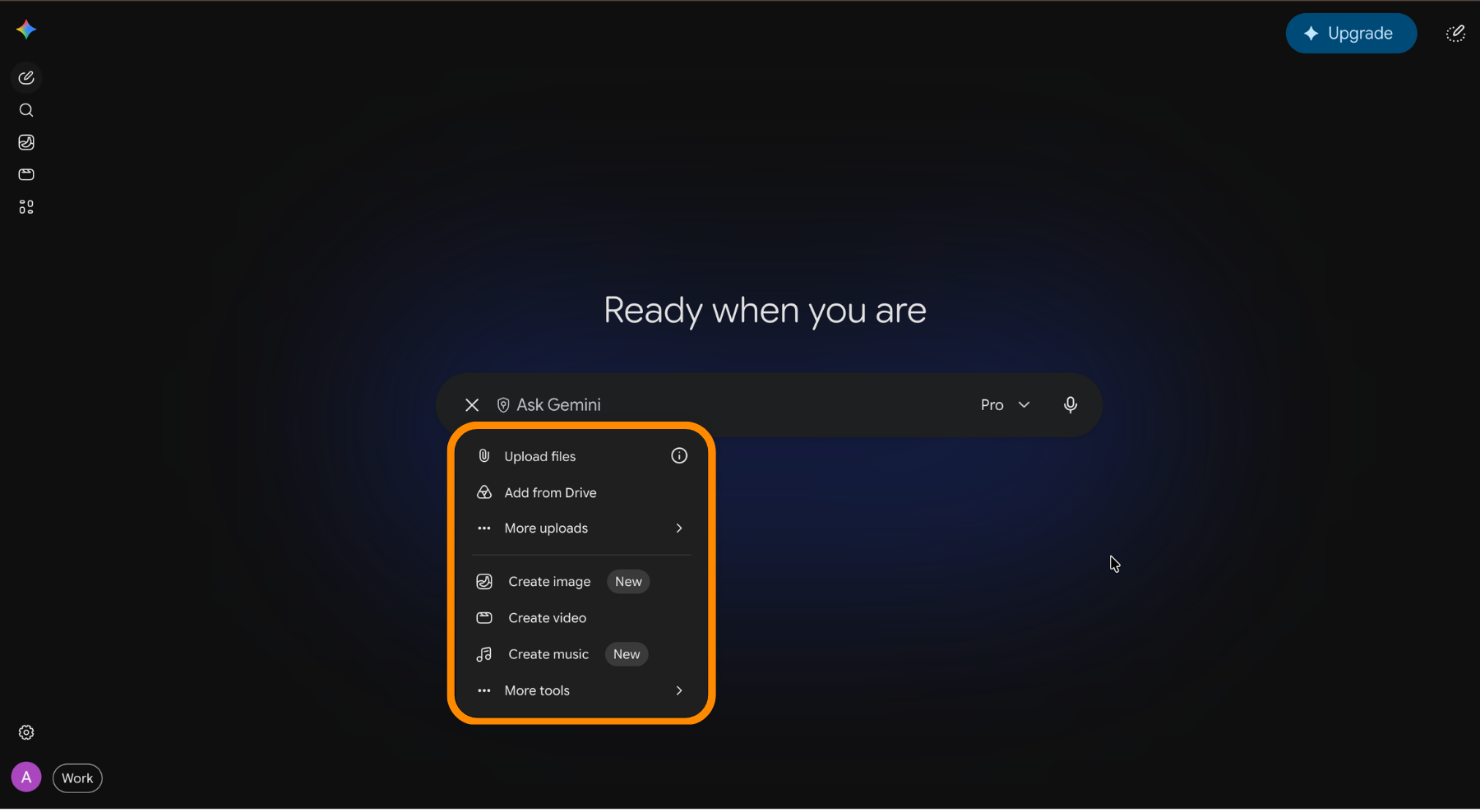
  • Prompt box: the pill in the center, with the plus menu on one side and voice input and Gemini Live on the other;
  • Model picker: the dropdown in the top-left corner;
  • Navigation drawer: new chat, chat search, your library, Gems, notebooks, and recent conversations;
  • Settings: at the bottom of the drawer, next to your profile picture.
What You Can Attach

The plus menu opens photos, the camera, files, Drive documents, and notebooks. Gemini reads PDFs, spreadsheets, images, and code. It also accepts a YouTube link and answers questions about the video without you watching it.

Writing Prompts That Work

A prompt is a brief, not a search query. Four habits cover most of it:

  • State the goal and who the output is for;
  • Give the source material instead of describing it;
  • Name the format and the length you expect;
  • Correct the result in the same chat rather than starting a new one.

Weak prompt: write about our new feature

Strong prompt: Write a 150-word release note for non-technical users based on the attached spec. Plain language, no marketing adjectives, end with one sentence on how to turn the feature on.

Tools Change What a Chat Does

The same menu lists the tools that switch a chat into a different mode: deep research, Canvas, guided learning, image, video, and music creation, and personal context from your Google apps. Picking one before you type sets the mode for that request, and each one gets its own chapter later in this course.
question mark

What makes a prompt strong rather than weak, according to this chapter?

Selecciona la respuesta correcta

¿Todo estuvo claro?

¿Cómo podemos mejorarlo?

¡Gracias por tus comentarios!

Sección 1. Capítulo 2

Pregunte a AI

expand

Pregunte a AI

ChatGPT

Pregunte lo que quiera o pruebe una de las preguntas sugeridas para comenzar nuestra charla

Gemini Basics You Need to Know

Getting In

Sign in with a Google account at gemini.google.com, or install the mobile or desktop app. Everything syncs, so a chat you start on a laptop continues on a phone.

Finding Your Way Around

The app was rebuilt in 2026, so older tutorials show a layout that no longer exists. Four places matter:

  • Prompt box: the pill in the center, with the plus menu on one side and voice input and Gemini Live on the other;
  • Model picker: the dropdown in the top-left corner;
  • Navigation drawer: new chat, chat search, your library, Gems, notebooks, and recent conversations;
  • Settings: at the bottom of the drawer, next to your profile picture.

What You Can Attach

The plus menu opens photos, the camera, files, Drive documents, and notebooks. Gemini reads PDFs, spreadsheets, images, and code. It also accepts a YouTube link and answers questions about the video without you watching it.

Writing Prompts That Work

A prompt is a brief, not a search query. Four habits cover most of it:

  • State the goal and who the output is for;
  • Give the source material instead of describing it;
  • Name the format and the length you expect;
  • Correct the result in the same chat rather than starting a new one.

Weak prompt: write about our new feature

Strong prompt: Write a 150-word release note for non-technical users based on the attached spec. Plain language, no marketing adjectives, end with one sentence on how to turn the feature on.

Tools Change What a Chat Does

The same menu lists the tools that switch a chat into a different mode: deep research, Canvas, guided learning, image, video, and music creation, and personal context from your Google apps. Picking one before you type sets the mode for that request, and each one gets its own chapter later in this course.

¿Todo estuvo claro?

¿Cómo podemos mejorarlo?

¡Gracias por tus comentarios!

Sección 1. Capítulo 2
some-alt