Spill Range Behavior
Desliza para mostrar el menú


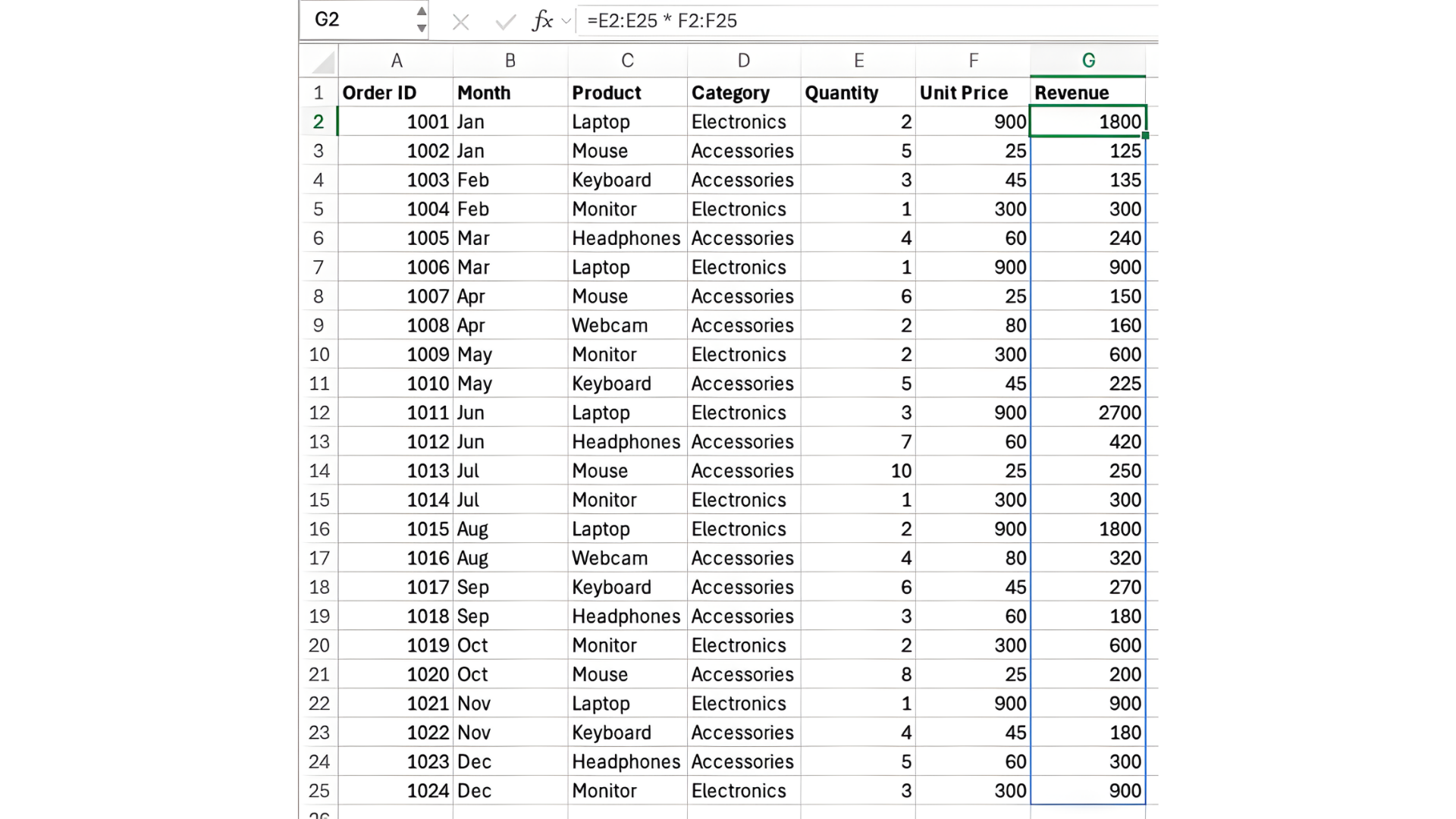
To begin working with dynamic arrays in Excel, you need to understand the structure of your data and how spill ranges operate. Imagine you have a range in a sheet called Sales Data with columns for Order ID, Month, Product, Category, Quantity, and Unit Price.
Instead of calculating revenue for each row with individual formulas, dynamic arrays allow you to enter a single formula that automatically populates results for the entire column.

A spill range in Excel is a dynamic, automatically expanding area that displays multiple results from a single formula. Spill ranges make it easy to perform calculations across entire datasets without repetitive formula entry.
Assume your Sales Data range occupies cells A2:F25, with headers in row 1, and that you are working with a regular range, not an Excel Table.
To calculate revenue for each sale using a dynamic array formula, enter the following formula in cell G2:
=E2:E25 * F2:F25
When you press Enter, Excel calculates the product for each corresponding pair of values in the Quantity (column E) and Unit Price (column F) ranges and spills the results downward starting from cell G2.
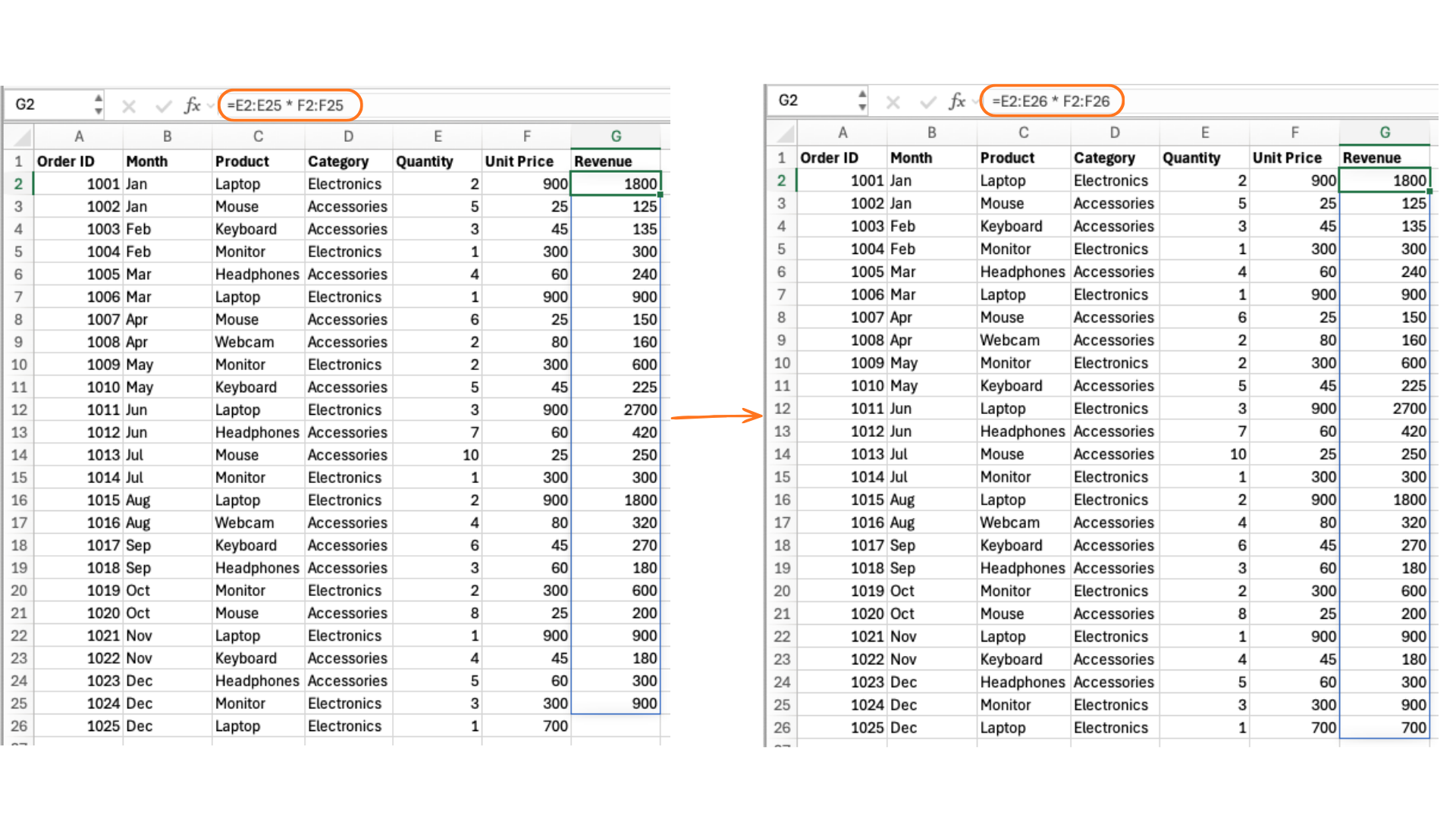
Excel determines the spill range strictly based on the exact ranges referenced in the formula (E2:E25 and F2:F25). This spill range is not truly dynamic when working with regular ranges. If you add a new row below row 25, the formula will not automatically include it. To recalculate revenue for new rows, you must manually adjust the formula ranges (for example, extend them to E3:E26 * F3:F26) or rewrite the formula.
This behavior differs from Excel Tables or advanced dynamic setups.
Assume that the current Revenue value includes tax, and the tax rate is 10%.
Create a new column called Net Revenue (revenue excluding tax) that calculates -10% from Revenue column using one spill formula.
The result should be a full column where each value represents Revenue × (1 + tax rate).
Multiply the entire Revenue range by a single tax factor 1,1 so the output spills down automatically.
=G2#*1,1
¡Gracias por tus comentarios!
Pregunte a AI

Pregunte a AI

Pregunte lo que quiera o pruebe una de las preguntas sugeridas para comenzar nuestra charla
