Tablas
Desliza para mostrar el menú
Los rangos son potentes, pero son estáticos. Cuando tus datos siguen creciendo — nuevas filas, nuevos clientes, nuevas transacciones — necesitas algo más inteligente. Ahí es donde entran las Tablas.
Puntos clave
- Una Tabla convierte un rango en un conjunto de datos estructurado y dinámico;
- Presiona Ctrl / Cmd + T para convertir cualquier rango en una Tabla;
- Las tablas agregan filtros, referencias estructuradas y expansión automática;
- Cada columna = un tipo de dato. Cada fila = un registro. No debe haber filas vacías dentro.
¿Qué es una Tabla?
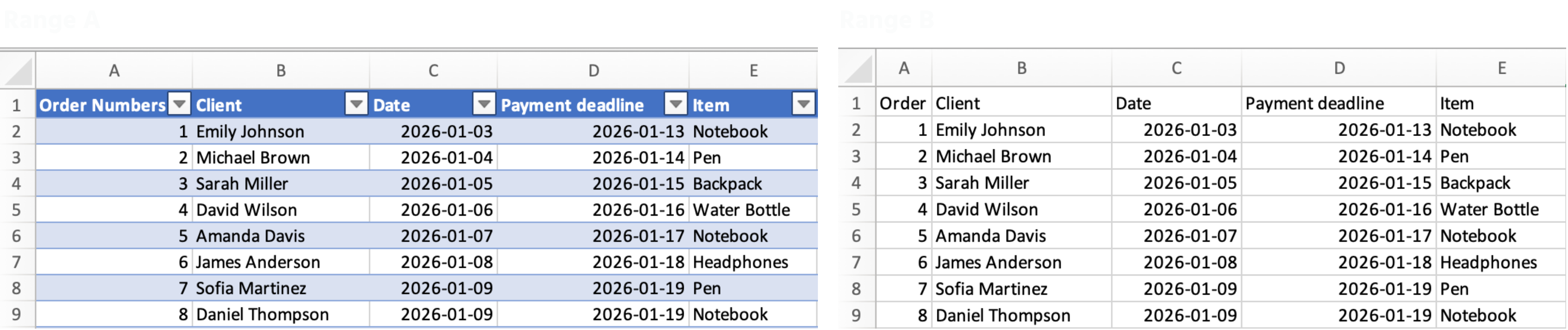
Una Tabla es un rango estructurado que le indica a Excel: "esto es un conjunto de datos en crecimiento, trátalo como tal."
Una vez que conviertes un rango en una Tabla, Excel automáticamente:
- Agrega filtros y botones de ordenación a los encabezados;
- Extiende fórmulas y formato a cada nueva fila;
- Utiliza referencias estructuradas como
Sales[Total_Cost]en lugar deK2:K54.
Cómo crear una tabla
- Haz clic en cualquier lugar dentro de tus datos;
- Presiona Ctrl + T (Windows) o Cmd + T (Mac);
- Confirma que tus datos tienen encabezados → haz clic en OK.
¡Gracias por tus comentarios!
Pregunte a AI

Pregunte a AI

Pregunte lo que quiera o pruebe una de las preguntas sugeridas para comenzar nuestra charla
Tablas
Los rangos son potentes, pero son estáticos. Cuando tus datos siguen creciendo — nuevas filas, nuevos clientes, nuevas transacciones — necesitas algo más inteligente. Ahí es donde entran las Tablas.
Puntos clave
- Una Tabla convierte un rango en un conjunto de datos estructurado y dinámico;
- Presiona Ctrl / Cmd + T para convertir cualquier rango en una Tabla;
- Las tablas agregan filtros, referencias estructuradas y expansión automática;
- Cada columna = un tipo de dato. Cada fila = un registro. No debe haber filas vacías dentro.
¿Qué es una Tabla?
Una Tabla es un rango estructurado que le indica a Excel: "esto es un conjunto de datos en crecimiento, trátalo como tal."
Una vez que conviertes un rango en una Tabla, Excel automáticamente:
- Agrega filtros y botones de ordenación a los encabezados;
- Extiende fórmulas y formato a cada nueva fila;
- Utiliza referencias estructuradas como
Sales[Total_Cost]en lugar deK2:K54.
Cómo crear una tabla
- Haz clic en cualquier lugar dentro de tus datos;
- Presiona Ctrl + T (Windows) o Cmd + T (Mac);
- Confirma que tus datos tienen encabezados → haz clic en OK.
¡Gracias por tus comentarios!
