Control de Referencias y Resultados de Fórmulas
Desliza para mostrar el menú
Cuando arrastras una fórmula hacia abajo, Excel ajusta automáticamente cada referencia de celda por una fila. La mayoría de las veces eso es exactamente lo que deseas: la fórmula para la fila 10 debe referenciar los datos de la fila 10. Pero algunas referencias nunca deben moverse: una tasa de impuesto almacenada en una sola celda, una tasa de cambio, un umbral fijo. Sin los signos de dólar, al arrastrar se rompen esas referencias sin aviso.

Si =D9*G1 se arrastra hacia abajo, la fila 10 se convierte en =D10*G2, la fila 11 en =D11*G3, y así sucesivamente. G2 y G3 están vacías, por lo que cada cálculo de impuestos devuelve cero. No hay mensaje de error. Solo números incorrectos que parecen plausibles.
Referencias de celda
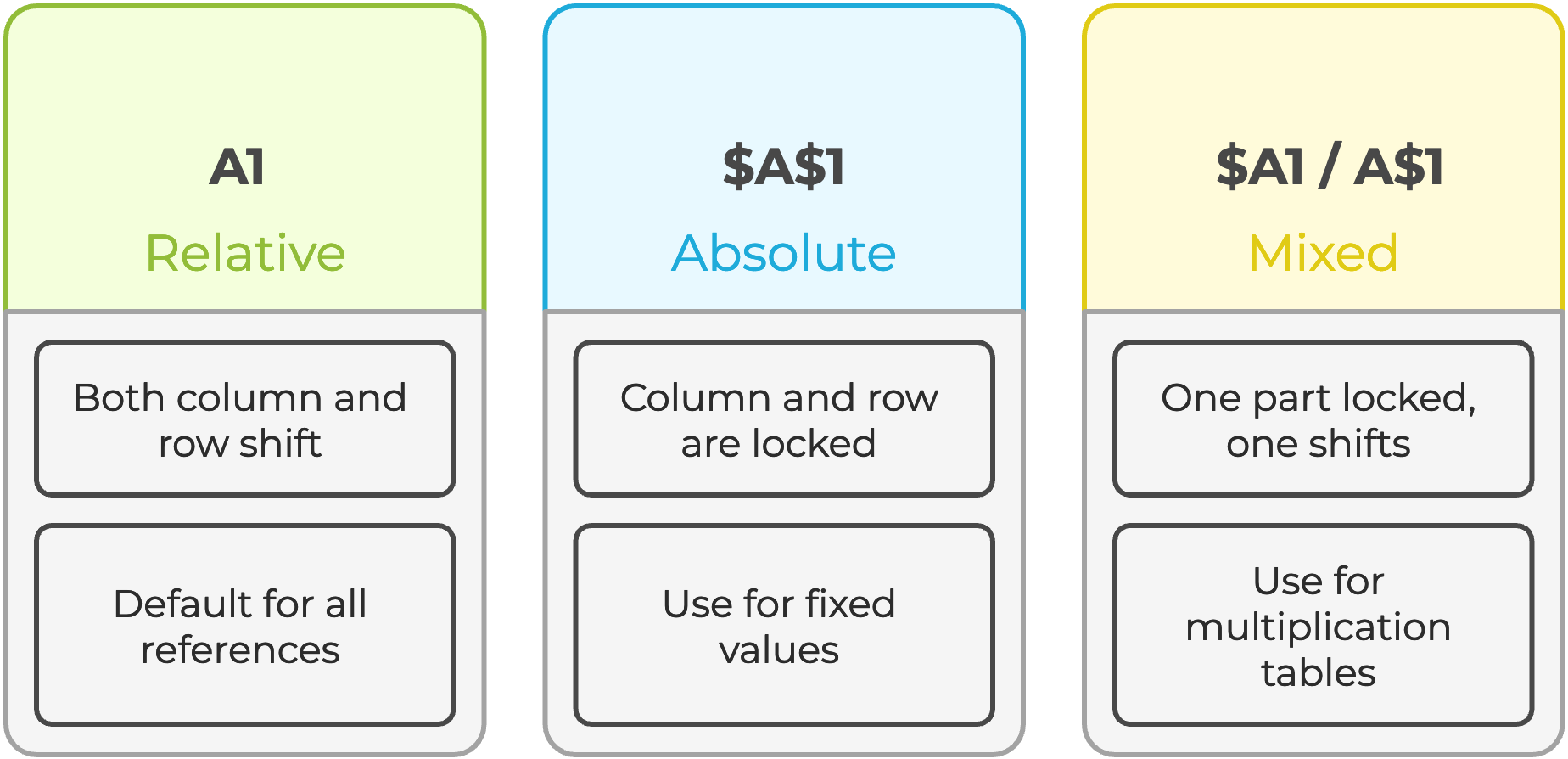
Seleccionar cualquier referencia de celda dentro de una fórmula en la barra de fórmulas y presionar F4 para alternar automáticamente entre los cuatro tipos de referencia.
Pegado especial
En ocasiones es necesario fijar los resultados calculados, enviar una instantánea a un colega, evitar el recálculo o romper una dependencia circular. Pegar valores elimina la fórmula y conserva solo el número producido por la fórmula.
- Usar el atajo
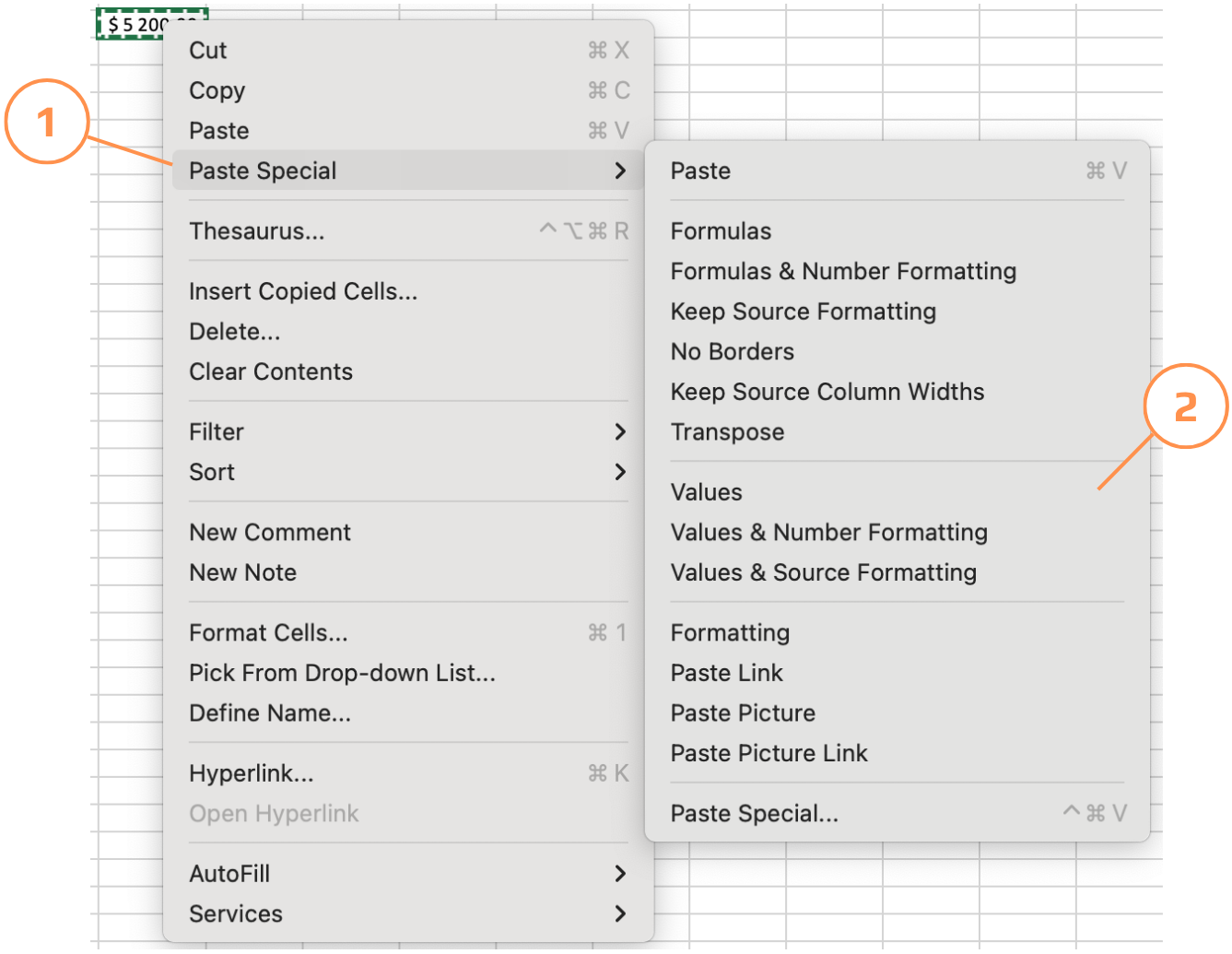
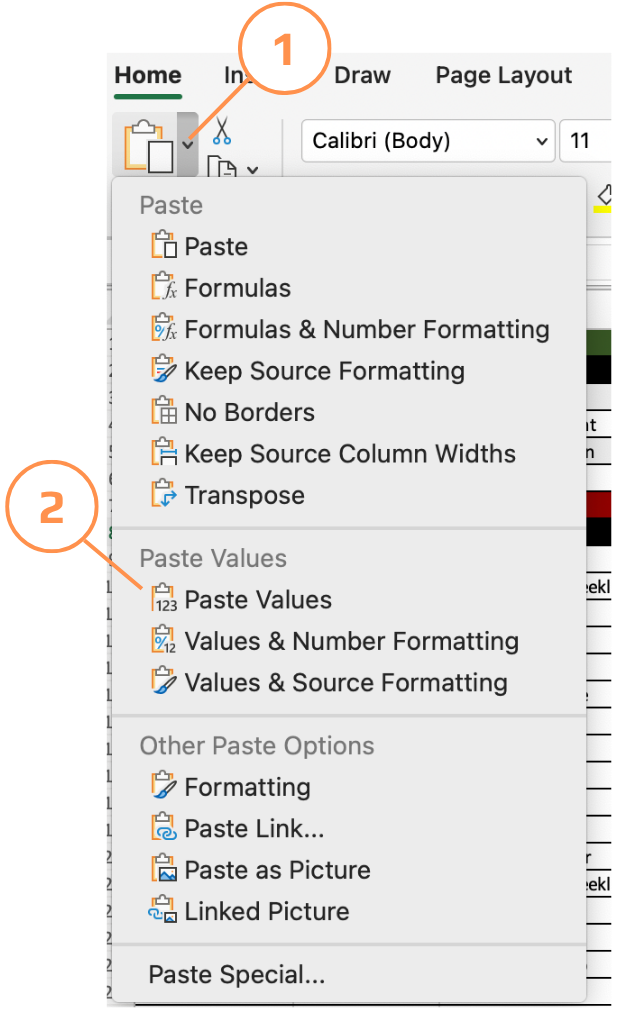
Ctrl+Alt+Vpara pegar solo los valores; - Copiar las celdas → hacer clic derecho en el destino → elegir Pegado especial → Valores;
- El menú Pegado especial ofrece más que solo valores: permite pegar solo formatos, solo fórmulas, transponer filas a columnas o pegar como imagen vinculada. Todo accesible desde Inicio → Pegar → Pegado especial.
Extraer datos de otra hoja
Cuando un valor se utiliza en varias hojas: una tasa de impuesto, un año, un nombre de empresa, almacenarlo una sola vez en una hoja dedicada y referenciarlo en todas partes es mucho más ordenado que duplicarlo. Si el valor cambia, solo necesitas actualizarlo en un lugar y todas las fórmulas se actualizan automáticamente.
=D9*'Tax rate'!$A$2
El ! (signo de exclamación) separa el nombre de la hoja de la dirección de la celda. Excel lo escribe automáticamente cuando haces clic en una celda de otra hoja al ingresar una fórmula, no es necesario escribirlo manualmente.
¡Gracias por tus comentarios!
Pregunte a AI

Pregunte a AI

Pregunte lo que quiera o pruebe una de las preguntas sugeridas para comenzar nuestra charla
Control de Referencias y Resultados de Fórmulas
Cuando arrastras una fórmula hacia abajo, Excel ajusta automáticamente cada referencia de celda por una fila. La mayoría de las veces eso es exactamente lo que deseas: la fórmula para la fila 10 debe referenciar los datos de la fila 10. Pero algunas referencias nunca deben moverse: una tasa de impuesto almacenada en una sola celda, una tasa de cambio, un umbral fijo. Sin los signos de dólar, al arrastrar se rompen esas referencias sin aviso.
Si =D9*G1 se arrastra hacia abajo, la fila 10 se convierte en =D10*G2, la fila 11 en =D11*G3, y así sucesivamente. G2 y G3 están vacías, por lo que cada cálculo de impuestos devuelve cero. No hay mensaje de error. Solo números incorrectos que parecen plausibles.
Referencias de celda
Seleccionar cualquier referencia de celda dentro de una fórmula en la barra de fórmulas y presionar F4 para alternar automáticamente entre los cuatro tipos de referencia.
Pegado especial
En ocasiones es necesario fijar los resultados calculados, enviar una instantánea a un colega, evitar el recálculo o romper una dependencia circular. Pegar valores elimina la fórmula y conserva solo el número producido por la fórmula.
- Usar el atajo
Ctrl+Alt+Vpara pegar solo los valores; - Copiar las celdas → hacer clic derecho en el destino → elegir Pegado especial → Valores;
- El menú Pegado especial ofrece más que solo valores: permite pegar solo formatos, solo fórmulas, transponer filas a columnas o pegar como imagen vinculada. Todo accesible desde Inicio → Pegar → Pegado especial.
Extraer datos de otra hoja
Cuando un valor se utiliza en varias hojas: una tasa de impuesto, un año, un nombre de empresa, almacenarlo una sola vez en una hoja dedicada y referenciarlo en todas partes es mucho más ordenado que duplicarlo. Si el valor cambia, solo necesitas actualizarlo en un lugar y todas las fórmulas se actualizan automáticamente.
=D9*'Tax rate'!$A$2
El ! (signo de exclamación) separa el nombre de la hoja de la dirección de la celda. Excel lo escribe automáticamente cuando haces clic en una celda de otra hoja al ingresar una fórmula, no es necesario escribirlo manualmente.
¡Gracias por tus comentarios!
