Verwendung von Benannten Bereichen für Geschwindigkeit
Swipe um das Menü anzuzeigen
Eine Formel wie =SUMIFS($E$2:$E$51;$C$2:$C$51;J2) ist korrekt, aber unverständlich. Eine Formel wie =SUMIFS(Revenue; Region; J2) beschreibt genau, was sie tut. Jeder, der sie liest – auch Sie selbst in sechs Monaten – versteht sie sofort.
Benannte Bereiche ersetzen Zelladressen durch beschreibende Bezeichnungen. Neben der besseren Lesbarkeit machen sie Formeln wartungsfreundlicher: Wenn sich der Datenbereich ändert, aktualisieren Sie die Namensdefinition einmal und jede Formel, die diesen Namen verwendet, wird automatisch angepasst.
Erstellen eines benannten Bereichs
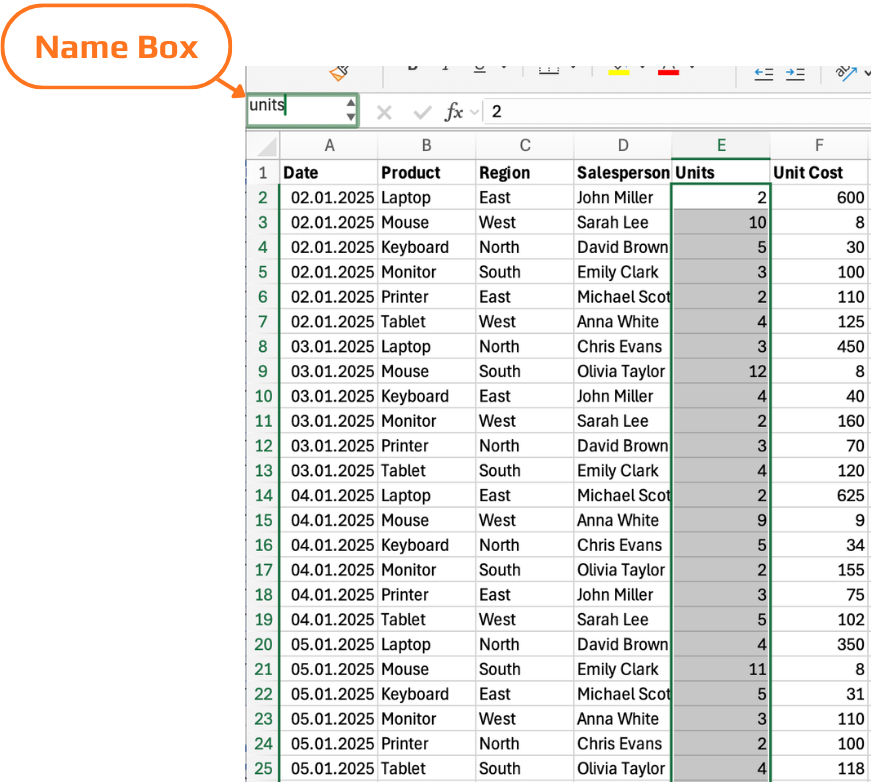
Das Namensfeld ist das Feld am linken Ende der Bearbeitungsleiste, das normalerweise die Adresse der aktiven Zelle anzeigt.
- Zelle oder Bereich auswählen, den Sie benennen möchten;
- Auf das Namensfeld klicken;
- Namen eingeben → Enter drücken.
Benennungsregeln
- Namen müssen mit einem Buchstaben oder Unterstrich beginnen – nicht mit einer Zahl;
- Keine Leerzeichen erlaubt – Unterstriche (
Unit_Cost) oder CamelCase (UnitCost) verwenden; - Namen sind nicht groß-/klein-schreibungssensitiv –
Revenueundrevenuebeziehen sich auf denselben Namen; - Namen dürfen nicht wie Zelladressen aussehen –
E2oderR1C1sind keine gültigen Namen; - Namen können bis zu 255 Zeichen lang sein.
Nach der Definition verwenden Sie den Namen genauso wie eine Zelladresse: =SUM(Revenue) statt =SUM($E$2:$E$51).
Benannte Bereiche erscheinen in der Formel-Autovervollständigung – beginnen Sie mit der Eingabe des Namens und Excel schlägt ihn im Dropdown vor, genau wie Funktionsnamen. Mit Tab einfügen.
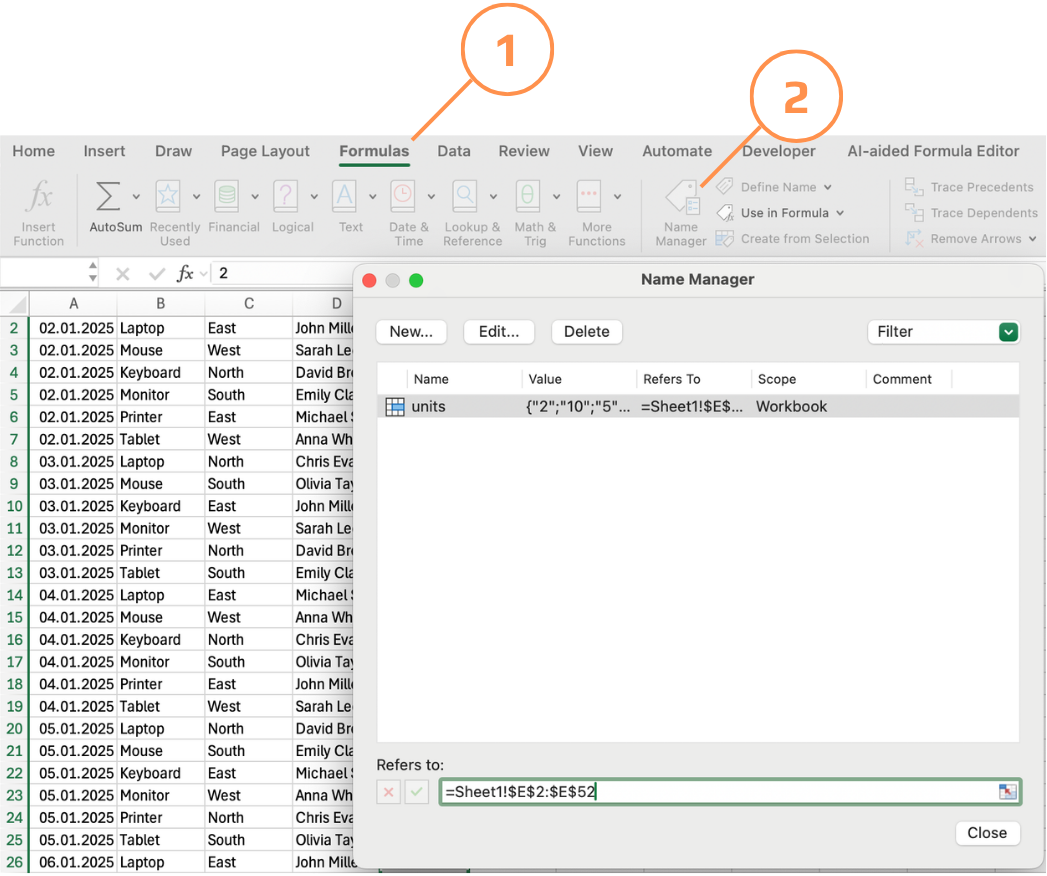
Der Namens-Manager
Der Namens-Manager zeigt alle benannten Bereiche und Formeln in der Arbeitsmappe mit ihrem aktuellen Bezug, Gültigkeitsbereich und Wert an. Hier können Sie:
- Namen oder deren Bezug bearbeiten — wenn Datenzeilen hinzugefügt werden und ein benannter Bereich erweitert werden muss, aktualisieren Sie den Bezug hier;
- Nicht mehr benötigte Namen löschen;
- Nach Gültigkeitsbereich filtern (Arbeitsblatt- vs. Arbeitsmappennamen) oder nach Fehlerstatus filtern.
Wenn ein benannter Bereich auf einen Bereich verweist, der gelöscht oder verschoben wurde, kennzeichnet der Namens-Manager dies mit #REF!. Überprüfen Sie die Namen regelmäßig — insbesondere in Arbeitsmappen, die stark bearbeitet wurden —, um die Namensliste übersichtlich zu halten.
Benannte Bereiche zur Berechnung des Umsatzes verwenden.
Erstellen Sie benannte Bereiche für die Spalten Units und Unit Cost und verwenden Sie diese zur Berechnung des Revenue.
- Einen benannten Bereich
Unitsfür den Bereich E2:E52 erstellen. - Einen benannten Bereich
Unit_costsfür den Bereich F2:F52 erstellen. - In Zelle G2 eine Formel eingeben, die Revenue unter Verwendung der benannten Bereiche berechnet.
- Bereich auswählen → Namen im Namensfeld eingeben → Enter drücken.
- Oder Formeln → Namen definieren verwenden.
- In G2 verwenden:
=Units*Unit_costs
- Falls erforderlich, als Array-/dynamische Formel bestätigen (abhängig von der Excel-Version).
- Sicherstellen, dass beide Bereiche die gleiche Größe haben (E2:E52 und F2:F52).
Danke für Ihr Feedback!
Fragen Sie AI

Fragen Sie AI

Fragen Sie alles oder probieren Sie eine der vorgeschlagenen Fragen, um unser Gespräch zu beginnen
