Dateien Freigeben und Zugriff Verwalten
Swipe um das Menü anzuzeigen
Excel ermöglicht es Benutzern, Arbeitsmappen direkt über OneDrive zu teilen und gemeinsam zu bearbeiten, ohne Dateianhänge manuell versenden zu müssen. Anstatt mehrere Kopien einer Arbeitsmappe zu erstellen, kann das Team in derselben freigegebenen Datei arbeiten.
Bevor eine Arbeitsmappe geteilt werden kann, muss sie in OneDrive oder SharePoint gespeichert sein. Lokal auf einem Computer gespeicherte Dateien können die modernen Kollaborationsfunktionen nicht nutzen.
Öffnen des Freigabefensters
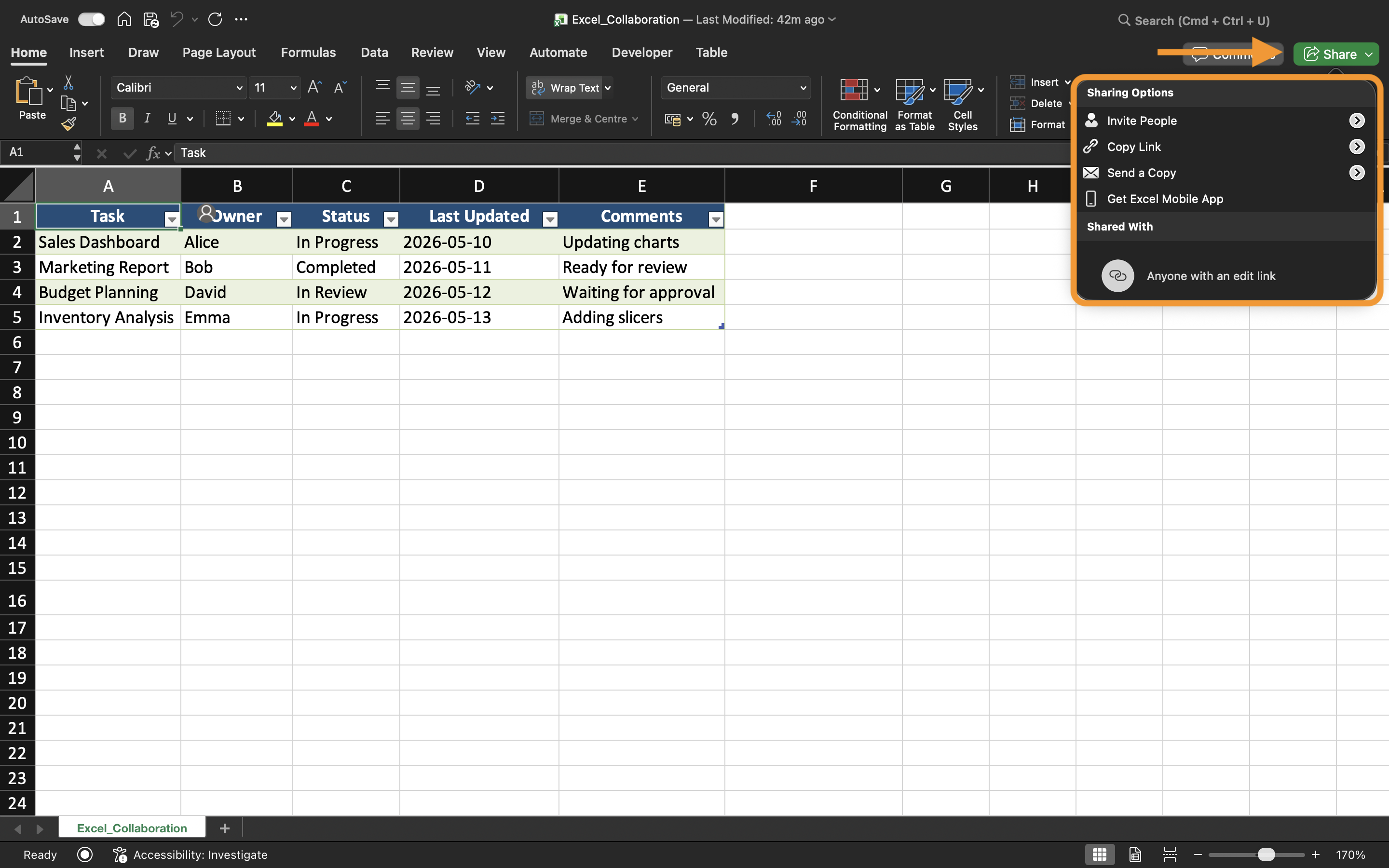
Um eine Arbeitsmappe zu teilen:
- Excel-Arbeitsmappe öffnen;
- Die Schaltfläche Teilen oben rechts auswählen;
- Festlegen, wie die Datei geteilt werden soll.
Excel ermöglicht es, Mitbearbeiter per E-Mail-Adresse einzuladen oder Freigabelinks zu generieren.
Verständnis der Berechtigungstypen
Beim Teilen einer Arbeitsmappe bietet Excel verschiedene Berechtigungsstufen, je nachdem, wie Mitbearbeiter mit der Datei interagieren sollen.
Die zwei häufigsten Berechtigungstypen sind:
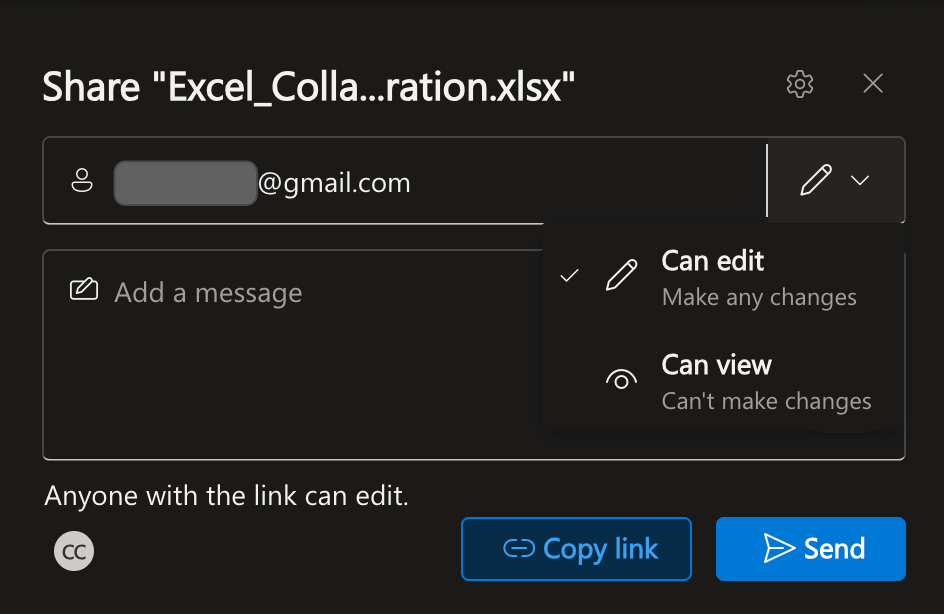
- Darf bearbeiten: Benutzer können den Inhalt der Arbeitsmappe ändern;
- Darf anzeigen: Benutzer können die Arbeitsmappe nur ansehen.
Die Auswahl des richtigen Berechtigungstyps ist wichtig, insbesondere bei sensiblen Berichten oder finalisierten Dateien.
Beispielsweise kann ein Finanzmanager dem Buchhaltungsteam Bearbeitungsrechte gewähren, während Führungskräfte nur Leserechte erhalten.
Freigabe über E-Mail-Einladungen
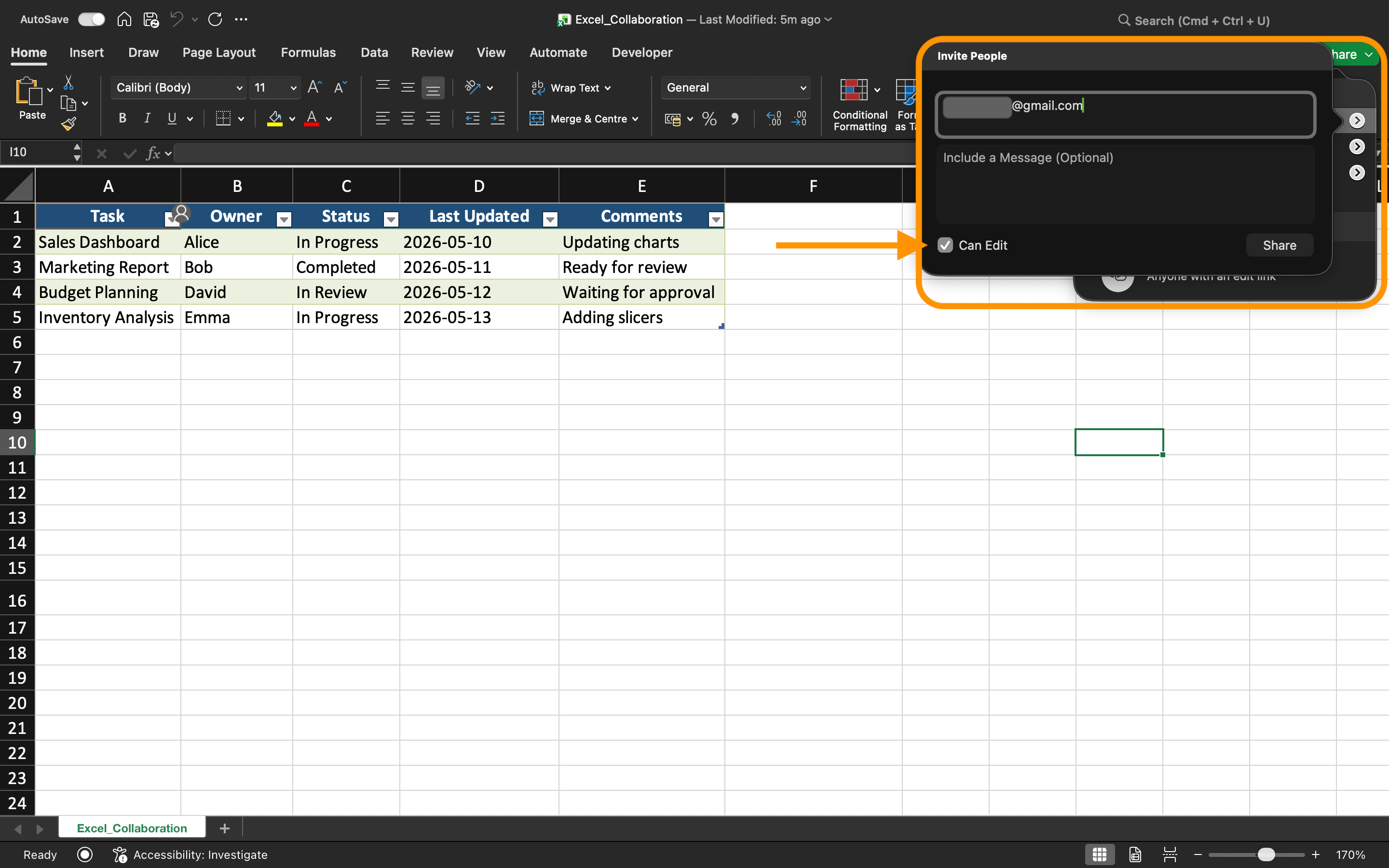
Excel kann Arbeitsmappeneinladungen direkt per E-Mail versenden. Nach Eingabe der E-Mail-Adressen der Mitwirkenden erhalten diese einen Link, der die geteilte Arbeitsmappe automatisch öffnet.
Diese Methode wird häufig innerhalb von Organisationen verwendet, da der Zugriff an bestimmte Benutzerkonten gebunden bleibt.
Beim Teilen über Einladungen ermöglicht Excel außerdem:
- Hinzufügen einer kurzen Nachricht;
- Steuerung der Bearbeitungsberechtigungen;
- Verhindern, dass Mitwirkende die Datei erneut freigeben.
Erstellen von Freigabelinks
Anstatt Benutzer einzeln einzuladen, kann Excel Kollaborationslinks generieren.
Gängige Linktypen sind:
- Nur-Anzeigen-Links;
- Bearbeitbare Links;
- Nur-für-die-Organisation-Links.
Links beschleunigen die Zusammenarbeit, insbesondere wenn viele Benutzer Zugriff auf dieselbe Arbeitsmappe benötigen.
Die Berechtigungseinstellungen sollten jedoch immer sorgfältig überprüft werden, bevor Links extern versendet werden.
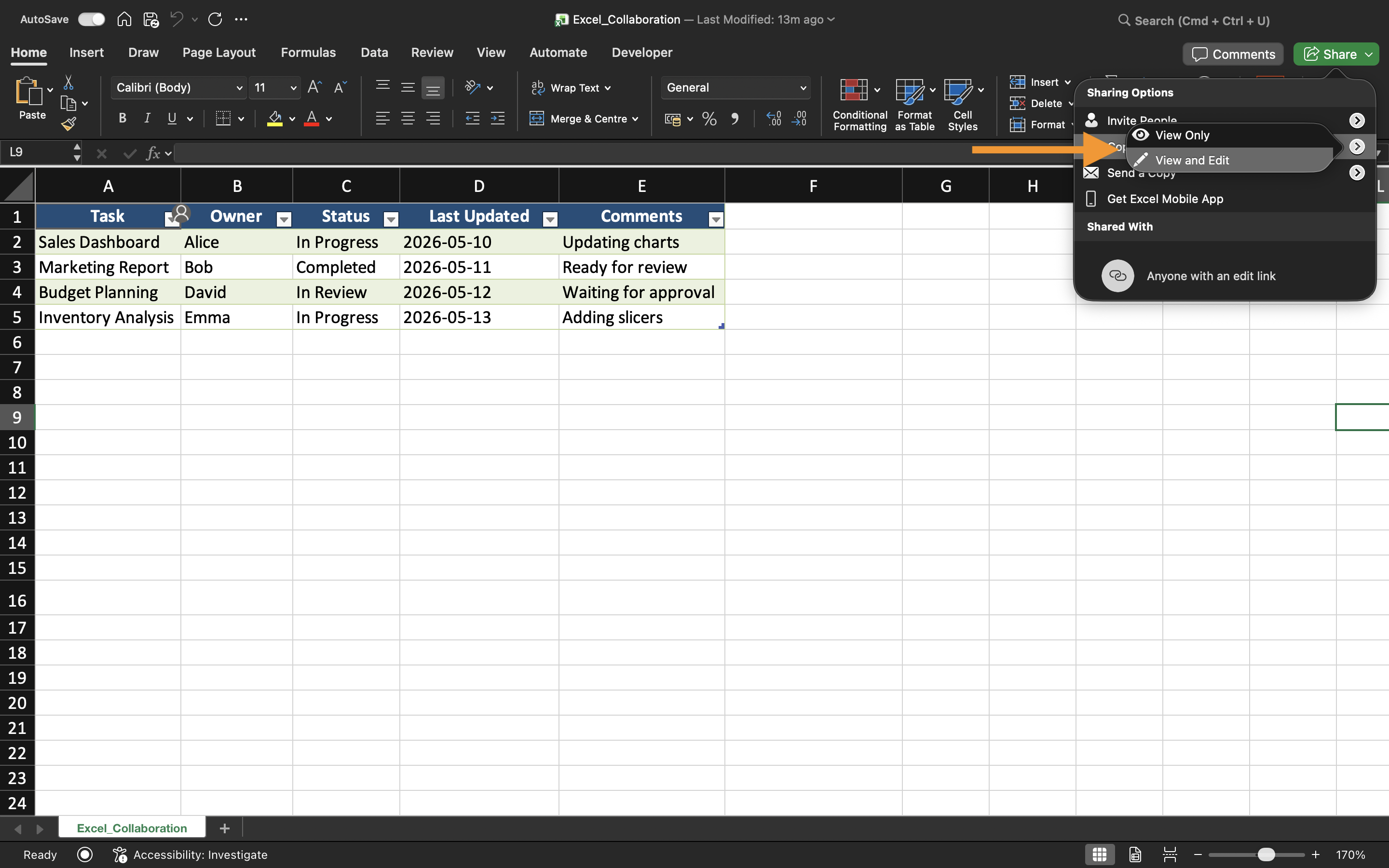
Verwalten des Arbeitsmappen-Zugriffs
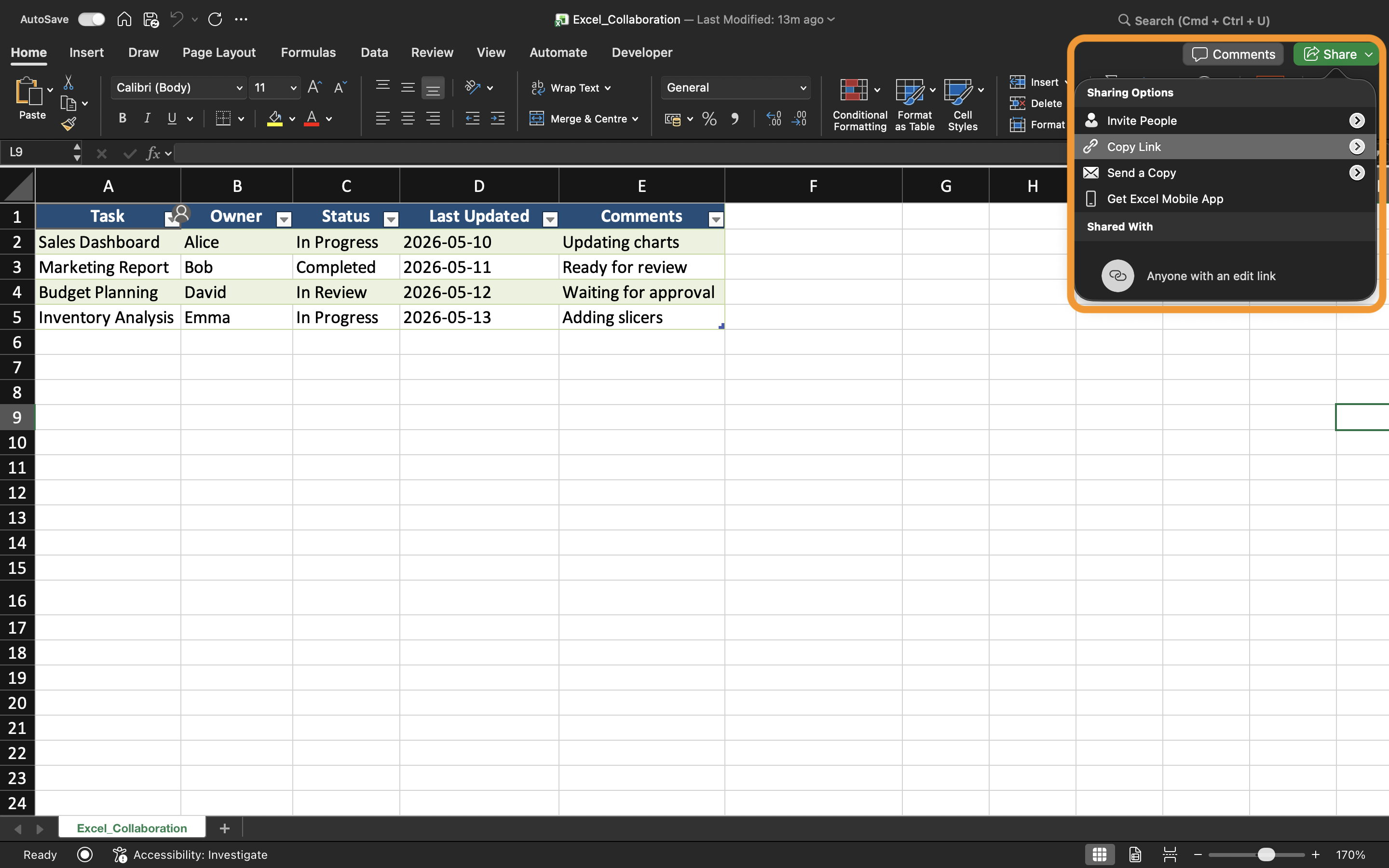
Der Zugriff auf Arbeitsmappen kann jederzeit über die Freigabeeinstellungen geändert werden.
Excel ermöglicht es Benutzern:
- Mitbearbeiter zu entfernen;
- Berechtigungen zu ändern;
- Freigabelinks zu deaktivieren;
- Zu überprüfen, wer aktuell Zugriff hat.
Dies trägt zu einer besseren Sicherheit bei und verhindert unbefugte Änderungen an der Arbeitsmappe.
Best Practices für geteilte Dateien
Beim professionellen Teilen von Excel-Arbeitsmappen:
- Klare Arbeitsmappennamen verwenden;
- Dateien in organisierten Ordnern speichern;
- Das Versenden doppelter Anhänge vermeiden;
- Bearbeitungsrechte nach Möglichkeit einschränken;
- Den Zugriff der Mitbearbeiter regelmäßig überprüfen.
Diese Vorgehensweisen helfen Teams, eine übersichtlichere und sicherere Zusammenarbeit zu gewährleisten.
Aufgabe
Die Arbeitsmappe enthält einen monatlichen Verkaufsbericht, der von mehreren Abteilungsleitern genutzt wird. Ziel ist es, die Arbeitsmappe mit Bearbeitungszugriff für Teammitglieder zu teilen und einen separaten Nur-Lese-Link für Führungskräfte zu erstellen.
- Die Arbeitsmappe in OneDrive speichern;
- Das Freigabefenster öffnen;
- Eine Freigabeeinladung mit Bearbeitungsrechten erstellen;
- Einen Nur-Lese-Freigabelink generieren;
- Die aktuellen Zugriffsrechte der Arbeitsmappe überprüfen.
Danke für Ihr Feedback!
Fragen Sie AI

Fragen Sie AI

Fragen Sie alles oder probieren Sie eine der vorgeschlagenen Fragen, um unser Gespräch zu beginnen
