Wie Zusammenarbeit in Excel Funktioniert
Swipe um das Menü anzuzeigen
Moderne Excel-Arbeitsabläufe basieren auf Zusammenarbeit. Anstatt Arbeitsmappen als E-Mail-Anhänge zu versenden, arbeiten Teams heute in gemeinsam genutzten, cloudbasierten Dateien.
Excel-Zusammenarbeit wird häufig genutzt, wenn mehrere Benutzer Zugriff auf dieselbe Arbeitsmappe benötigen, Berichte laufend aktualisiert werden müssen oder Teams remote arbeiten. Die Zusammenarbeit in der Cloud hilft, doppelte Dateien zu vermeiden und hält Arbeitsmappendaten für alle Benutzer synchron.
Verständnis cloudbasierter Excel-Dateien
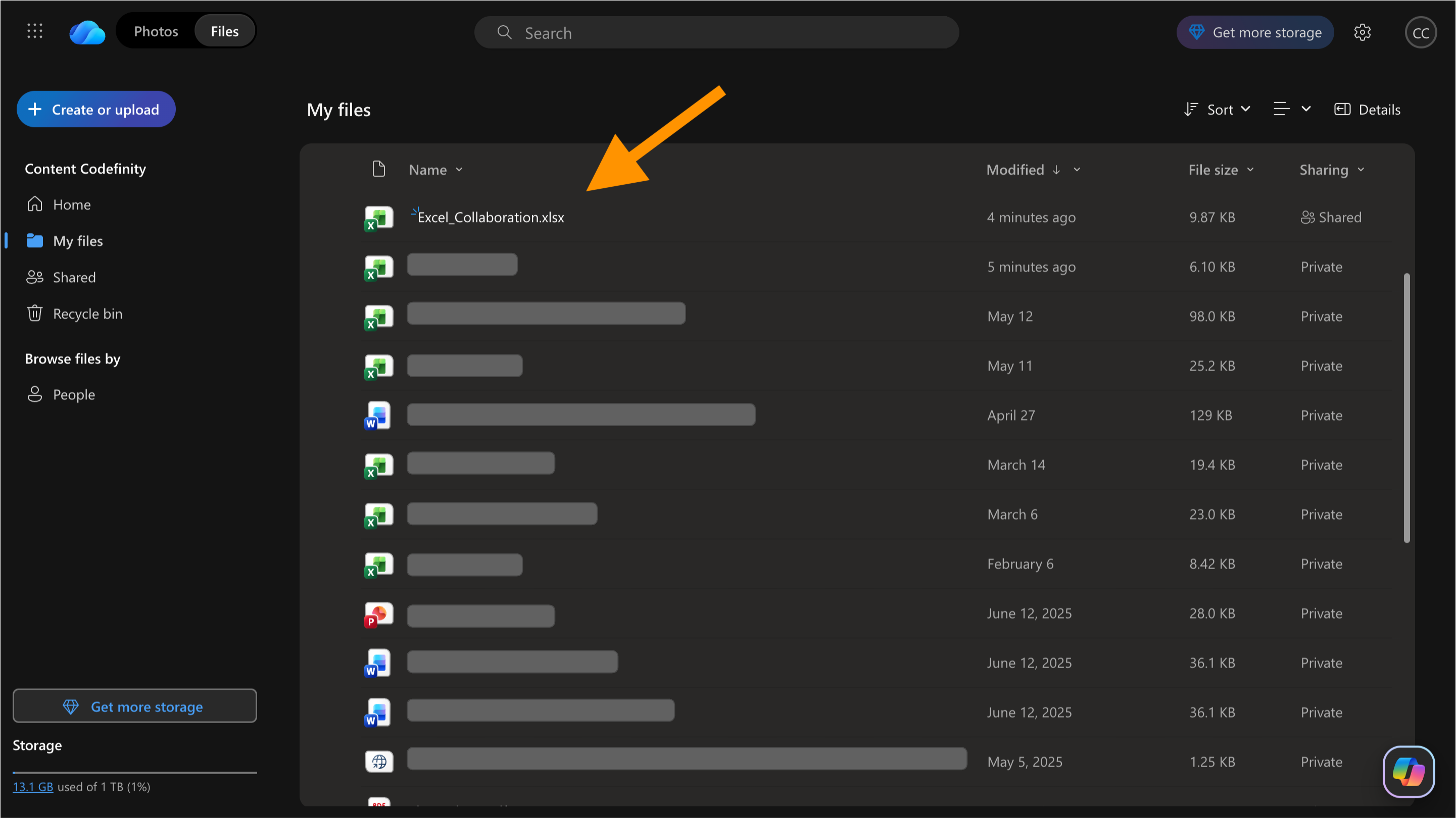
Die Zusammenarbeit in Excel erfolgt hauptsächlich über Microsoft OneDrive und SharePoint. Wird eine Arbeitsmappe in der Cloud gespeichert, können mehrere Benutzer gleichzeitig auf dieselbe Datei zugreifen, Änderungen werden automatisch gespeichert und eine Versionshistorie ist verfügbar.
Anstatt separate Kopien der Arbeitsmappe zu erstellen, arbeiten alle Beteiligten in einer einzigen, gemeinsam genutzten Datei. Dies beschleunigt die Teamarbeit und reduziert Verwirrung durch veraltete Versionen.
Verständnis von AutoSpeichern
Wird eine Arbeitsmappe in OneDrive gespeichert, aktiviert Excel automatisch AutoSpeichern. Diese Funktion speichert Änderungen an der Arbeitsmappe fortlaufend, während Benutzer in der Datei arbeiten.
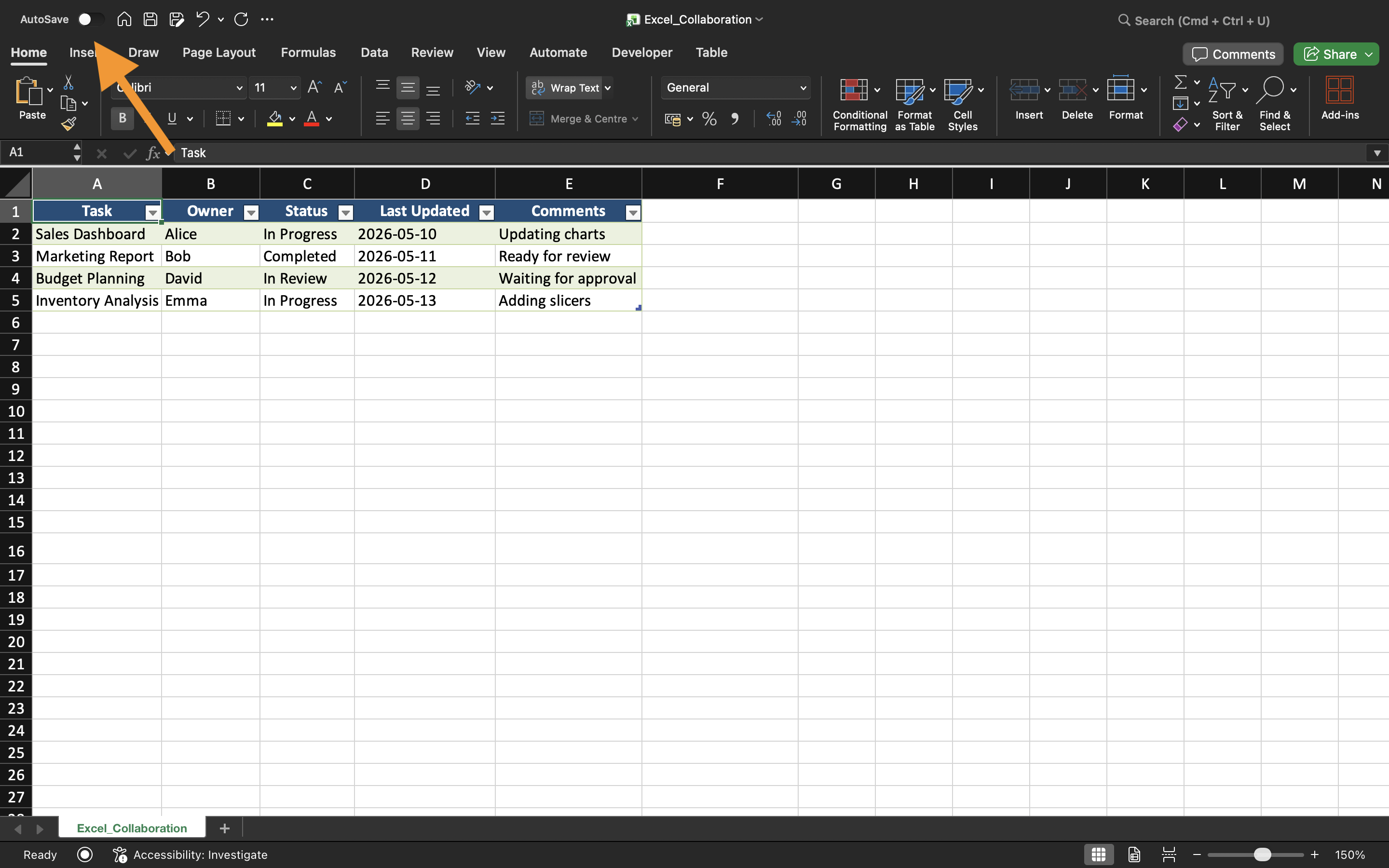
AutoSpeichern hilft, Datenverluste durch Programmabstürze, Browser-Aktualisierungen oder unerwartete Abschaltungen zu vermeiden. Der AutoSpeichern-Schalter befindet sich oben links in Excel.
Funktionsweise gemeinsam genutzter Arbeitsmappen
Eine gemeinsam genutzte Arbeitsmappe ermöglicht mehreren Benutzern die Arbeit in derselben Excel-Datei. Je nach Berechtigung können Mitwirkende den Inhalt der Arbeitsmappe anzeigen, Arbeitsblätter bearbeiten, Kommentare hinzufügen oder Änderungen überprüfen.
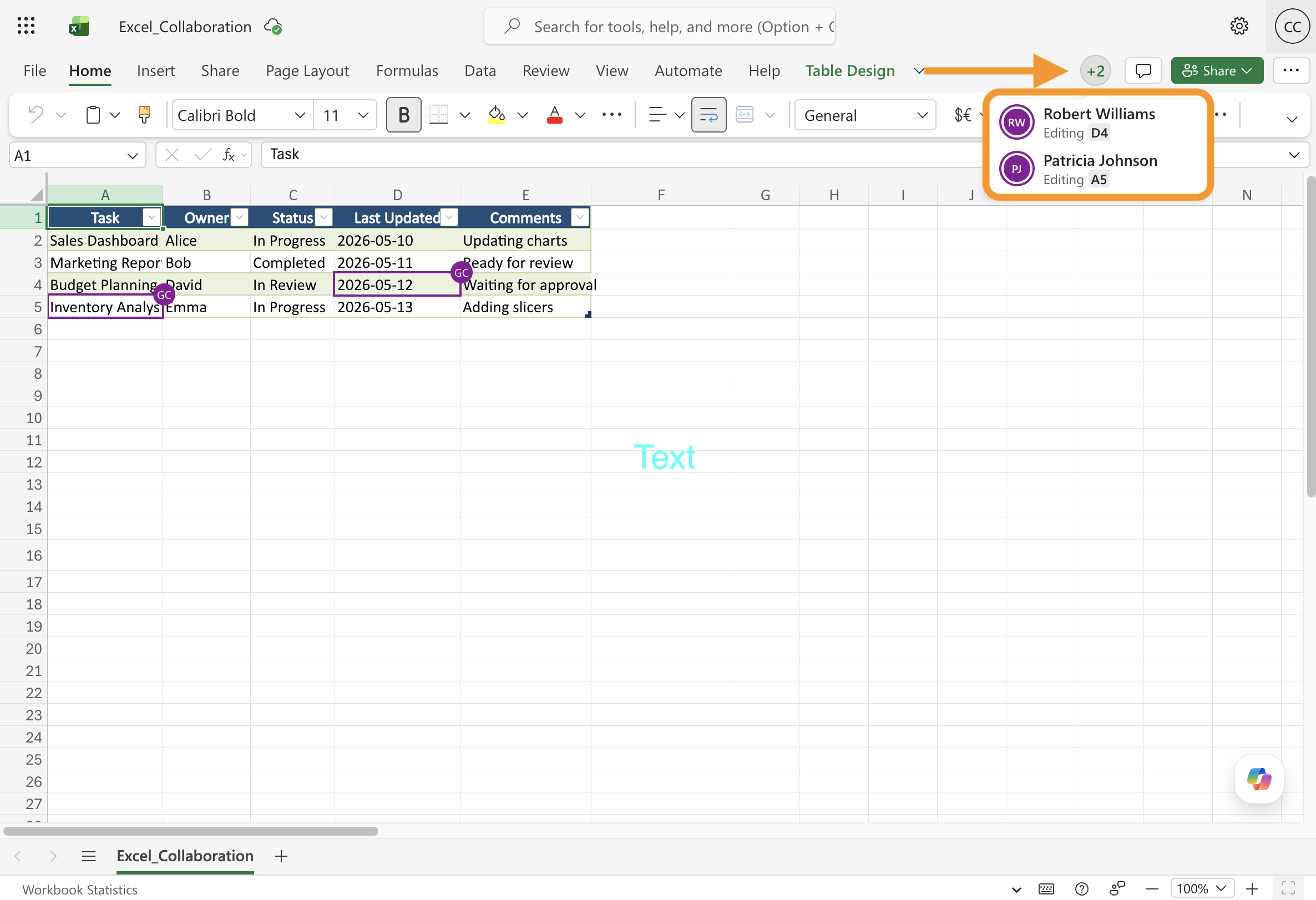
Wenn mehrere Benutzer gleichzeitig an der Arbeitsmappe arbeiten, synchronisiert Excel die Aktualisierungen automatisch. Dies sorgt für einen deutlich reibungsloseren Arbeitsablauf im Vergleich zum manuellen Versenden von Arbeitsmappen als Anhang.
Vorteile der Zusammenarbeit in Excel
Moderne Excel-Zusammenarbeit verbessert die Teamarbeit durch:
- Reduzierung doppelter Arbeitsmappenkopien;
- Vereinfachung der Kommunikation;
- Verbesserung der Versionsverfolgung;
- Synchronisierung von Dateien über Teams hinweg.
Diese Arbeitsabläufe werden häufig in den Bereichen Finanzen, Marketing, Betrieb, Vertrieb und Projektmanagement eingesetzt.
Danke für Ihr Feedback!
Fragen Sie AI

Fragen Sie AI

Fragen Sie alles oder probieren Sie eine der vorgeschlagenen Fragen, um unser Gespräch zu beginnen
Wie Zusammenarbeit in Excel Funktioniert
Moderne Excel-Arbeitsabläufe basieren auf Zusammenarbeit. Anstatt Arbeitsmappen als E-Mail-Anhänge zu versenden, arbeiten Teams heute in gemeinsam genutzten, cloudbasierten Dateien.
Excel-Zusammenarbeit wird häufig genutzt, wenn mehrere Benutzer Zugriff auf dieselbe Arbeitsmappe benötigen, Berichte laufend aktualisiert werden müssen oder Teams remote arbeiten. Die Zusammenarbeit in der Cloud hilft, doppelte Dateien zu vermeiden und hält Arbeitsmappendaten für alle Benutzer synchron.
Verständnis cloudbasierter Excel-Dateien
Die Zusammenarbeit in Excel erfolgt hauptsächlich über Microsoft OneDrive und SharePoint. Wird eine Arbeitsmappe in der Cloud gespeichert, können mehrere Benutzer gleichzeitig auf dieselbe Datei zugreifen, Änderungen werden automatisch gespeichert und eine Versionshistorie ist verfügbar.
Anstatt separate Kopien der Arbeitsmappe zu erstellen, arbeiten alle Beteiligten in einer einzigen, gemeinsam genutzten Datei. Dies beschleunigt die Teamarbeit und reduziert Verwirrung durch veraltete Versionen.
Verständnis von AutoSpeichern
Wird eine Arbeitsmappe in OneDrive gespeichert, aktiviert Excel automatisch AutoSpeichern. Diese Funktion speichert Änderungen an der Arbeitsmappe fortlaufend, während Benutzer in der Datei arbeiten.
AutoSpeichern hilft, Datenverluste durch Programmabstürze, Browser-Aktualisierungen oder unerwartete Abschaltungen zu vermeiden. Der AutoSpeichern-Schalter befindet sich oben links in Excel.
Funktionsweise gemeinsam genutzter Arbeitsmappen
Eine gemeinsam genutzte Arbeitsmappe ermöglicht mehreren Benutzern die Arbeit in derselben Excel-Datei. Je nach Berechtigung können Mitwirkende den Inhalt der Arbeitsmappe anzeigen, Arbeitsblätter bearbeiten, Kommentare hinzufügen oder Änderungen überprüfen.
Wenn mehrere Benutzer gleichzeitig an der Arbeitsmappe arbeiten, synchronisiert Excel die Aktualisierungen automatisch. Dies sorgt für einen deutlich reibungsloseren Arbeitsablauf im Vergleich zum manuellen Versenden von Arbeitsmappen als Anhang.
Vorteile der Zusammenarbeit in Excel
Moderne Excel-Zusammenarbeit verbessert die Teamarbeit durch:
- Reduzierung doppelter Arbeitsmappenkopien;
- Vereinfachung der Kommunikation;
- Verbesserung der Versionsverfolgung;
- Synchronisierung von Dateien über Teams hinweg.
Diese Arbeitsabläufe werden häufig in den Bereichen Finanzen, Marketing, Betrieb, Vertrieb und Projektmanagement eingesetzt.
Danke für Ihr Feedback!
