Versionsverlauf und Dateiwiederherstellung
Swipe um das Menü anzuzeigen
Excel speichert automatisch frühere Arbeitsmappen-Versionen, wenn Dateien in OneDrive oder SharePoint gespeichert werden. Dadurch können Benutzer ältere Arbeitsmappenstände einsehen, verlorene Informationen wiederherstellen und Dateien nach versehentlichen Änderungen zurücksetzen.
Die Versionshistorie ist eine der wichtigsten Funktionen für die Zusammenarbeit, da sie Teams hilft, gemeinsam genutzte Arbeitsmappen über längere Zeit sicher zu verwalten.
Verständnis der Versionshistorie
Immer wenn Änderungen an einer cloudbasierten Arbeitsmappe vorgenommen werden, speichert Excel automatisch frühere Versionen. Diese Versionen bilden eine Zeitleiste der Arbeitsmappen-Updates.
Die Versionshistorie unterstützt Benutzer dabei:
- Ältere Arbeitsmappenstände wiederherzustellen;
- Gelöschte Informationen zurückzuholen;
- Frühere Änderungen an der Arbeitsmappe zu überprüfen;
- Größere Bearbeitungsfehler rückgängig zu machen.
Dies ist besonders nützlich, wenn mehrere Personen gleichzeitig an derselben Datei arbeiten.
Öffnen der Versionshistorie
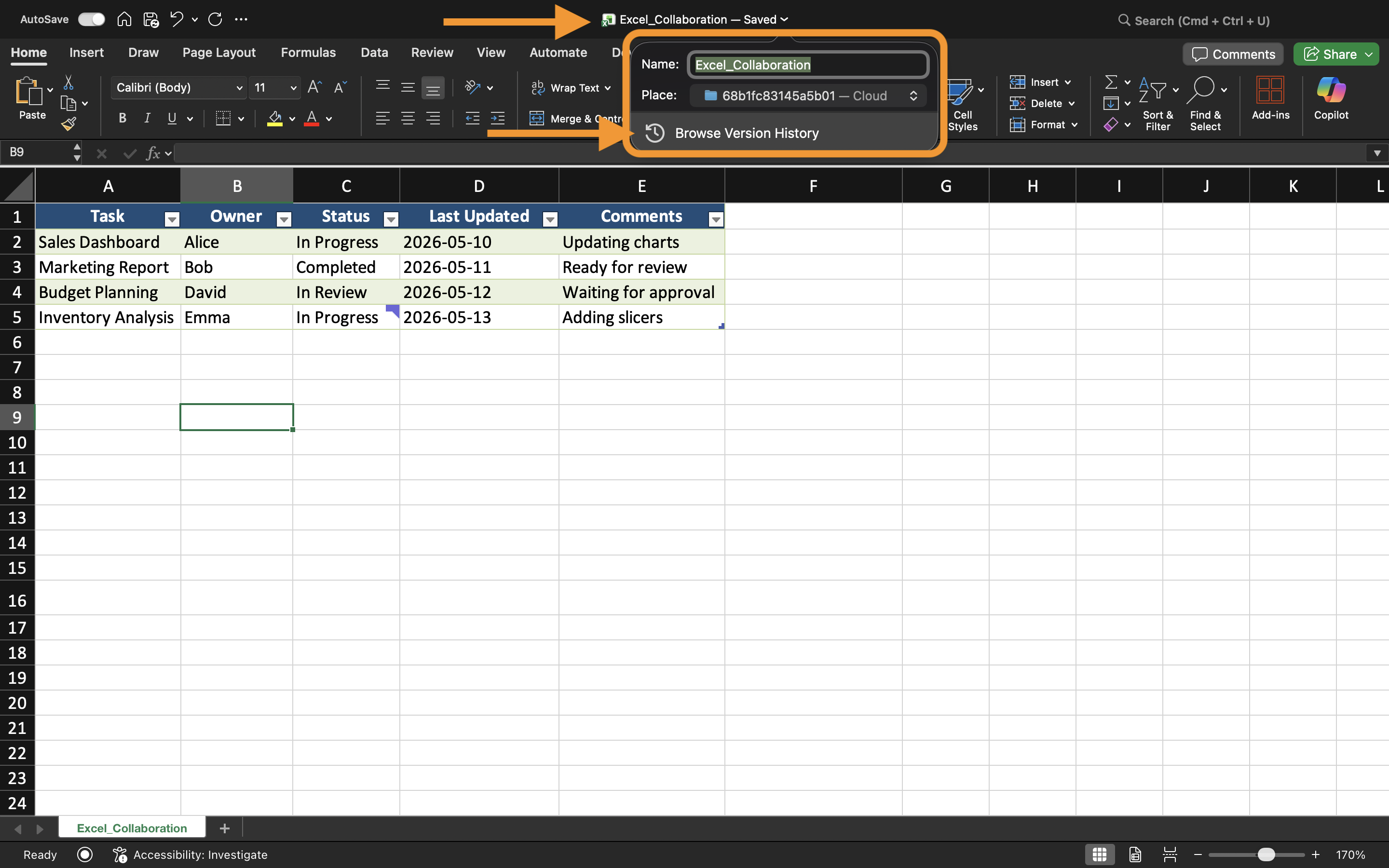
So kann die Versionshistorie angezeigt werden:
- Die geteilte Arbeitsmappe öffnen;
- Den Arbeitsmappennamen oben in Excel auswählen;
- Versionsverlauf wählen.
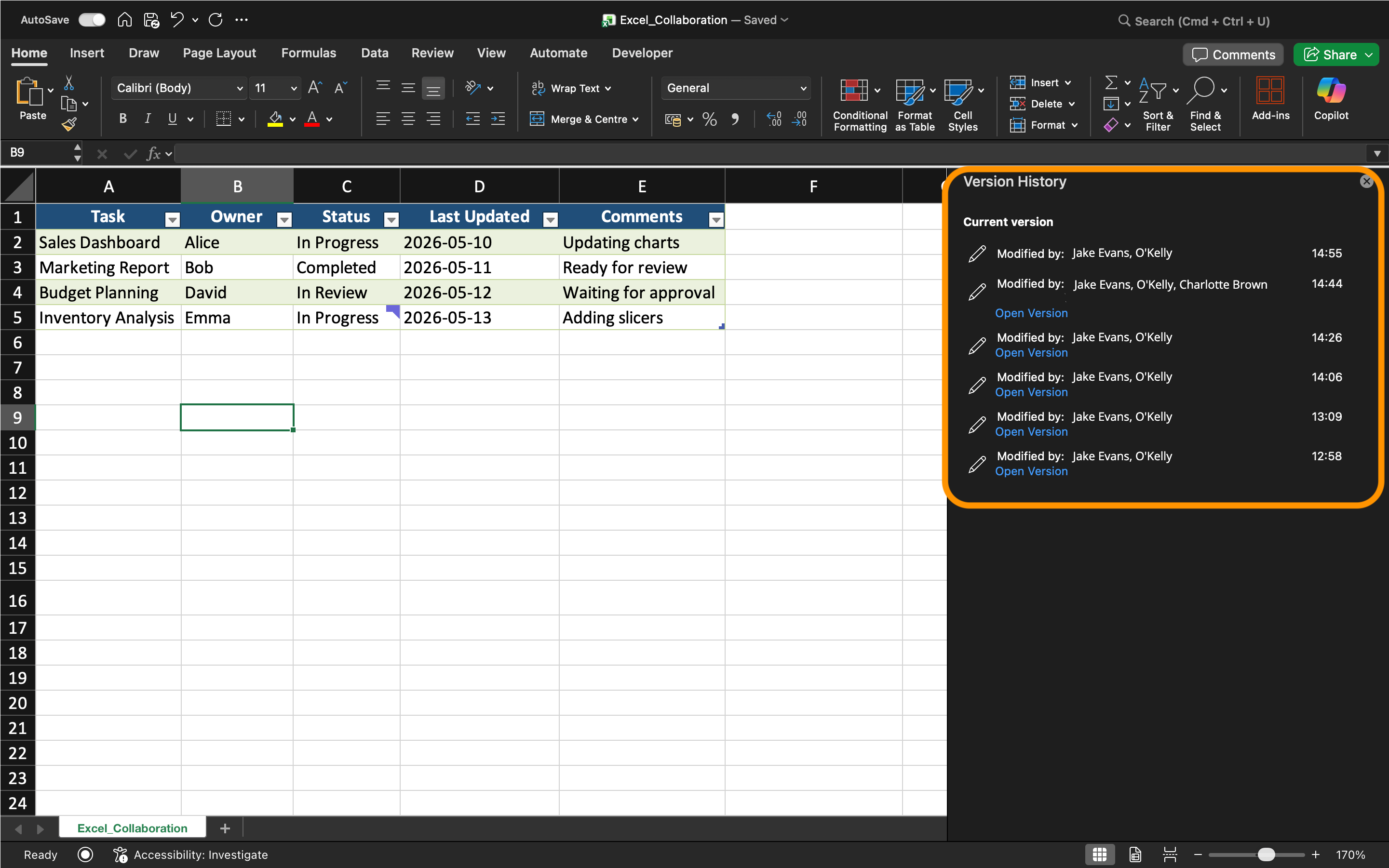
Excel zeigt eine Liste der zuvor gespeicherten Arbeitsmappen-Versionen mit Zeitstempeln und Informationen zu den Mitwirkenden an.
Benutzer können ältere Versionen öffnen, ohne die aktuelle Arbeitsmappe sofort zu ersetzen.
Wiederherstellen älterer Versionen
Wenn Arbeitsmappendaten beschädigt oder versehentlich gelöscht werden, kann eine ältere Version wiederhergestellt werden.
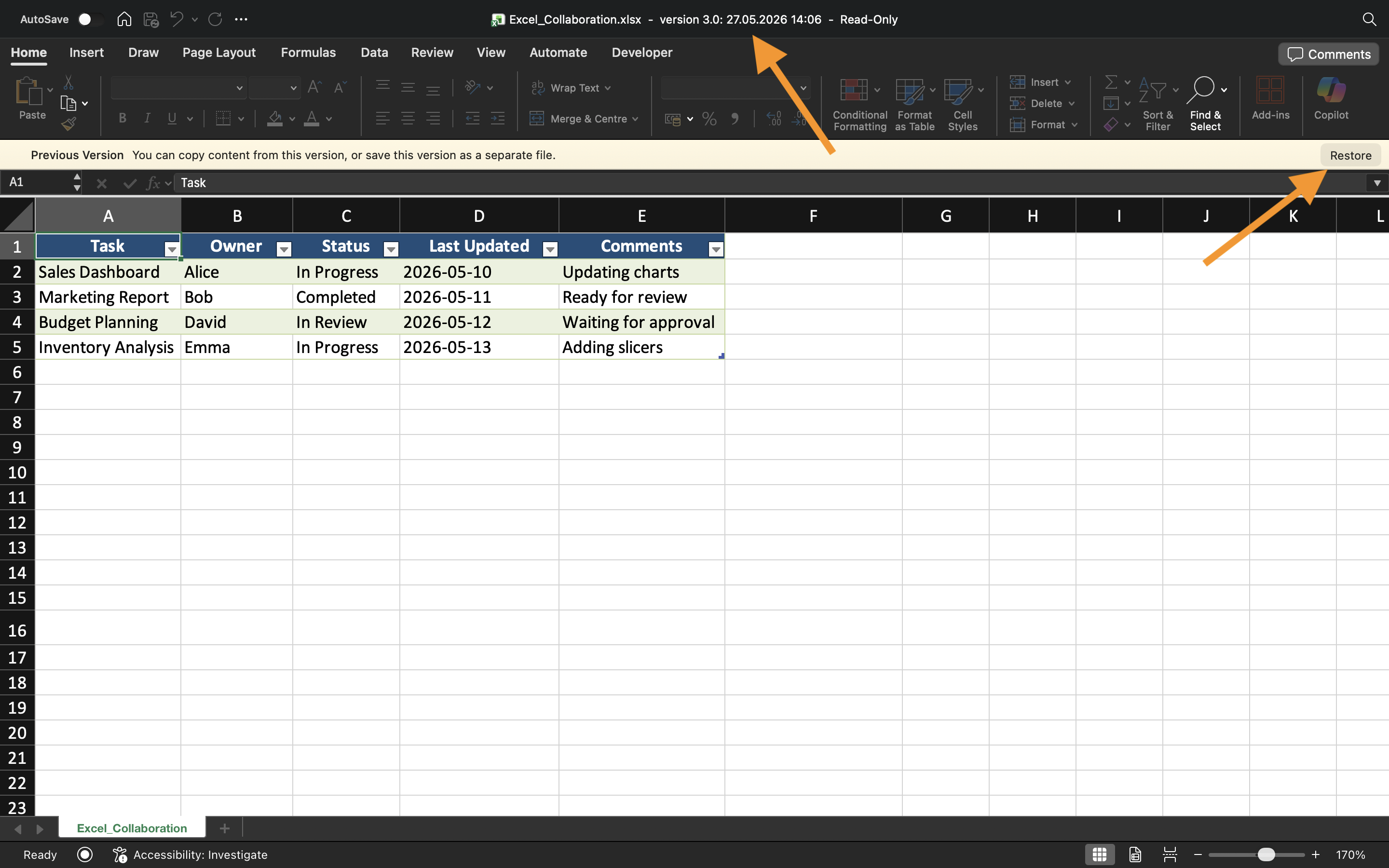
So wird eine Version wiederhergestellt:
- Versionsverlauf öffnen;
- Die gewünschte Arbeitsmappen-Version auswählen;
- Den Inhalt der Arbeitsmappe überprüfen;
- Wiederherstellen wählen, wenn die Version korrekt ist.
Excel ersetzt dann den aktuellen Stand der Arbeitsmappe durch die ausgewählte frühere Version.
Das Wiederherstellen von Versionen wird häufig genutzt nach:
- Versehentlichen Löschungen;
- Falschen Datenimporten;
- Formel-Fehlern;
- Größeren unerwünschten Änderungen.
Wiederherstellung nicht gespeicherter Arbeiten
Excel bietet außerdem AutoWiederherstellen, das hilft, nicht gespeicherte Arbeitsmappenänderungen nach Abstürzen oder unerwarteten Schließungen wiederherzustellen.
Wenn Excel unerwartet geschlossen wird, erscheinen Wiederherstellungsdateien möglicherweise automatisch beim nächsten Öffnen der Anwendung.
AutoWiederherstellen unterscheidet sich von der Versionshistorie:
Aufgabe
Die Arbeitsmappe enthält einen gemeinsam genutzten Betriebsbericht, der während der Zusammenarbeit versehentlich geändert wurde. Ziel ist es, den Verlauf der Arbeitsmappe zu überprüfen und eine frühere Dateiversion wiederherzustellen.
- Die Arbeitsmappe "Version History" öffnen;
- Verfügbare Versionen der Arbeitsmappe überprüfen;
- Einen älteren Zustand der Arbeitsmappe öffnen;
- Die ausgewählte Version der Arbeitsmappe wiederherstellen;
- AutoWiederherstellen testen, indem eine temporär nicht gespeicherte Arbeitsmappe erneut geöffnet wird.
Danke für Ihr Feedback!
Fragen Sie AI

Fragen Sie AI

Fragen Sie alles oder probieren Sie eine der vorgeschlagenen Fragen, um unser Gespräch zu beginnen
Versionsverlauf und Dateiwiederherstellung
Excel speichert automatisch frühere Arbeitsmappen-Versionen, wenn Dateien in OneDrive oder SharePoint gespeichert werden. Dadurch können Benutzer ältere Arbeitsmappenstände einsehen, verlorene Informationen wiederherstellen und Dateien nach versehentlichen Änderungen zurücksetzen.
Die Versionshistorie ist eine der wichtigsten Funktionen für die Zusammenarbeit, da sie Teams hilft, gemeinsam genutzte Arbeitsmappen über längere Zeit sicher zu verwalten.
Verständnis der Versionshistorie
Immer wenn Änderungen an einer cloudbasierten Arbeitsmappe vorgenommen werden, speichert Excel automatisch frühere Versionen. Diese Versionen bilden eine Zeitleiste der Arbeitsmappen-Updates.
Die Versionshistorie unterstützt Benutzer dabei:
- Ältere Arbeitsmappenstände wiederherzustellen;
- Gelöschte Informationen zurückzuholen;
- Frühere Änderungen an der Arbeitsmappe zu überprüfen;
- Größere Bearbeitungsfehler rückgängig zu machen.
Dies ist besonders nützlich, wenn mehrere Personen gleichzeitig an derselben Datei arbeiten.
Öffnen der Versionshistorie
So kann die Versionshistorie angezeigt werden:
- Die geteilte Arbeitsmappe öffnen;
- Den Arbeitsmappennamen oben in Excel auswählen;
- Versionsverlauf wählen.
Excel zeigt eine Liste der zuvor gespeicherten Arbeitsmappen-Versionen mit Zeitstempeln und Informationen zu den Mitwirkenden an.
Benutzer können ältere Versionen öffnen, ohne die aktuelle Arbeitsmappe sofort zu ersetzen.
Wiederherstellen älterer Versionen
Wenn Arbeitsmappendaten beschädigt oder versehentlich gelöscht werden, kann eine ältere Version wiederhergestellt werden.
So wird eine Version wiederhergestellt:
- Versionsverlauf öffnen;
- Die gewünschte Arbeitsmappen-Version auswählen;
- Den Inhalt der Arbeitsmappe überprüfen;
- Wiederherstellen wählen, wenn die Version korrekt ist.
Excel ersetzt dann den aktuellen Stand der Arbeitsmappe durch die ausgewählte frühere Version.
Das Wiederherstellen von Versionen wird häufig genutzt nach:
- Versehentlichen Löschungen;
- Falschen Datenimporten;
- Formel-Fehlern;
- Größeren unerwünschten Änderungen.
Wiederherstellung nicht gespeicherter Arbeiten
Excel bietet außerdem AutoWiederherstellen, das hilft, nicht gespeicherte Arbeitsmappenänderungen nach Abstürzen oder unerwarteten Schließungen wiederherzustellen.
Wenn Excel unerwartet geschlossen wird, erscheinen Wiederherstellungsdateien möglicherweise automatisch beim nächsten Öffnen der Anwendung.
AutoWiederherstellen unterscheidet sich von der Versionshistorie:
Aufgabe
Die Arbeitsmappe enthält einen gemeinsam genutzten Betriebsbericht, der während der Zusammenarbeit versehentlich geändert wurde. Ziel ist es, den Verlauf der Arbeitsmappe zu überprüfen und eine frühere Dateiversion wiederherzustellen.
- Die Arbeitsmappe "Version History" öffnen;
- Verfügbare Versionen der Arbeitsmappe überprüfen;
- Einen älteren Zustand der Arbeitsmappe öffnen;
- Die ausgewählte Version der Arbeitsmappe wiederherstellen;
- AutoWiederherstellen testen, indem eine temporär nicht gespeicherte Arbeitsmappe erneut geöffnet wird.
Danke für Ihr Feedback!
